
TABLE OF CONTENTS
Supported Types of PunchOut Integration
To simplify ordering from as many suppliers as possible, we offer clients the ability to connect PunchOut integrations not preconfigured by Precoro. This article explains how to configure the integration and what information your clients will need to establish the connection.
Please consider that Precoro only supports the following:
- cXML connection
- Punchout + PO
For the integration to work correctly, your client's flow will be as follows:- A purchase order or requisition document creation is initiated in Precoro.
- The client is redirected from Precoro to your website to select items for purchasing.
- Once ready, the client presses the checkout button on your website. It redirects them back to Precoro and transfers information about the selected items.
- When the order is approved, Precoro sends it to you.
- Level 1 PunchOut catalogs
The client will be redirected to your website for item selection. By default, items will not be saved to their catalog in Precoro.
However, if the client enables Automatically Add Items to the Catalog in the PunchOut configuration, Precoro can automatically add approved PunchOut items to the client’s catalog and match them with existing catalog items by supplier name, SKU, and item type.
Learn more here.
Request Documentation
To help you set up the integration, we've prepared request templates to exchange data between you and Precoro. Please configure the PunchOut according to the files provided below:
-
PunchOut Setup Request
POSR request will be sent when a client wants to connect to PunchOut: download. - PunchOut Order Message
Use the POOM request when redirecting your client back to Precoro when they've filled their shopping cart to transfer information about the items they're ordering: download. - PO Pushout
Precoro will send this request to you once the order is approved: download.
OrderRequest, your client can configure their custom PunchOut integration in Precoro to send approved purchase orders to you by email as PDF files instead. In this case, provide the client with the email address where the Purchase Orders should be sent.Please contact punchout@precoro.com if you need assistance configuring the requests or encounter a problem during setup.
Integration Credentials
To connect the integration from Precoro's side, your client will need to enter the credentials shown in the screenshot below. Please send the necessary information to the client. If negotiated with the customer, you can send two sets of credentials: for testing and for real orders.
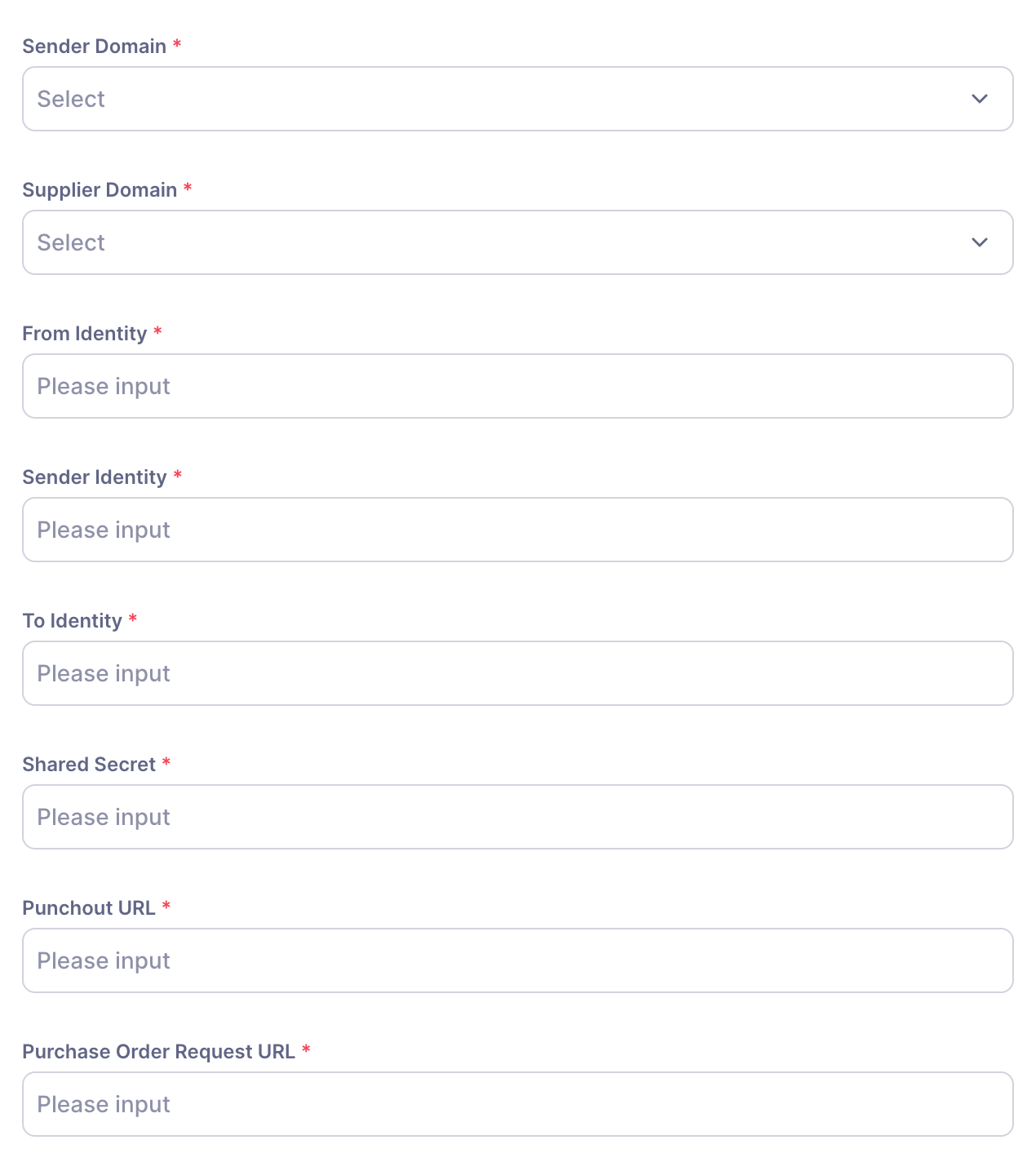
Here is a description of each field:
Connection Identity Fields
Sender Domain
Specifies the type of identifier used for the client in the cXML header.
Available options: NetworkID or DUNS
- Use
NetworkIDfor an Ariba Network ID (ANID) - Use
DUNS for a Dun & Bradstreet number
Supplier Domain
Specifies the type of identifier used for your organization in the cXML header.
Available options: NetworkID or DUNS
- Use
NetworkIDif you are identified on the Ariba Network - Use
DUNSif you use a DUNS number
From Identity
The client’s actual identifier value, based on the selected Sender Domain (ANID or DUNS).
For example: AN01234567890 (if Sender Domain = NetworkID)
To Identity
Your organization’s actual identifier value, based on the selected Supplier Domain (ANID or DUNS).
For example: AN09876543210 (if Supplier Domain = NetworkID)
Sender Identity
The credential used to authenticate the cXML request, typically your system login or integration username. It often matches the From Identity, but may differ depending on your setup.
Security
Shared Secret
A password or token used to authenticate cXML messages between your system and the client’s system. Both sides must use the same value.
Treat this as a password — share it securely and avoid sending it in plain email.
Endpoint URLs
Punchout URL
The entry point on your side used to launch the PunchOut catalog session. This URL receives the PunchOutSetupRequest when a customer clicks Request from [PunchOut_Name]
in Precoro.
Purchase Order Request URL
The URL on your side that receives the OrderRequest when the customer submits a purchase order from Precoro.
For custom PunchOut integrations, if you don't support receiving purchase orders through cXML, provide your client with a Purchase Order Request Email instead. Precoro can send approved POs to this address as PDF files.
As a supplier, provide both URLs with separate values for test and production environments.
Use this table to quickly check the meaning of each field during setup.
| Field | Description |
| Sender Domain | Client’s ID type (NetworkID or DUNS) |
| Supplier Domain | Supplier’s ID type (NetworkID or DUNS) |
| From Identity | Client’s identifier number (ANID or DUNS) |
| To Identity | Supplier's identifier number (ANID or DUNS) |
| Sender Identity | Authentication credential |
| Shared Secret | Shared password for request authentication |
| PunchOut URL | URL to launch the supplier catalog session |
| Purchase Order Request URL | URL to receive submitted purchase orders |
| Purchase Order Request Email | Email to receive submitted purchase orders in PDF |