
TABLE OF CONTENTS
- What Is a Budget in Precoro
- Benefits of Using Budgets in Precoro
- Common Budget Use Cases
- How to Activate the Budgets Module
- Key Budget Settings
What Is a Budget in Precoro
A budget is a system that allows you to plan for your income and expenses over a set period of time.
Real-time budgets show you how much you are spending against the amount you set, so you always know what's left before you approve a new purchase.
A budget can include one or several budget lines. Each budget line works as its own budget inside the larger budget, with its own period, total, and location, department, project, or account.
This lets you track spending at whatever level of detail your company needs, from one company-wide budget down to a separate line for every department or project.
Benefits of Using Budgets in Precoro
With Precoro budgets, you can:
- See up-to-date information on the procurement process and budget progress.
- Catch budget overspending on purchases.
- See how budget funds are allocated to payments, and what's still available.
- Set up budgets by department, project, or account for tighter spending control.
- Check real-time budget status before approving or denying an order.
- Track spending with budget usage and custom reports.
Common Budget Use Case
- Tracking multiple budgets within one project. Assign several budget lines to a single project or department, and track each one separately in the same budget list.
- Comparing available budgets across periods. See how much budget is available broken down by month, quarter, or a custom period you set, so you know what's left before you commit to a new purchase.
- Reusing the same budget structure across periods. Set up multiple periods with the same categories and limits within one budget, instead of rebuilding a budget from scratch every cycle.
How to Activate the Budgets Module
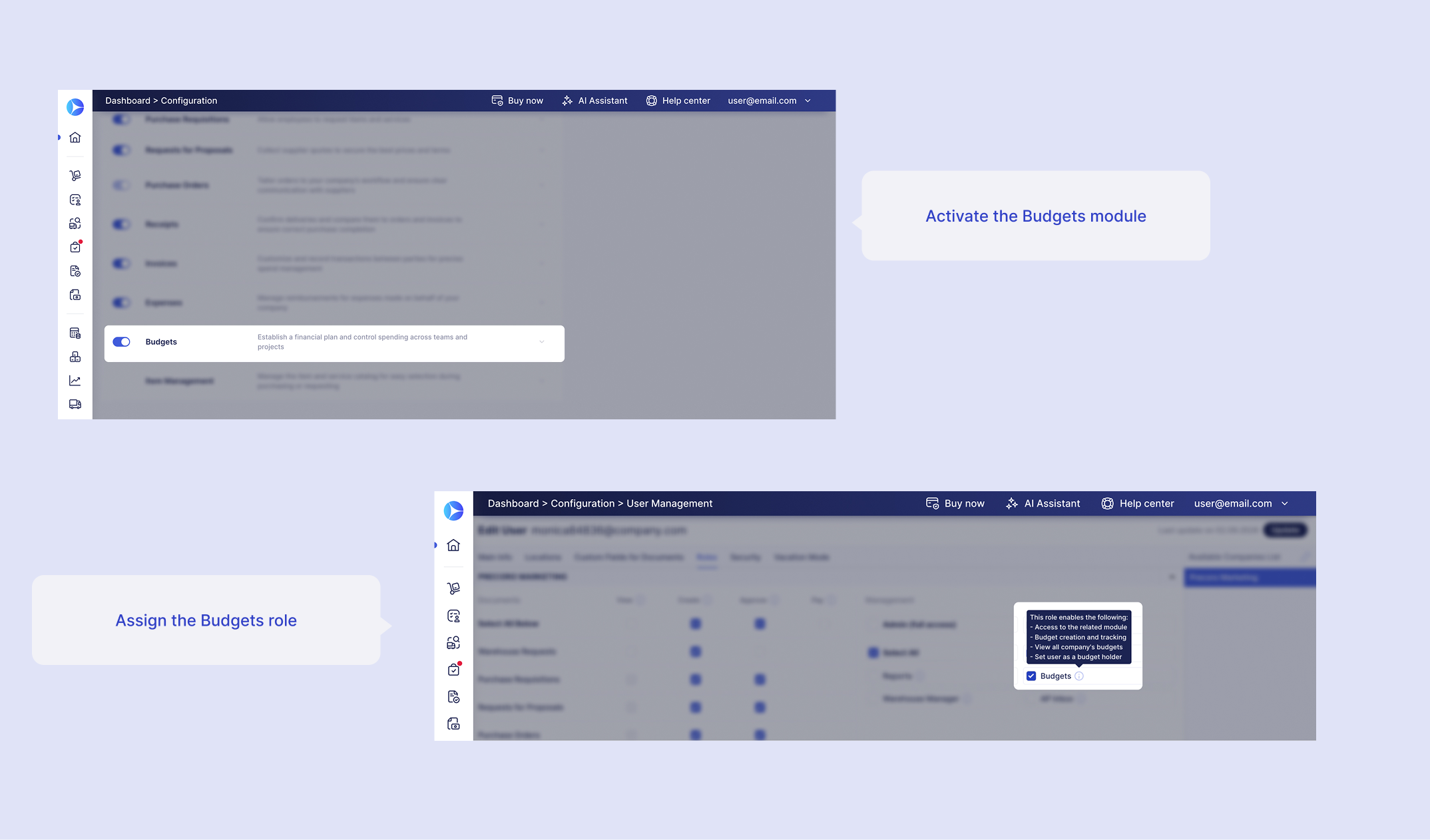
Enable or disable the Budgets module in Configuration → Basic Settings → Documents Setup → Budgets.
Only users with the Budgets role have access to the Budgets module. To assign this role, go to Configuration → User Management, click Edit next to the user, open the Roles tab, and check the Budgets field.
The Budgets role gives a user:
- Access to the Budgets module.
- Permission to create and manage budgets.
- Visibility into every budget in the company.
- The ability to be set as a budget holder.
Key Budget Settings
What to Include
- Location is checked by default.
- Optionally, include Custom Fields for Documents (departments or projects) or Custom Fields for Items (Chart of Accounts).
- If Multi-Entity Management is enabled, Legal Entity is also checked by default.
Learn more about including legal entities in budgets here.
Budget Periods
Budget lines are divided into periods, based on the period type and duration you choose:
- Monthly. Choose a duration of 1, 3, 6, or 12 months, and set a total for each month.
- Quarterly. Budget lines are divided into quarters, each with its own total.
- Custom period. Set up any period length you need. Many companies use this to record one amount per year.
Deducted Sum
Deducted Sum determines how Precoro calculates your budget: by Net Total, Gross Total, or a custom formula.
See the detailed guide for a worked example and setup steps.
Currency
If Multi-Entity Management is enabled, you can select a currency for the budget.
Once you create the budget, you can't change its currency, and only legal entities whose currency matches the budget's currency can be added to the budget's lines.
How Budget Amounts Are Calculated
Every budget tracks four amounts: Total, Used, Reserved, and Available. Refer to this article for details.
NEXT STEPS
- Once the module is active, see How to Create and Edit a Budget for step-by-step instructions on creating and managing your budget.
- Then use How to Track a Budget to monitor spending once it's live.