TABLE OF CONTENTS
Once your budget is set up, track how it's spending in real time: filter the budget list, pull a report, or open a single budget for a full breakdown of what's used, reserved, and still available.
New to Budgets? See Budgets for what each setting means, or How to Create and Edit a Budget if you need to set one up first.
Viewing the Budget List
You can view your budget list by:
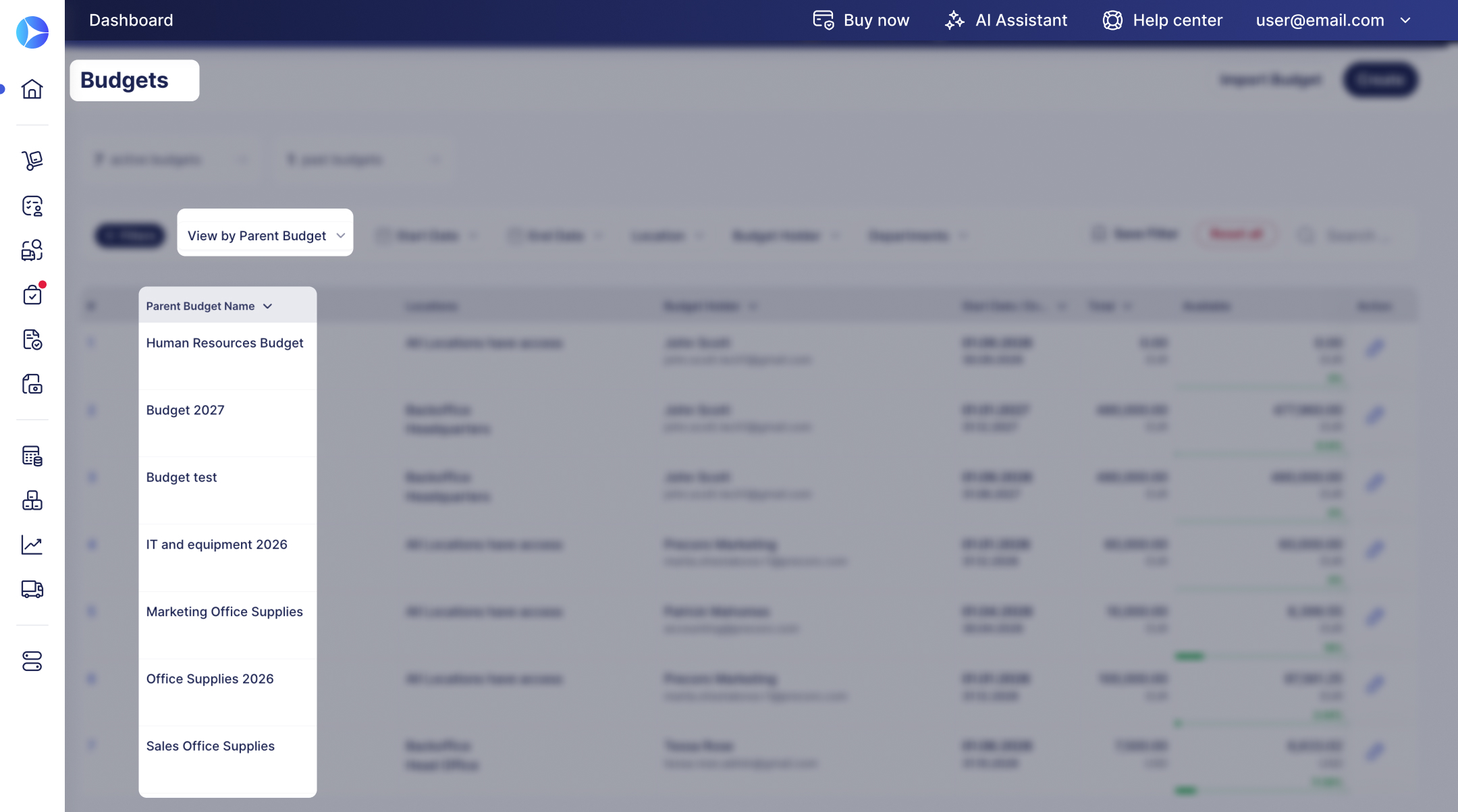
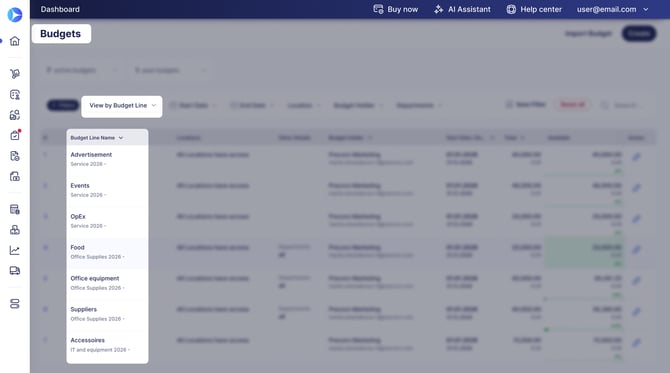
Ways to Track Budgets
Infocards, Filters, and Visual Analytics
Use the infocards, filters, and visual analytics on the budget creation and management page for a quick overview.
.jpg?hsLang=en)
Reports
Run a Budget Usage Report or a custom Budget Report for a detailed breakdown of spending.
Revision History
- Open the budget, scroll to the budget lines table
- Click Revision History next to the budget line you want to review.
- Select two revisions and click Compare to see the difference.
Revision History tracks changes to:
- Budget name
- Description
- Periods
- Sum
- Locations
- Custom Fields for Items
- Custom Fields for Documents
- Budget lines and sublines that were added or deleted
Budget Analytics
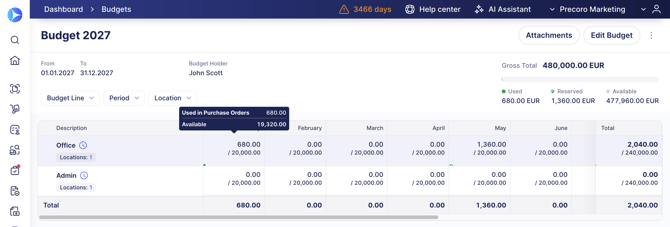
Open a budget to see, in real time:
- The Total amount of the whole budget.
- The Used amount.
- The Reserved amount for recurring documents.
- The Available amount. See this article for how it's calculated.
- The Start and End Dates.
- The Budget holder's email.
- How the Deducted Sum is calculated.
Scroll down to see the same information broken down by budget line. If the budget uses custom fields for items, you can only filter this view by location.
You can hover over any budget cell to view detailed usage by documents.