
TABLE OF CONTENTS
- Calculating Budget Amounts
- How Budget Amounts Change Through the Document Workflow
- Budget Limits and Overruns
- Tracking the Available Budget
Calculating Budget Amounts
Every budget tracks four key amounts:
| Amount | What It Means |
| Total | Sum of all budget lines (for the whole budget), or sum of a line's periods (for a single budget line). |
| Used | The amount currently accounted for by documents assigned to the budget. |
| Reserved | The amount set aside for future recurring documents that haven’t been created yet. |
| Available | The amount still available to spend: Total − Used − Reserved. |
These values update as documents are created and move through the purchasing process.
Total
Total is the amount allocated to the budget. Total is calculated based on the budget's Deducted Sum setting: as Net Total, Gross Total, or a Custom Deducted Sum. Learn more here.
- For the whole budget, Total is the sum of all budget lines.
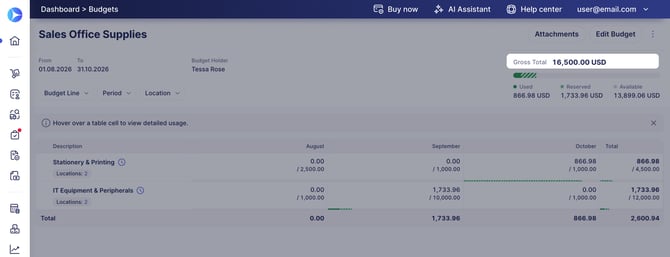
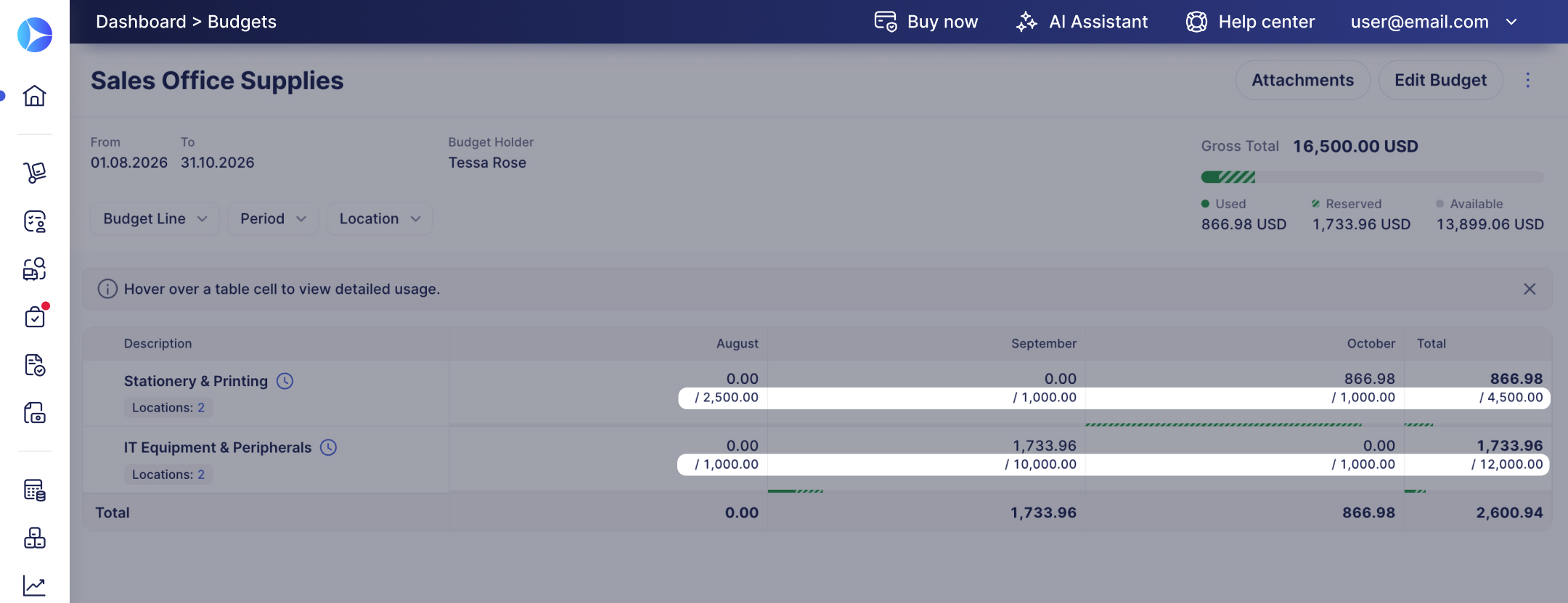
- For an individual budget line, Total is the sum of the amounts assigned to its periods.
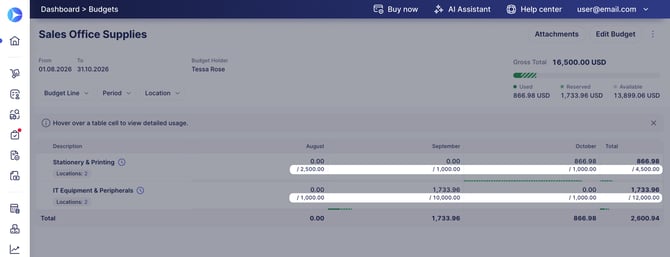
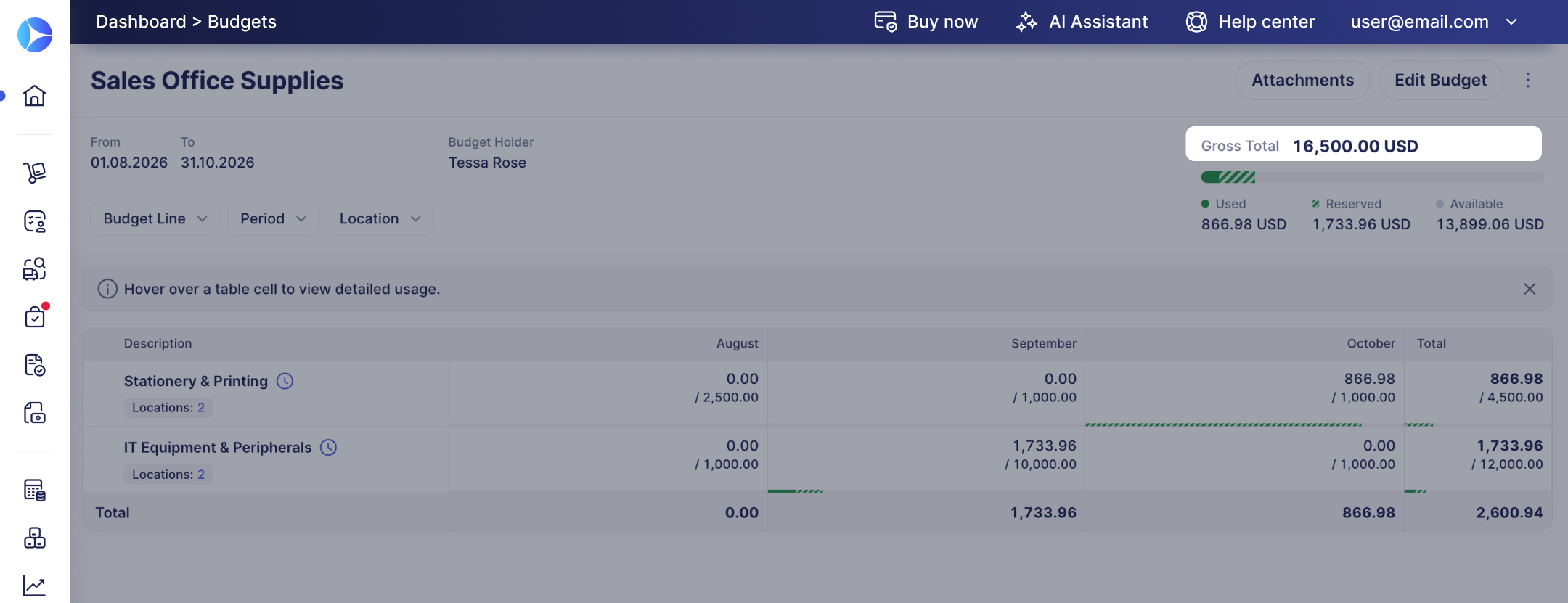
- Total at the bottom of the budget line’s table indicates Used + Reserved amounts for each budget line.
-budget-lines%20(1).jpg?width=670&height=258&name=total%20(used+reserved)-budget-lines%20(1).jpg)
-budget-lines%20(1).jpg?hsLang=en)
Used
It shows how much you have already spent on this budget. This includes all confirmed purchase orders and/or invoices created with this budget.
The sum of POs that don’t have invoices created + the Sum of invoices created manually (without POs) + the sum of invoices created for a PO.
If budgets for purchase requisitions(PRs) are enabled, PR amounts can also affect Used.
See Budget in Purchase Requisitions for the PR-specific workflow.
.jpg?hsLang=en)
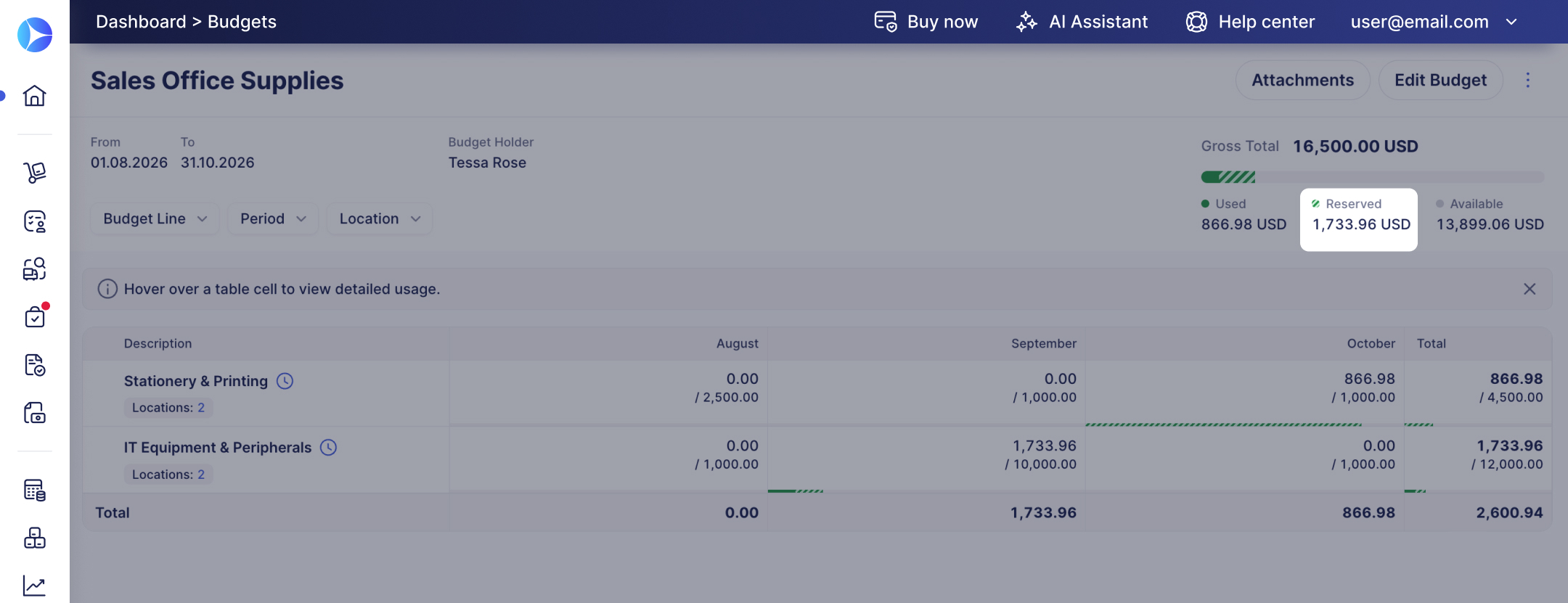
Reserved
Reserved is held for recurring purchase orders and invoices Precoro hasn't created yet.
When a budget is assigned to future recurring documents, Precoro reserves the corresponding amount in advance.
As each recurring document is created, its amount moves from Reserved to Used.
This allows the budget to account for not only current spending but also future purchases that have already been scheduled.
Available
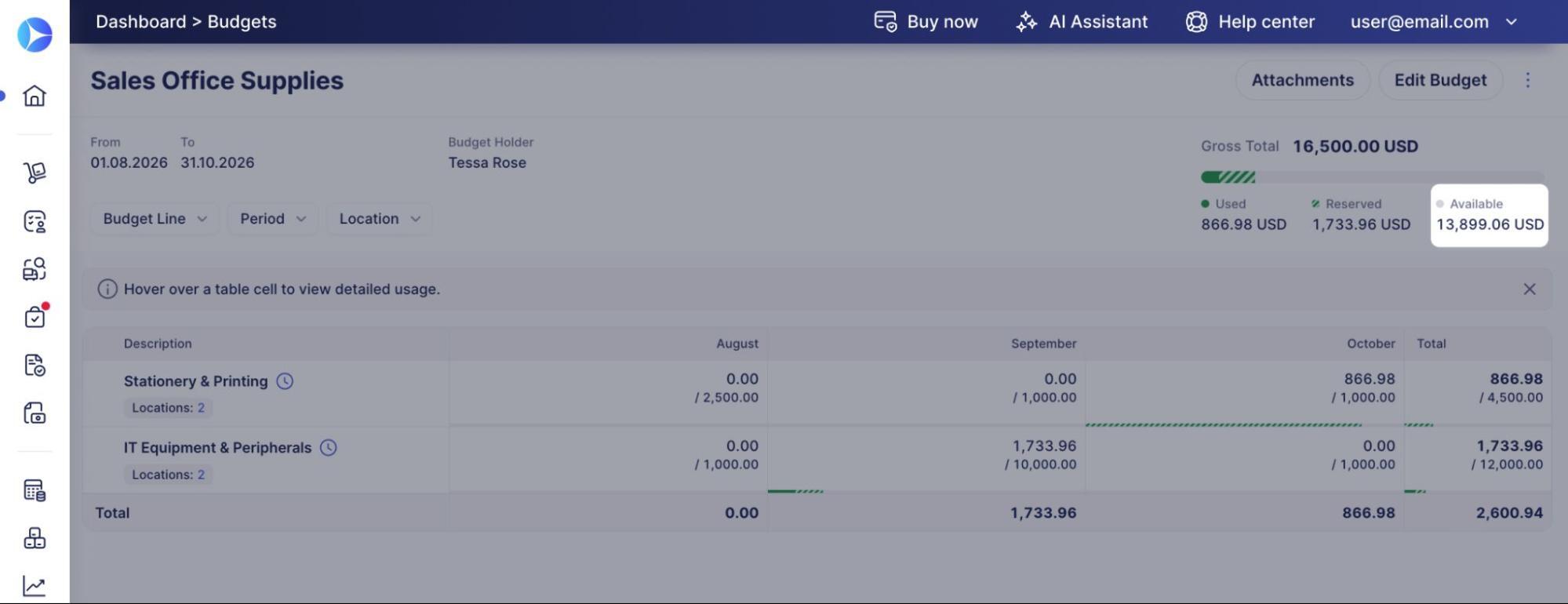
The Available amount indicates how much of the Budget remains.
Precoro calculates it using this formula:
Available sum = Budget sum – the sum of POs that don’t have invoices created – the sum of invoices created manually (excluding POs) – the sum of invoices created on PO – the sum of recurring POs available for further invoice creation.
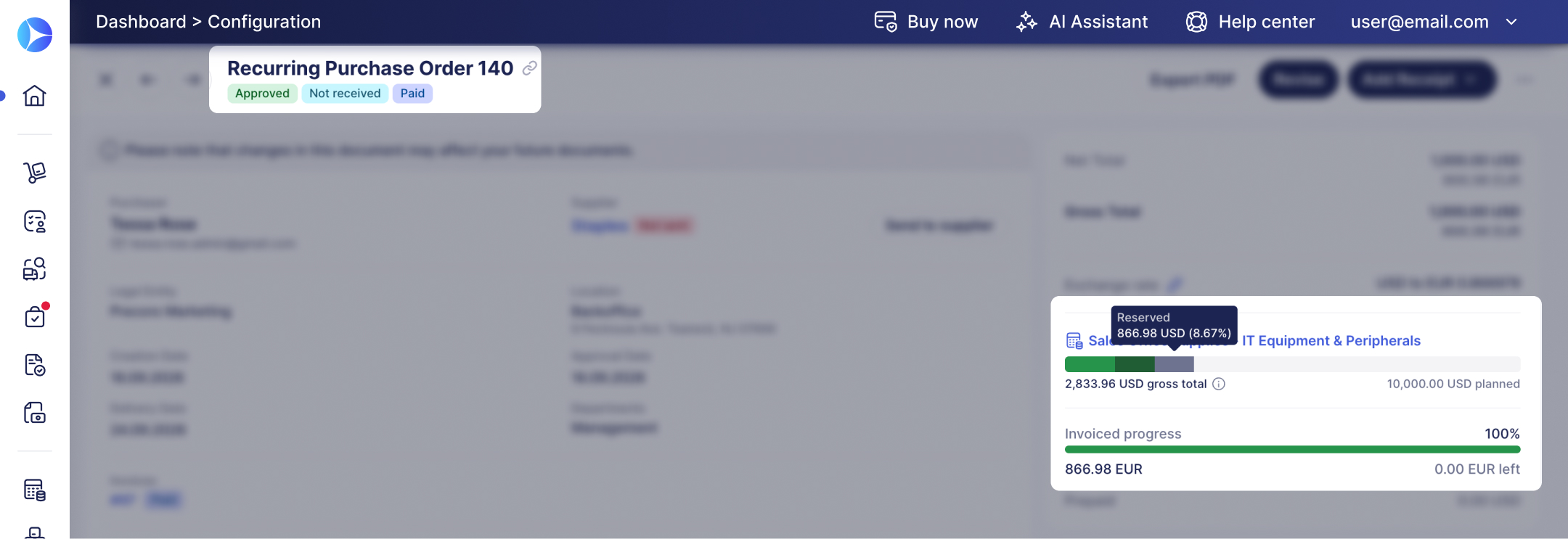
The available budget sum is also displayed on the PO/Invoice document pages (if a certain budget is assigned to the document)
If you don't want to show the available budget sum on the document pages to PR/PO/Invoice/Expense issuers, uncheck the corresponding setting in Configuration → Basic Settings → Document Setup → Budgets.
.jpg?hsLang=en)
Only approvers and budget holders will see the available amount.
To learn more about hiding the available budget sum from the document initiators, see this guide.
How Budget Amounts Change Through the Document Workflow
Budget amounts change as related documents are created and processed.
Recurring Documents
Amounts planned for future recurring POs or invoices are included in Reserved.
Once Precoro creates the recurring document, the corresponding amount moves from Reserved to Used.
Example
Budget: $5,000
A purchase order for $200 is created and invoiced, so Used already reflects $200. That purchase order is then set to recur monthly for two more months. Reserved covers those two remaining cycles.
| Amount | Value |
| Used (invoice from the original purchase order) | $200 |
| Reserved (2 remaining months × $200) | $400 |
| Available (5,000 − 200 − 400) | $4,400 |
After the next month's recurring purchase order is created ($200):
| Amount | Value |
| Used (200 + 200) | $200 |
| Reserved (400 − 200, 1 month left) | $400 |
| Available (5,000 − 200 − 400) | $4,400 |
Purchase Requisitions
If budgets for purchase requisitions are enabled, a PR can affect the Used amount before a PO is created.
When the purchasing process continues from the PR to a PO, the budget usage is recalculated according to the PO. Related documents do not cause duplicate budget consumption.
.jpg?width=670&height=278&name=pr-budget%20(1).jpg)
Example
Budget: $5,000
| Step | Used | Available |
| Purchase requisition for $800 is submitted | $800 | $4,200 |
| This PR becomes a purchase order for the same $800 | $800 | $4,200 |
If the purchase order amount differs, say $750, Used and Available follow the purchase order instead: Used becomes $750, Available $4,250.
See Budget in Purchase Requisitions for the complete workflow.
Purchase Orders to Invoices
The Used formula treats POs without invoices and invoices created from a PO as two separate amounts. As a purchase order gets invoiced, its amount moves between them:
- While a purchase order has no invoice, its full amount counts toward Used in Purchase Orders.
- When the purchase order is fully invoiced, the invoiced amount counts toward Used in Invoices, and the PO no longer contributes to Used in Purchase Orders.
- If only part of the PO is invoiced, the amount is split: the invoiced portion counts toward Used in Invoices, while the remaining uninvoiced portion stays under Used in Purchase Orders.
- If the invoice is created for more than the purchase order sum it's linked to, the full invoice amount counts toward Used, not the purchase order amount.
Example
Budget: $5,000. A purchase order for $1,000 can move through these stages:
| Stage | Used in purchase orders | Used in invoices | Available |
| No invoice created yet | $1,000 | — | $4,000 |
| Partly invoiced ($600 invoice) |
$400 | $600 | $4,000 |
| Fully invoiced ($1,000 invoice) | — | $1,000 | $4,000 |
Credit Notes
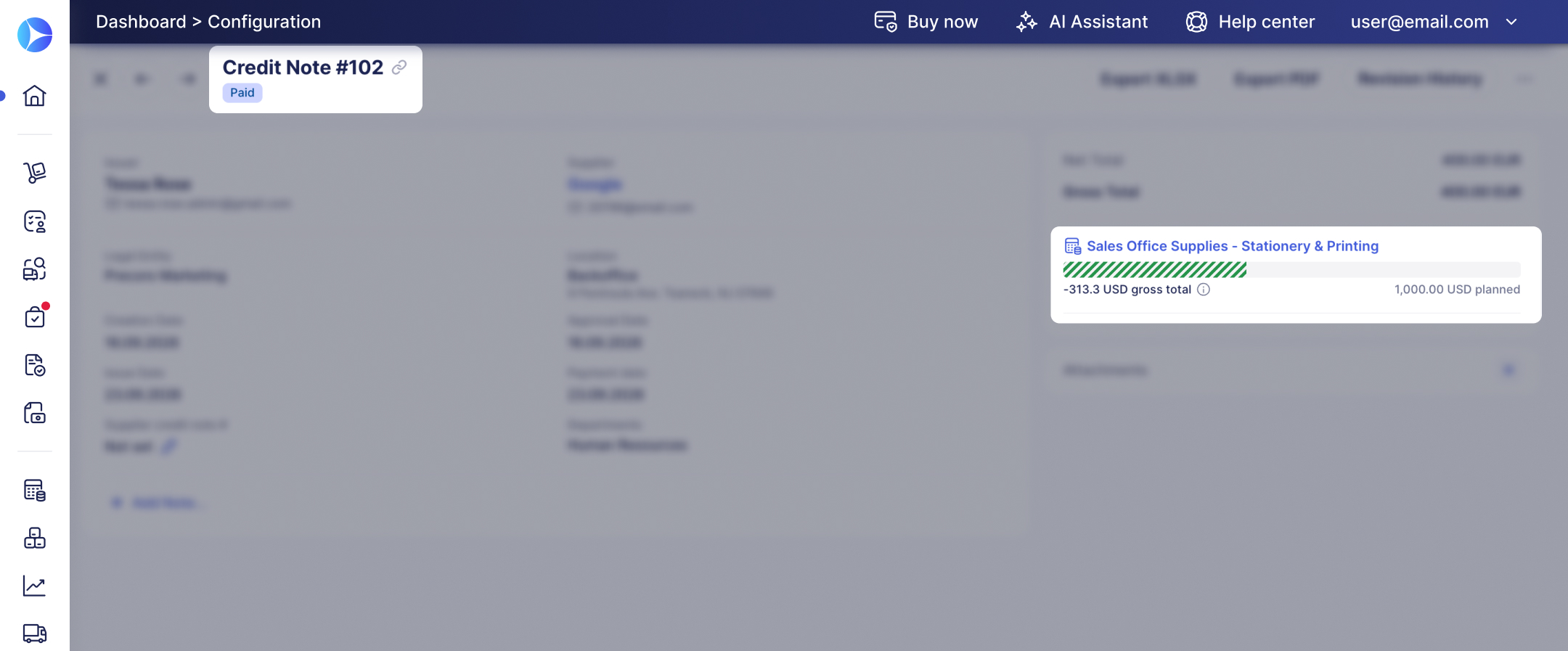
A credit note starts affecting the linked budget once it reaches Pending status: Used decreases by the credit note amount, and Available increases by the same amount, with Total unchanged.
A standalone credit note (one with no linked invoice) can also be assigned to a budget, if you enable Budgets for Credit Notes in Configuration → Basic Settings → Document Setup → Budgets.
It affects the assigned budget the same way, starting at Pending: Used decreases by the credit note amount, and Available increases by the same amount.
See Credit Note for the full Credit Note workflow.
Example
Budget: $5,000
A credit note for $300 moves to Pending.
| Amount | Before the credit note | After the credit note reaches Pending |
| Used | $2,000 | 2,000 − 300 = $1,700 |
| Available | 5,000 − 2,000 = $3,000 | 5,000 − 1,700 = $3,300 |
| Total | $5,000 | $5,000 (unchanged) |
This applies the same way whether the credit note is linked to an invoice or standalone.
When the credit note later moves to Approved or Paid, Used and Available stay at $1,700 and $3,300: the Pending status already applied the effect, so the later status change doesn't apply it again.
Budget Limits and Overruns
You can use the Budget Limits to control whether users can create documents when there isn’t enough Budget available.
If the Budget Limit is enabled, users cannot proceed when the required amount exceeds the available Budget.
You can also allow users to exceed the Budget. In this case, document Approvers are notified about the overrun.
See How to Create and Edit Budgets for Budget Limit setup instructions.
Tracking the Available Budget
When a Budget is assigned to a document, Precoro shows the Available amount so users can see how much remains before proceeding with the purchase.
If Budget exceeding is allowed, Approvers are notified when a PO or invoice exceeds the available amount.
The notification can appear in:
- the Approval Letter
- the document page
- document preview mode