
TABLE OF CONTENTS
- What is AI Document Scanning?
- Supported File Types and Languages
- How to Scan Expense Files
- How to Scan Purchase Requisitions Files
- How to Scan Purchase Orders
- How to Scan Receipt Files
- More on How AI Scanning Works
What is AI Document Scanning?
AI Document Scanning is a Precoro add-on enabled at the account level. It scans uploaded documents, extracts key information, and automatically creates documents using the detected data.
The feature is especially useful when working with large or complex documents, where manual processing takes more time and increases the risk of mistakes. By automating this step, you can process documents faster, improve accuracy, and keep data consistent across procurement workflows.
Please note:
This feature is included with Automation or Enterprise plans. If you’d like to enable AI Scanning with the Core plan, please contact your Customer Success Manager to purchase this add-on.
Contract scanning is handled separately by the Contract Agent in Contract Management. You can use it to upload contract files, extract required and custom field data, review AI-generated insights, and ask questions based on contract text. For more information read this article.
Supported File Types and Languages
AI Document Scanning accepts the following file types when scanning purchase orders, purchase requisitions, receipts, and expenses:
- Image
- XLSX
- XLS
- DOCX
- MSG
AI Document Scanning works best with the following languages:
- English (best overall)
- German, French, Spanish, Italian, Dutch, Portuguese
It also performs well with:
- Polish, Czech/Slovak, Romanian, Turkish, Ukrainian
Average accuracy may be expected for:
- Chinese (Simplified), Japanese, Korea
Lower accuracy may occur when processing:
- Arabic and Hebrew (right-to-left languages)
- Thai
- Vietnamese (diacritics-heavy)
- Indic languages (e.g., Hindi, Tamil)
Documents created via AI scanning are marked with an AI tag on the document page alongside the regular status, so approvers can easily identify and thoroughly review AI-generated documents.
How to Scan Expense Files
Create expense documents automatically with AI scanning. You can also automate expense creation from the mobile app with AI-powered receipt scanning—learn how to do it.
If you prefer to create an expense manually, see this guide.
💡Pro tip: You can upload up to 20 files at once, and Precoro will combine them into one Expense.
This is useful when you need to create one expense document for several receipts, for example, after a business trip.
You can scan expense files in just a few steps:
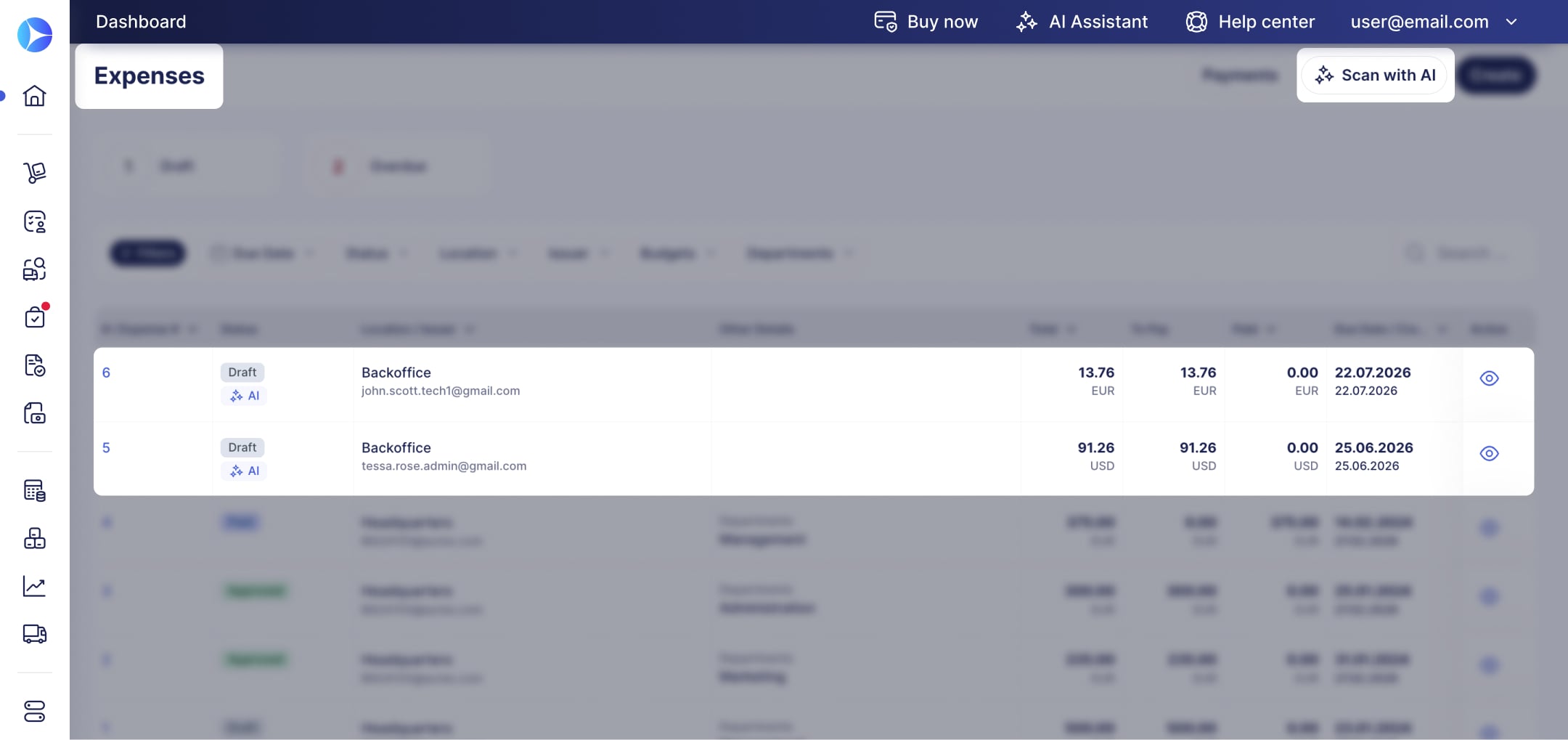
- Open the Expenses module.
- Upload the files with expense information in one of the following ways:
- Click Scan Expense in the top right corner and select one file, or several files at once (up to 20). Files can be any of the supported file types, and you can combine different formats within the same batch. If multiple custom forms exist, you can choose which form the expense will be created from.
- Drag and drop the files from your file manager onto the page.
- Click Scan Expense in the top right corner and select one file, or several files at once (up to 20). Files can be any of the supported file types, and you can combine different formats within the same batch. If multiple custom forms exist, you can choose which form the expense will be created from.
- Precoro scans the uploaded files and extracts the relevant data. If you selected more than one file, it combines them into one attachment.
- The system automatically creates an expense document with Draft status.
Please note!
- Read more on how taxes, currencies, and suppliers are handled during AI expense scanning in the section below.
- For larger documents, data recognition may take longer, but you can keep working while processing continues in the background. The created drafts will appear on the Expenses page.
How to Scan Purchase Requisitions Files
AI scanning also allows you to create purchase requisitions (PRs) from supplier quotations directly in the Purchase Requisitions module.
If you want to create a PR manually, learn how to do it here.
To scan a quotation using AI:
-
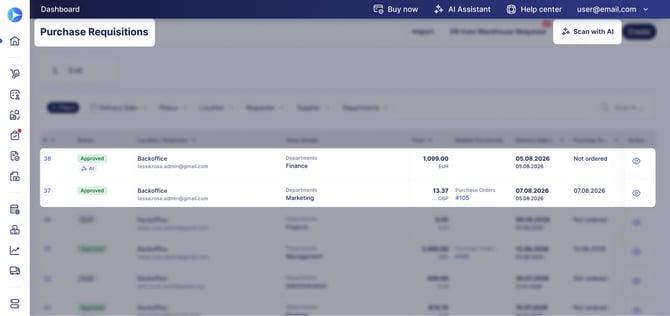
Navigate to the Purchase Requisitions page and click Scan with AI in the top right corner.
-
If multiple custom forms exist, choose which form the PR will be created from.
-
Upload the quotation in any of the supported file types.
- Wait a few seconds while Precoro recognizes the data and creates a draft Purchase Requisition.
You can then review, edit, and confirm the requisition.
Please note!
If the quotation includes an item without a recognized price, Precoro handles it in the following way:
- If the item is matched with a catalog item, Precoro uses the price from the catalog.
- If the item is not matched with a catalog item, Precoro keeps it as Free of Charge.
Scanned documents are marked with an AI tag in the Status column.
Please note!
- Read more on how currencies are handled during AI scanning in the section below.
- If AI detects a supplier and a currency that isn’t available for that supplier, it still creates the PR but leaves the Supplier field empty.
- AI maps items to catalog items when possible. Some items may match the catalog, while others remain unmatched.
-
- For catalog-matched items, Precoro automatically fills the following fields:
Name, SKU, Custom item fields, Unit, Currency. - If Restrict Catalog Items Editing is enabled, catalog item details can’t be edited. However, users can still change the item price if the AI extracted it incorrectly.
- For catalog-matched items, Precoro automatically fills the following fields:
.png?hsLang=en)
How to Scan Purchase Orders Files
Create purchase orders from supplier documents automatically with AI scanning, so you don't have to enter supplier and item details by hand.
If you still prefer creating a PO manually, learn how to do it here.
To scan a PO files takes just a few steps:
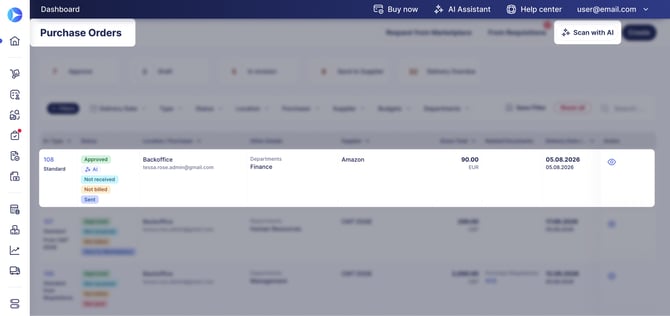
- Open the Purchase Orders page and click Scan with AI in the top right corner.
- Select which form to use, if your account has more than one custom form set up.
- Upload the source file in any of the supported file types.
- Precoro reads the file, matches the supplier and items to your existing records, and creates a draft Purchase Order within seconds.
The draft is ready for you to review, adjust, and confirm like any other PO.
Please note!
-
Read more on how taxes, currencies, and suppliers are handled during AI PO scanning in the section below.
- If AI can't recognize an item's price, Precoro sets it to 0.
- Legal Entity is set to the main Legal Entity of the user who initiated the scan.
- Custom document fields are left empty, fill them in on the draft before confirming.
How to Scan Receipt Files
You can automatically create receipts using AI-powered scanning directly from the Receipts module. Users with Automation and Enterprise plans can access this functionality in three simple steps:
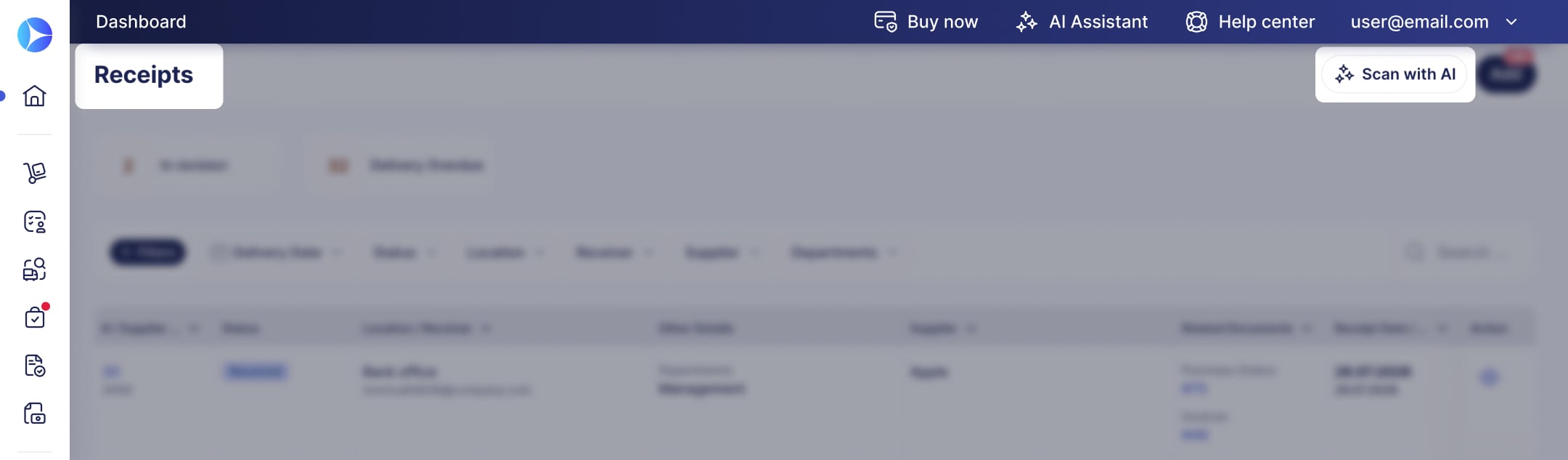
- Navigate to the Receipts page and click Scan with AI in the top right corner.
- Upload the document in any of the supported file types.
- Wait only a few seconds while Precoro recognizes the data and automatically creates a receipt.
Precoro will match the Supplier, PO, and items. If matching fails on any stage, you’ll see a flash message prompting you to create the receipt manually.
AI receipt scanning is also available in our mobile app. For instructions on how to scan receipts using your phone follow this link.
More on How AI Document Scanning Works
Tax Matching for Scanned Expenses and Purchase Orders
To provide accurate tax calculations at the item level, Precoro's AI compares the recognized tax rate and matches it to the tax rates already set up in your company in the following order:
- Supplier’s default tax rate.
- Other company-level tax rates.
Once Precoro finds a match, the tax is applied automatically.
When no match is found, Precoro creates a tax item using the total tax amount from the scanned document, so nothing is left unaccounted for.
Automatic Supplier Creation during PO Scanning
When AI scanning of a purchase order doesn’t find a matching supplier, Precoro creates the supplier automatically and adds it to the purchase order.
- The Add New Suppliers During AI Document Processing checkbox is enabled in Configuration → Basic Settings → Document Setup → General Settings.
It’s enabled by default. - The Allow Document Creators to Add New Suppliers is activated in the same settings, or the user who started the scanning has the Supplier Create role.
The new supplier gets Pending status if your company uses a supplier approval workflow, or Approved if it doesn’t.
Precoro creates the supplier profile with the details recognized in the document: name, currency, address, phone number, and tax ID.
Currency Handling During Scanning
If AI scanning can't detect a currency, or detects one your company hasn't set up yet, Precoro handles it automatically instead of blocking the document. Here’s how it works:
- No currency detected—the document uses your company's primary currency.
- Currency detected but not yet set up—Precoro adds the currency to your company, with a default exchange rate, and applies it to the document.
Fix AI Document Scanning Recognition
When AI scanning misreads a PR, PO, expense, or receipt, you can report this incident to help us adjust recognition for your company. It works similarly to recognition improvement for invoices:
- Open an AI-scanned PO, PR, expense, or receipt, where you’re not satisfied with the recognition quality.
- Press the Fix Recognition button in the top right.
- Explain what went wrong in the pop-up window and submit your feedback.
Your comments go straight to our team, so we can train the AI and improve recognition for your company. The changes will apply to further documents and will not affect what was created before.