
TABLE OF CONTENTS
Edit Item Fields at Once for Several Items
If you need to enter or select the same option for multiple lines in an item table, you can use mass editing—no more copying values one by one.
Here's how to do it:
- Find the item table: Open a document you’d like to change and scroll down.
- Select items: Check the boxes in the leftmost column for the lines you want to edit.
- Open mass edit: Once multiple items are selected, the Edit Items button appears at the bottom of the screen. Click it to open the sidebar.
- Apply changes: Enter the necessary values in the sidebar and click Save. The changes will be applied to all selected items.
Accurately Allocate the Costs of Blanket Purchase Orders
When creating an invoice for a blanket purchase order (BPO) per Total, you can now enable Split Costs. This feature allows you to divide the cost between budgets, locations, or custom document fields within a single invoice.
Please note that:
- You can add a split invoice even if you’ve already created invoices for the order.
- Adding a split invoice doesn’t split the BPO itself.
- If you’re splitting an item in the invoice as described here, the first custom field value is transferred to the BPO.
For more information on Split Costs, please refer to this guide.
Automatically Turn Quotations Into PR Drafts
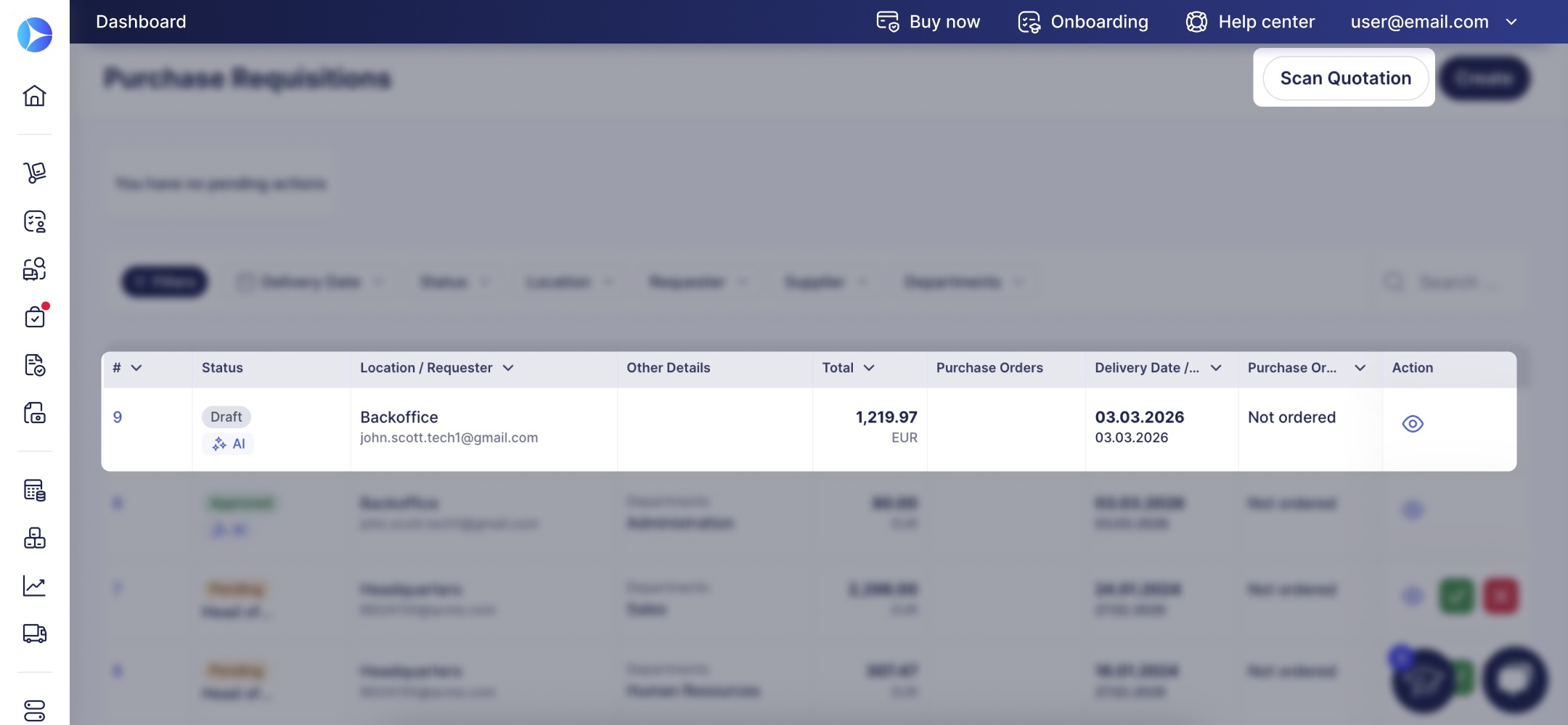
Quickly create requisitions with AI-powered supplier quotation scanning, now available directly from the Purchase Requisitions module. Users with Automation and Enterprise plans can access this functionality in three simple steps:
- Navigate to the Purchase Requisitions page and click Scan Quotation in the top right corner.
- Upload the quotation as an image or PDF.
- Wait only a few seconds while Precoro recognizes the data and automatically creates a draft.
You can then review, edit, and confirm the requisitions. Scanned documents are easy to spot with the AI tag in the Status column.
Ensure Amazon PunchOut Orders Are Sent on Time
According to Amazon policies, orders created via PunchOut must be approved and sent to the marketplace within 7 days; otherwise, the documents expire. To help you follow these guidelines and guarantee that Amazon receives your approved orders, we’ve improved the tracking for PunchOut documents:
- Time reminders on creation
When you create a PR or PO via PunchOut, a flash message appears in the top-right corner of the screen, showing how much time you have to approve the order and send it to Amazon. - Warnings for expired orders
If the order isn’t approved in 7 days, opening it displays this message:
“This order has expired and won't be received by the marketplace.”
Approving the order after expiration will not send it to Amazon.
Fully Control Procure-to-Pay Process by Integrating Precoro with BILL
Precoro US server users now have the ability to establish integration with Bill.com—a leading US platform for payment automation.
Here are only a few of the benefits this integration unlocks:
- Compliant payments aligned with your spending rules.
- Confidence that all invoices are approved before proceeding to payment.
- Minimal inconsistencies and errors that increase spend.
Please check out the following guide to learn more about this feature: Getting Started with Bill.com Integration.
Improve Your Flexibility with the Mobile App Update
The Warehouse Request module is now available on mobile! Please update the app to create, edit, confirm, and approve WRs with items from the catalog directly in the app.
The new version also allows you to edit items in receipts and improves the following functionality:
- Attachments in the Expenses module;
- Dependencies between custom item and document fields;
- Switching between companies.