---
title: Uline PunchOut Catalog
description: Learn how to set up the Uline punchout catalog to create purchase requisitions and orders with ease.
---
[Skip to content](https://help.precoro.com/uline-punchout-catalog#main-content)
[Contact us](https://help.precoro.com/kb-tickets/new?hsLang=en) [Customer portal](https://help.precoro.com/tickets-view?hsLang=en)
[](https://app.precoro.com/login)
Open main navigation
Close main navigation
- [Contact us](https://help.precoro.com/kb-tickets/new)
- [Customer portal](https://help.precoro.com/tickets-view)
- [Contact Us](https://share.hsforms.com/1-5JilMA_Qv6AOSVjFtNhDg14slf)
[Contact Us](https://share.hsforms.com/1-5JilMA_Qv6AOSVjFtNhDg14slf)
Hi there! How can we help you today?
- There are no suggestions because the search field is empty.
1. [Knowledge Base](https://help.precoro.com/?hsLang=en)
2. [Precoro Integrations](https://help.precoro.com/precoro-integrations?hsLang=en)
3. [PunchOut Catalogs](https://help.precoro.com/precoro-integrations?hsLang=en#punchout-catalogs)
# Uline PunchOut Catalog
## In this article, you will learn how to configure and start working with Uline punchout catalogs to simplify and speed up the creation of PR and PO documents in Precoro.
**TABLE OF CONTENTS**
- [How to Set Up Uline Integration](https://help.precoro.com/uline-punchout-catalog#setup)
- [Configuration Settings For Administrators](https://help.precoro.com/uline-punchout-catalog#how-to-configure)
- [Setting Up Locations and Legal Entities](https://help.precoro.com/uline-punchout-catalog#legal-entities)
- [How to Use Uline Integration](https://help.precoro.com/uline-punchout-catalog#how-to-use-integration)
- [How to Create Purchase Requisitions from Uline](https://help.precoro.com/uline-punchout-catalog#pr-creation)
- [How to Create Purchase Orders Without PRs from Uline](https://help.precoro.com/uline-punchout-catalog#po-creation)
- [Redirect to Uline Button](https://help.precoro.com/uline-punchout-catalog#redirect)
- [Frequently Asked Questions](https://help.precoro.com/uline-punchout-catalog#faq)
A PunchOut Catalog is a B2B E-commerce website that you can access directly from the Precoro procurement system.
Precoro offers a number of punchout integrations available from the[Marketplace Configuration](https://app.precoro.com/marketplaces) ([Marketplace Configuration](https://app.precoro.us/marketplaces) for app.precoro.us) page. These connections let you access supplier E-commerce websites directly from Precoro, making PR and PO creation faster and error-free.
Uline is a leading U.S. distributor of shipping, industrial, and packaging materials. Learn how to set up and use the Uline punchout catalog to simplify requisition and order creation for this supplier.
### How to Set Up Uline Integration
#### Configuration Settings For Administrators
1. In Precoro, go to the Configuration — [Marketplace Configuration](https://app.precoro.com/marketplaces) ([Marketplace Configuration](https://app.precoro.us/marketplaces) for app.precoro.us) page, find Uline in the list, and press **Add**.
2. Identify whether your purchase process will begin, with the Order or Requisition document in the **Start Purchase Process From** field. Depending on your choice, you will see the **Request from Uline** button in the Purchase Requisitions or Purchase Orders module.
You can always return and change your document selection in the Start Purchase Process From field.
If your company uses multiple legal entities, enable the **Set by Legal Entity** option to configure PunchOut catalogs separately for each one. Learn more [here](https://help.precoro.com/marketplace-configuration-page#entities:~:text=received%20the%20confirmation.-,PunchOut%20Configuration%20for%20Multiple%20Legal%20Entities,-If%20your%20company).
3. Please contact a Uline representative and provide your account number to receive credentials for the punchout.
4. Paste the received credentials into the configuration settings. See the detailed explanation for each field [here](https://help.precoro.com/how-to-connect-punchout-catalogs-not-provided-by-precoro#:~:text=Here%20is%20a%20detailed%20description%20of%20each%20field:).
**Note:** Unlike other PunchOut integrations that require a Purchase Order Request URL, Uline uses the **Punchout Order Request Email** field to receive approved PO PDFs by email.
5. After entering the information from a Uline representative, select the needed data in the following fields, depending on the type of document you chose, you will see different fields:
- **Deliver orders to** — here you need to specify whose contacts should be provided for delivery: the PO Purchaser or the PR Requester.
- **Default Purchaser** — select a user who will be listed as the Purchase Order Purchaser created from the Uline Purchase Requisition. Please note that only those users with Create Purchase Order roles can be selected from the list.
- **Supplier** — select Uline from the list of your existing suppliers. If you don't have this supplier on your list yet, you can always add them.
6. Check all the entered information and press the **Save** button.
If you use the **Inventory** module, you can enable **Automatically Add Items to the Catalog** to add Uline PunchOut items to your catalog and track them in inventory when receipts are added. Learn how to enable it [here](https://help.precoro.com/marketplace-configuration-page#punchout-items).
When contacting a representative, please CC your Customer Success Manager and [punchout@precoro.com](mailto:punchout@precoro.com). This allows us to promptly assist you with the PunchOut setup.
#### Setting Up Locations and Legal Entities
For documents created through PunchOut, you can only select Locations with Marketplace Shipping Address filled out. Learn how to configure locations [here](https://help.precoro.com/how-to-add-locations-edit-location-information?hsLang=en#Location-Integration).
When configuring [Legal Entities](https://app.precoro.com/manage/legal_entity?enable=1) ([Legal Entities](https://app.precoro.us/manage/legal_entity?enable=1) for app.precoro.us) in companies with enabled punchout catalogs, press **Marketplace Billing Address** and fill out additional fields. This information serves as a billing address in POs created with the punchout. If not set in the legal entity, the billing address will be copied from the location.
### How to Use Uline Integration
#### How to Create Purchase Requisitions from Uline
Once the integration setup is done, you can start creating documents using the PunchOut catalog. If Purchase Requisition is selected in the **Start Purchase Processes** **From** field, open the **Purchase Requisitions** module to begin.
1. On the top panel, click the **Request from Uline** button or click **Request from Marketplace** and select Uline on the following page. If you have multiple forms for PR creation, choose one from the drop-down list.
2. Fill out the required information to create a new PR document. Please note that only locations with **Marketplace Shipping Address** configured will be available in the Location field. Then press **Next Step**.
3. You will be redirected to the Uline catalog, where you can browse products, specify quantities, and add items to the cart.
4. Once your cart is ready, review the order details on the checkout page and press **Check** **Out**.
5. You will be automatically redirected to Precoro with the created Purchase Requisition on the **Draft** status. Check the information, fill in the necessary Custom Fields for Items, and **Confirm** the document.
6. The PR will undergo the [Approval Workflow](https://help.precoro.com/approval-workflow-1?hsLang=en) configured in your company. Once it gains the Approved status, a related purchase order will be created.
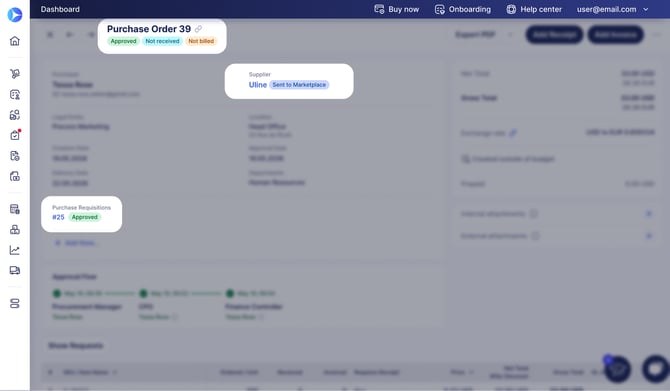
When the PO is approved, Precoro sends the purchase order PDF to the email address specified in the **Punchout Order Request Email** field.
[](https://help.precoro.com/hubfs/po-created-from-uline-pr.jpg?hsLang=en)
After the email is successfully delivered, the PO receives the **Sent** status.
#### How to Create Purchase Orders Without PRs from Uline
You can also create documents with the PunchOut catalog if your company does not use Purchase Requisitions. If Purchase Order is selected in the **Start Purchase Processes From** field, open the **Purchase Orders** module to begin.
1. On the top panel, click the **Request from Uline** button or select **Request from Marketplace** and choose Uline on the next page. If you use multiple PO forms, select the needed one from the drop-down list.
2. Fill out the required information to create a new PO document. Please note that only locations with **Marketplace Shipping Address** configured will be available in the Location field. Then press **Create**.
3. You will be redirected to the Uline catalog, where you can browse products, specify quantities, and add items to the cart.
4. Review the order information on the **Order** page. If everything looks good, click the **Check Out** button.
5. After checkout, you will be automatically redirected back to Precoro with the created Purchase Order in **Draft** status. Review the document, complete any required Custom Fields for Items, and Confirm the PO.
6. The Purchase Order will go through the [Approval Workflow](https://help.precoro.com/approval-workflow-1?hsLang=en) configured in your company. Once the PO is approved, Precoro sends the PO PDF to the email address specified in the Punchout Order Request Email field. After the email is successfully delivered, the PO receives the **Sent** status.
#### Redirect to Uline Button
This feature allows you to return to the Uline catalog and update your order or requisition before the document is finalized.
While the document is in **Draft** or **In Revision** status, the document creator can press **Redirect to Uline** in the action panel to edit selected items directly on the supplier’s store page. If your purchasing process starts with a Purchase Requisition, the button remains available only until a related PO is created.
**Approvers** and **Super Users** can use the button if they **Revise** the document.
### Frequently Asked Questions
**How do I set up a correct billing address?**
When configuring [Legal Entities](https://app.precoro.com/manage/legal_entity?enable=1) ([Legal Entities](https://app.precoro.us/manage/legal_entity?enable=1) for app.precoro.us) in companies with enabled punchout catalogs, press **Marketplace Billing Address** and fill out additional fields. This information serves as a billing address in POs created with the punchout. If not set in the legal entity, the billing address will be copied from the location.
**How do I delete a PunchOut Catalog?**
You can delete any PunchOut Catalog on its configuration page. Learn how to do it [here](https://help.precoro.com/marketplace-configuration-page?hsLang=en#disable).
- [Precoro Setup](https://help.precoro.com/precoro-setup?hsLang=en#main-content)
- [Configurations](https://help.precoro.com/precoro-setup?hsLang=en#configurations)
- [User Management](https://help.precoro.com/precoro-setup?hsLang=en#user-management)
- [Custom Fields and Forms](https://help.precoro.com/precoro-setup?hsLang=en#custom-fields-and-forms)
- [Supplier management](https://help.precoro.com/precoro-setup?hsLang=en#supplier-management)
- [Working with Items](https://help.precoro.com/precoro-setup?hsLang=en#working-with-items)
- [Approval Workflow](https://help.precoro.com/precoro-setup?hsLang=en#approval-workflow)
- [Location Management](https://help.precoro.com/precoro-setup?hsLang=en#location-management)
- [Precoro Payments](https://help.precoro.com/precoro-setup?hsLang=en#precoro-payments)
- [Two-factor authentication](https://help.precoro.com/precoro-setup?hsLang=en#two-factor-authentication)
- [Security](https://help.precoro.com/precoro-setup?hsLang=en#security)
- [US Based Server](https://help.precoro.com/precoro-setup?hsLang=en#us-based-server)
- [How to use Precoro](https://help.precoro.com/how-to-use-precoro?hsLang=en#main-content)
- [Warehouse Requests](https://help.precoro.com/how-to-use-precoro?hsLang=en#warehouse-requests)
- [Requests for Proposals](https://help.precoro.com/how-to-use-precoro?hsLang=en#requests-for-proposals)
- [Purchase Requisitions](https://help.precoro.com/how-to-use-precoro?hsLang=en#purchase-requisitions)
- [Purchase Orders](https://help.precoro.com/how-to-use-precoro?hsLang=en#purchase-orders)
- [Service Orders](https://help.precoro.com/how-to-use-precoro?hsLang=en#service-orders)
- [Receipts](https://help.precoro.com/how-to-use-precoro?hsLang=en#receipts)
- [Invoices](https://help.precoro.com/how-to-use-precoro?hsLang=en#invoices)
- [Expenses](https://help.precoro.com/how-to-use-precoro?hsLang=en#expenses)
- [Budgeting](https://help.precoro.com/how-to-use-precoro?hsLang=en#budgeting)
- [Inventory](https://help.precoro.com/how-to-use-precoro?hsLang=en#inventory)
- [Reports](https://help.precoro.com/how-to-use-precoro?hsLang=en#reports)
- [AP Inbox and Intelligent AP Automation](https://help.precoro.com/how-to-use-precoro?hsLang=en#ap-inbox-and-intelligent-ap-automation)
- [Working with documents](https://help.precoro.com/how-to-use-precoro?hsLang=en#working-with-documents)
- [Suppliers Portal](https://help.precoro.com/how-to-use-precoro?hsLang=en#suppliers-portal)
- [Supplier Registration](https://help.precoro.com/how-to-use-precoro?hsLang=en#supplier-registration)
- [Attachments, Filters, and Search](https://help.precoro.com/how-to-use-precoro?hsLang=en#attachments-filters-and-search)
- [Mobile App](https://help.precoro.com/how-to-use-precoro?hsLang=en#mobile-app)
- [FAQs and Troubleshooting](https://help.precoro.com/how-to-use-precoro?hsLang=en#faqs-and-troubleshooting)
- [Precoro Integrations](https://help.precoro.com/precoro-integrations?hsLang=en#main-content)
- [QuickBooks Online Integration](https://help.precoro.com/precoro-integrations?hsLang=en#quickbooks-online-integration)
- [NetSuite Integration](https://help.precoro.com/precoro-integrations?hsLang=en#netsuite-integration)
- [Xero Integration](https://help.precoro.com/precoro-integrations?hsLang=en#xero-integration)
- [API Requests and Webhooks](https://help.precoro.com/precoro-integrations?hsLang=en#api-requests-and-webhooks)
- [SSO Setting](https://help.precoro.com/precoro-integrations?hsLang=en#sso-setting)
- [Google Integration](https://help.precoro.com/precoro-integrations?hsLang=en#google-integration)
- [Power BI](https://help.precoro.com/precoro-integrations?hsLang=en#power-bi)
- [Integration with Slack](https://help.precoro.com/precoro-integrations?hsLang=en#integration-with-slack)
- [PunchOut Catalogs](https://help.precoro.com/precoro-integrations?hsLang=en#punchout-catalogs)
- [Integrations via Connectors](https://help.precoro.com/precoro-integrations?hsLang=en#integrations-via-connectors)
- [Bill.com Integration](https://help.precoro.com/precoro-integrations?hsLang=en#bill-com-integration)
- [Precoro Updates](https://help.precoro.com/precoro-updates?hsLang=en#main-content)
- [Releases, 2026](https://help.precoro.com/precoro-updates?hsLang=en#releases-2026)
- [Releases, 2025](https://help.precoro.com/precoro-updates?hsLang=en#releases-2025)
- [Releases, 2024](https://help.precoro.com/precoro-updates?hsLang=en#releases-2024)
- [Releases, 2023](https://help.precoro.com/precoro-updates?hsLang=en#releases-2023)
- [API Updates](https://help.precoro.com/precoro-updates?hsLang=en#api-updates)
- [General changes](https://help.precoro.com/precoro-updates?hsLang=en#general-changes)
[](https://precoro.com/)
Copyright © 2026, Precoro
```json
{
"@context" : "https://schema.org",
"@type" : "VideoObject",
"contentUrl" : "https://1903299.fs1.hubspotusercontent-na1.net/hubfs/1903299/Uline-pr-creation.mp4",
"dateModified" : "2026-05-19T11:13:31.603Z",
"duration" : "PT1M6S",
"height" : 1080,
"name" : "Uline-pr-creation",
"thumbnailUrl" : "https://1903299.fs1.hubspotusercontent-na1.net/hubfs/1903299/Uline-pr-creation.mp4/medium.jpg",
"uploadDate" : "2026-05-19T11:13:11.276Z",
"width" : 1904
}
```
```json
{
"@context" : "https://schema.org",
"@type" : "VideoObject",
"contentUrl" : "https://1903299.fs1.hubspotusercontent-na1.net/hubfs/1903299/po-creation-uline.mp4",
"dateModified" : "2026-05-19T11:22:19.987Z",
"duration" : "PT1M22S",
"height" : 1080,
"name" : "po-creation-uline",
"thumbnailUrl" : "https://1903299.fs1.hubspotusercontent-na1.net/hubfs/1903299/po-creation-uline.mp4/medium.jpg",
"uploadDate" : "2026-05-19T11:21:35.795Z",
"width" : 1904
}
```