
TABLE OF CONTENTS:
- Track RFPs Using Statuses
- Track RFPs Using Filters
- Track the Changes with Revision History
- Track Undelivered Documents to Suppliers
A Request for Proposal (RFP) is a document that solicits proposals from various suppliers for items your company wants to buy. An RFP is sent to potential suppliers to submit business proposals. It is introduced early in the procurement cycle, either at the preliminary study (exploratory) or at the procurement stage.
Haven't created your RFP yet? Start here:
- How to Create and Complete a Request for Proposal
- How to Create a Request for Proposal from Purchase Requests
Track RFPs Using Statuses
All operations with Requests for Proposals can be tracked by status.
Document Statuses:
- Draft—the RFP has been created but not submitted yet. You need to add items and suppliers to it first.
- Approved—you have confirmed the RFP, and requests have been sent to the suppliers.
- In Revision—a reviewer is сhanging the document.
- Completed—the suppliers for all the items have been selected. The process of collecting proposals has been completed.
- Rejected—all items in the document were rejected by supplier.
- Canceled— the initiator canceled the RFP.
.png?hsLang=en)
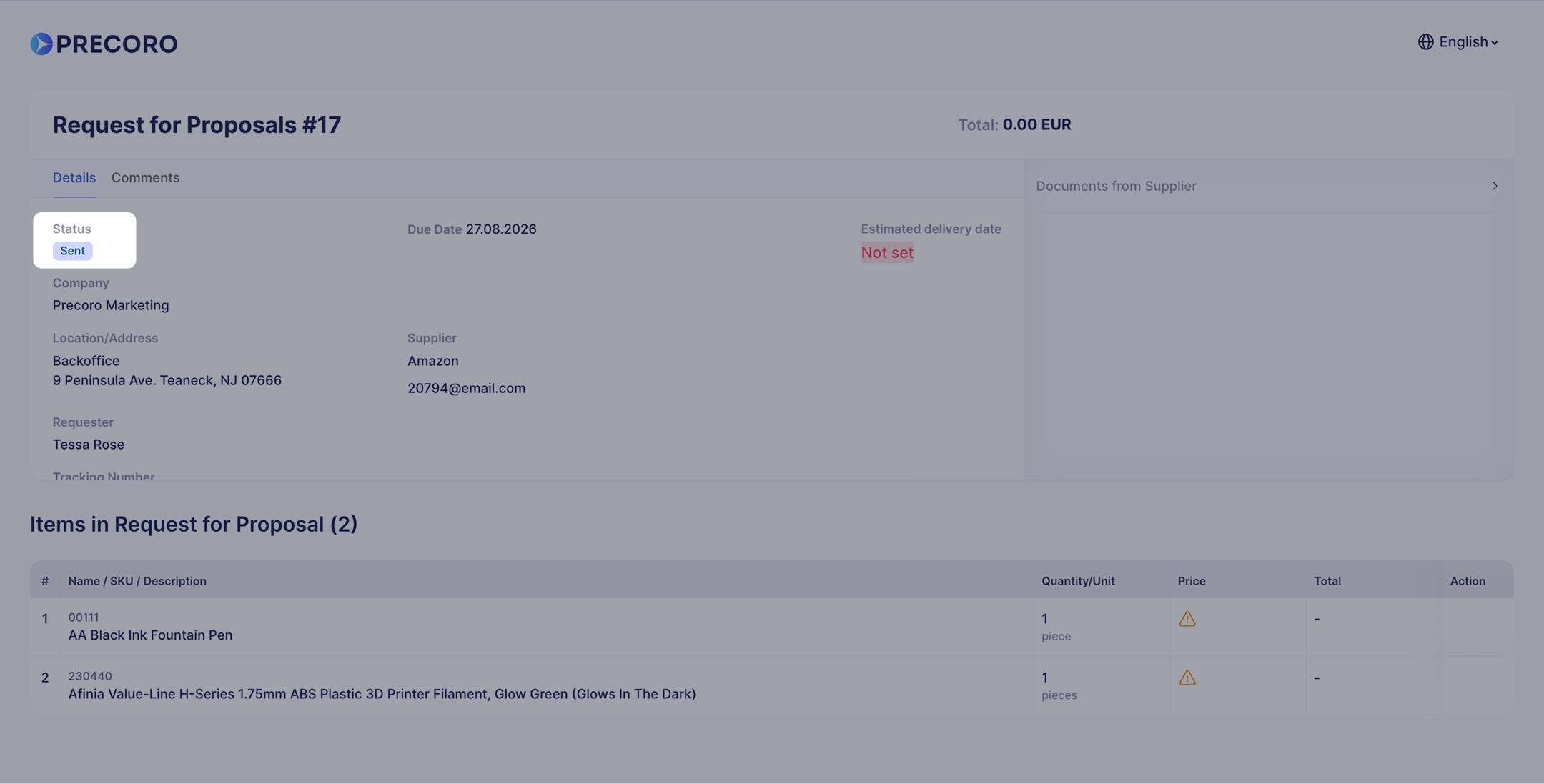
Proposal Statuses:
- Sent—the request has been sent, but hasn’t been considered by the supplier yet.
- Confirmed—the supplier has submitted a proposal. Now, you can consider it.
- Need to create a supplier—the supplier, who was entered by the Enter Supplier button and is not yet added to your suppliers' list, submitted their proposal. To work with this proposal further, you should first add this supplier to your Suppliers list in Precoro.
- In Revision—the a confirmed proposal has been sent back to the supplier for corrections.
- Rejected—the supplier rejected your request. This means the supplier will not be able to deliver items under this RFP.
Suppliers only see Confirmed, In Revision and Rejected from their own side.
💡Tip: Use Compare Supplier Proposals to view all supplier proposals in one table, spot the lowest price on each item, and award different suppliers item by item.
Email Statuses:
You can send an RFP document to several addresses at once. Regardless of the recipient number, you will see a status for the emails sent to the supplier.
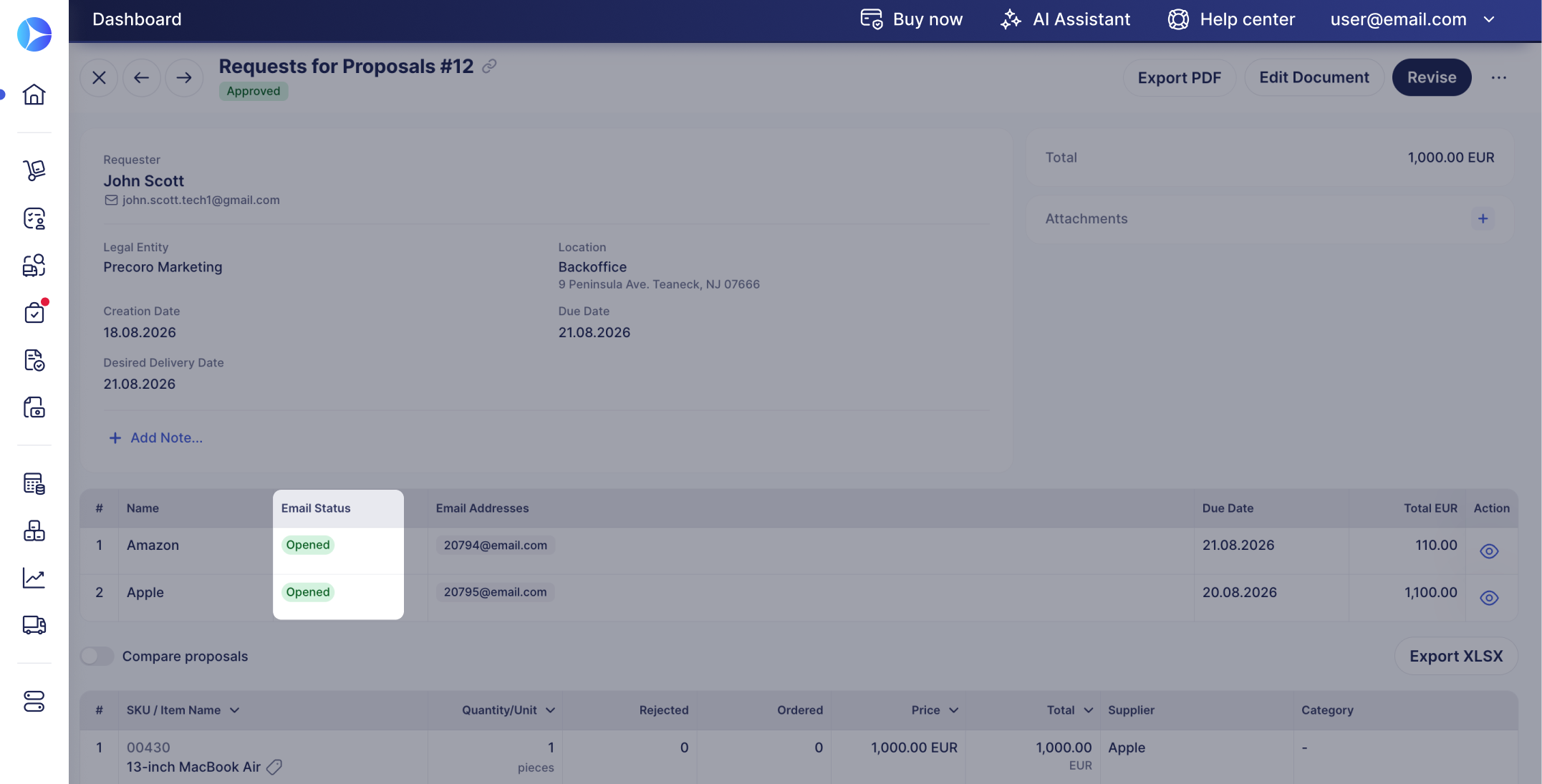
- Not Sent—the email hasn’t been sent to the supplier as you haven’t confirmed an RFP yet.
- Sent—the email has been sent to the supplier's inbox.
- Opened—the email has been opened.
- Failed—an error occurred, and the email didn’t reach the recipient. We have added the informational tip. If the letter fails to reach the recipient, we will include the possible reasons for that:
- The letter was sent, but the server rejected it.
- The mail does not exist.
- Any other unexpected error that prevented the email from reaching the recipient.
If you have sent several emails to the same vendor and some of them were not delivered, you will see a hint next to the corresponding email that the email was not delivered.
If all the letters sent to the same vendor are undeliverable, the email status column will show Failed.
We will remove the email status from the documents with no action within a month (for example, the last time it was opened more than 30 days ago, and no further actions were taken).
What will be removed:
- The email status next to the Supplier's mail will no longer be displayed.
Track RFPs Using Filters
Speed up your searches with the fast or advanced filters available on every document list page. Fast filters, above the document list, get you quick results. Advanced filters let you search in more depth.
Set the parameters you need in the appropriate fields:
- Filter results—apply the selected filtering parameters, or press Enter.
- Save current filter—save the selected filtering instantly.
- Reset all filters—reset the selected filtering parameters.
Find more useful information on how to set and use filters in Precoro here.
✍️ Note: You can filter by both custom fields for items and custom fields for documents in RFPs, but you need to activate them first.
See this guide for setup steps.
Track the Changes with Revision History
Use the Revision History button to track all changes made in the document. Select two document versions to compare them.
- Select and open the Request for Proposal whose history you want to see.
- Press Revision History in the right action panel.
- Select two revisions and press Compare Revisions.
Track Undelivered Documents to Suppliers
The Infocard
Undelivered RFPs to Suppliers—filters proposals where all supplier inboxes have Failed email status (a supplier can have more than one inbox). This infocard displays on the RFP list management page.
The Notification Letter
Activate the notification letter Your emails from Precoro were not delivered to your Supplier in Suppliers, under Email Preferences settings.
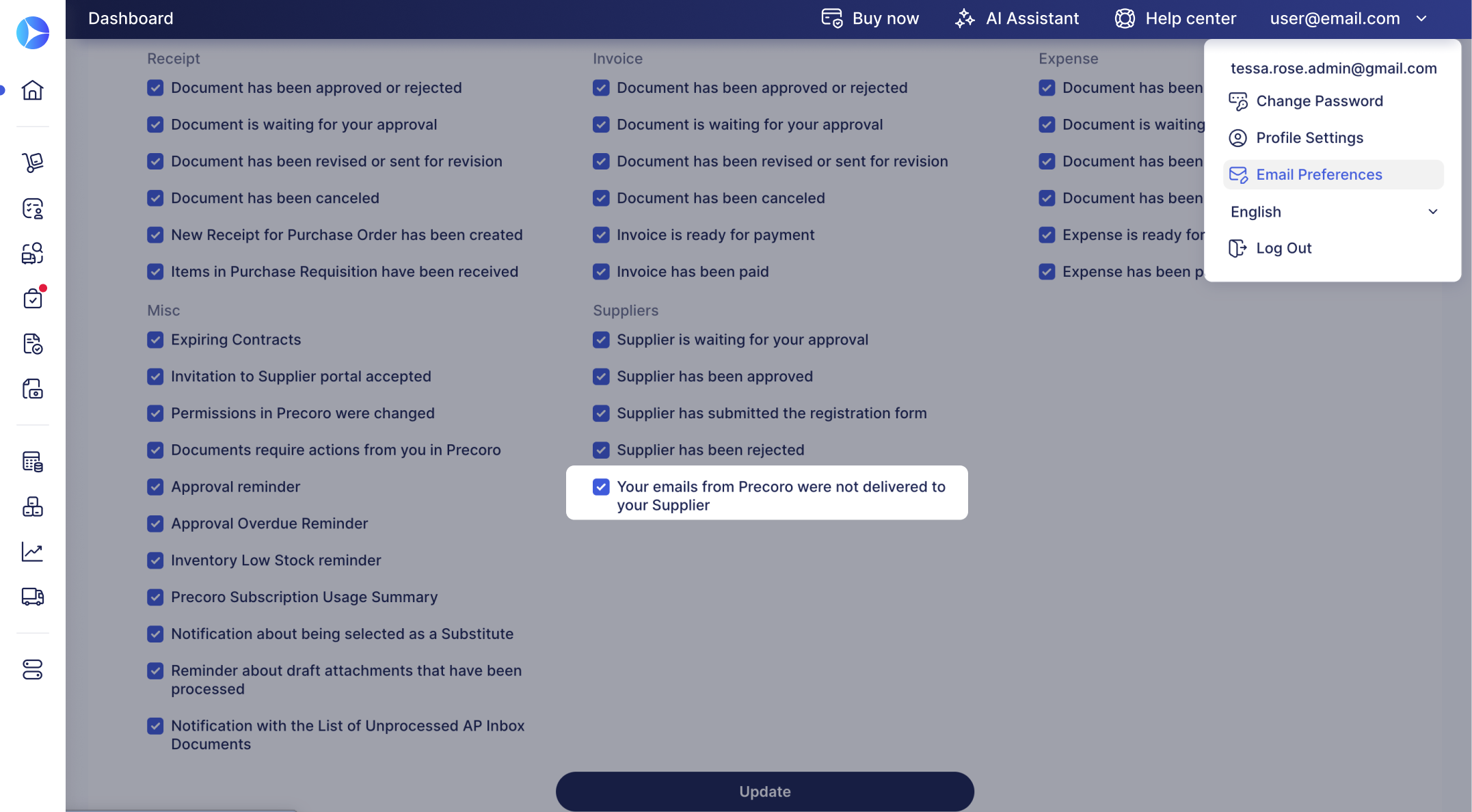
✍️ Note: Once activated, Precoro sends this notification to the Request for Proposal Creators.
This reminder triggers whenever all suppliers’ inboxes have Failed email status on an RFP (a supplier can have more than one inbox).