
TABLE OF CONTENTS
- What the Purchasing Agent Can Do
- How to Create a Purchase Order with the Purchasing Agent
- Step 1: Open the Purchasing Agent
- Step 2: Describe What You Need
- Step 3: Review and Confirm the Draft
- FAQ
💡 Please note: The Purchasing Agent is available on the Automation plan. It works in the AI Assistant, which must be enabled for your company. Learn how to enable it in Analyzing Documents with an AI Assistant.
See the Purchasing Agent in action: this two-minute video shows each step, from opening the Purchasing Agent to confirming the draft.
What the Purchasing Agent Can Do
Creating a purchase order (PO) by hand takes time: you transfer data from the purchase requisition (PR), choose a supplier, and fill in every field.
The Purchasing Agent does this for you in the AI Assistant chat. It can:
- create a PO, service order, or blanket PO from scratch;
- turn an approved PR or a completed Request for Proposal (RFP) into a PO;
- combine several approved PRs with the same supplier into one PO;
- pick items from your catalog or add new items;
- fill in the supplier, contract, budget, and custom fields.
The Purchasing Agent uses only the locations, legal entities, and suppliers available to the PO author.
How to Create a Purchase Order with the Purchasing Agent
Step 1: Open the Purchasing Agent
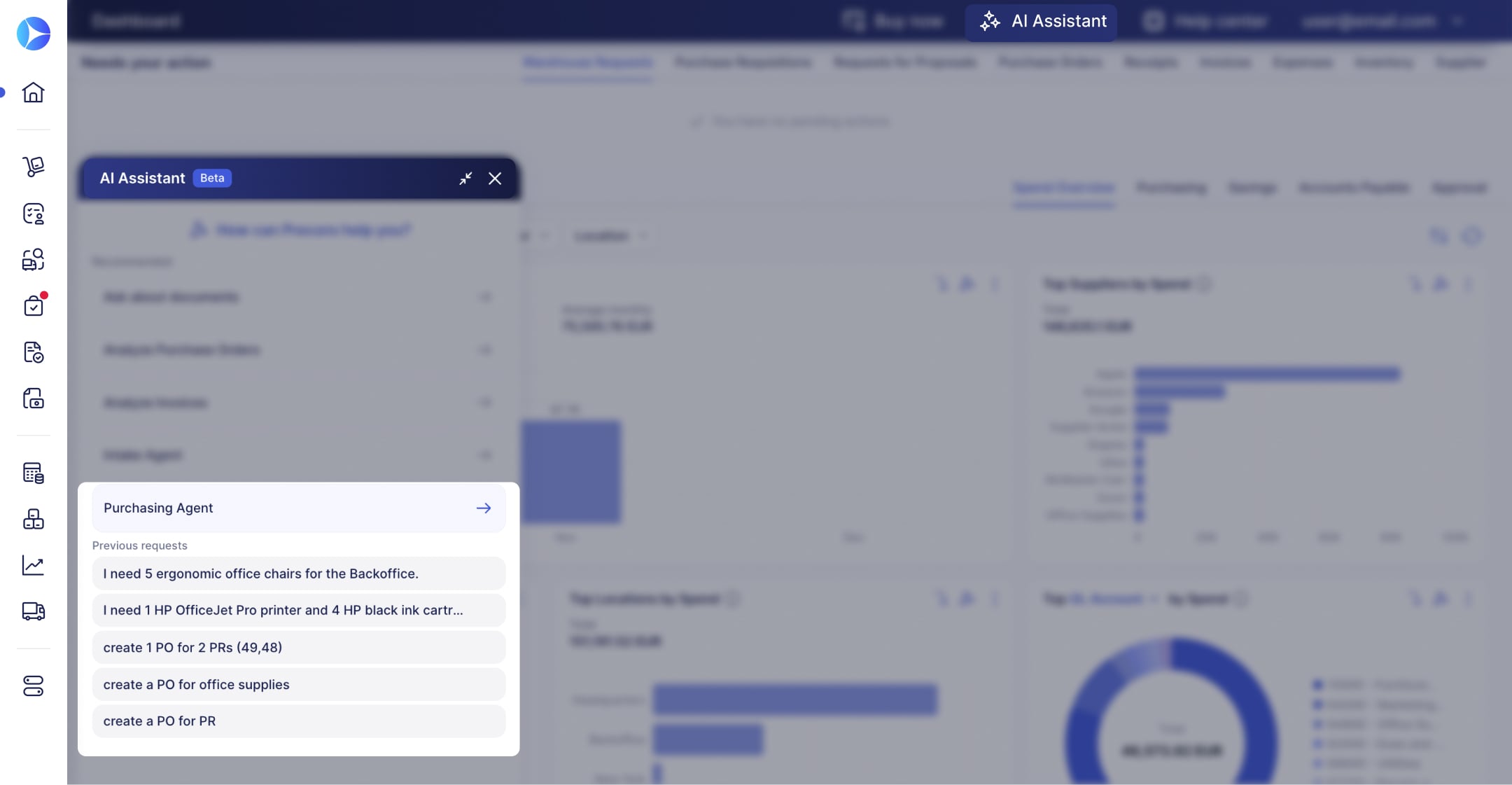
- Click AI Assistant in the navigation menu.
- Select Purchasing Agent.
Your chats with the Purchasing Agent stay in the Previous requests section of the AI Assistant.
Step 2: Describe What You Need
Type your request in the chat. Here's how the Purchasing Agent handles some common types of requests:
|
Your Request |
What the Purchasing Agent does |
|
PO from scratch "10 office chairs for the London office" |
Asks extra questions if needed. Finds the item in your catalog or adds it as a new item. |
|
PO from an approved PR "Create a PO for PR #79" |
Takes the items from the PR and checks the company’s past documents to fill in what the PR is missing, such as the supplier, contract or custom fields. |
|
PO from several approved PRs "Combine PR #18 and PR #27 into one PO" |
Combines items with the same supplier into one PO. |
|
PO from a completed RFP "RFP #15 is awarded, please order it" |
Uses the winning supplier, items, and prices. Links the PO to the RFP. |
|
Service orders and blanket POs "Monthly cleaning service for the London office" |
Creates a service order or a blanket PO instead of a standard PO. |
💡 Please note: The Purchasing Agent adds new items only if your company allows non-catalog items. It adds an item to your catalog only when you ask, for example "Add this item to the catalog."
The Purchasing Agent uses only your active, approved suppliers:
- From a PR: the supplier on the PR.
- From an RFP: the winning supplier.
- From scratch, or a PR item without a supplier: the agent checks the following, in this order:
- The supplier of the catalog item.
- A supplier with an active contract for the item or its category.
- The supplier your company uses most often for the item or its category.
Step 3: Review and Confirm the Draft
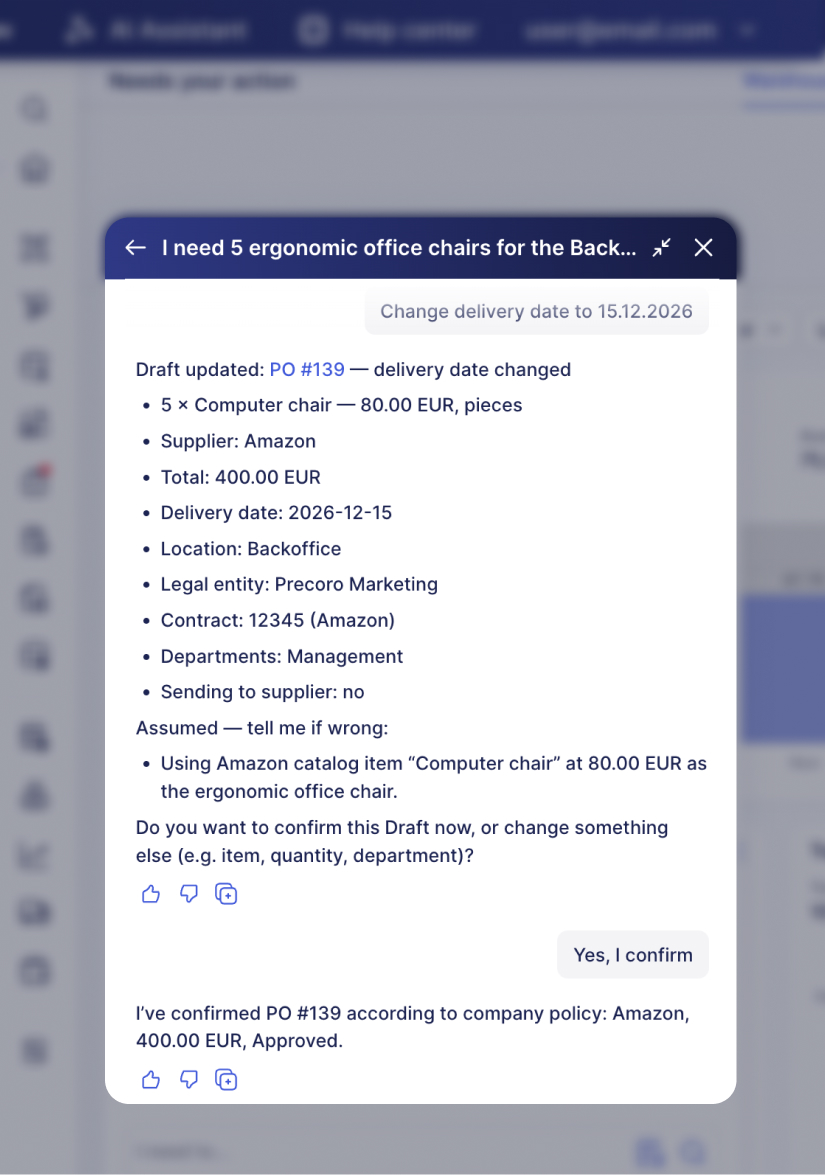
The Purchasing Agent creates a draft PO, shares a link to it, and lists the values it assumed.
- Open the draft and check the assumed values.
- Reply to confirm, for example "Yes, I confirm", or ask the agent to change something.
After you confirm, the PO status changes:
- Pending, if the PO needs approval;
- Approved, if the PO has no approval steps.
A PO created by the Purchasing Agent has the AI label next to its status.

FAQ