
TABLE OF CONTENTS
- Approve Documents and Suppliers in Microsoft Teams
-
Track Actual Spend on Contracts, Even If It Wasn’t Recorded in Precoro
-
Ensure Every Order Reaches the Supplier—Track Communication with Updated Statuses
Approve Documents and Suppliers in Microsoft Teams
Our Teams integration is now live! Connect it to let approvers act on requests without opening Precoro.
Here's what you can do with the integration:
- Approve or reject documents and suppliers in one click from a Teams message.
- Add comments in Teams, and they'll instantly sync to Precoro.
- Spot what needs attention: pending approvals, invoice–PO mismatches, POs awaiting receipt, and mentions.
Ready to integrate Precoro into your team's preferred communications? View the setup guide: Integration with Microsoft Teams.
Track Actual Spend on Contracts, Even If It Wasn’t Recorded in Precoro
Record how much was already spent under a contract before you added it to Precoro. The new Initial Spent Amount field counts toward Used, % Used, and Remaining, so the contract shows its real utilization from day one. Precoro keeps calculating spend from linked documents as before, and existing over-limit rules and notifications apply to the combined amount.
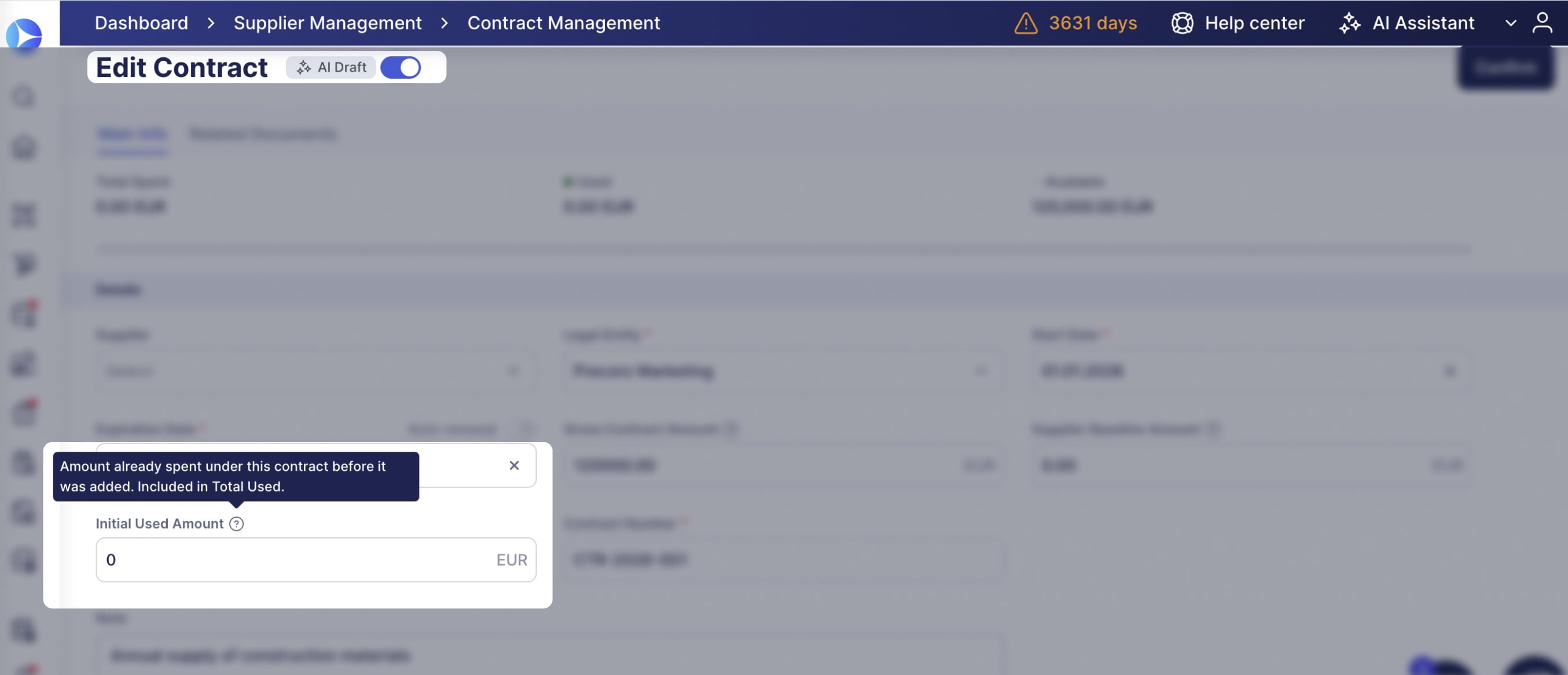
Fill in the field when creating a contract manually, with AI scanning, or via API. It locks once documents are linked to the contract, and every change is logged in the Revision History and Audit Log. Initial Spent Amount is also available in contract reports, both Precoro and custom.
Analyze Requests for Proposals with Custom Reports
To help secure the best terms and prices, we’re improving control and audit of the RFP process. Build custom reports for RFPs to review statuses, supplier data, and items in one place, which is handy for audits and regular RFP process reviews.
- In Reports, click Create Custom Report and select Requests for Proposals as the document type.
- Add columns from General data, Item data, and Supplier data.
- Filter by creation date, due date, desired delivery date, RFP status, legal entity, location, supplier, requester, custom document and item fields.
Each row in the report represents one RFP item. Everything else works just like other custom reports.
Process E-Invoices Correctly, Including PDF Attachments
When a supplier emails an e-invoice as an XML file with a matching PDF, AP Inbox now creates a single entry and uses only one credit. Precoro reads the data from the XML, the legally valid e-invoice, and keeps the PDF attached for preview. If the XML can't be read or is missing required fields, Precoro recognizes the data from the PDF instead. The Type column shows whether data came from the XML (E-Invoice) or the PDF (Invoice).
Learn more about e-invoices and supported formats here: How to Process E-Invoices with Precoro
Ensure Every Order Reaches the Supplier—Track Communication with Updated Statuses
POs now show how they were sent and where they stand, right next to the supplier name on the order list and order page:
- Processing type: Marketplace for orders placed via PunchOut, or Portal if the supplier uses the Supplier Portal.
- Sending status: Sent, Opened, Confirmed, or Not Sent. Not Sent appears only if delivery failed, along with a callout explaining the issue.
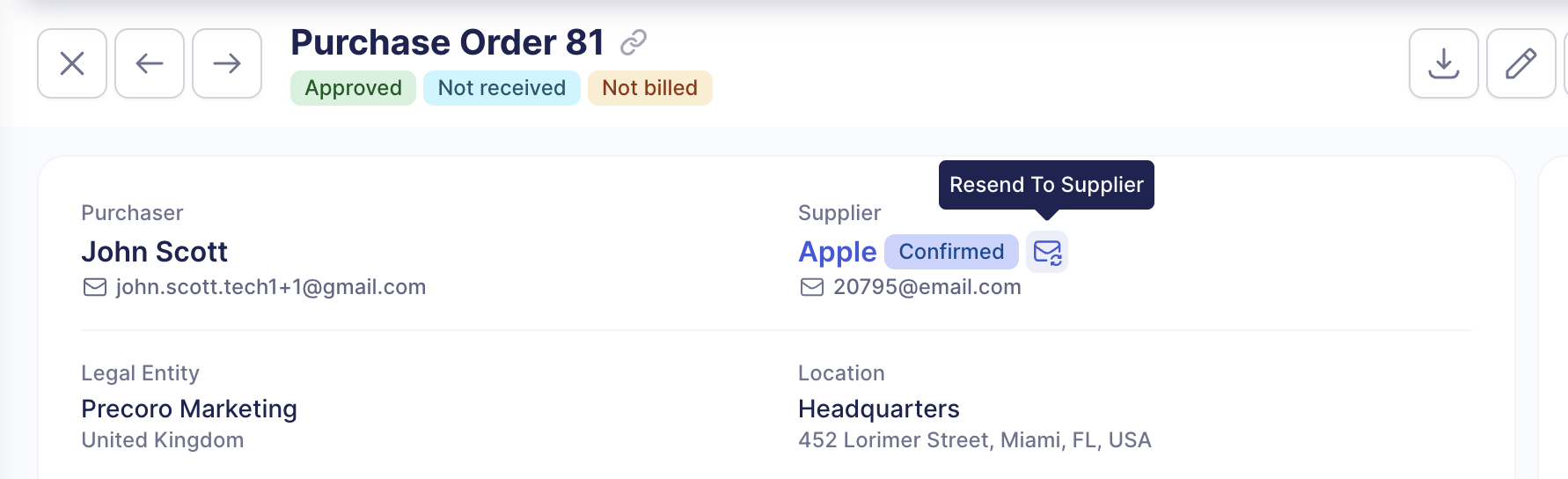
Additionally, the Send to Supplier button is now a mail icon on the document page.
Request Items from Marketplace Right from a New Document
Add PunchOut items without leaving the PR you're creating. If your company has at least one PunchOut set up, a Request from Marketplace button appears next to the items. Pick the catalog from the list, and continue creating a PR via the PunchOut.
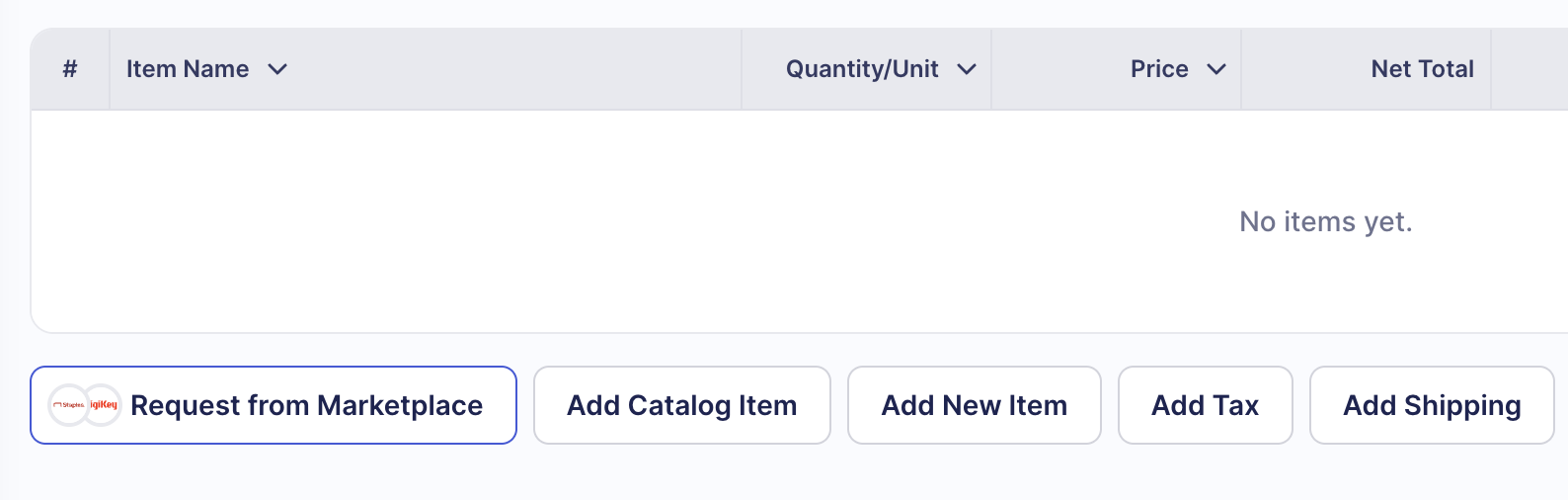
When you create purchase orders, marketplace suppliers now have a Marketplace info chip. If you select a marketplace supplier, Precoro now prompts you to create the order via PunchOut. However, you can press Continue Manually to proceed with the standard creation process.