
TABLE OF CONTENTS
Microsoft Teams Integration Overview
Precoro offers several ways to stay updated through your regular communication channels: email, Slack, or Microsoft Teams. If your colleagues are used to Microsoft Teams, set up this integration to speed up approvals and keep everybody informed through convenient channels.
Watch this short video to see how the Microsoft Teams integration works in Precoro:
How to Set Up Integration with MS Teams
Required permission: Only users with Admin access in your Microsoft workspace can connect the integration.
Follow these steps to establish the integration:
- In Precoro, go to Configuration → Integrations, find the Microsoft Teams card, and press Connect.
- Click the Connect to Microsoft Teams button.
- Log in with your Microsoft admin account and grant necessary permissions.
- In Teams, open the Store tab, search for the Precoro Agentic Procurement & Spend Centralization for Teams app, and install it. You can also follow this link to find the app.
- Once the permissions are granted and the app is installed, the integration is connected and ready for user mapping.
Mapping Users with MS Teams
Once the integration is connected, you need to map users to ensure they receive notifications.
On the Microsoft Teams Integration Configuration page, click Map Users to sync user accounts between Precoro and Microsoft Teams.
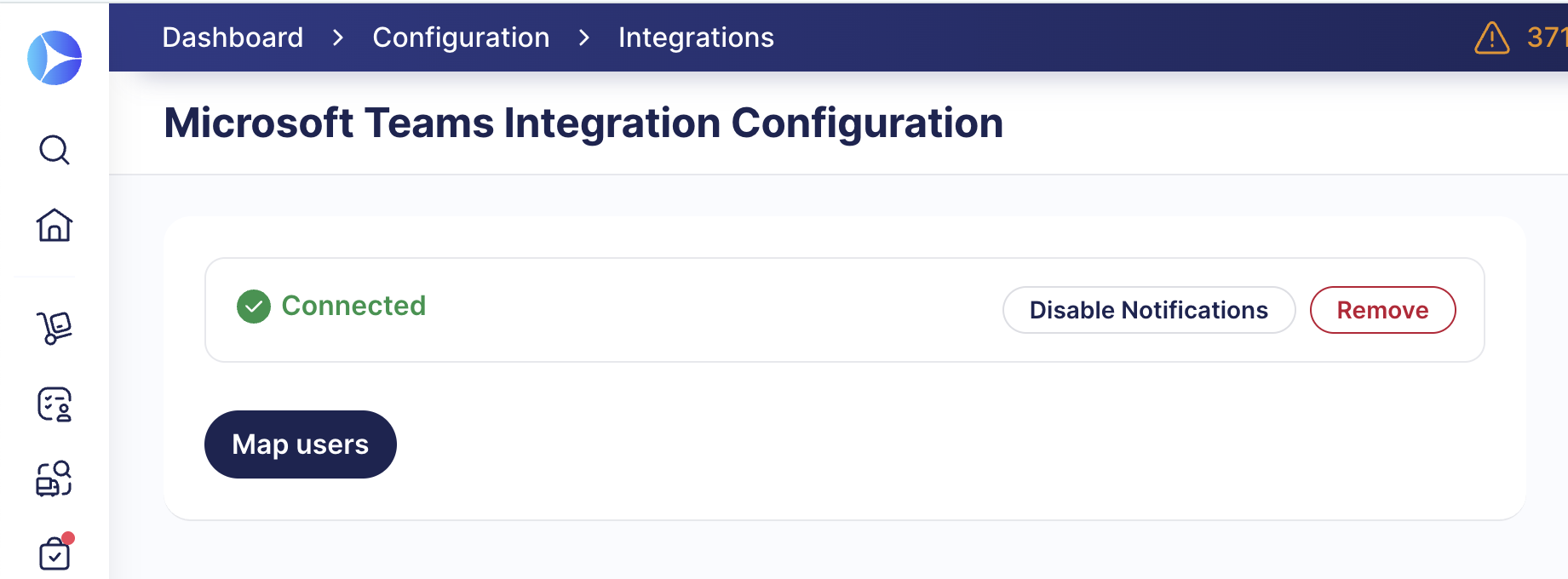
Precoro matches accounts by email. This process runs in the background: you can leave the configuration page after pressing the button, and soon all users will be mapped.
On the User Management page, you can see the MS Teams tag, which helps you identify who is integrated and who isn't:
- Users who are matched successfully show the Integrated with MS Teams badge.
- Users who aren't matched show a Not integrated badge. These users keep receiving notifications by email, so the approval flow isn't blocked.
Use filters or the Not Integrated with MS Teams infocard to quickly check integrated ot non-integrated users.
Please note: If a user is deactivated in Microsoft 365 or changes their email address in Precoro, their MS Teams mapping is removed automatically, and they move back to the Not integrated status.
Receiving Notifications in MS Teams
Notification Types and Settings
Precoro can send several types of notifications via Teams.
- To approvers:
- Document is waiting for your approval
- Supplier is waiting for your approval
- Supplier has submitted the registration form
- Approval reminder
- Approval Overdue Reminder
- To other users:
- Invoice does not match the Purchase Order
- Purchase Order is waiting for Receipt
- Documents require actions from you in Precoro
- Someone tagged me in a comment
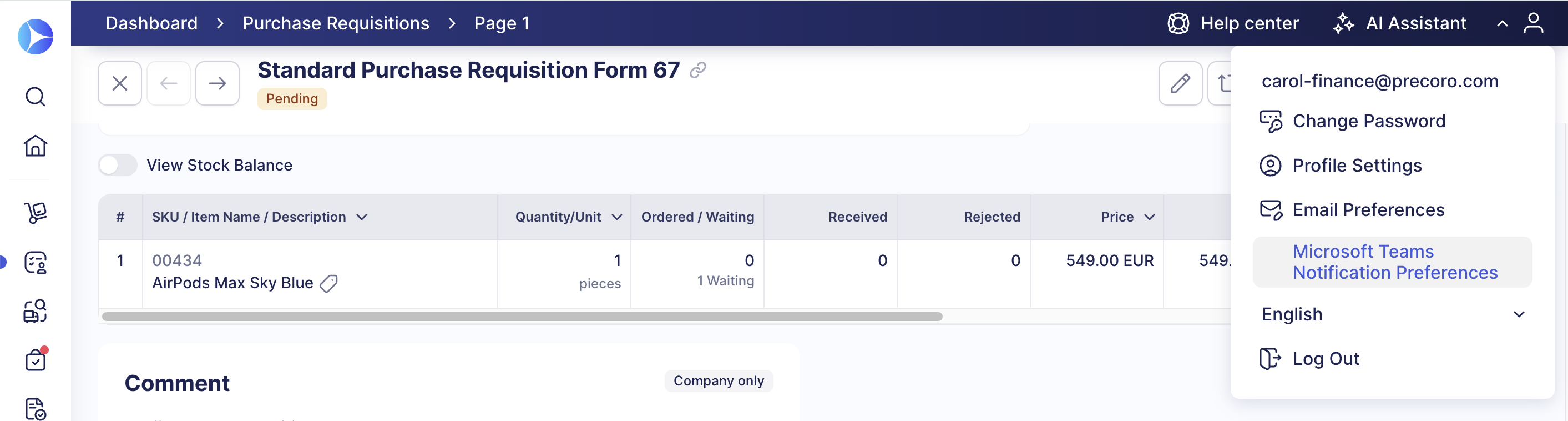
You can choose which messages to receive in Microsoft Teams Notification Preferences under your profile.
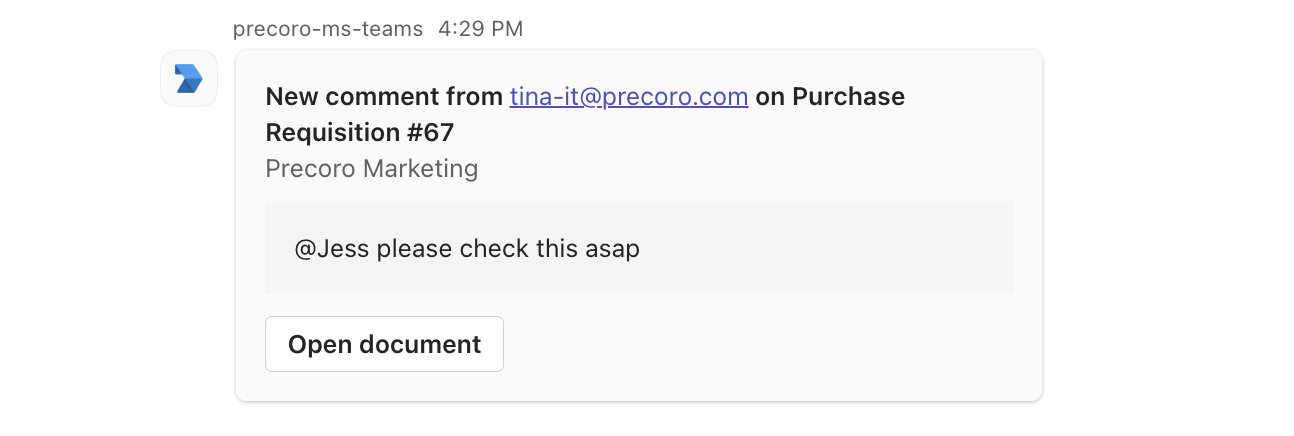
These notifications include links to relevant documents and lists, so it’s easy to navigate to Precoro from MS Teams. For instance, if a colleague tagged you in a comment, click Open document to view it in Precoro.
Interactive Messages
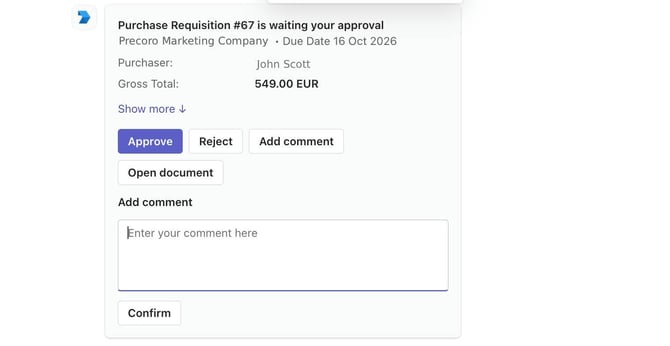
Approvers can approve or reject documents and suppliers without leaving the MS Teams conversation. You can also add comments and tag coworkers; comments will appear on Precoro documents. Click Show more before approving an order to view the items.
The message updates as soon as you or another approver on this step takes an action. The buttons are replaced with a line showing who approved the document, so everybody stays informed and actions aren’t duplicated. The Open document button remains active, so you can still view the page in Precoro.
If the document is canceled in Precoro before you approve or reject it, clicking a button on your card shows a message that the document is no longer available, instead of leaving you without any response.
Disconnecting and Removing the Integration
On the Microsoft Teams Integration Configuration page, you’ll find two ways to stop using the MS Teams integration:
- Disable Notifications—this option simply stops sending notifications. The Integrations page shows a Disconnected status, and you can reconnect at any time.
- Remove Integration—Precoro deletes user mapping, notification settings, and all integration data. To set up the connection again, you’ll need to do it from scratch.
The Precoro for Teams app stays installed if you disconnect or remove the integration from Precoro. Microsoft 365 admin needs to remove it separately.
If your Microsoft 365 admin removes the Precoro app directly from Teams, Precoro detects this automatically, stops sending notifications, and marks the integration as Disconnected.