
TABLE OF CONTENTS
Conveniently Purchase from Preferred Suppliers via PunchOut
Our new Custom PunchOut connector allows you to set up a PunchOut Catalog with any supplier that supports this type of integration. Just like preconfigured catalogs, custom PunchOuts help you:
- Stay within budget by accessing real-time prices.
- Make ordering as simple as online shopping.
- Delegate catalog maintenance to suppliers.
Ready to connect your first custom PunchOut Catalog? Get started with this guide.
New in OCR
Fully Automate AI-Powered Invoice Processing
A new setting in OCR Configuration lets you create invoices from supplier-issued attachments without manual input. The Automatically confirm autocreated invoices feature is available if you use invoice auto-creation for PO-backed invoices. Please contact your Customer Success Manager to enable it.
When this option is active:
- Auto-created PO-backed invoices will be confirmed automatically. Precoro will not require you to review and confirm the draft.
- If you have an Invoice Approval Workflow, it’ll start immediately after confirmation.
- If Precoro detects discrepancies between the invoice and the related PO, it’ll trigger the Matching process.
Please note that invoices won’t be automatically confirmed if any required fields are missing.
Organize AP Inbox by Adding Notes and Assignees
We’re improving the AP Inbox to help you process attachments quickly and smoothly. Take a look at the first changes we’ve implemented.
Notes
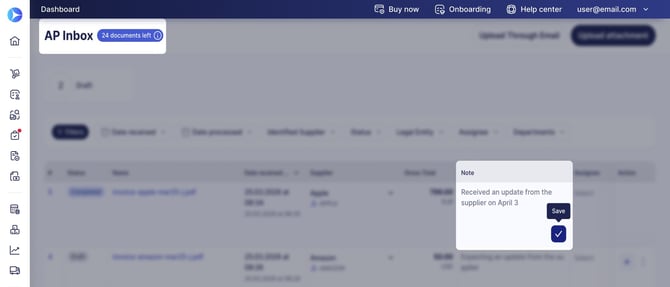
A new column on the AP Inbox page lets you add a note to each attachment. Consider using it to exchange info on attachment status and required actions.
Tips to start using notes:
- To enter a note or edit an existing one, click the Note cell opposite the attachment.
- Press the blue check icon to save the changes.
- Notes are visible to all users who can access the attachment. Users with the OCR and Invoice Create roles can add and edit notes.
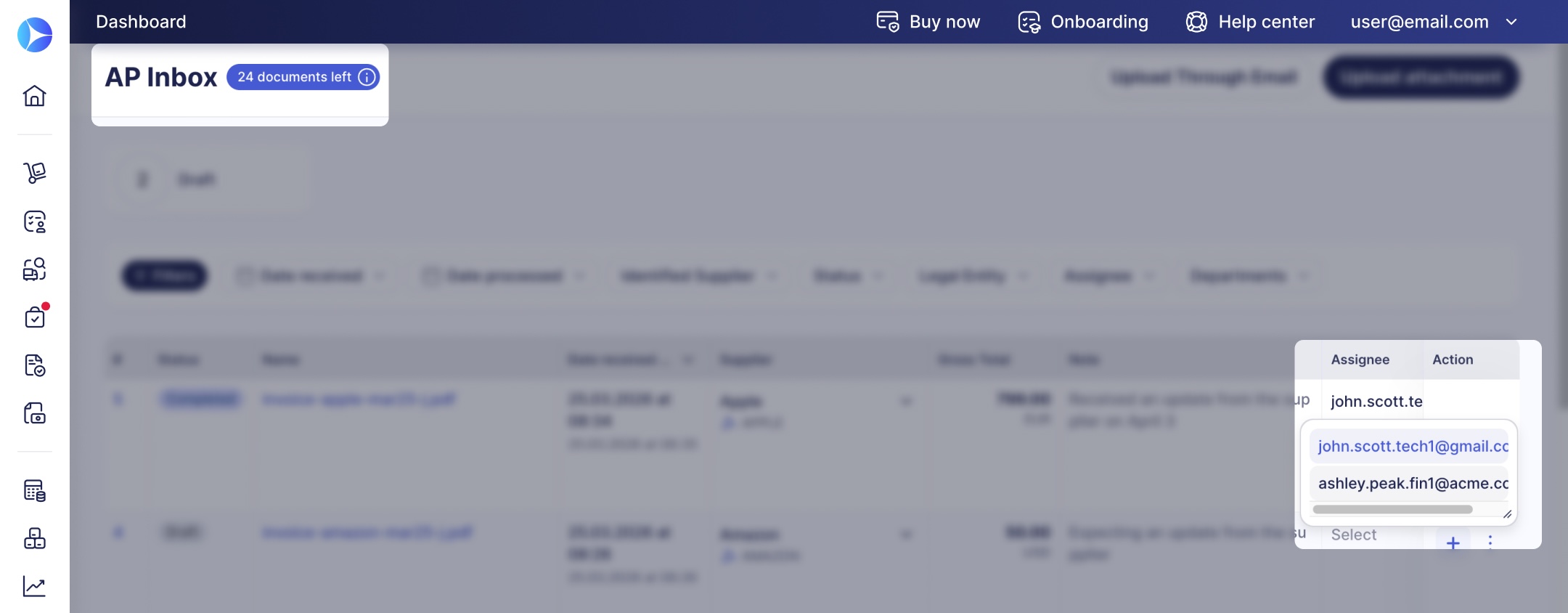
You can now assign a user to be responsible for processing any specific attachment. You can also leave an attachment unassigned.
Automatically Turn Delivery Notes Into Receipts
Fill out receipts with AI-powered scanning directly from the Receipts module. Users with Automation and Enterprise plans can access this functionality in three simple steps:
- Navigate to the Receipts page and click Scan Receipt in the top right corner.
- Upload the document as an image or PDF.
- Wait only a few seconds while Precoro recognizes the data and automatically creates a receipt.
Precoro will match the Supplier, PO, and items. If matching fails on any stage, you’ll see a flash message prompting you to create the receipt manually.
Set Up PunchOut Catalogs for Different Legal Entities
If your company uses multiple legal entities, you may need to set up PunchOut Catalogs with different credentials and settings for each of them. Here’s how it works now:
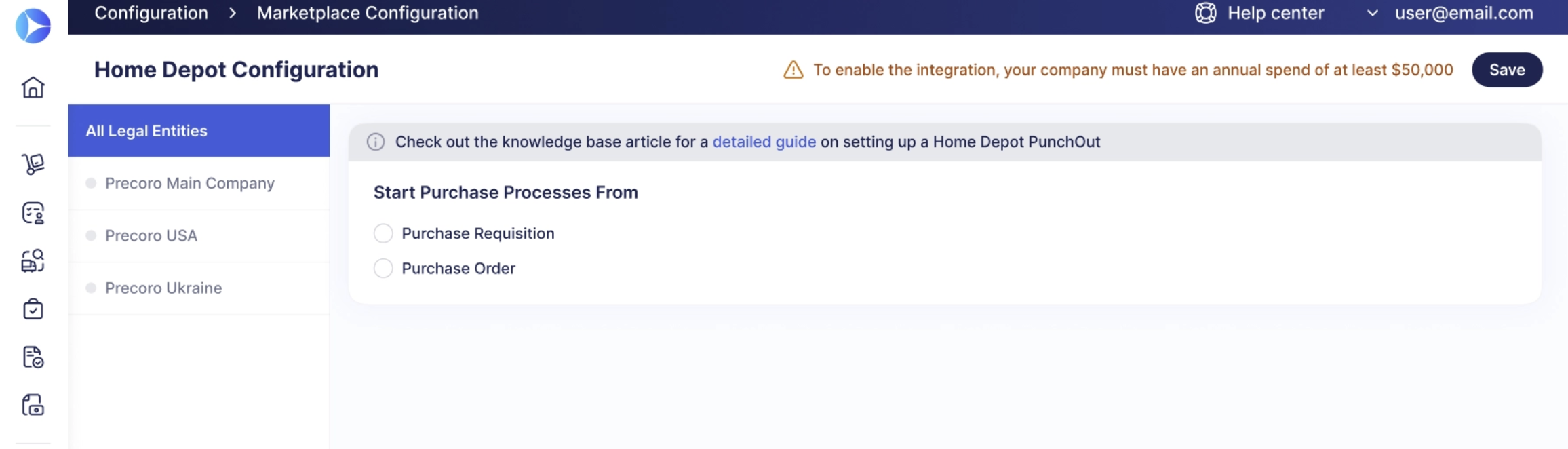
- When setting up any PunchOut integration, you can enable the Set by Legal Entity option. It allows you to create a separate setup for each LE. You’ll then see several tabs corresponding to legal entities on the PunchOut Configuration page.
While this option is disabled, you’ll have the same setup for all LEs.
- The Start Purchase Processes From field must have the same value for all LEs that use this PunchOut. Once you’ve selected starting with PR or PO for one LE, other tabs will display this field as View Only.
- You can change Start Purchase Processes From on the All Legal Entities tab. In this case, incomplete PunchOut documents will be converted into standard ones, meaning you’ll have to process them like regular documents, and these orders will be sent to the supplier via email.
- When you make changes on the All Legal Entities tab, Precoro attempts to apply them to this PunchOut’s configuration for every legal entity.
- If changes can’t be saved for one of the LEs (for instance, due to an access conflict), you’ll see a flash message indicating where the save failed.
If you add a new LE after you’ve configured a PunchOut, you’ll need to connect it separately for this entity.
Keep Documents Relevant when Adjusting Module Structure
To offer greater flexibility and support changes to your processes, we’ve improved the module deactivation logic.
Now, when a module is deactivated, Precoro automatically assigns the Closed status to documents that were Pending or In Revision. This removes documents you no longer need without requiring additional actions.
This change affects the following modules: Warehouse Requests, Purchase Requisitions, Requests for Proposals, Purchase Orders, Invoices, Receipts, and Expenses.
Please note:
- If you deactivate the PR module, PRs with In Revision status and related completed POs will be marked as Completed.
- If you deactivate the Invoices module, all received and approved POs with related invoices in revision will be marked as Completed.
- If you deactivate the Receipts module, invoices with the Pending Receipt status will be sent for approval (if your company uses invoice approval workflow).
- If the Payment functionality is turned off, deactivating the Invoices or Expenses module will set invoices or expenses to Paid.