
TABLE OF CONTENTS
- What Is Savings Tracking?
- How Savings Tracking Works
- How to Enable Savings Tracking
- How to Set the Baseline Price
What Is Savings Tracking?
Savings Tracking lets you set a baseline price for each purchase order (PO) item and compare it with the price you are paying on the order. As a result, you can monitor actual savings, rather than opportunities or potential cost avoidance.
With Savings Tracking, you get:
- A confirmed savings value. Every PO shows a real savings or overspend amount, calculated against the baseline price you set for each item.
- Automatic calculations. Precoro compares the order price to the baseline price and does the math for you, per item and for the whole order.
- Savings data as you create the order. The value is ready as soon as you add items to the PO, so you can review it before submitting the document for approval.
- A foundation for reporting. Every purchase order's savings and overspend data feeds into the Savings dashboard, so you can track hard savings across all your purchasing.
Watch this short video to see how the Savings Tracking works in Precoro:
How Savings Tracking Works
- The Baseline Price column. The purchase order item table includes a Baseline Price column next to the Price column. It contains the regular price of an item there, and Precoro compares it to the actual price in this order. The Baseline Price is always in the item's own currency, which is set automatically from the catalog or chosen when the item is added manually.
- The savings formula. Precoro calculates the savings for each item line as:
(Baseline Price − Price) × Quantity
For example, if the Baseline Price is $130, the Price in the order is $100, and the Quantity is 10, the item line saves you $300. - Item-level results. Precoro compares the price in the order to the baseline price and multiplies the result by the quantity. The resulting savings value is displayed on every item line in a savings tag; hover over it to see the details. If it’s negative, you’ll see it as an overspend value.
- Document-level totals. The Totals section features a total savings/overspend line. By default, it shows the savings or overspend value for all items in the order, calculated in comparison to the baseline prices. You can also edit it manually if you know how much you’re saving on the order in total, but not on each item separately.
💡 Please note: Savings Tracking doesn't recalculate documents created before you enabled it. It only applies to purchase orders created after enabling the feature.
How to Enable Savings Tracking
This feature is on by default, so you can already see the new fields in your documents.
To enable or disable it as needed:
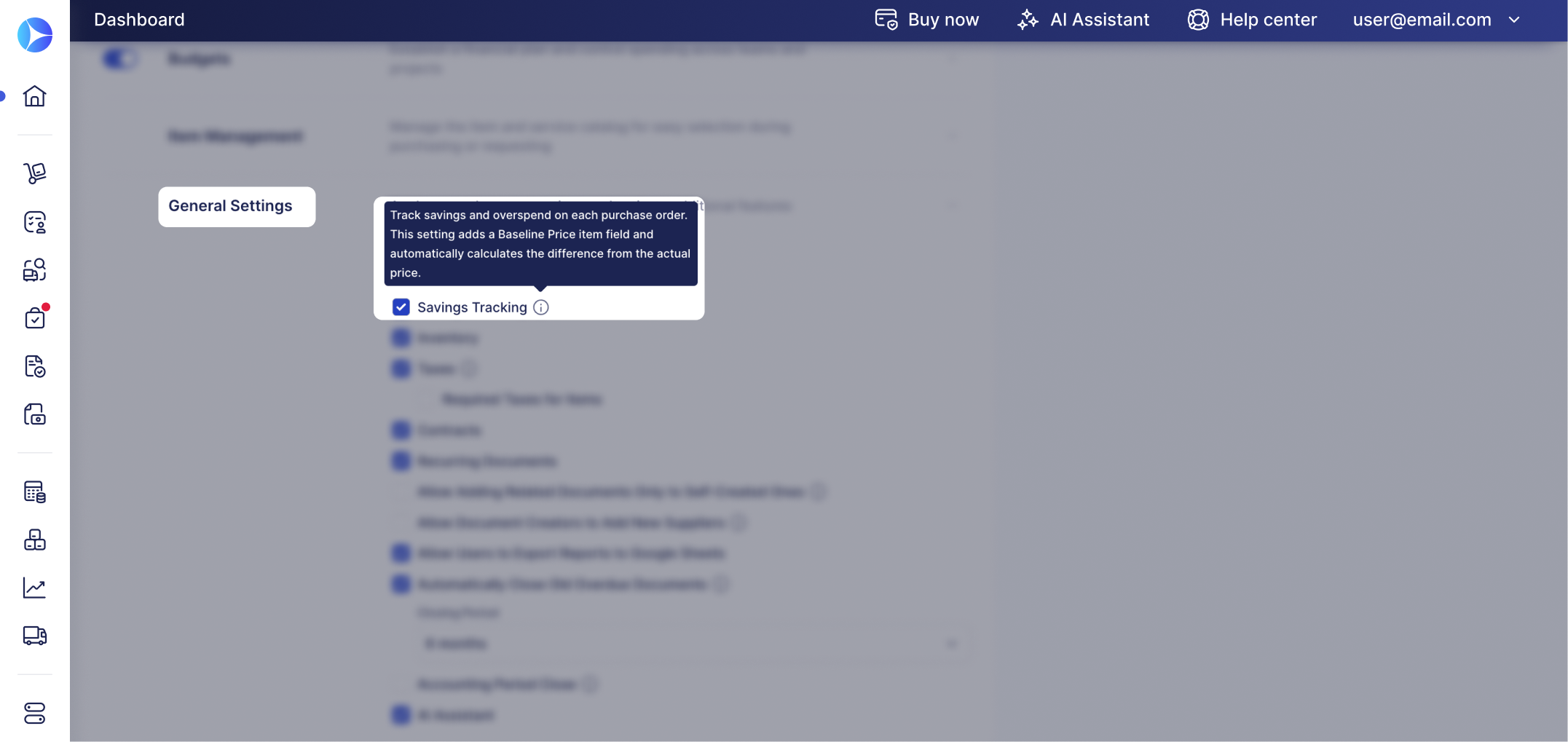
- Go to Configuration → Basic Settings → Document Setup → General Settings.
- Find the Savings Tracking checkbox.
- After turning it on or off, don't forget to save the change.
When enabled, the Baseline Price column appears in the item table in purchase orders, and the Savings field appears in the Totals section.
Setting the Baseline Price
The Baseline Price is optional and can be set in two ways—automatically or manually—depending on the item type.
a) Automatically with catalog items
Precoro automatically fills in the Baseline Price when you add a catalog item if:
- the catalog price is greater than 0; and
- the catalog item's unit matches the unit used in the PO.
The catalog price is saved as the Baseline Price the moment the item is added to the PO.
💡 Please note:
- Later changes to the catalog price don’t update the Baseline Price already saved in the PO. This also applies to price changes made through Auto-Update Price Based on the Latest Purchase.
- For free-of-charge catalog items, Precoro doesn’t fill in the Baseline Price automatically. You can enter it manually if needed.
b) Manually for non-catalog items
If you add an item manually, the Baseline Price field is empty by default. Enter the price you want to use for the savings calculation.
💡Please note: If the Baseline Price is left empty, the item is not included in the savings calculation.
Whether the Baseline Price was filled in automatically or manually:
- You can edit it while the PO is in Draft, In Revision, Pending, or Approval Review status.
- After the PO moves beyond these statuses, the Baseline Price becomes read-only.
- Changes to the Baseline Price are recorded in the document's Revision History.
To analyze tracked savings across purchase orders, open Dashboard → Savings.
Find more details here.