
TABLE OF CONTENTS
Getting Started with Precoro Payments
To keep the entire procure-to-pay workflow within one platform, set up the Precoro Payments functionality. Create a financial account, link your bank account, and start paying suppliers directly from Precoro to:
- Ensure the payments are approved before spending money.
- Cut the real cost of payment, including fees and operational expenses.
- Connect procurement and finance with a single tool.
In this article, we explain how to configure and activate a financial account in Precoro to start using payment services.
Please note: The Precoro Payments functionality is currently available only to US clients.
How to Fill Out the Financial Account Application
Precoro collaborates with Stripe to provide reliable and secure financial services. To set up a financial account, you’ll need to submit an application for a Stripe account via Precoro. The system will guide you through the process step by step.
❗Before you begin: Please ensure that you have the necessary permissions to complete the form. This application requires the company’s tax details and information about business owners. You won’t be able to delegate the form to another user.
Step 1: Start the process.
First, navigate to Configuration → Payment Services. You’ll see the initial screen inviting you to create a financial account.
- An account can only be used by one legal entity, so if your company uses the Legal Entities functionality, you’ll need to select the entity first.
- If you haven’t enabled the Legal Entities functionality yet, it’ll be activated automatically once an account is created. A Legal Entity with the same name as your company will be set up by default, as it’s required for proper payment allocation.
Press Get Started to proceed to the application form.
Step 2: Provide necessary information.
The form is split into 4 sections. Once you’ve completed a section, press Continue to save your progress and proceed to the next one. If you quit before saving a section, the data will be lost, and you’ll need to reenter it.
To continue the application, navigate to Configuration → Payment Services and press Continue Setup.
Here’s an overview of the form’s sections.
1. Business Information
In this section, you’ll need to select the country of operation, business type, and business structure. If necessary, please consult business registration documents.
💡Please note: Once you proceed to the next step, you won't be able to change the business type. Make sure the selected type matches the company's actual legal structure.
Please provide your company’s tax details, including EIN and legal name.
Companies with the Unregistered business type selected on the previous step skip this section.
3. Business Details
Please provide general information about your business, including addresses and contact details.
4. Company Owners
This section is mandatory for these business types: Registered business, Nonprofit organization, Government entity.
On this step, please provide information about the individuals who own or control the company:
- Business owners—all individuals who own 25% or more of the company. Each person must be added separately.
- Representative person—at least one person authorized to act on behalf of the company (e.g., CEO, director). This person may also be a business owner.
If no individual owns 25% or more of the company, you still need to specify at least one Representative person.
Step 3: Review and submit the application.
Before submitting, please review all completed sections to ensure the information is accurate. You won’t be able to edit the form while it’s under review. Once ready, click the Submit button to send the form.
The review typically takes 3 to 7 business days. You’ll receive an email notification as soon as the decision is made.
Application Statuses
You can review the application status at any moment in Configuration → Payment Services.
💡Please note: Precoro doesn’t store or analyze application data. Once you’ve submitted the application, its status is determined by Stripe (the payment services provider).
The application can have the following statuses:
- Application in Progress
The application hasn’t been submitted yet. The user is still filling out the form.
- Application Submitted
The application is undergoing verification by Stripe. Please wait for a status change.
- Action Required
Stripe has requested additional information or clarification. When you see this status, please take the following steps:
-
- Click Provide Details to see what’s missing or incorrect.
- Fill in all the necessary fields and click Submit. The application status will switch back to Application Submitted.
- Please note that your application may gain the Action Required status multiple times during the review. In such cases, please repeat the steps above.
- Application Approved
Stripe approved your application. To start using Precoro Payments, you’ll also need to add a payout bank account.
- Application Rejected
The application failed verification. In this case, you won’t be able to set up payments for this legal entity, but you can create a new application for a different LE. Please contact our support team to learn the rejection reason.
How to Activate a Financial Account
To activate your financial account and start paying from Precoro, you need to link a payout bank account. You’ll then be able to use this account to transfer funds from your balance in Precoro if necessary.
Before connecting a bank account, please ensure it meets the following requirements:
- It belongs to the same legal entity as your Precoro financial account.
- It’s in the same name as your Precoro financial account.
- It’s open in a US bank.
- The currency is USD.
To connect a payout bank account, follow these steps:
- Navigate to the Payment Balance page.
There, you’ll see the application's progress and a banner reminding you to add a payout bank account.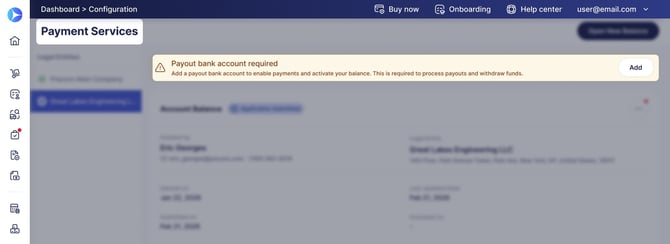
- Click the Add button located in the banner.
- In the form provided, fill in the following details:
- Account holder name
- Account number
- Routing number
- Click Add to submit the information.
You can view and change the payout account later:
- Click “...” opposite Account Balance on this page.
- Select Payout Bank Account.
- Click Edit in the sidebar.
Once you’ve added an account, Stripe will start the verification process.
- If any info is missing or incorrect, you’ll see a notification banner on this page.
- Click Update in the banner.
- Review and correct the information in the sidebar.
- Press Update to send the new details for review.
- Once the account passes the verification, you’ve successfully set up a Precoro Payments account.
Learn how to manage your financial account in Precoro in this article.
FAQs
Precoro partners with Stripe Payments Company for money transmission services and account services with funds held at Fifth Third Bank , N.A., Member FDIC.
Precoro Visa® Commercial cards are powered by Stripe and issued by Celtic Bank. Stripe Issuing balances are provided in the US by Stripe Payments Company, licensed money transmitter, with funds held at Stripe’s bank partners, Members FDIC.