
TABLE OF CONTENTS
- How You Benefit from Supplier Contracts
- How to Enable Contracts
- How to Add a Contract Manually
- Add Contracts Faster with the Contract Agent
- How to Track Negotiated Savings
- Multi-Entity Settings for Contracts
- Need More Control Over Contracts?
How You Benefit from Supplier Contracts
When signing a contract with a supplier, you can negotiate the timeframe and total amount you intend to spend along with any special terms.
Adding the contract to Precoro helps you:
- Access information about supplier contracts in one place.
- Fill in contracts automatically from the uploaded file with the Contract Agent.
- Link documents to contracts and track spending against each one.
- Get reminders before contracts end and alerts when spending exceeds the contract amount.
- See how much each negotiation saves with Negotiated Savings.
📋 To work with supplier contracts make sure you have:
- The Contracts setting enabled for your company. See How to Enable Contracts.
- The Supplier Management role.
How to Enable Contracts
- Go to Configuration → Basic Settings (precoro.us) → Documents Setup → General Settings.
- Select the Contracts checkbox.
- Click Save in the top right corner.
How to Add a Contract Manually
Step 1: Open the New Contract Form
Open the form from one of two places:
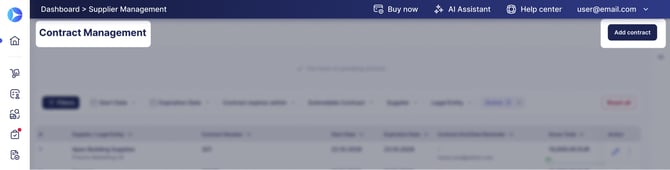
- Contract Management page: go to the Supplier Management module → Contract Management (precoro.us) page and click Add Contract in the top right corner.
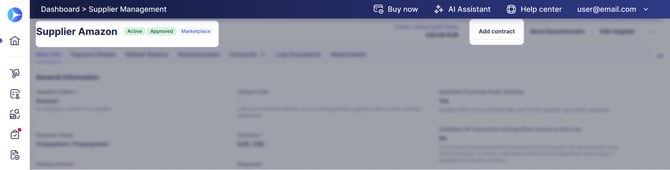
- Supplier page: go to Supplier Management, open the supplier’s profile, and click Add Contract. The Supplier field is filled in automatically and isn't shown.
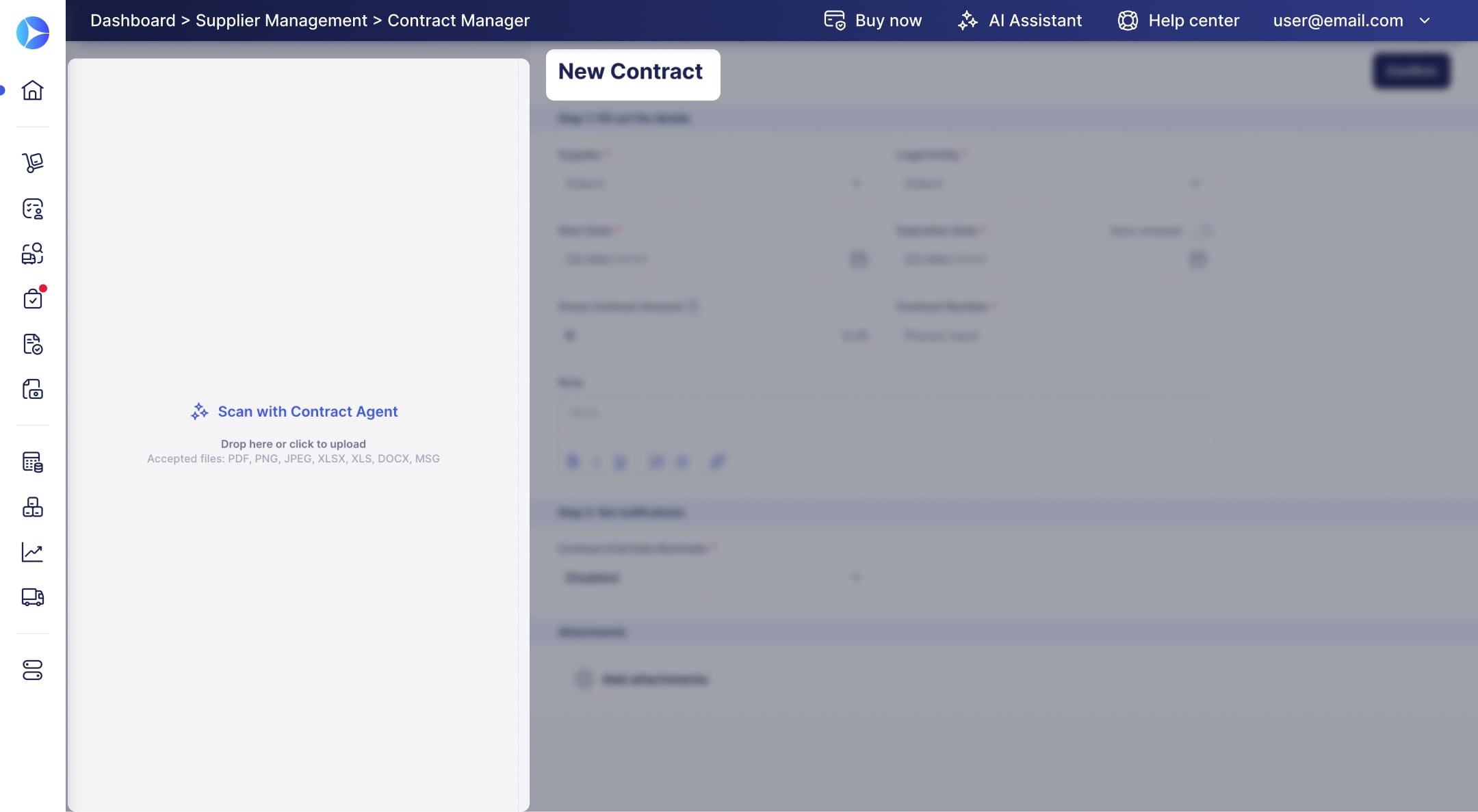
In both places, you can fill in the form yourself or upload the contract file for the Contract Agent.
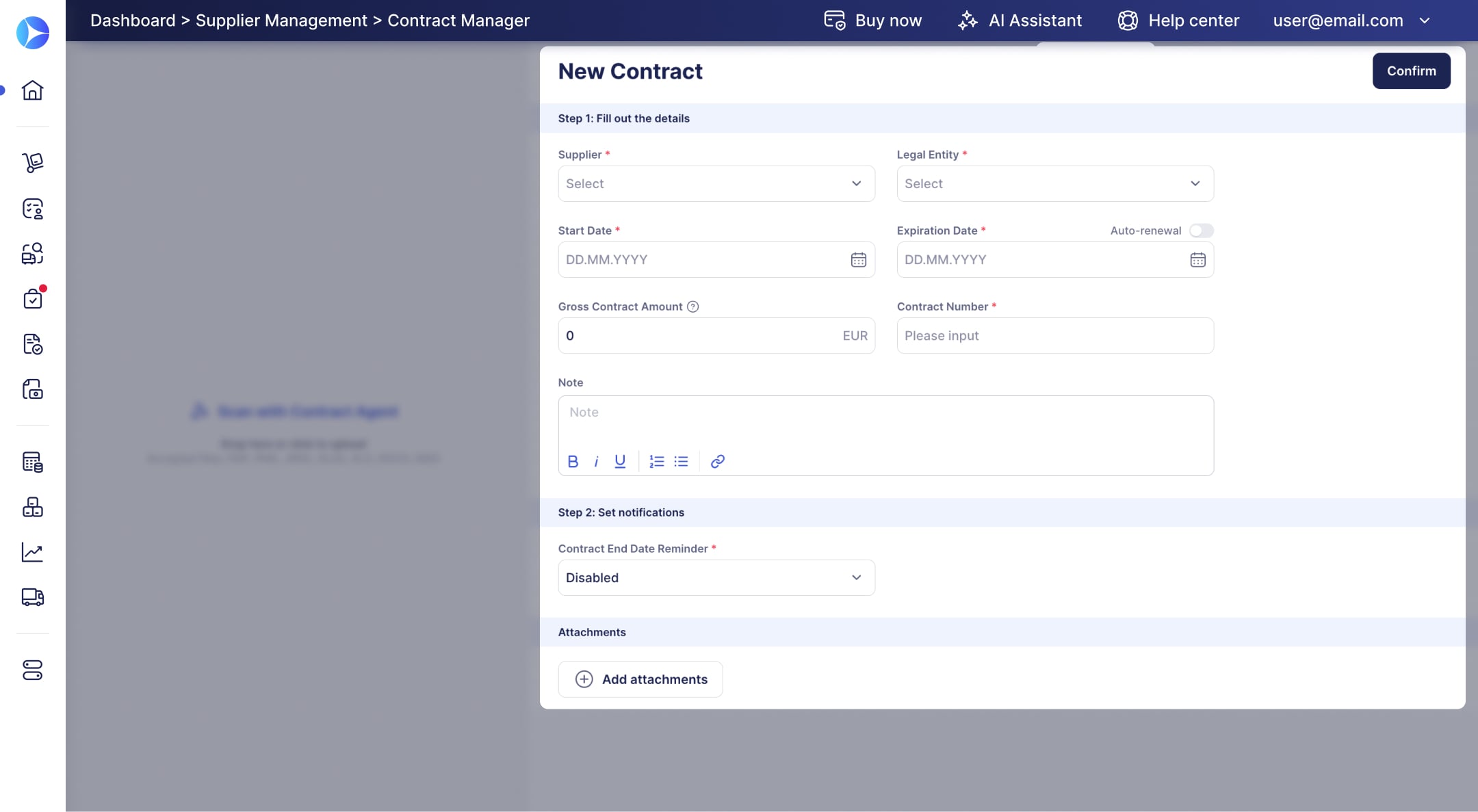
Step 2: Fill In the Contract Fields
Required fields are marked with an asterisk (*).
| Supplier* |
Choose the name of the previously created Supplier. Find more information on how to add one here. Once you have filled this field, additional fields (Contract End Date Reminder, Send notification to) appear in the form. |
| Legal Entity* | If your company has legal entities, select the legal entity this contract belongs to. |
| Contract Number* | Enter the number of the contract signed with the supplier. Use it to find the contract in the list. |
|
Start Date*, Expiration Date* |
Set the negotiated validity period. |
|
Auto-renewal |
Turn on to extend the contract for the same term on the expiration date. |
| Contract End Date Reminder* | Specify when you want to receive a notification about the expiration date, or select Disabled if you do not need a reminder. |
| Gross Contract Amount | Specify the amount that can be spent with documents linked to this contract. |
| Supplier Baseline Amount | It must be equal to or greater than the Gross Contract Amount. See How to Track Negotiated Savings. |
| Send notification to: | Select users who will receive notifications about approaching expiration date or exceeding the established contract total. This field is required if you set the Contract End Date Reminder time or Gross Contract Amount. You can also add the supplier’s email below the users. |
| Note | Put in any additional important information. |
For how reminders and spending alerts work, see How to Manage Supplier Contracts.
Step 3: Add Custom Fields and Attachments
- Fill in your company’s custom contract fields, if any. See Custom Contract Fields.
- Click Add Attachments to upload the contract file or other documents.
Step 4: Confirm the Contract
Click Confirm to save the contract.
Add Contracts Faster with the Contract Agent
Upload the signed contract file, and the Contract Agent fills in the contract for you. It helps you:
- Skip manual data entry: the agent fills in the required fields and available custom contract fields.
- Get an active contract right away when all required information is recognized.
- Ask questions about a contract and explore its insights later.
The Contract Agent is available for companies starting from the Automation plan.
Learn how to use it in AI Agent for Contract Uploading and Analysis.
How to Track Negotiated Savings
See how much each contract negotiation saves your company. Precoro compares the supplier’s initial offer with the final contract amount.
- Enter the final, negotiated amount in the Gross Contract Amount field.
- Enter the supplier’s initial offer in the Supplier Baseline Amount field.
- Save the contract.
Precoro calculates the Negotiated Savings: the difference between the two amounts, in the contract currency and as a percentage. The field is read-only and appears when you view or edit the contract.
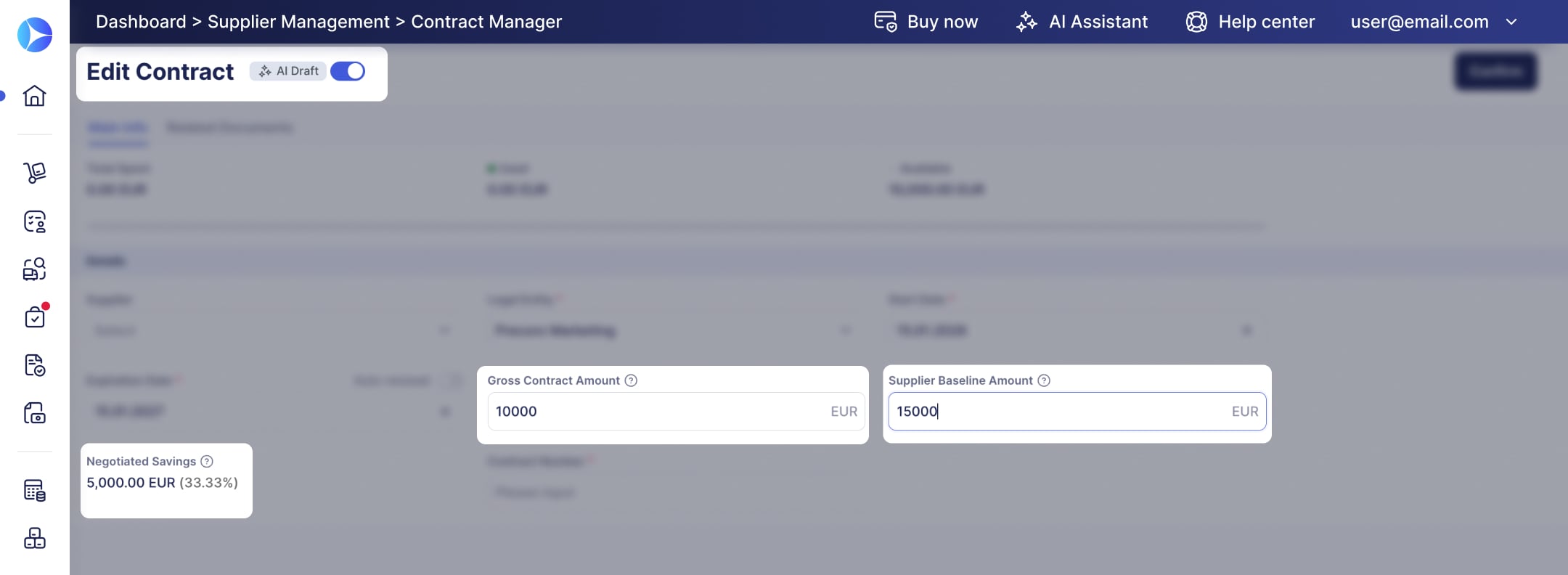
You can change the Supplier Baseline Amount at any time when editing the contract. To analyze savings across contracts, use the Supplier Baseline Amount column in the Contract Revision History Report or a custom contract report.
Multi-Entity Settings for Contracts
If your company uses Multi-Entity Management, contract access and currency can depend on the selected legal entity.
💡 Please note: To turn on Multi-Entity Management, contact your Customer Success Manager.
Select the Right Contract Currency
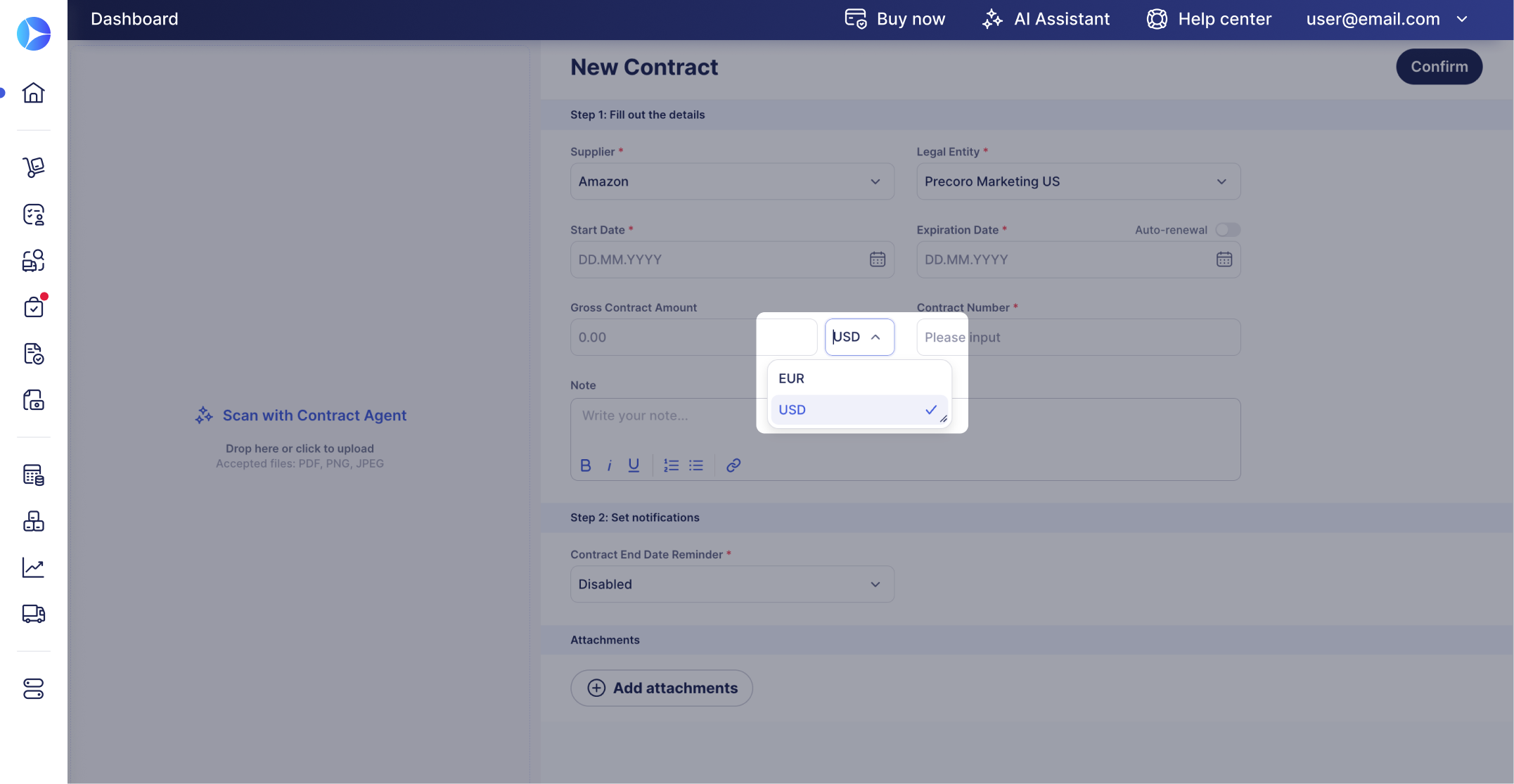
If you manage multiple legal entities, you can select the needed contract's currency from the dropdown.
Please note:
-
The Currency field shows the currencies available for the selected supplier.
If the Contract Agent fills in the contract, it selects the recognized currency when it's available for the supplier. If you select a different currency, the recognized value stays visible below the field for reference. -
You can change the currency of a confirmed contract until a purchase order or invoice is linked to it. Once a document is linked, the currency can't be changed.
-
Amounts drawn against a contract are calculated in the contract currency, converted using the exchange rate from Basic Settings or the rate specified on the document.
Assign Contract Managers for Each Legal Entity (Beta)
Please note: Contract access by legal entity is currently in Beta. Reach out to your Customer Success Manager to enable it.
When this feature is enabled, you can only select a legal entity you have access to while creating a contract. This helps you correctly set up contract management access for each legal entity.
Here’s how it works:
- For each contract, Precoro stores the contract creator’s information to identify the user who added the contract.
- Only users with access to the legal entity selected in the contract can view the contract or receive notifications about its upcoming expiration.
For contracts created before this feature is enabled, users already selected in the Send notification to field continue to receive notifications, even if they don't have access to the contract's legal entity.
Need More Control Over Contracts?
The feature you need may already be planned or in progress. On the Open Product Roadmap, you can:
- See what’s planned and in progress
- Upvote ideas and share your use case in the comments
- Subscribe to announcements and follow ideas
- Submit your own feature requests
Log in or sign up with your business email to use all roadmap features. See How to Request a New Feature or Share Feedback.
NEXT STEPS
With your contract in Precoro, you can track spending against it, update its terms, and get reminders before it ends. Learn how in How to Manage Supplier Contracts.