
TABLE OF CONTENTS
A PunchOut Catalog is an online B2B E-commerce site that you can access from the Precoro procurement system.
Precoro offers a number of punchout integrations that you can view from the Marketplace Configuration (Marketplace Configuration for app.precoro.us) page. With these connections, you can access the supplier’s E-commerce websites directly from Precoro, making PR and PO creation easy and error-free with access to up-to-date item details.
DigiKey is a global distributor of electronic components and automation hardware, supplying semiconductors, connectors, sensors, and related parts. This catalog gives you a quicker path to sourcing electronic components.
How to Configure DigiKey Integration
Configuration Settings For Administrators
1. In Precoro, go to the Configuration → Marketplace Configuration (Marketplace Configuration for app.precoro.us) page, find DigiKey in the list, and press Add.
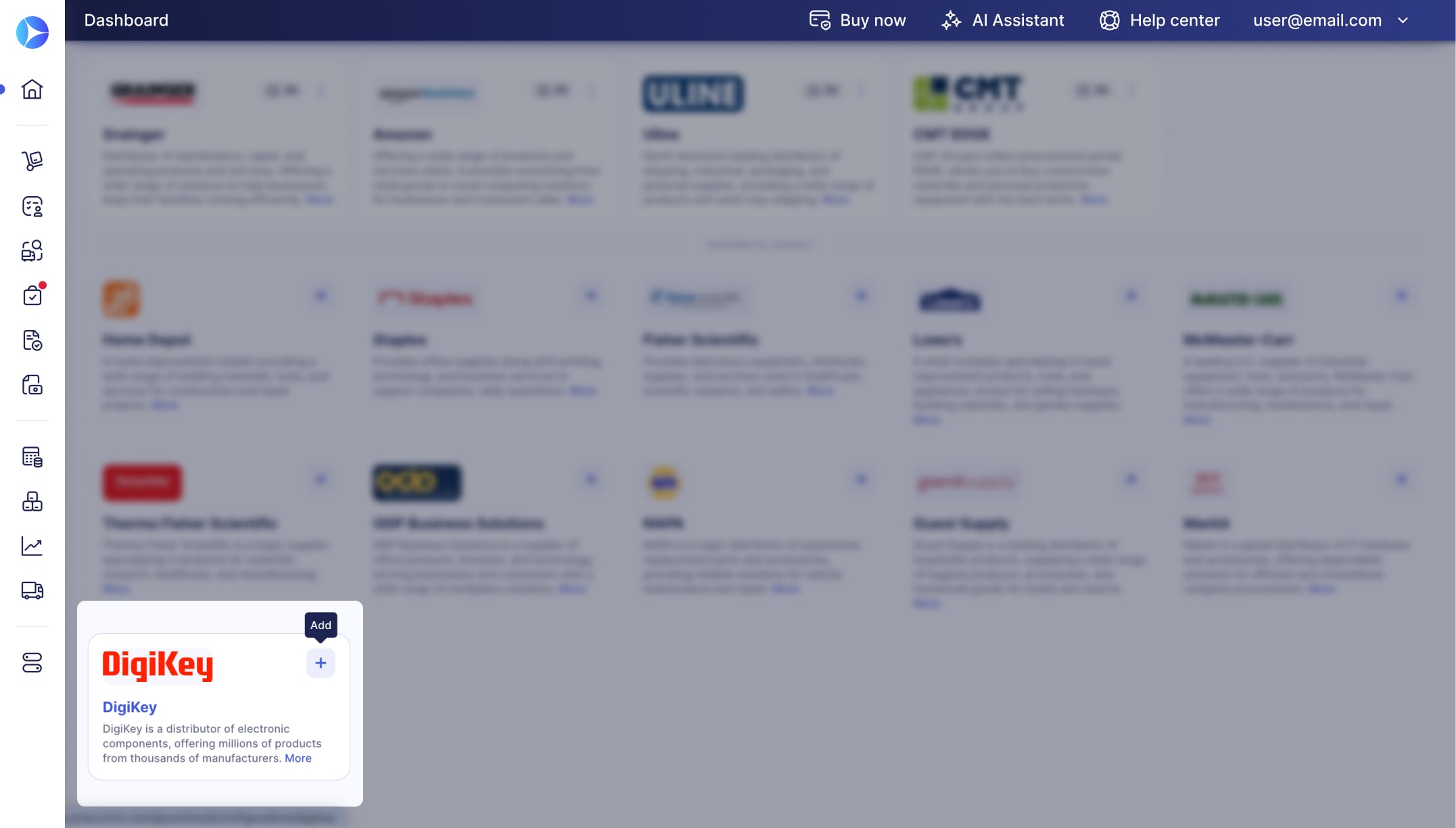
You will be directed to the setup page, where you can review and fill in the data needed to establish the connection.
2. Decide where your purchasing process should begin: choose Purchase Requisition or Purchase Order in the Start Purchase Processes From field. Your selection determines whether the Request from DigiKey button appears in the Purchase Requisitions or Purchase Orders module.

💡You can always return and change your document selection.
3. If your company uses multiple legal entities, enable the Set by Legal Entity option to configure PunchOut catalogs separately for each one. Learn more here.
4. Please contact a DigiKey representative to discuss the process of establishing the integration and receive the credentials for the punchout.
5. You can then paste the received credentials into the configuration settings.
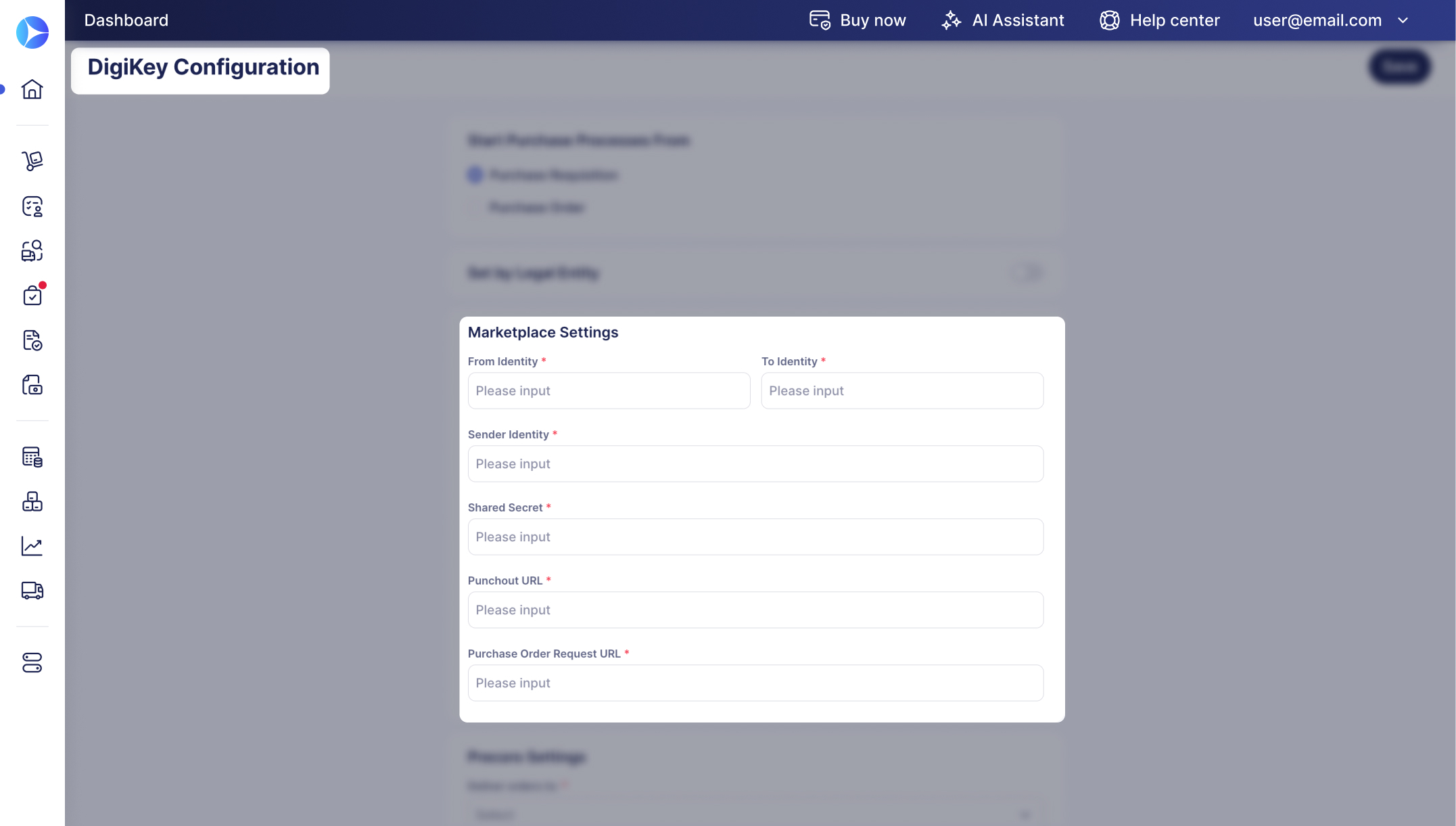
6. Once the representative's details are entered, complete the following fields:
-
-
Deliver orders to (only if PR is selected in Start Purchase Processes From)—specify whose contacts should be provided for delivery: the PO Purchaser or the PR Requester.
-
Default Purchaser (only if PR is selected in Start Purchase Processes From)—select a user who will be listed as the Purchaser in POs created from DigiKey PRs. Please note that only users with the Create Purchase Order role can be selected from the list.
-
Supplier—select DigiKey from the list of your existing suppliers. If you do not have this supplier on your list yet, you can always add them.
-
.jpg?hsLang=en)
If your company uses the Inventory module, turn on Automatically Add Items to the Catalog so DigiKey PunchOut items get added to your catalog and tracked as inventory once receipts come in. See how to enable it here.
When contacting a representative, please CC your Customer Success Manager and punchout@precoro.com. This allows us to promptly assist you with the PunchOut setup.
Setting Up Locations and Legal Entities
PunchOut documents have a separate Shipping Address field to specify where the supplier should deliver the order. It’s prefilled from the location’s Shipping Address by default, read how to configure it here.
If the location has no Shipping Address, enter it directly in the document—the field is required.
When configuring Legal Entities (Legal Entities for app.precoro.us) in companies with enabled punchout catalogs, press Marketplace Billing Address and fill out additional fields. This information serves as a billing address in POs created with the punchout. If not set in the legal entity, the billing address will be copied from the location.
How to Work with the DigiKey Integration
How to Create Purchase Requisitions from DigiKey
With the integration configured, you can start creating documents with the punchout catalog. If Purchase Requisition is selected in the Start Purchase Processes From field, navigate to the Purchase Requisitions module to begin.
-
Click Request from DigiKey on the top panel, or click Request from Marketplace and pick DigiKey on the next screen. If your company has multiple PR forms, select one from the drop-down list.
-
Fill in a new PR document with the required details.
Please note that the Shipping Address is prefilled from the location’s Shipping Address by default. If the location doesn’t have one, enter the address manually in the document. -
Then click Next Step.
-
You will be redirected to the store's catalog. Choose the needed item, enter its quantity, and add it to the order. Repeat the process for all items you want to request.
-
Go to your shopping cart and review the selected items. Once everything looks good, click Submit Order button.
-
You will be automatically redirected to Precoro with the created PR on the Draft status. Check the information, fill in the necessary custom fields for items, and Confirm the document.
-
The PR will undergo the Approval Workflow configured in your company. Once it gains the Approved status, a related purchase order will be created.
-
Once the PO is Approved, it is sent to DigiKey.
How to Create Purchase Orders Without PRs from DigiKey
You can create documents with the punchout catalog even if you don't use purchase requisitions. If Purchase Order is selected in the Start Purchase Processes From field, navigate to the Purchase Orders module to begin.
- On the top panel, click the Request from DigiKey button or click Request from Marketplace and select DigiKey on the following page. If you have multiple forms for PO creation, choose one from the drop-down list.
- Create a new PO document by filling out all the necessary information.
Please note that the Shipping Address is prefilled from the location’s Shipping Address by default. If the location doesn’t have one, enter the address manually in the document. - Then click the Next Step button.
- You will be redirected to the store's catalog. Choose the needed item, enter its quantity, and add it to the order. Repeat the process for all items you want to request.
- Review the order information on the order page. If everything looks good, click the Submit Order button.
- You will be automatically redirected to Precoro with the created purchase order on the Draft status. Check the information, fill in the necessary Custom Fields for Items, and Confirm the document.
- The PO will undergo the Approval Workflow configured in your company. Once it gains the Approved status, it is sent to DigiKey.
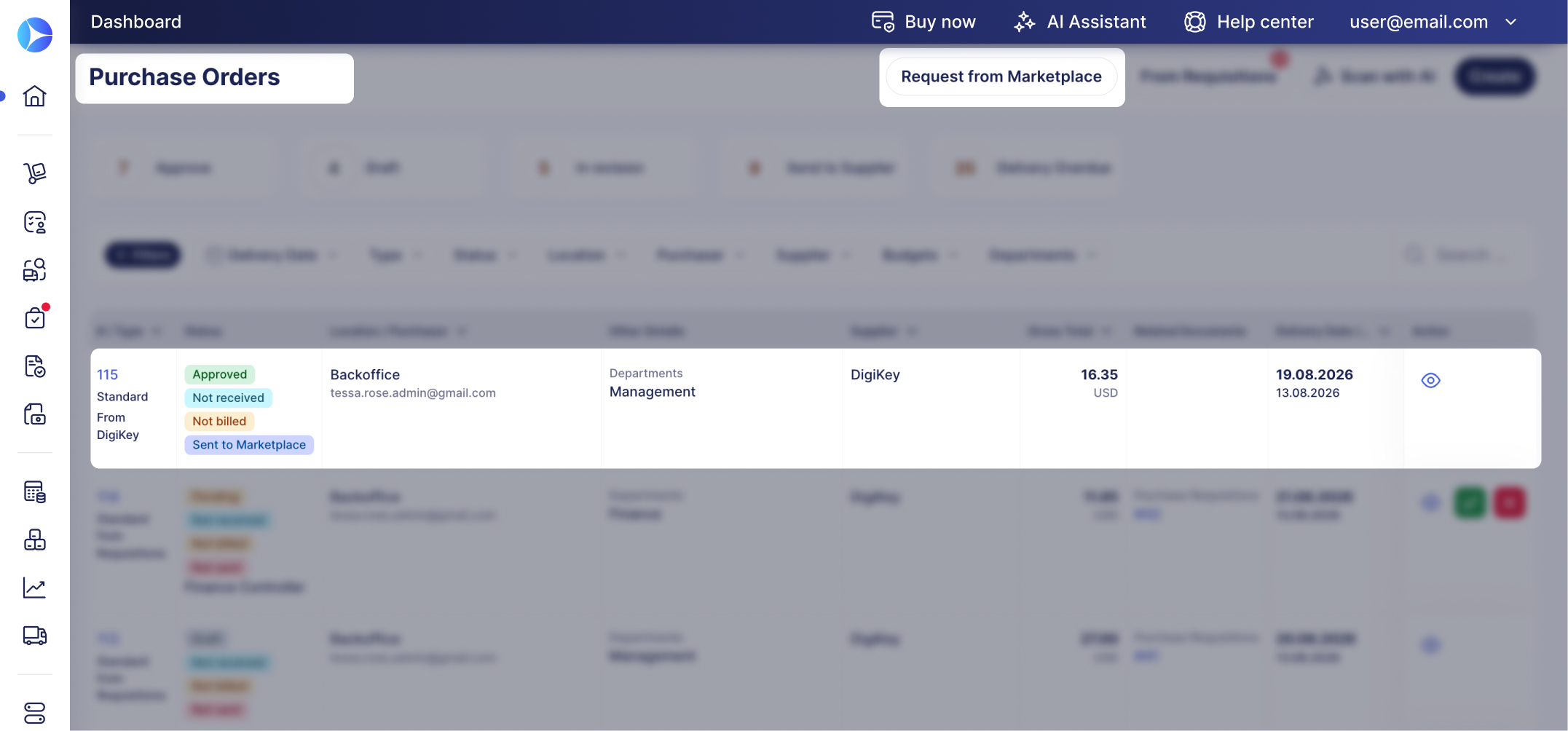
Redirect to DigiKey Button
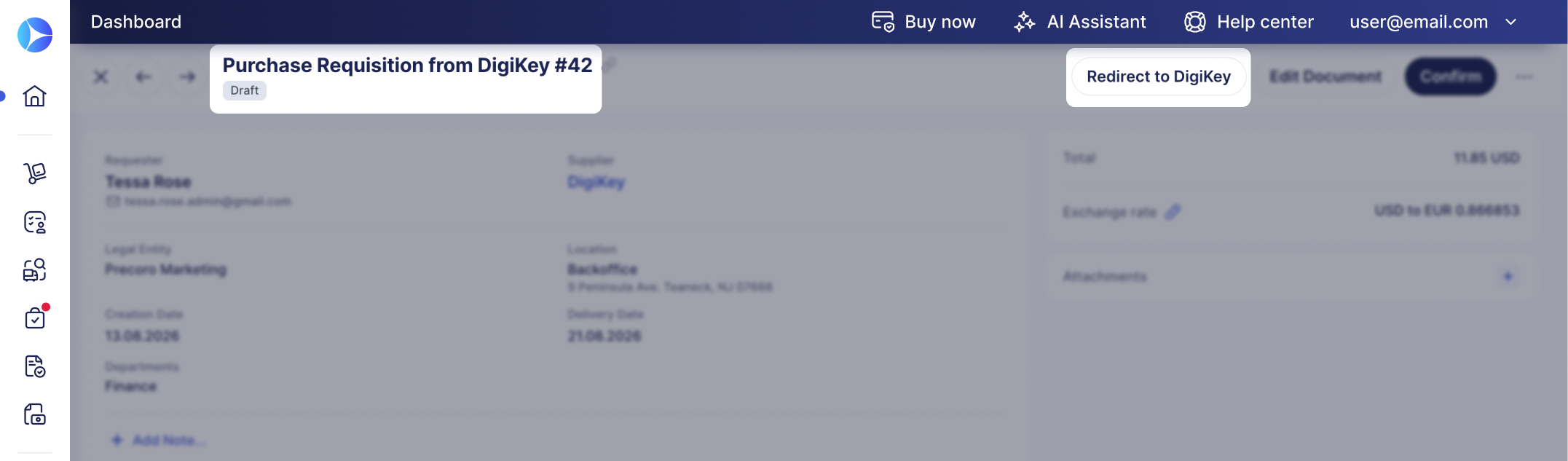
This feature lets you return to the marketplace and edit your order or requisition before the document is finalized.
While the document is in Draft or In Revision status, the creator can press Redirect to DigiKey in the action panel to change ordered items via the supplier’s store page. If you start with creating a purchase requisition, this button is only available until a related PO is created.
Approvers and Super Users can use the button if they Revise the document.
Frequently Asked Questions