
TABLE OF CONTENTS
Contract Agent is useful for:
Procurement teams and managers looking for speed, frictionless vendor onboarding, and negotiation leverage
Legal and contract managers who need quick risk detection, fewer compliance blind spots, and less manual contract data entry
Finance leaders and controllers who want strict margin protection, zero cash leakage from auto-renewals, and full visibility into vendor commitments
What Can Precoro Contract Agent Do for You
With the AI Agent, contract data becomes easier to review, complete, and act on. Instead of manually reading long PDFs, copying details into forms, or tracking deadlines separately, you can:
- Extract key contract data from uploaded PDF, PNG and JPEG files and fill out Precoro’s contract form faster.
- Create active contracts automatically when all required fields are recognized, or save incomplete records as AI Drafts for later review.
- Identify possible risks, unclear terms, missing details, and conditions that may benefit your company.
- Ask contract-specific questions and get answers with references to the contract body.
- Review saved conversation history whenever you need to return to previous questions and answers.
- Track upcoming expiration dates on the Contract Management page.
- Upload up to 50 contracts at once and add them to an AI scanning queue.
Please note: AI-generated insights can help you process contracts faster, but they should not replace legal, procurement, or finance review when your company requires it.
Before You Start
Make sure that:
- Your company is on the Automation plan. The AI Contract Agent is currently available in Beta for all customers using this plan.
- You have access to Contract Management.
- The contract is uploaded as a PDF, PNG or JPEG file.
- The contract text is readable enough for AI scanning.
Once the feature is active, users with access to Contract Management can upload contracts and use AI-powered scanning.
How to Scan Contracts with the AI Agent
Once the feature is active, users with access to Contract Management can upload contracts and use AI-powered scanning.
Step 1. Upload a Contract
1. Open the Contract Management page.
2. Click the button Add contract.
You will be able to create a contract either manually or upload a PDF, PNG, or JPEG contract and scan it with the AI Agent.
Please note: If this is your first time using the AI Agent, accept the consent request. It allows the Contract Agent to analyze all the company contracts, compare data, and answer contract-related questions.
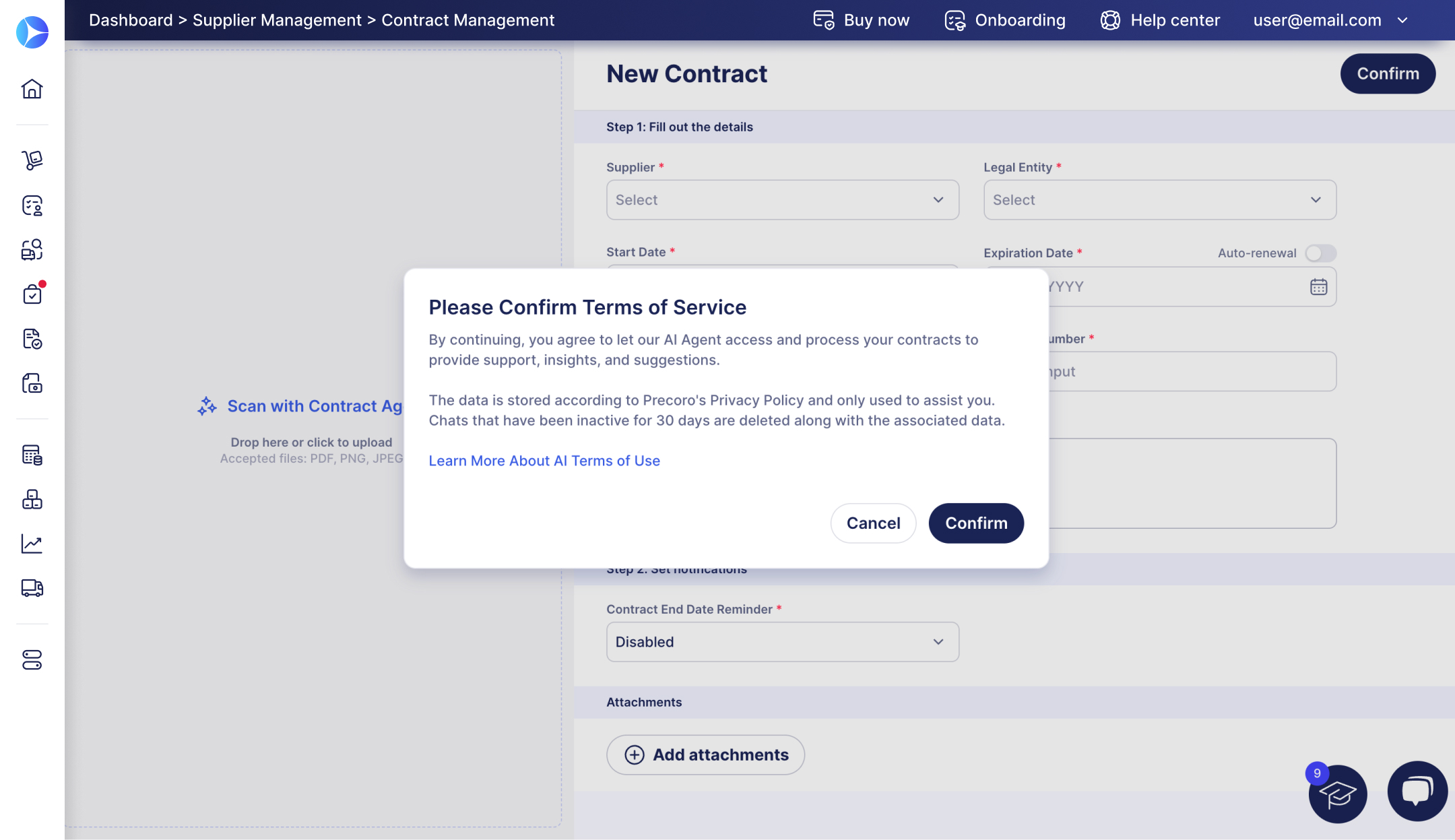
3. Drop a contract into the drag-and-drop space on the left and wait for the agent to process the text.
Step 2. Check the Created Contract
After the Contract Agent processes the file, the contract is created as either active or AI Draft, depending on whether all required information was recognized.
- If all required fields are recognized, Precoro automatically creates an active contract. Open the contract to review or correct the terms if necessary. Active contracts open in editing mode; click Update to save your changes.
-
If any required fields are missing, Precoro creates an AI Draft. Use the Draft info card on the Contract Management page to quickly find contracts that still require review.
Open the AI Draft, review the extracted information, and fill in the missing required fields. AI Drafts open in editing mode and show the Confirm button. Click Confirm when the contract is ready. It becomes active only after confirmation.
Use Set notifications to add a Contract End Date Reminder for the responsible person, or leave it disabled if no reminder is needed.
Add attachments if they are required for review or record keeping.
.jpg?hsLang=en)
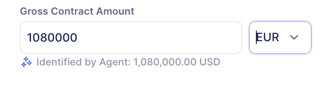
💡Please note: With Multi-Entity Management enabled, the Contract Agent also recognizes the contract currency.
.png?hsLang=en)
If the recognized currency is available for the contract's supplier, Precoro fills in the currency field automatically.
If you change the AI-recognized currency, Precoro shows the originally recognized value below the field so you can review it before confirming the contract.
Step 3. Review Contract Agent Insights
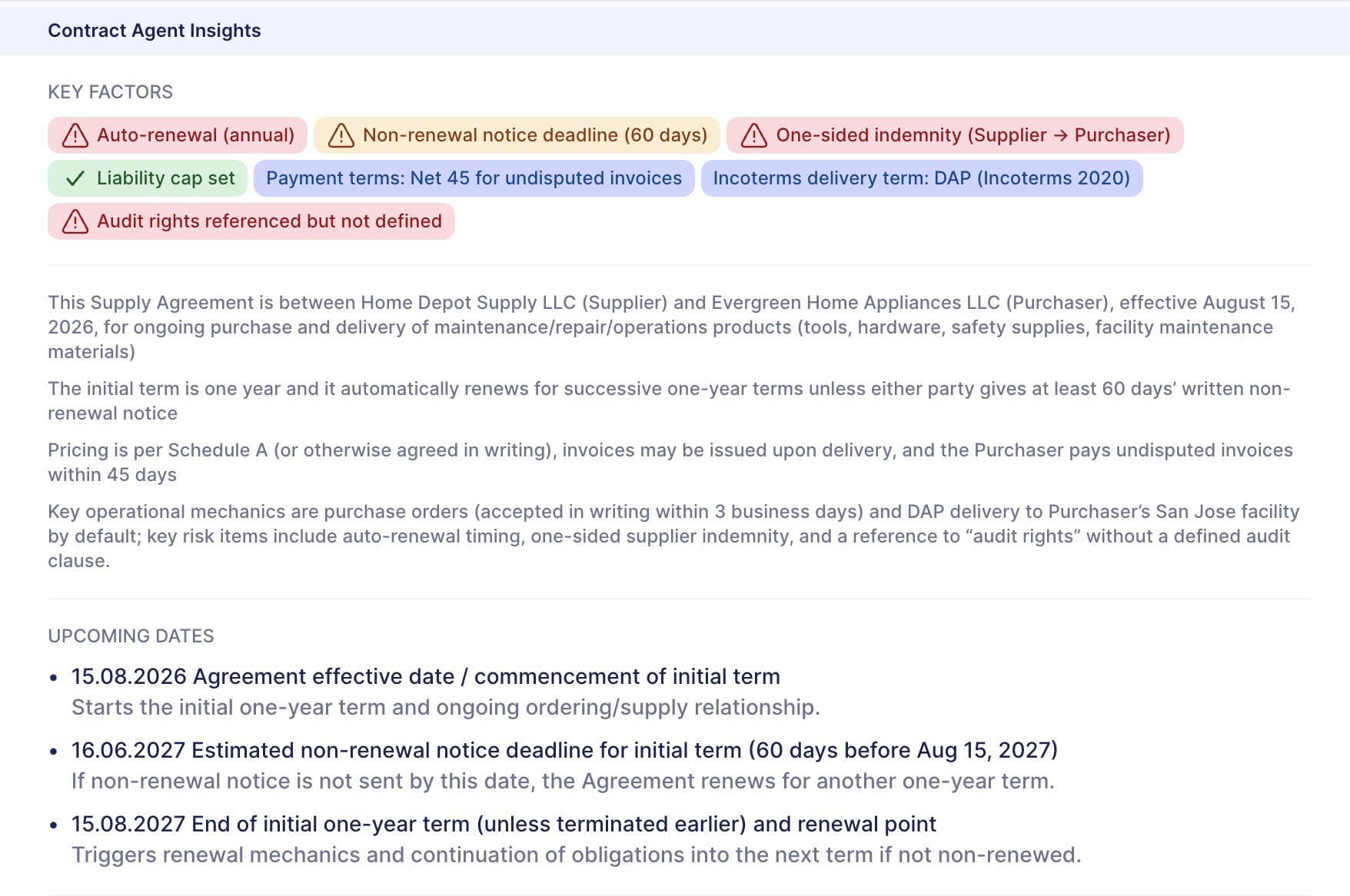
Check the AI-generated summary under Contract Agent Insights. It is usually created within 1–2 minutes after scanning is complete.
The summary includes:
- Key Factors — Main contract terms and important insights. Hover over the information chips for more details.
- Upcoming Dates — Important contract dates that may require action.
- Terms that Benefit Your Business — Conditions that may be favorable for your company.
- Missing or Unclear — Terms that may need clarification from the other party.
- Risks and Conflicts — Possible inconsistencies or risks found in the contract.
- Recommended Next Steps — Suggested actions to clarify terms or reduce risks.
Step 4. Ask the AI Agent Questions
Feel free to ask the Contract Agent questions about the uploaded contract, for example:
- What are the payment terms?
- When does this contract expire?
- What are the renewal conditions?
- What are the penalties for late delivery?
- Are there any unclear or missing terms?
- What obligations does the supplier have?
- What obligations does our company have?
- What points should we clarify before signing?
- What arguments can we use to negotiate better payment terms?
The AI Agent answers based on the contract text and provides references to the contract body, so you can review the source information before making a decision.
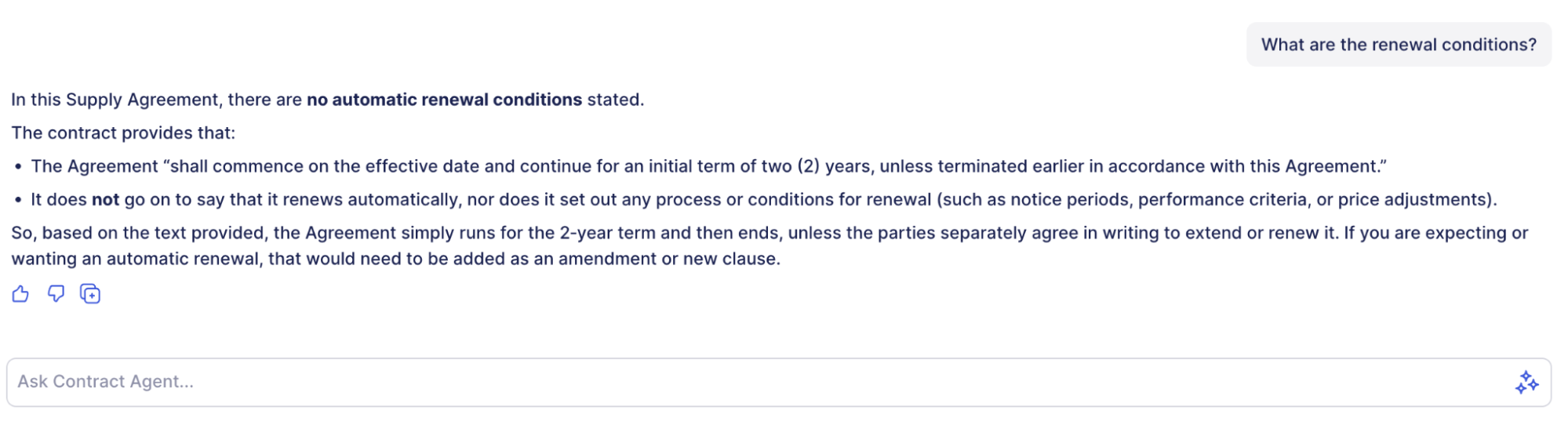
Your conversation history is saved, allowing you to return to previous questions and answers later.
Next features are only for precoro.com users
Step 5. Track Upcoming Expiration Dates
A built-in widget on the Contract Management page notifies your team about upcoming expirations as soon as they open the page.
.jpg?hsLang=en)
Step 6. Compare terms across your contract database
You can use the AI Agent to compare contract terms and understand differences between agreements faster.
For example, you can ask:
- Compare the termination terms in these two contracts.
- What changed between the previous supplier contract and the new version?
- Which contract has better payment terms for our company?
- Which contract creates more risk for auto-renewal?
Use these answers as a starting point for review, negotiation, or internal discussion.
Step 7. Upload Contracts in Bulk
You can upload up to 50 contracts at once.
Precoro creates a queue and scans the uploaded contracts with AI. After scanning, review the created contracts or drafts, check the AI-generated insights, and confirm the contracts that require additional details.
Bulk upload is useful when you need to process multiple supplier contracts, migrate existing agreements into Precoro, or сheck a group of contracts before renewal.