---
title: Tolerance Limit
description: Learn how to configure tolerance limits for re-approvals and matching to maintain control over document changes and prevent delays.
---
[Skip to content](https://help.precoro.com/tolerance-limits#main-content)
[Contact us](https://help.precoro.com/kb-tickets/new?hsLang=en) [Customer portal](https://help.precoro.com/tickets-view?hsLang=en)
[](https://app.precoro.com/login)
Open main navigation
Close main navigation
- [Contact us](https://help.precoro.com/kb-tickets/new)
- [Customer portal](https://help.precoro.com/tickets-view)
- [Contact Us](https://share.hsforms.com/1-5JilMA_Qv6AOSVjFtNhDg14slf)
[Contact Us](https://share.hsforms.com/1-5JilMA_Qv6AOSVjFtNhDg14slf)
Hi there! How can we help you today?
- There are no suggestions because the search field is empty.
1. [Knowledge Base](https://help.precoro.com/?hsLang=en)
2. [Precoro Setup](https://help.precoro.com/precoro-setup?hsLang=en)
3. [Configurations](https://help.precoro.com/precoro-setup?hsLang=en#configurations)
# Tolerance Limit
## Learn how to set up Tolerance Limits to control re-approvals after document revisions. Apply different conditions to make your approval process easier and reduce unnecessary workflow interruptions.
#### TABLE OF CONTENTS
- [What Is the Tolerance Limit?](https://help.precoro.com/tolerance-limits#what-is)
- [How to Set Up Tolerance Limits](https://help.precoro.com/tolerance-limits#how-to-set-up)
- [Option 1: General Setup for All Suppliers](https://help.precoro.com/tolerance-limits#option-1)
- [Option 2: Setup for Individual Suppliers](https://help.precoro.com/tolerance-limits#option-2)
- [How to Enable Tolerance Limit for Matching](https://help.precoro.com/tolerance-limits#matching)
- [How to Edit or Delete Tolerance Limits](https://help.precoro.com/tolerance-limits#how-to-edit-delete)
- [How Tolerance Limit Works in Documents](https://help.precoro.com/tolerance-limits#in-documents)
- [Option 1: When the “Any” Condition Is Enabled](https://help.precoro.com/tolerance-limits#any-condition)
- [Option 2: When the "Less or equal" Condition Is Enabled](https://help.precoro.com/tolerance-limits#less-or-equal)
- [Option 3: When the “From” Condition Is Enabled](https://help.precoro.com/tolerance-limits#from-condition)
- [Option 4: When the “From to” Condition Is Enabled](https://help.precoro.com/tolerance-limits#from-to-condition)
- [Tolerance Limit and Matching Process: Example](https://help.precoro.com/tolerance-limits#tl-matching-example)
- [What Changes Affect Tolerance Limits](https://help.precoro.com/tolerance-limits#what-affects)
- [Tolerance Limit Analytics](https://help.precoro.com/tolerance-limits#analytics)
### What Is the Tolerance Limit?
**Tolerance Limit (TL)** is a configuration setting that determines the conditions under which document revisions will trigger a re-approval.
TLs are applied across all document types and can be configured with various conditions. It allows you to control changes in document amounts, ensuring approvals are only required when significant revisions occur.
Tolerance Limits can also be applied to **matching** discrepancies between documents when the [**Apply TL Rules to Matching**](https://help.precoro.com/tolerance-limits#matching) setting is enabled.
**💡Please note:** TL works based on the document’s **Net Total** amount. TLs only apply when the document total increases. If the total decreases beyond the set limit, no re-approval will be triggered.
### How to Set Up Tolerance Limits
You can set up TL in two ways:
#### Option 1: General Setup for All Suppliers
1. Open the **Configuration** page → **Basic Settings** → **Approval** tab.
2. Click **Add Tolerance Limit**.
3. Choose a **Condition** from the available options: **Any**, **Less or equal**, **From**, or **From to**. The condition determines which documents the Tolerance Limit applies to, based on their total amount. Learn more [here](https://help.precoro.com/tolerance-limits#in-documents).
4. Choose the **Limit Type** (% or company currency).
5. Enter the **Tolerance Limit %** (the percentage variation allowed without triggering re-approval) or **number** (if company currency is used as a limit type).
6. Add multiple conditions by pressing the **Add Tolerance Limit** button (if needed).
7. Click the **checkmark** and **Save** buttons.
**💡Please note:** These settings apply to all document types activated in your company.
#### Option 2: Setup For Individual Suppliers
**💡Please note:** Individual supplier settings take precedence over the general Tolerance Limit in Basic Settings when it comes to matching (if the **Apply the Limit Rules to Matching** setting is enabled). TLs for individual suppliers don't affect the re-approval process.
You can set up the TL for individual suppliers in two ways:
1. One-by-one in **Supplier Profiles**:
- On the **Supplier Management** page, select the supplier you want to edit.
- Open the **Main Info** tab.
- Press the checkmark icon next to the **Special Tolerance Limit** option**.**
- Set the **Tolerance Limit Condition**, select the **Limit Type** (percentage or company currency), and enter the required **Tolerance Limit** amount.
- Press the **Save** icon to record the changes.
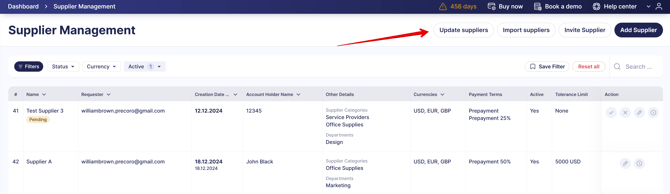
2. In bulk via the **Update suppliers** template.
[](https://help.precoro.com/hubfs/In%20Bulk.png?hsLang=en)
### How to Enable Tolerance Limit for Matching
By default, TL applies only to re-approval. To make tolerance limits affect matching rules as well, follow these steps:
1. Go to **Configuration** → **Basic Settings** → **Approval**.
2. Enable the **“Apply the Limit Rules to Matching”** checkbox**.**
3. Click **Save** to apply the changes.
Once enabled, the TL in Basic Settings will apply both to re-approval and matching.
**💡Please note:**
- The individual supplier TL settings **override** the general TL settings when it comes to matching (if the TL is configured both in Basic Settings and in the Supplier Profile).
- The individual tolerance limit in supplier profiles only affects matching and never impacts re-approval.
- If any item is added or removed from the document, it will always trigger the matching process, even if the document total remains within the set TL, unless you enable the **[Adding New Items Without Matching](https://help.precoro.com/matching-process?hsLang=en#adding-new-items)** functionality.
Precoro automatically matches invoices against POs to ensure procurement accuracy. However, if you want to enable matching for receipts as well, you need to activate the “Match with Purchase Order” setting. Learn more [here](https://help.precoro.com/matching-process?hsLang=en#receipt-matching).
### How to Edit or Delete Tolerance Limits
To edit the TL settings:
1. Go to the **Basic Settings → Approval** tab.
2. Click the **Edit** icon next to the existing TL.
3. Modify the condition, Tolerance Limit amount, or type as needed.
4. Click **Save** to record the changes.
To delete the TL settings:
1. Go to the **Basic Settings → Approval** tab.
2. Click the **Delete** icon next to the existing TL.
3. Click **Save** to record the changes.
### How Tolerance Limit Works in Documents
The Tolerance Limit works based on the document's total amount. The table below shows when each condition applies and how the allowed increase is calculated. The sections after it walk through each condition in detail.
| **Condition** | **Applies when** | **Example (TL = 2%)** |
| --- | --- | --- |
| Any | All documents, regardless of total | Total $8,000 → allowed increase up to $160 |
| Less or equal X | Total is X or less | X = $3,000, total is $3,000 → allowed increase up to $60 |
| From X | Total is greater than X | X = $3,000, total is $3,001 → allowed increase up to 60.02 |
| From X to Y | Total is greater than X and up to Y | X = $3,000, Y = $6,000, total is $6,000 → allowed increase up to $120 |
#### Option 1: When the “Any” Condition Is Enabled
With this condition, the Tolerance Limit applies to **all documents**, regardless of their total.
For example, if TL is 2% and the document total is $8,000, the allowed increase is up to $160 (2% of $8,000). If the document total increases from $1 to $159, the TL will be applied, and re-approval won't be triggered. An increase of $160 or more will trigger the re-approval process.
#### Option 2: When the "Less or equal" Condition Is Enabled
This condition, the Tolerance Limit applies only **if the document's total is less than or equal** to the specified amount.
For example, if TL is 2% and you set the Less or equal condition to $3,000, the TL applies to any document with a total of $3,000 or less. If the document total is exactly $3,000, the allowed increase is up to $60 (2% of $3,000). An increase of $60 or more will trigger the re-approval process.
#### Option 3: When the “From” Condition Is Enabled
This condition allows you to set a **minimum threshold** for the document total.
The Tolerance Limit applies **only** if the document total exceeds the specified amount.
For example, if TL is 2% and you set the From condition to $3,000, the TL applies to documents with a total of $3,000.01 or more. If the document total is $3,001, the allowed increase is up to $60.02 (2% of $3,001). An increase of $60.02 or more will trigger the re-approval process.
#### Option 4: When the “From to” Condition Is Enabled
The “From to” condition allows you to define a range for applying TL.
The Tolerance Limit applies only if the document total falls within the set range.
For example, if you set the range from $3,000 to $6,000, the TL applies to documents with a total from $3,000.01 up to and including $6,000. If your TL is 2% and the document total is $6,000, the allowed increase is up to $120 (2% of $6,000). An increase of $120 or more will trigger the re-approval process.
#### Tolerance Limit and Matching Process: Example
When the “Apply the Limit Rules to Matching” setting is activated, Precoro also tracks deviations between:
- A **Purchase Order** created by you
- An **Invoice** submitted by the Supplier (through the Supplier Portal)
**💡Please note:** To submit invoices through Precoro, suppliers must have the **Supplier Portal** access. Find more details [here](https://help.precoro.com/how-to-add-a-new-supplier-to-the-suppliers-portal-business-side-1?hsLang=en).
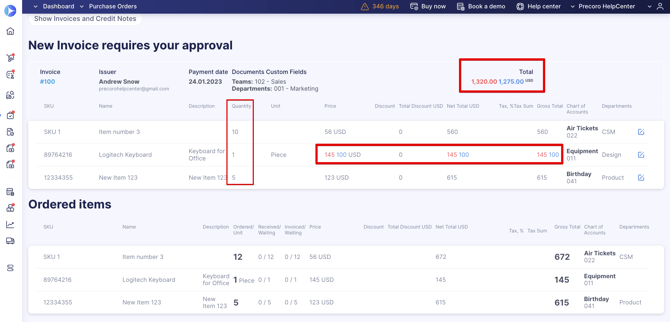
You will always be informed about the changes the supplier has put in the invoice. If the Supplier exceeds the set TL, both the invoice and the related PO will be sent for matching.
For example, when you set the supplier's TL to 5%, and the item total in your PO is $5,000, the allowed deviation is up to $250 (5% of 5,000). If the supplier changes the item total by $250 or less, the document will be approved without matching. If the change exceeds $250, the PO and Invoice/Receipt will be sent for matching.
To trigger document matching for invoices or receipts with any discrepancies, set the Tolerance Limit to 0. This way, even the smallest difference between the PO and the supplier's invoice will prompt the matching process.
You can track any changes to items, prices, or quantities directly in the document.
[](https://help.precoro.com/hubfs/Track.png?hsLang=en)
Learn more about the **Matching Process** [here](https://help.precoro.com/matching-process?hsLang=en).
### What Changes Affect Tolerance Limits
The following changes to the document can impact the total amount:
- Changes to the price of items
- Changes in the quantity of goods
- Adjustments to taxes (addition, modification, or deletion)
- Changes in exchange rates
- Adding or removing items
If the total amount remains within the set Tolerance Limits after these changes, re-approval will not be triggered after the revision confirmation.
### Tolerance Limit Analytics
You can track TL analytics in:
| Supplier Management filters | [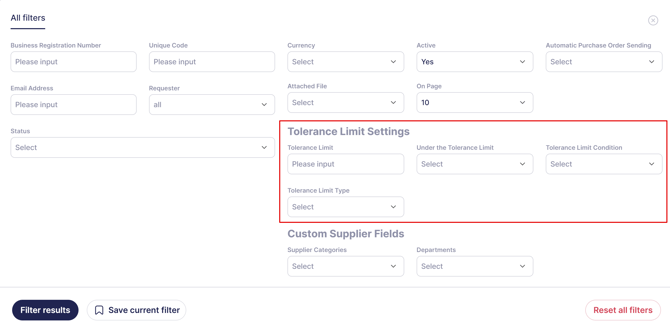](https://help.precoro.com/hubfs/Filters-1.png?hsLang=en) |
| --- | --- |
| Supplier Management list | [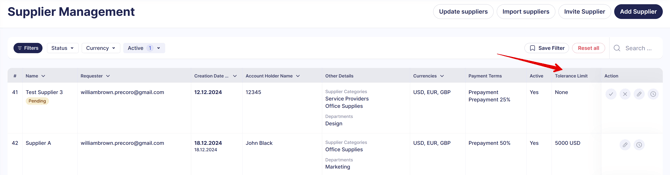](https://help.precoro.com/hubfs/Supplier%20Management.png?hsLang=en) |
| Reports | [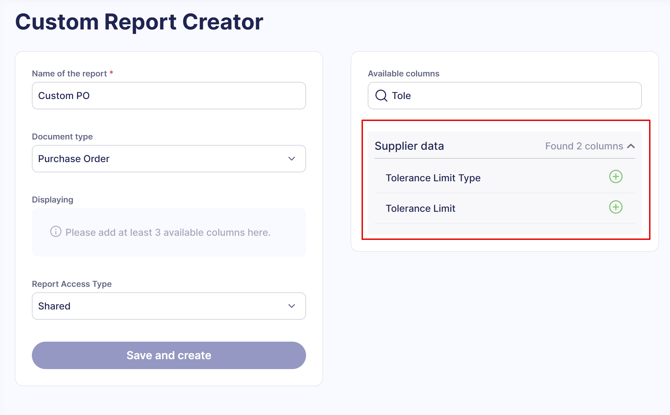](https://help.precoro.com/hubfs/Reports-1.png?hsLang=en) |
| Supplier Revision history | [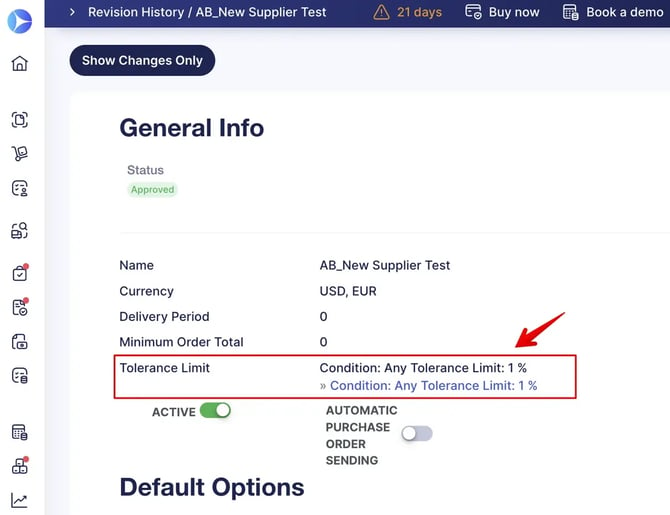](https://help.precoro.com/hubfs/Supplier%20Revision%20History.webp?hsLang=en) |
- [Precoro Setup](https://help.precoro.com/precoro-setup?hsLang=en#main-content)
- [Configurations](https://help.precoro.com/precoro-setup?hsLang=en#configurations)
- [User Management](https://help.precoro.com/precoro-setup?hsLang=en#user-management)
- [Custom Fields and Forms](https://help.precoro.com/precoro-setup?hsLang=en#custom-fields-and-forms)
- [Supplier management](https://help.precoro.com/precoro-setup?hsLang=en#supplier-management)
- [Working with Items](https://help.precoro.com/precoro-setup?hsLang=en#working-with-items)
- [Approval Workflow](https://help.precoro.com/precoro-setup?hsLang=en#approval-workflow)
- [Location Management](https://help.precoro.com/precoro-setup?hsLang=en#location-management)
- [Precoro Payments](https://help.precoro.com/precoro-setup?hsLang=en#precoro-payments)
- [Two-factor authentication](https://help.precoro.com/precoro-setup?hsLang=en#two-factor-authentication)
- [Security](https://help.precoro.com/precoro-setup?hsLang=en#security)
- [US Based Server](https://help.precoro.com/precoro-setup?hsLang=en#us-based-server)
- [How to use Precoro](https://help.precoro.com/how-to-use-precoro?hsLang=en#main-content)
- [Warehouse Requests](https://help.precoro.com/how-to-use-precoro?hsLang=en#warehouse-requests)
- [Requests for Proposals](https://help.precoro.com/how-to-use-precoro?hsLang=en#requests-for-proposals)
- [Purchase Requisitions](https://help.precoro.com/how-to-use-precoro?hsLang=en#purchase-requisitions)
- [Purchase Orders](https://help.precoro.com/how-to-use-precoro?hsLang=en#purchase-orders)
- [Service Orders](https://help.precoro.com/how-to-use-precoro?hsLang=en#service-orders)
- [Receipts](https://help.precoro.com/how-to-use-precoro?hsLang=en#receipts)
- [Invoices](https://help.precoro.com/how-to-use-precoro?hsLang=en#invoices)
- [Expenses](https://help.precoro.com/how-to-use-precoro?hsLang=en#expenses)
- [Budgeting](https://help.precoro.com/how-to-use-precoro?hsLang=en#budgeting)
- [Inventory](https://help.precoro.com/how-to-use-precoro?hsLang=en#inventory)
- [Reports](https://help.precoro.com/how-to-use-precoro?hsLang=en#reports)
- [AP Inbox and Intelligent AP Automation](https://help.precoro.com/how-to-use-precoro?hsLang=en#ap-inbox-and-intelligent-ap-automation)
- [Working with documents](https://help.precoro.com/how-to-use-precoro?hsLang=en#working-with-documents)
- [Suppliers Portal](https://help.precoro.com/how-to-use-precoro?hsLang=en#suppliers-portal)
- [Supplier Registration](https://help.precoro.com/how-to-use-precoro?hsLang=en#supplier-registration)
- [Attachments, Filters, and Search](https://help.precoro.com/how-to-use-precoro?hsLang=en#attachments-filters-and-search)
- [Mobile App](https://help.precoro.com/how-to-use-precoro?hsLang=en#mobile-app)
- [FAQs and Troubleshooting](https://help.precoro.com/how-to-use-precoro?hsLang=en#faqs-and-troubleshooting)
- [Precoro Integrations](https://help.precoro.com/precoro-integrations?hsLang=en#main-content)
- [QuickBooks Online Integration](https://help.precoro.com/precoro-integrations?hsLang=en#quickbooks-online-integration)
- [NetSuite Integration](https://help.precoro.com/precoro-integrations?hsLang=en#netsuite-integration)
- [Xero Integration](https://help.precoro.com/precoro-integrations?hsLang=en#xero-integration)
- [API Requests and Webhooks](https://help.precoro.com/precoro-integrations?hsLang=en#api-requests-and-webhooks)
- [SSO Setting](https://help.precoro.com/precoro-integrations?hsLang=en#sso-setting)
- [Google Integration](https://help.precoro.com/precoro-integrations?hsLang=en#google-integration)
- [Power BI](https://help.precoro.com/precoro-integrations?hsLang=en#power-bi)
- [Integration with Slack](https://help.precoro.com/precoro-integrations?hsLang=en#integration-with-slack)
- [PunchOut Catalogs](https://help.precoro.com/precoro-integrations?hsLang=en#punchout-catalogs)
- [Integrations via Connectors](https://help.precoro.com/precoro-integrations?hsLang=en#integrations-via-connectors)
- [Bill.com Integration](https://help.precoro.com/precoro-integrations?hsLang=en#bill-com-integration)
- [Integration with Microsoft Teams](https://help.precoro.com/precoro-integrations?hsLang=en#integration-with-microsoft-teams)
- [Precoro Updates](https://help.precoro.com/precoro-updates?hsLang=en#main-content)
- [Releases, 2026](https://help.precoro.com/precoro-updates?hsLang=en#releases-2026)
- [Releases, 2025](https://help.precoro.com/precoro-updates?hsLang=en#releases-2025)
- [Releases, 2024](https://help.precoro.com/precoro-updates?hsLang=en#releases-2024)
- [Releases, 2023](https://help.precoro.com/precoro-updates?hsLang=en#releases-2023)
- [API Updates](https://help.precoro.com/precoro-updates?hsLang=en#api-updates)
- [General changes](https://help.precoro.com/precoro-updates?hsLang=en#general-changes)
[](https://precoro.com/)
Copyright © 2026, Precoro
```json
{
"@context" : "https://schema.org",
"@type" : "VideoObject",
"contentUrl" : "https://1903299.fs1.hubspotusercontent-na1.net/hubfs/1903299/TL%20General%20Setup.mp4",
"dateModified" : "2025-03-31T08:17:04.642Z",
"duration" : "PT40S",
"height" : 1792,
"name" : "TL General Setup",
"thumbnailUrl" : "https://1903299.fs1.hubspotusercontent-na1.net/hubfs/1903299/TL%20General%20Setup.mp4/medium.jpg",
"uploadDate" : "2025-03-31T08:17:04.636Z",
"width" : 3780
}
```
```json
{
"@context" : "https://schema.org",
"@type" : "VideoObject",
"contentUrl" : "https://1903299.fs1.hubspotusercontent-na1.net/hubfs/1903299/TL%20for%20Supplier.mp4",
"dateModified" : "2025-03-31T08:29:21.160Z",
"duration" : "PT36S",
"height" : 1792,
"name" : "TL for Supplier",
"thumbnailUrl" : "https://1903299.fs1.hubspotusercontent-na1.net/hubfs/1903299/TL%20for%20Supplier.mp4/medium.jpg",
"uploadDate" : "2025-03-31T08:29:21.155Z",
"width" : 3780
}
```
```json
{
"@context" : "https://schema.org",
"@type" : "VideoObject",
"contentUrl" : "https://1903299.fs1.hubspotusercontent-na1.net/hubfs/1903299/Matching.mp4",
"dateModified" : "2025-03-31T10:56:54.849Z",
"duration" : "PT44S",
"height" : 1792,
"name" : "Matching",
"thumbnailUrl" : "https://1903299.fs1.hubspotusercontent-na1.net/hubfs/1903299/Matching.mp4/medium.jpg",
"uploadDate" : "2025-03-31T10:56:54.844Z",
"width" : 3780
}
```
```json
{
"@context" : "https://schema.org",
"@type" : "VideoObject",
"contentUrl" : "https://1903299.fs1.hubspotusercontent-na1.net/hubfs/1903299/Edit.mp4",
"dateModified" : "2025-03-31T08:46:00.887Z",
"duration" : "PT14S",
"height" : 1792,
"name" : "Edit",
"thumbnailUrl" : "https://1903299.fs1.hubspotusercontent-na1.net/hubfs/1903299/Edit.mp4/medium.jpg",
"uploadDate" : "2025-03-31T08:46:00.882Z",
"width" : 3780
}
```
```json
{
"@context" : "https://schema.org",
"@type" : "VideoObject",
"contentUrl" : "https://1903299.fs1.hubspotusercontent-na1.net/hubfs/1903299/Delete.mp4",
"dateModified" : "2025-03-31T08:49:58.429Z",
"duration" : "PT7S",
"height" : 1792,
"name" : "Delete",
"thumbnailUrl" : "https://1903299.fs1.hubspotusercontent-na1.net/hubfs/1903299/Delete.mp4/medium.jpg",
"uploadDate" : "2025-03-31T08:49:58.424Z",
"width" : 3780
}
```
```json
{
"@context" : "https://schema.org",
"@type" : "VideoObject",
"contentUrl" : "https://1903299.fs1.hubspotusercontent-na1.net/hubfs/1903299/any-1.mp4",
"dateModified" : "2026-07-15T14:12:17.889Z",
"duration" : "PT30S",
"height" : 1080,
"name" : "any-1",
"thumbnailUrl" : "https://1903299.fs1.hubspotusercontent-na1.net/hubfs/1903299/any-1.mp4/medium.jpg",
"uploadDate" : "2026-07-15T14:11:59.889Z",
"width" : 1904
}
```
```json
{
"@context" : "https://schema.org",
"@type" : "VideoObject",
"contentUrl" : "https://1903299.fs1.hubspotusercontent-na1.net/hubfs/1903299/less-or-equal.mp4",
"dateModified" : "2026-07-15T14:13:11.078Z",
"duration" : "PT29S",
"height" : 976,
"name" : "less-or-equal",
"thumbnailUrl" : "https://1903299.fs1.hubspotusercontent-na1.net/hubfs/1903299/less-or-equal.mp4/medium.jpg",
"uploadDate" : "2026-07-15T14:13:01.412Z",
"width" : 1920
}
```
```json
{
"@context" : "https://schema.org",
"@type" : "VideoObject",
"contentUrl" : "https://1903299.fs1.hubspotusercontent-na1.net/hubfs/1903299/from.mp4",
"dateModified" : "2026-07-15T14:13:39.092Z",
"duration" : "PT34S",
"height" : 1080,
"name" : "from",
"thumbnailUrl" : "https://1903299.fs1.hubspotusercontent-na1.net/hubfs/1903299/from.mp4/medium.jpg",
"uploadDate" : "2026-07-15T14:13:28.456Z",
"width" : 1904
}
```
```json
{
"@context" : "https://schema.org",
"@type" : "VideoObject",
"contentUrl" : "https://1903299.fs1.hubspotusercontent-na1.net/hubfs/1903299/from-to.mp4",
"dateModified" : "2026-07-15T14:14:08.351Z",
"duration" : "PT30S",
"height" : 1080,
"name" : "from-to",
"thumbnailUrl" : "https://1903299.fs1.hubspotusercontent-na1.net/hubfs/1903299/from-to.mp4/medium.jpg",
"uploadDate" : "2026-07-15T14:13:56.688Z",
"width" : 1904
}
```