
TABLE OF CONTENTS
Benefits of Smart Data Import
Instead of manually importing every entity, use Smart Integration to automatically populate Precoro with essential Xero data from the past 12 months.
Here's what you get compared to manual integration:
- Efficiency: Go live instantly without selecting options one by one.
- Data health: Automatically filter out inactive entities.
- Precision: Use actual transaction history to determine import logic.
- Better performance: Keep your Precoro account organized by excluding unnecessary data.
Smart Integration Process
1. Open Integration settings
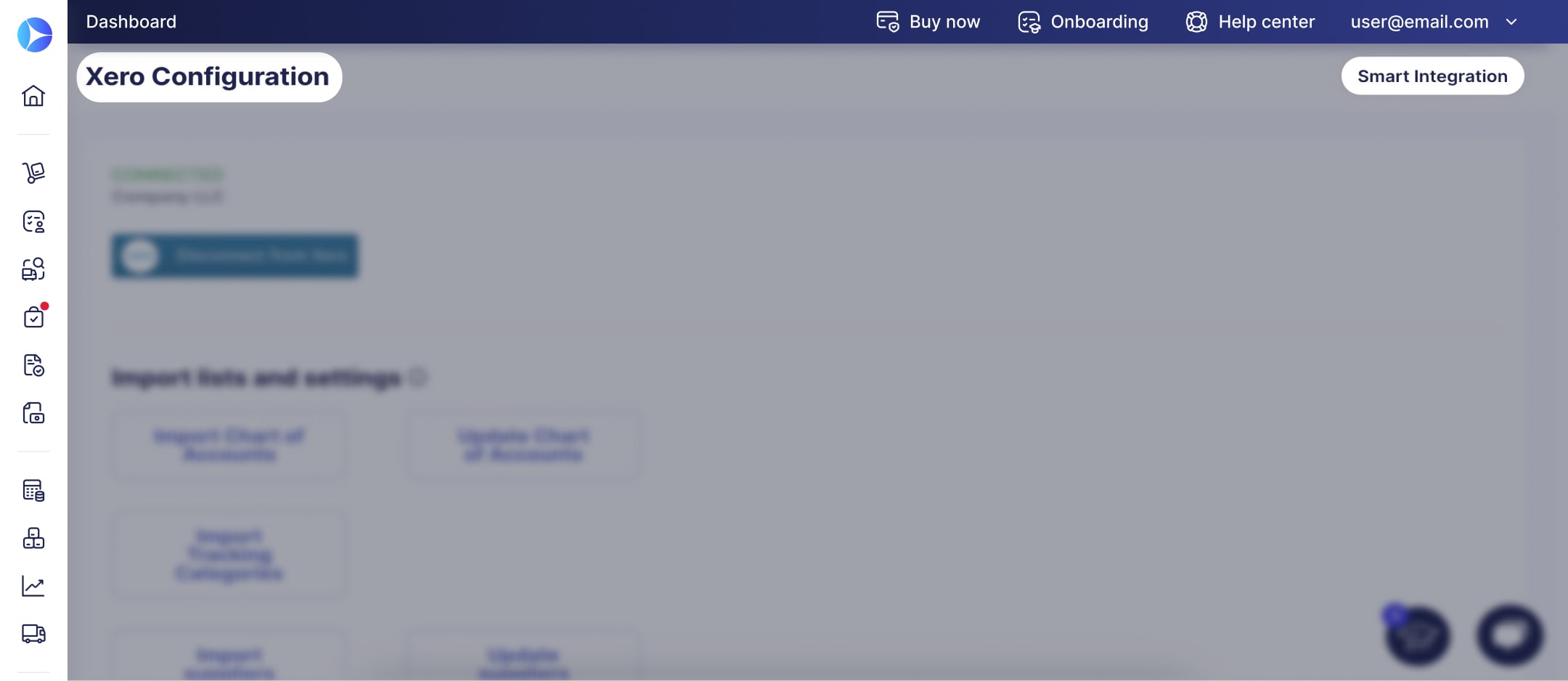
Go to Configuration → Integrations → Xero.
2. Choose Smart Integration
On the integration page, click the Smart Integration button in the top-right corner. Choose Select All for a full sync or manually pick the specific entities you need from the list.
Available entities:
- Suppliers
- Items
- Taxes
- Chart of accounts
- Classes
- Departments
- Customers
3. Start import
Click Start to begin the process. Feel free to navigate away from the page, Precoro will handle the import in the background.
4. Review the results
Once the process is complete, the selected entities will appear in your Precoro account.
Important notes:
Smart Integration is designed for initial setup. It captures data from the last 12 months of activity and does not perform recurring auto-updates. For any data added to Xero after this initial sync, please use the manual import option.