
TABLE OF CONTENTS
Key Benefits of Intelligent Data Import
Smart Integration simplifies QuickBooks setup by automatically identifying and importing actively used data. With one click, Precoro brings in the essential records based on your activity from the last 12 months.
Setup without Smart Integration
- Manually select and add each option
- Risk importing outdated or unnecessary data
- Spend more time on configuration
Setup with Smart Integration
- Get started faster with minimal effort
- Include only actively used records
- Avoid errors from manual input
- Start working immediately with ready-to-use data
Smart Integration Process
Step 1. Open Integration settings
Go to Configuration → Integrations → QuickBooks.
Step 2. Choose Smart Integration
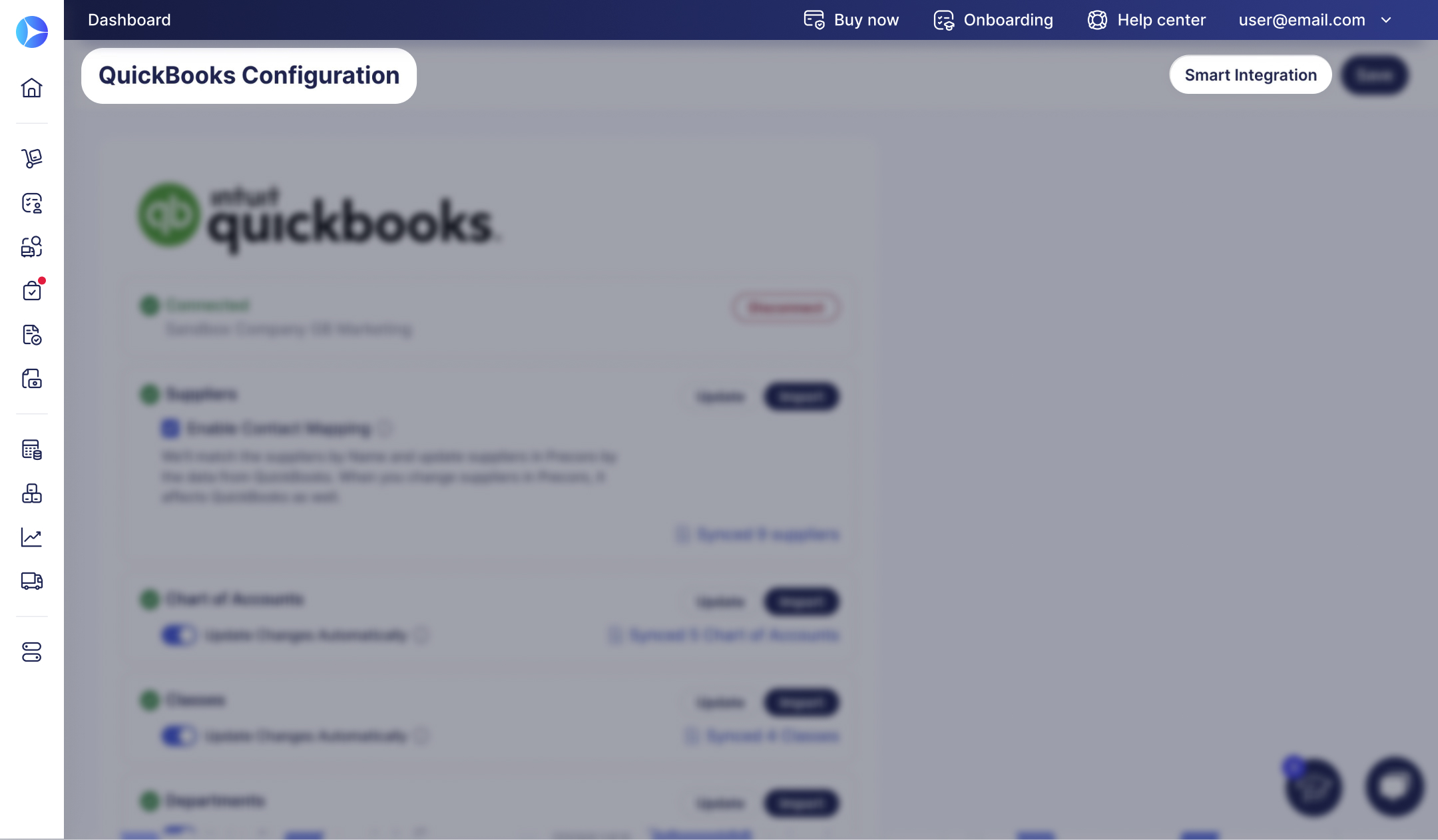
On the integration page, click the Smart Integration button in the top-right corner. In the pop-up window, choose all available entities or select only specific ones.
Available entities:
- Suppliers
- Items
- Taxes
- Chart of Accounts
- Classes
- Departments
- Customers
Step 3. Start import
Click Start to begin the process. You’ll see a notification that the update runs in the background, so you can continue working.
Step 4. Review imported data
Once the process is complete, imported entities will appear in your system.
💡 Please note: Smart Integration is designed for initial setup. It imports data based on your activity from the last 12 months and does not update it automatically afterward.
If you need to add more data later, you can import it manually.