---
title: QuickBooks Invoices, Payments, and Credit Notes
description: "You can decide at the Integration setup stage which documents to send to QuickBooks: Purchase Orders or Invoices. To integrate QuickBooks with Precoro, you should have a Plus, Advanced QuickBooks, or"
---
[Skip to content](https://help.precoro.com/quickbooks-invoices-payments-1#main-content)
[Contact us](https://help.precoro.com/kb-tickets/new?hsLang=en) [Customer portal](https://help.precoro.com/tickets-view?hsLang=en)
[](https://app.precoro.com/login)
Open main navigation
Close main navigation
- [Contact us](https://help.precoro.com/kb-tickets/new)
- [Customer portal](https://help.precoro.com/tickets-view)
- [Contact Us](https://share.hsforms.com/1-5JilMA_Qv6AOSVjFtNhDg14slf)
[Contact Us](https://share.hsforms.com/1-5JilMA_Qv6AOSVjFtNhDg14slf)
Hi there! How can we help you today?
- There are no suggestions because the search field is empty.
1. [Knowledge Base](https://help.precoro.com/?hsLang=en)
2. [Precoro Integrations](https://help.precoro.com/precoro-integrations?hsLang=en)
3. [QuickBooks Online Integration](https://help.precoro.com/precoro-integrations?hsLang=en#quickbooks-online-integration)
# QuickBooks Invoices, Payments, and Credit Notes
You can decide at the Integration setup stage which documents to send to QuickBooks: [**Purchase Orders,**](https://help.precoro.com/purchase-order-1?hsLang=en) **Invoices,** or **Core Document Set.**
To integrate QuickBooks with Precoro, you should **have a Plus, Advanced QuickBooks, or Essential** subscription. A **Simple Start** plan does not offer such an option.
The **Essential** plan allows the integration of **Invoices** only.
#### TABLE OF CONTENTS
- [How to Send Invoices to QuickBooks](https://help.precoro.com/quickbooks-invoices-payments-1#how-to-send)
- [Send Pending Invoices to QuickBooks](https://help.precoro.com/quickbooks-invoices-payments-1#send-pending)
- [What data will be sent to QuickBooks](https://help.precoro.com/quickbooks-invoices-payments-1#what-data)
- [How to Find the Not Sent to QuickBooks Invoices](https://help.precoro.com/quickbooks-invoices-payments-1#how-to-find-not-sent-invoices)
- [Revising and Editing an Invoice](https://help.precoro.com/quickbooks-invoices-payments-1#revising-or-editing)
- [Canceling an Invoice](https://help.precoro.com/quickbooks-invoices-payments-1#Canceling)
- [How to Import Payments to Precoro](https://help.precoro.com/quickbooks-invoices-payments-1#how-to-import-payments)
- - [1. Automatically (main option)](https://help.precoro.com/quickbooks-invoices-payments-1#Automatically)
- [2. Manually (in case QuickBooks did not import some payments)](https://help.precoro.com/quickbooks-invoices-payments-1#Manually)
- [Canceling payments in QuickBooks](https://help.precoro.com/quickbooks-invoices-payments-1#Canceling-Payments)
- [Integrate Credit Notes with QuickBooks](https://help.precoro.com/quickbooks-invoices-payments-1#Credit-Notes-with-QBO)
- [How to Activate the Only Payers Can Send Documents to QuickBooks Feature](https://help.precoro.com/quickbooks-invoices-payments-1#Only-Payers-qbo)
- [How to Use the “Close the Books” Function](https://help.precoro.com/quickbooks-invoices-payments-1#Close-the-books)
- [Send Documents Even When the Period Is Closed](https://help.precoro.com/quickbooks-invoices-payments-1#accounting-period-adjustments)
### How to Send Approved Invoices to QuickBooks
On the Integrations page, choose the **Approved Invoice** type of document in **Step 5**. Save the settings, and invoices will be sent automatically after the approval.
Here's how the data flows between Precoro and QuickBooks Online:
[](https://help.precoro.com/hubfs/QBO_approved_invoice-1.png?hsLang=en)
You can also send an Invoice manually by using the **Send to QuickBooks** button on the right action panel:
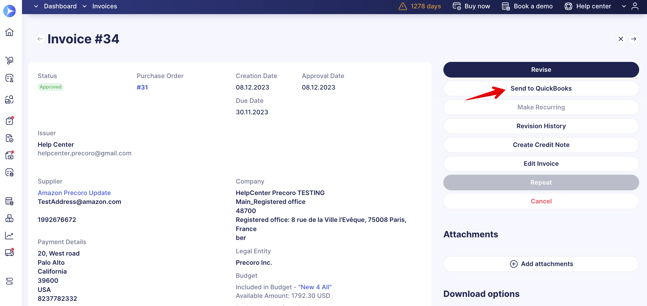
Please note that you **cannot add** **zip and heic** format attachments for companies integrated with **QuickBooks**. If you attach a zip and heic format file to a document in Precoro and send it to QuickBooks, it will be transferred without this attachment.
### How to Find the Not Sent to QuickBooks Invoices
To view all invoices and credit notes that haven't been sent to QuickBooks, find the “**Sent to QuickBooks**” filter and set the value to **No**. You will see the complete list of documents regardless of their other statuses.
To view all documents you can still send, use the “**Not Sent to QuickBooks**” infocard. It filters only invoices that were not exported due to a possible error and have the **Approved** status.
### Send Pending Invoices to QuickBooks
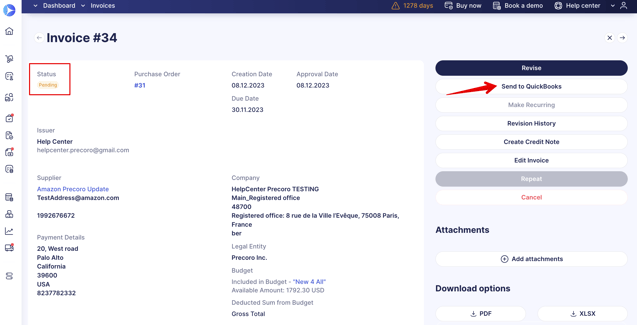
You can send the documents with **Pending** Status to QuickBooks.
To activate this feature, please contact our **Support Team,** who will happily assist you on the matter.
This feature will work for the chosen **Invoice** integration document type. It will be available for users with the **Create** and **Approve** **Roles** for **Invoices**.
If you have activated the option to send documents to QuickBooks automatically, then Invoices in **Pending** Status will be sent automatically to QuickBooks.
Regardless, if you send the Approved or Pending Invoice from Precoro in QuickBooks, the Bill will be created, and you will be able to perform the same actions with it in QuickBooks.
#### **What data will be sent to QuickBooks**
| **Precoro Field Name** | **QuickBooks Field Name** |
| --- | --- |
| Issue Date | Bill date |
| Due Date | Due date |
| Supplier | Supplier |
| QuickBooks Locations (Documents Custom Fields) | Location |
**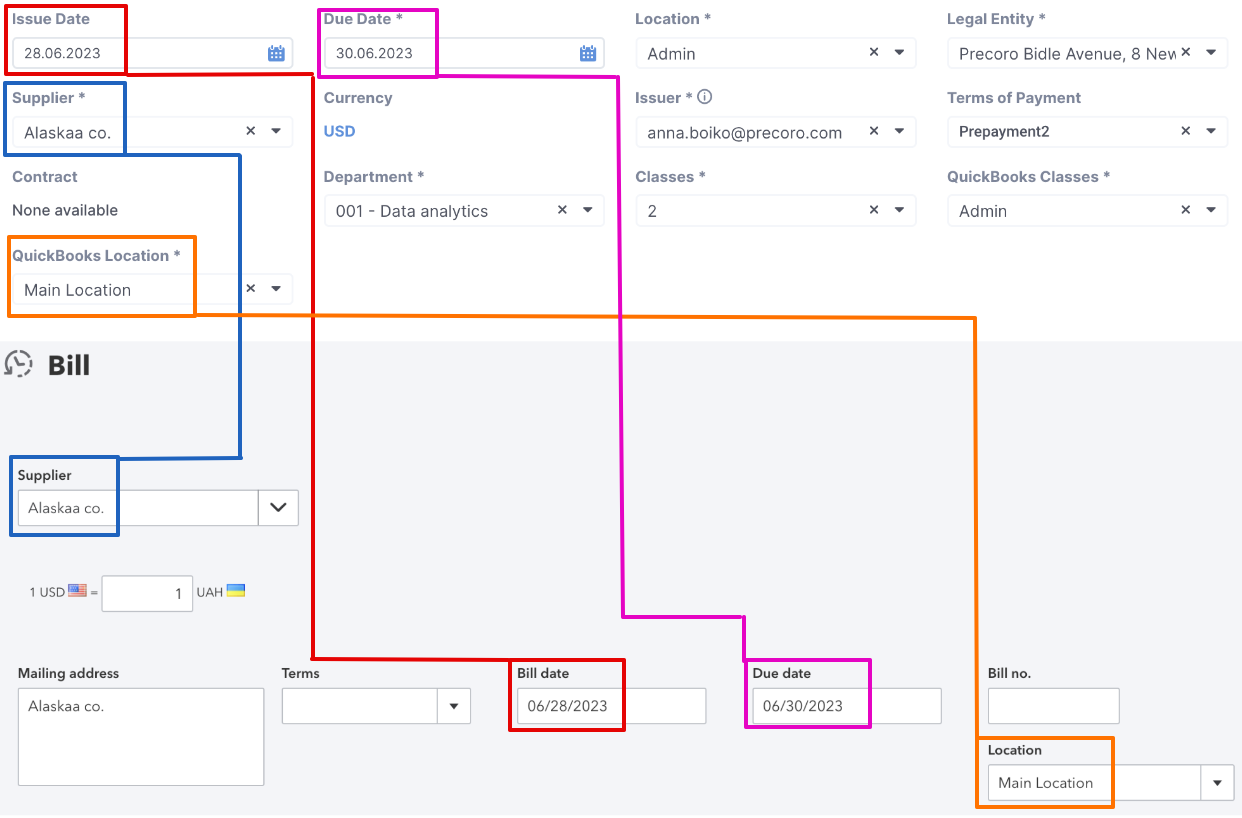**
**Item and Category details:**
| **Precoro Field Name** | **QuickBooks Field Name** |
| --- | --- |
| Name | Description |
| Price / Currency | Amount (Currency) |
| Tax,% | Tax |
| QuickBooks Chart of Accounts (Items Custom Fields) | Category |
| QuickBooks Customers (Items Custom Fields) | Customer / Project |
| QuickBooks Classes (Documents Custom Fields) | Class |
**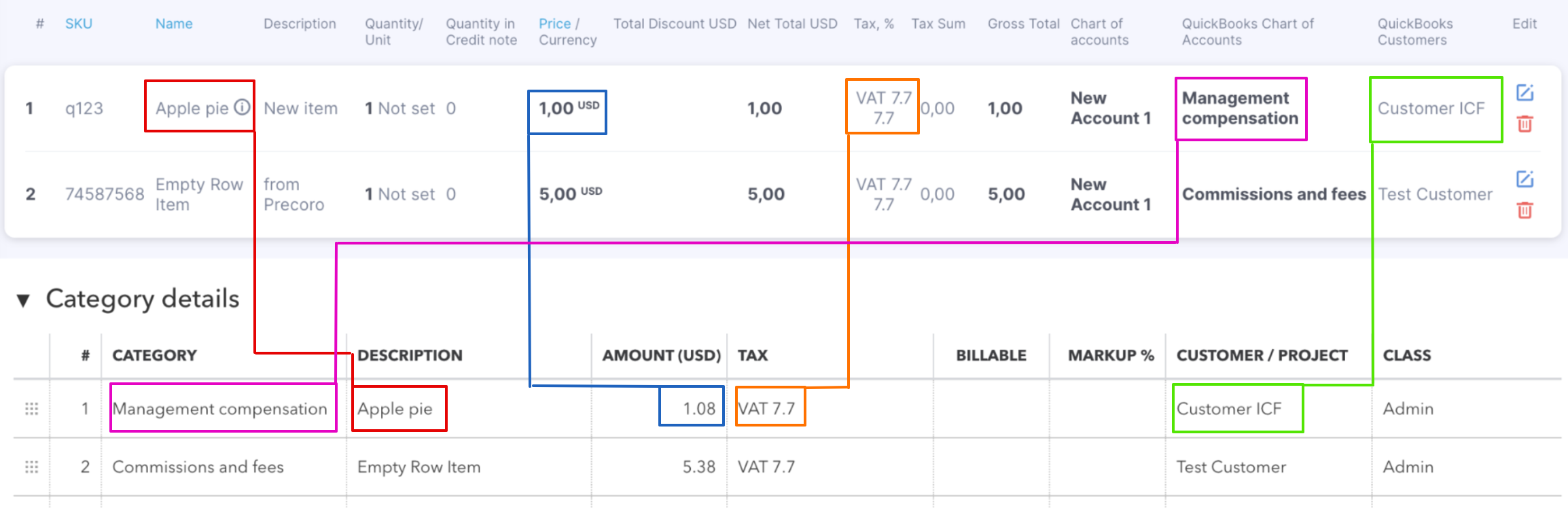**
**Notes, Attachments, and Total**
| **Precoro Field Name** | **QuickBooks Field Name** |
| --- | --- |
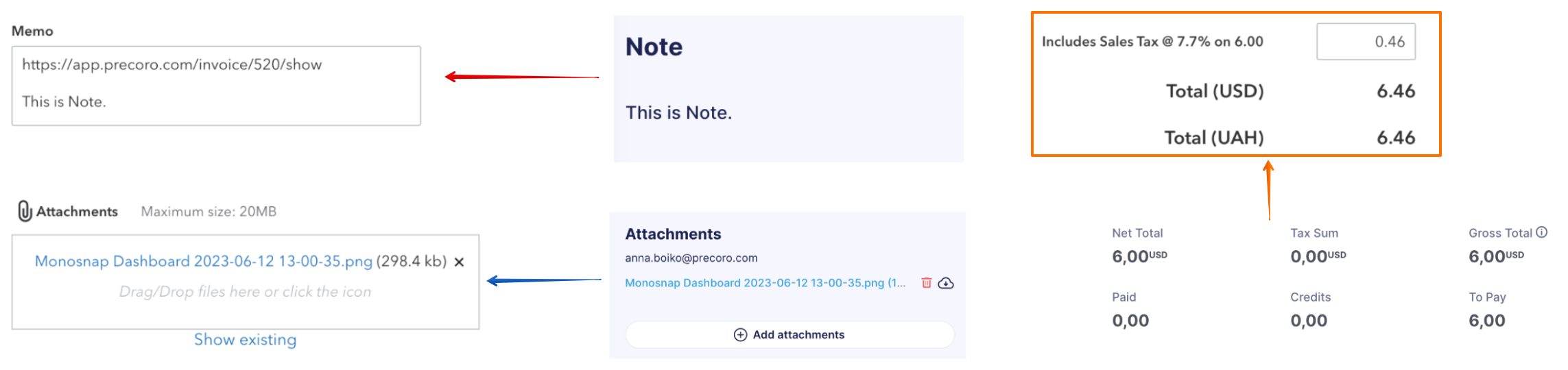
| Note | Memo (includes a link to the Invoice document in Precoro) |
| Attachments | Attachments |
| Gross / Net Total | Total (if Taxes are enabled then includes Tax amount) |
****
- Thediscounts applied to the documents or item lines in Precoro will be synchronized with QuickBooks. Therefore, there is no need to modify the **Total per line** or document in QuickBooks after sending it from Precoro.
- The **Invoice #** (or **Invoice custom number**) is not displayed in QuickBooks. Instead, the **Supplier Unique Code** is displayed.
### Revising and Editing an Invoice
If you wish to make any alterations to the Invoice document or items fields, you need to do the following:
1\. Take the document in revision by pressing the **Revise** button on the right action panel.
2\. Make the necessary changes to the document or item fields.
3\. **Confirm** the altered document.
You will see a system message that the changes were successfully sent to QuickBooks, and the information about the update will also be available in the **Integration Logs**.
Please note that if you edit an Invoice in QuickBooks, the changes will not be sent to Precoro.
### Canceling an Invoice
You can cancel an Invoice in Precoro, and it will be automatically removed from QuickBooks.
Please note that if you edit or cancel an Invoice in QuickBooks, the changes will not appear in Precoro.
### How to Import Payments to Precoro
**Consider the type of payment methods that can be imported from QuickBooks:**
- Bill Payments
- Cheque
- Credit/Debit Card Payment
- Supplier Credit.
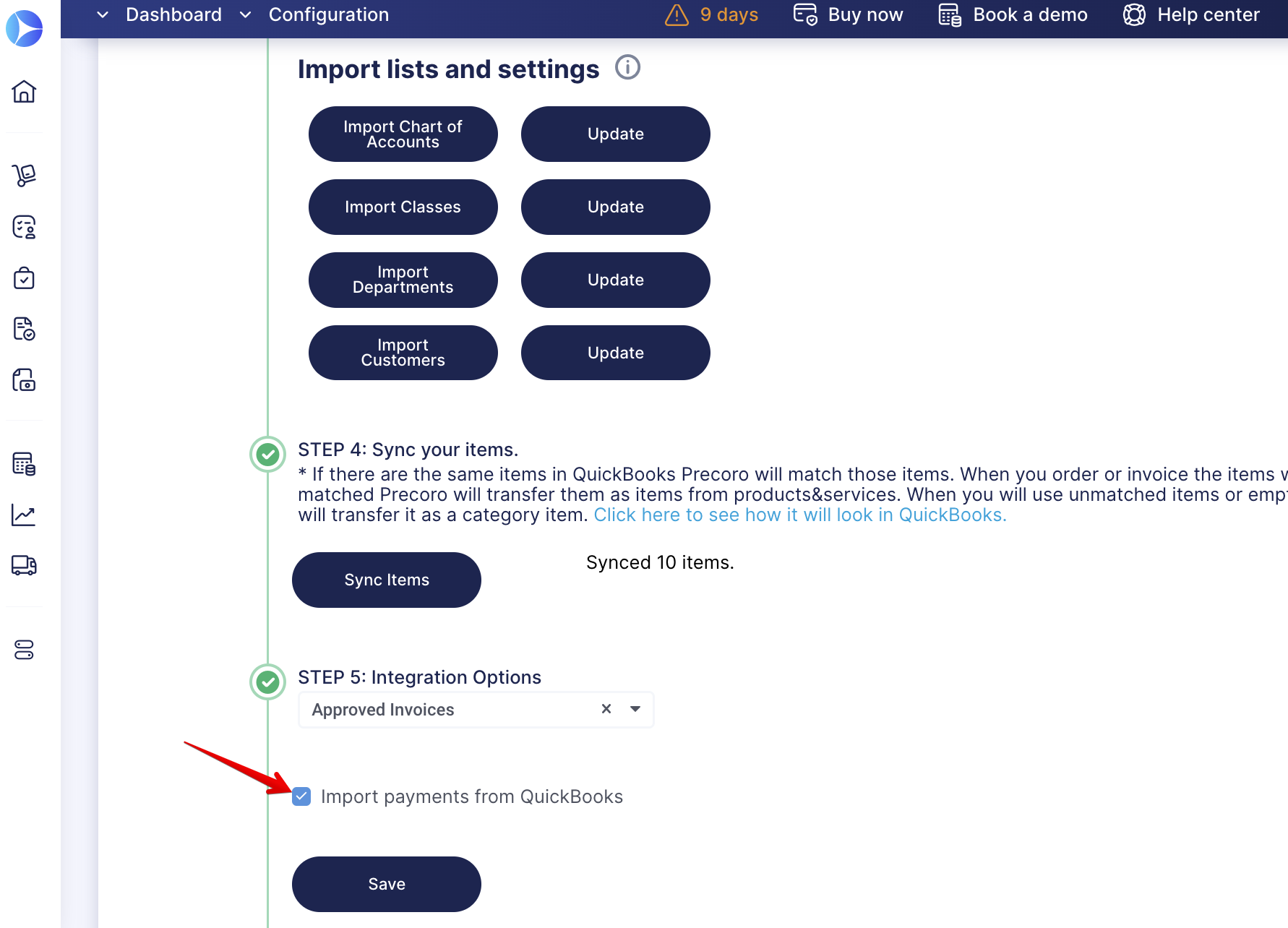
To be able to import payments, make sure that on the **Integrations page** in **Step 5** the **Import payments from QuickBooks** checkbox is active.
[](https://help.precoro.com/hubfs/Monosnap%20Integrations%202022-12-05%2015-22-53-png.png?hsLang=en)
You can import payments to Precoro in the following ways:
#### **1. Automatically (main option)**
After payment is recorded in QuickBooks, it will be imported to the Precoro account. As a result, the status of the Invoice will change to **Paid**.
Payments recorded in Precoro are not imported into QuickBooks.
#### **2. Manually (in case QuickBooks did not import some payments)**
If some payment has not been automatically imported to Precoro or canceled, you can use the **Import from QuickBooks** feature to import payments based on the selected date range:
1\. On the **Payments** page, select a date range in the **Invoice Issue Date** field to get the previous payments that were not automatically imported from QuickBooks.
2\. Click on the **Import from QuickBooks** button. All payments within the selected date range will be updated/added to Precoro.
Please note that no matter which user created a Payment in QuickBooks in Precoro, that **payment will be recorded as created by the document initiator**.
That is, the payment is always imported from the Invoice Initiator — even if it was created in QuickBooks by another user.
#### **Canceling Payments in QuickBooks**
If you cancel a Payment in QuickBooks, then in Precoro this document will be canceled automatically.
However, please note that if you cancel the payment in Precoro, the changes will not be sent to QuickBooks.
### Integrate Credit Notes with QuickBooks
You can integrate Credit Note documents with QuickBooks. To do that, follow the steps below:
1\. On the Integration page in Step 6 for Integration Options, select the **Approved Invoices** one.
2\. You will see the Send Credit Notes checkmark. If activated, the Credit Note documents will be automatically sent to QuickBooks when **Approved**.
3\. When the Credit Note is created in QuickBooks, you will see the corresponding message in the Integration Logs in Precoro.
In QuickBooks, you will be able to find the integrated Credit Notes in **Bill Payment** transactions of the **Credit** **Card** type in [Expenses](https://app.qbo.intuit.com/app/expenses):
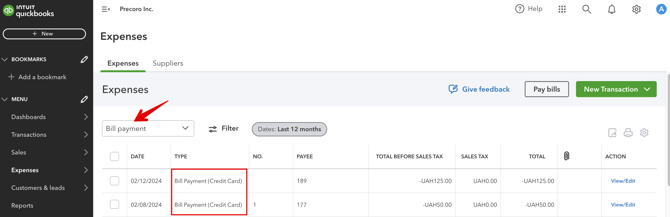
Standalone credit notes are integrated as bills with the **Vendor Credit** type.
### How to Activate the Only Payers Can Send Documents to QuickBooks Feature
You can use a feature that **allows only those users who have the Payer roles in Precoro to send documents to QuickBooks**. It will work if the **Approved Invoices** are selected as integration options in the document types.
To activate this feature, please contact our Support Team, who will enable the settings for you.
Please note that this option will not be available if you have activated the pending documents feature or selected the Purchase Order type of document to be integrated.
### How to Use the “Close the Books” Function
Using the **"Close the books"** function in the financial reporting period in QuickBooks closes a certain accounting period. By default, once a period is closed, documents dated within it can't be sent from Precoro to QuickBooks.
For example, if your closing date in QuickBooks is 31.12.2020, but your invoice in Precoro is dated 30.12.2020, that invoice can't be sent to QuickBooks after 31.12.2020, since the period has already closed.
#### Send Documents Even When the Period Is Closed
To send documents that fall within a closed period without changing your books, enable the **Automatically post documents on the first date of the open period** checkbox on the integration's configuration page.
**💡 Please note:** This setting only affects the first time you send a document from Precoro to the integration and doesn’t include revisions.
Here’s how it works:
1. Once the document is approved in Precoro, we compare its Issue Date (Receipt Date for receipts with the date when the last accounting period has closed in QBO.
2. If the date falls after the last period close, the document posts as usual.
3. If it falls within the closed period:
4. Precoro checks if the document (or any of its item lines) has a budget attached. Documents with allocated budgets won’t be adjusted automatically, so you’ll see the error in the integration log.
5. If the closed period ended less than 30 days before the issue/receipt date, Precoro automatically moves the date to the first day of the open period, sends the document, and logs the change.
6. If the difference is over 30 days, Precoro sends the document as is and logs the error as before.
- [Precoro Setup](https://help.precoro.com/precoro-setup?hsLang=en#main-content)
- [Configurations](https://help.precoro.com/precoro-setup?hsLang=en#configurations)
- [User Management](https://help.precoro.com/precoro-setup?hsLang=en#user-management)
- [Custom Fields and Forms](https://help.precoro.com/precoro-setup?hsLang=en#custom-fields-and-forms)
- [Supplier management](https://help.precoro.com/precoro-setup?hsLang=en#supplier-management)
- [Working with Items](https://help.precoro.com/precoro-setup?hsLang=en#working-with-items)
- [Approval Workflow](https://help.precoro.com/precoro-setup?hsLang=en#approval-workflow)
- [Location Management](https://help.precoro.com/precoro-setup?hsLang=en#location-management)
- [Precoro Payments](https://help.precoro.com/precoro-setup?hsLang=en#precoro-payments)
- [Two-factor authentication](https://help.precoro.com/precoro-setup?hsLang=en#two-factor-authentication)
- [Security](https://help.precoro.com/precoro-setup?hsLang=en#security)
- [US Based Server](https://help.precoro.com/precoro-setup?hsLang=en#us-based-server)
- [How to use Precoro](https://help.precoro.com/how-to-use-precoro?hsLang=en#main-content)
- [Warehouse Requests](https://help.precoro.com/how-to-use-precoro?hsLang=en#warehouse-requests)
- [Requests for Proposals](https://help.precoro.com/how-to-use-precoro?hsLang=en#requests-for-proposals)
- [Purchase Requisitions](https://help.precoro.com/how-to-use-precoro?hsLang=en#purchase-requisitions)
- [Purchase Orders](https://help.precoro.com/how-to-use-precoro?hsLang=en#purchase-orders)
- [Service Orders](https://help.precoro.com/how-to-use-precoro?hsLang=en#service-orders)
- [Receipts](https://help.precoro.com/how-to-use-precoro?hsLang=en#receipts)
- [Invoices](https://help.precoro.com/how-to-use-precoro?hsLang=en#invoices)
- [Expenses](https://help.precoro.com/how-to-use-precoro?hsLang=en#expenses)
- [Budgeting](https://help.precoro.com/how-to-use-precoro?hsLang=en#budgeting)
- [Inventory](https://help.precoro.com/how-to-use-precoro?hsLang=en#inventory)
- [Reports](https://help.precoro.com/how-to-use-precoro?hsLang=en#reports)
- [AP Inbox and Intelligent AP Automation](https://help.precoro.com/how-to-use-precoro?hsLang=en#ap-inbox-and-intelligent-ap-automation)
- [Working with documents](https://help.precoro.com/how-to-use-precoro?hsLang=en#working-with-documents)
- [Suppliers Portal](https://help.precoro.com/how-to-use-precoro?hsLang=en#suppliers-portal)
- [Supplier Registration](https://help.precoro.com/how-to-use-precoro?hsLang=en#supplier-registration)
- [Attachments, Filters, and Search](https://help.precoro.com/how-to-use-precoro?hsLang=en#attachments-filters-and-search)
- [Mobile App](https://help.precoro.com/how-to-use-precoro?hsLang=en#mobile-app)
- [FAQs and Troubleshooting](https://help.precoro.com/how-to-use-precoro?hsLang=en#faqs-and-troubleshooting)
- [Precoro Integrations](https://help.precoro.com/precoro-integrations?hsLang=en#main-content)
- [QuickBooks Online Integration](https://help.precoro.com/precoro-integrations?hsLang=en#quickbooks-online-integration)
- [NetSuite Integration](https://help.precoro.com/precoro-integrations?hsLang=en#netsuite-integration)
- [Xero Integration](https://help.precoro.com/precoro-integrations?hsLang=en#xero-integration)
- [API Requests and Webhooks](https://help.precoro.com/precoro-integrations?hsLang=en#api-requests-and-webhooks)
- [SSO Setting](https://help.precoro.com/precoro-integrations?hsLang=en#sso-setting)
- [Google Integration](https://help.precoro.com/precoro-integrations?hsLang=en#google-integration)
- [Power BI](https://help.precoro.com/precoro-integrations?hsLang=en#power-bi)
- [Integration with Slack](https://help.precoro.com/precoro-integrations?hsLang=en#integration-with-slack)
- [PunchOut Catalogs](https://help.precoro.com/precoro-integrations?hsLang=en#punchout-catalogs)
- [Integrations via Connectors](https://help.precoro.com/precoro-integrations?hsLang=en#integrations-via-connectors)
- [Bill.com Integration](https://help.precoro.com/precoro-integrations?hsLang=en#bill-com-integration)
- [Precoro Updates](https://help.precoro.com/precoro-updates?hsLang=en#main-content)
- [Releases, 2026](https://help.precoro.com/precoro-updates?hsLang=en#releases-2026)
- [Releases, 2025](https://help.precoro.com/precoro-updates?hsLang=en#releases-2025)
- [Releases, 2024](https://help.precoro.com/precoro-updates?hsLang=en#releases-2024)
- [Releases, 2023](https://help.precoro.com/precoro-updates?hsLang=en#releases-2023)
- [API Updates](https://help.precoro.com/precoro-updates?hsLang=en#api-updates)
- [General changes](https://help.precoro.com/precoro-updates?hsLang=en#general-changes)
[](https://precoro.com/)
Copyright © 2026, Precoro
```json
{
"@context" : "https://schema.org",
"@type" : "VideoObject",
"contentUrl" : "https://1903299.fs1.hubspotusercontent-na1.net/hubfs/1903299/Monosnap%20screencast%202023-12-08%2012-14-13.mp4",
"dateModified" : "2023-12-26T12:42:43.067Z",
"duration" : "PT29S",
"height" : 1380,
"name" : "Monosnap screencast 2023-12-08 12-14-13",
"thumbnailUrl" : "https://1903299.fs1.hubspotusercontent-na1.net/hubfs/1903299/Monosnap%20screencast%202023-12-08%2012-14-13.mp4/medium.jpg",
"uploadDate" : "2023-12-08T10:22:59.557Z",
"width" : 2484
}
```
```json
{
"@context" : "https://schema.org",
"@type" : "VideoObject",
"contentUrl" : "https://1903299.fs1.hubspotusercontent-na1.net/hubfs/1903299/Monosnap%20screencast%202023-12-08%2012-31-09.mp4",
"dateModified" : "2023-12-26T12:42:39.085Z",
"duration" : "PT56S",
"height" : 1380,
"name" : "Monosnap screencast 2023-12-08 12-31-09",
"thumbnailUrl" : "https://1903299.fs1.hubspotusercontent-na1.net/hubfs/1903299/Monosnap%20screencast%202023-12-08%2012-31-09.mp4/medium.jpg",
"uploadDate" : "2023-12-08T10:33:13.037Z",
"width" : 2484
}
```
```json
{
"@context" : "https://schema.org",
"@type" : "VideoObject",
"contentUrl" : "https://1903299.fs1.hubspotusercontent-na1.net/hubfs/1903299/Monosnap%20screencast%202023-12-08%2012-41-10.mp4",
"dateModified" : "2023-12-26T12:42:35.067Z",
"duration" : "PT39S",
"height" : 1380,
"name" : "Monosnap screencast 2023-12-08 12-41-10",
"thumbnailUrl" : "https://1903299.fs1.hubspotusercontent-na1.net/hubfs/1903299/Monosnap%20screencast%202023-12-08%2012-41-10.mp4/medium.jpg",
"uploadDate" : "2023-12-08T10:42:54.531Z",
"width" : 2484
}
```
```json
{
"@context" : "https://schema.org",
"@type" : "VideoObject",
"contentUrl" : "https://1903299.fs1.hubspotusercontent-na1.net/hubfs/1903299/Monosnap%20screencast%202023-12-08%2012-45-16.mp4",
"dateModified" : "2023-12-26T12:42:31.051Z",
"duration" : "PT22S",
"height" : 1380,
"name" : "Monosnap screencast 2023-12-08 12-45-16",
"thumbnailUrl" : "https://1903299.fs1.hubspotusercontent-na1.net/hubfs/1903299/Monosnap%20screencast%202023-12-08%2012-45-16.mp4/medium.jpg",
"uploadDate" : "2023-12-08T10:46:23.968Z",
"width" : 2484
}
```
```json
{
"@context" : "https://schema.org",
"@type" : "VideoObject",
"contentUrl" : "https://1903299.fs1.hubspotusercontent-na1.net/hubfs/1903299/Monosnap%20screencast%202024-02-12%2020-29-08.mp4",
"dateModified" : "2024-02-14T09:48:45.330Z",
"duration" : "PT37S",
"height" : 1380,
"name" : "Monosnap screencast 2024-02-12 20-29-08",
"thumbnailUrl" : "https://1903299.fs1.hubspotusercontent-na1.net/hubfs/1903299/Monosnap%20screencast%202024-02-12%2020-29-08.mp4/medium.jpg",
"uploadDate" : "2024-02-12T18:32:48.851Z",
"width" : 2270
}
```
```json
{
"@context" : "https://schema.org",
"@type" : "VideoObject",
"contentUrl" : "https://1903299.fs1.hubspotusercontent-na1.net/hubfs/1903299/Monosnap%20screencast%202023-12-08%2012-49-54.mp4",
"dateModified" : "2023-12-26T12:42:26.692Z",
"duration" : "PT41S",
"height" : 1380,
"name" : "Monosnap screencast 2023-12-08 12-49-54",
"thumbnailUrl" : "https://1903299.fs1.hubspotusercontent-na1.net/hubfs/1903299/Monosnap%20screencast%202023-12-08%2012-49-54.mp4/medium.jpg",
"uploadDate" : "2023-12-08T10:52:23.856Z",
"width" : 2484
}
```