
TABLE OF CONTENTS
-
Get a Weekly Reminder About Unfinished Draft Requisitions and Orders
- Correctly Track Shipping Costs in POs and Invoices
Replace Approvers Without Rebuilding the Approval Flow
To simplify adjustments to approval flows, Precoro now lets you swap the approver assigned to a step.
Here’s the step-by-step process:
- Open the approval flow you want to update.
- Locate the step and the approver you need to change.
- Click Edit (the pencil icon).
- Click the Replace icon near the Approver name.
- Select a new eligible user.
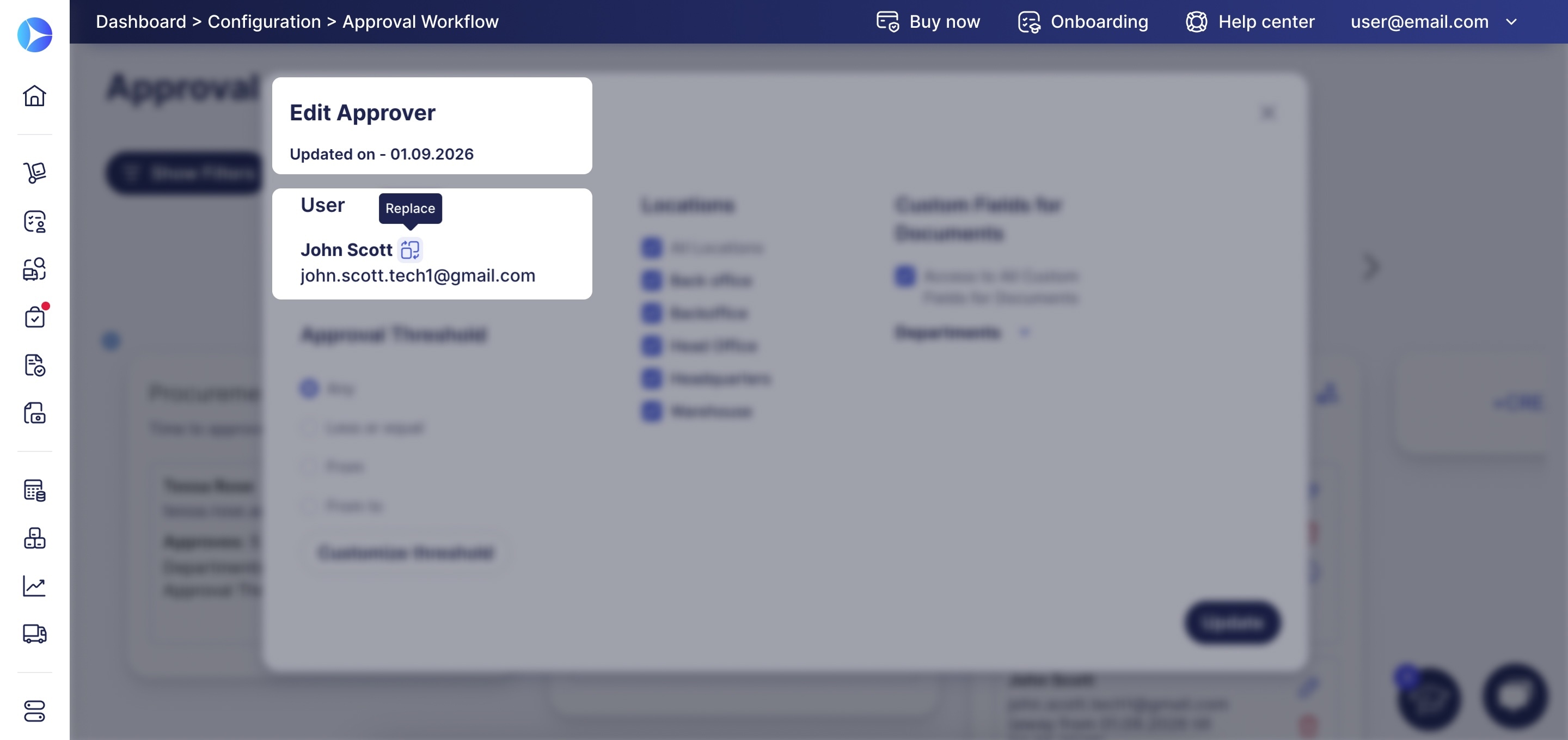
When you select a replacement:
- Only users with sufficient permissions appear as options.
- The new approver takes over any documents still pending with the previous approver.
- Users on vacation can be selected to replace a current approver. You’ll see their vacation start and end dates in the drop-down.
- Replacing the approver who is currently in vacation mode removes their backup approvers set up for this step. You’ll see a warning message about this before saving the changes.
Track Supplier and Manufacturer Part Numbers
Items sourced through PunchOut catalogs now carry three additional fields:
- Supplier Part #,
- MPN (Manufacturer Part Number),
- Manufacturer.
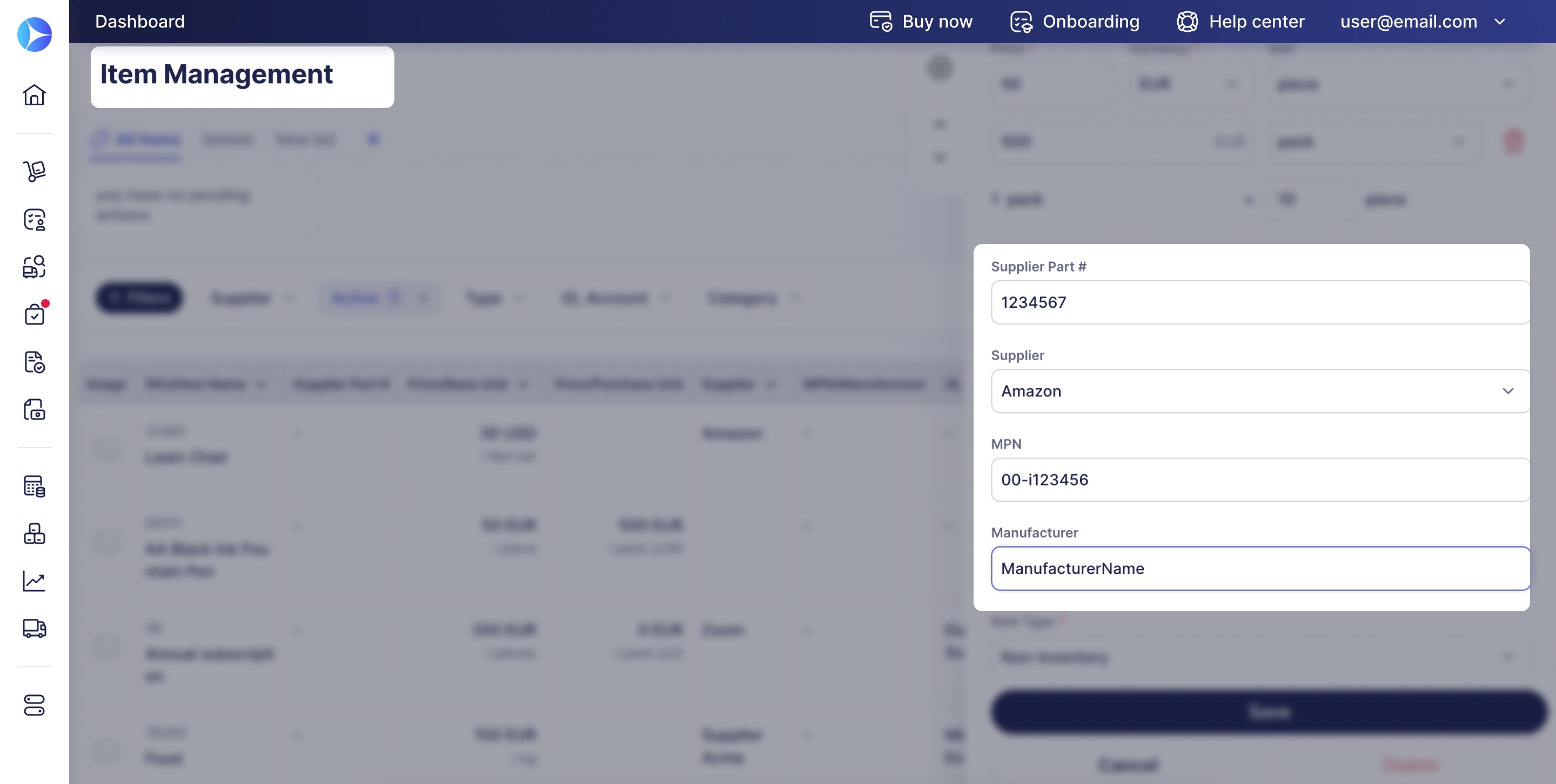
Currently, these fields are only available for companies with PunchOuts configured. They populate automatically from PunchOut data and can also be entered manually in the catalog.
View and Send Easier-to-Read Purchase Order PDFs
We're redesigning the PDF layout for purchase orders, improving typography, spacing, and the arrangement of header details, so you and your suppliers can spot relevant information more easily.
You’ll notice:
- a modern space-efficient layout,
- clearly defined info blocks,
- better item representation.
The item table header is now displayed on every page of multi-page orders, making item details easier to understand.
As of now, the changes only apply to PDF versions of POs if the layout option is set to Regular.
Curious about further changes? Check out what’s coming soon in our Open Product Roadmap!
Get a Weekly Reminder About Unfinished Draft Requisitions and Orders
Precoro now sends a Drafts Awaiting Completion reminder to help you keep track of purchase requisitions and orders left in Draft status for more than 24 hours. The email lists up to five of your own drafts, with a link to the full list if you have more, plus quick actions to continue filling them out or delete them.
Company admins can turn this reminder on or off and choose which day of the week it's sent from Configuration → Basic Settings → Daily Reminders (sent every Monday by default). You can also manage whether you personally receive it from Email Preferences → Misc.
Send POs via Email for Custom PunchOut Catalogs
You can now set up custom PunchOut integrations with suppliers that don’t support cXML connections. Once you've created an order using the supplier’s catalog, Precoro will send it as a PDF.
Here’s how to use this feature:
- When creating or editing a custom PunchOut, you’ll see the new Use Email for Purchase Order Request toggle in the Marketplace Settings section.
- Turn it on to send orders via email.
- If it’s enabled, enter the Purchase Order Request Email below. While it’s off, you’ll need to fill in the Purchase Order Request URL.
New in RFP
Let Suppliers Add New Items to Their RFP Proposals
A new setting gives suppliers more flexibility when filling out proposals by allowing them to add shipping, taxes, discounts, and new items for your review and approval.
This feature is enabled by default; you can disable it in Configuration → Basic Settings → Document Setup → Requests for Proposals by unchecking the Allow Suppliers to Enter Additional Lines checkbox.
When a supplier adds a line, it appears at the bottom of the RFP and comparison table under a Supplier-Added Items section. You can approve or reject them from a panel that appears once you select the items.
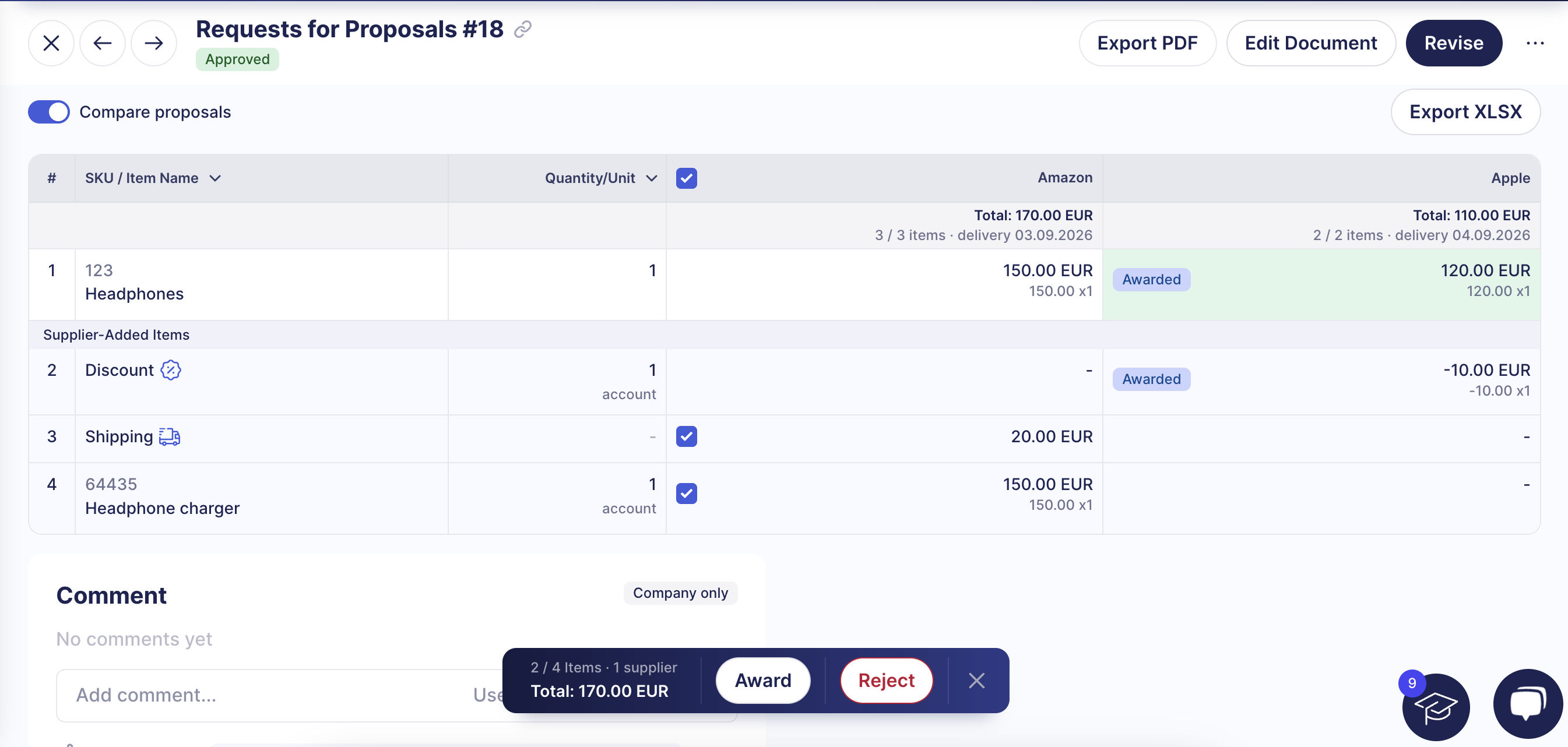
If you approve the proposal and convert it to a purchase order, the supplier-added items carry over with the correct item type.
Export a Single Supplier's RFP Quote as PDF or Excel
You can now download a supplier's proposal on its own, without the full comparison table. These files are useful for sharing with legal, attaching to a contract, or archiving.
There are two ways to download a supplier’s proposal:
- From the supplier table on the RFP page. Find the needed supplier, click More Actions (three dots) in the action panel, and select the download option.
- From the proposal page. Open the page by clicking View (the eye icon) opposite the supplier on the RFP page. Click More Actions (three dots) in the header, then select the download option.
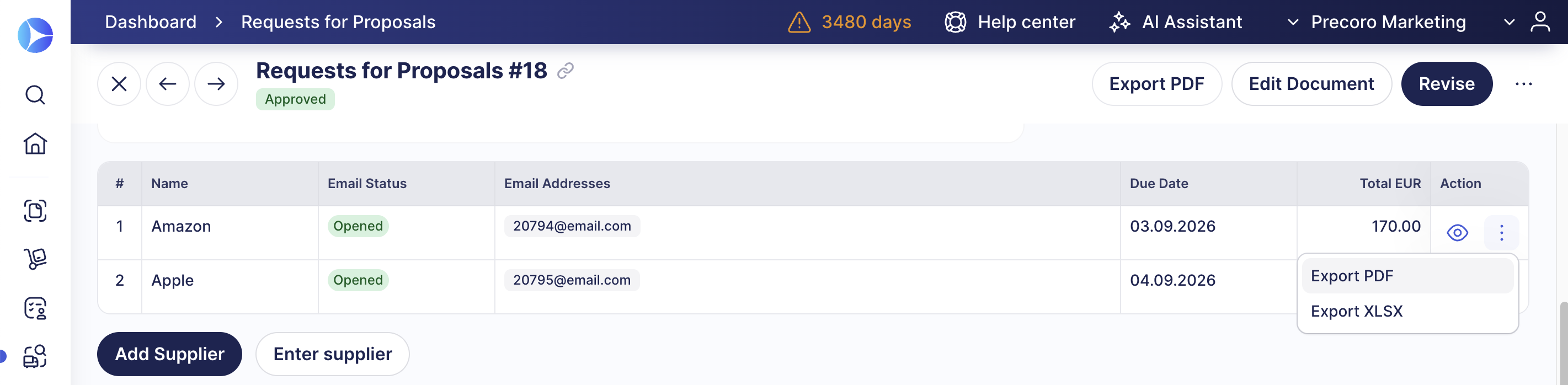
The exported file includes every item the supplier proposed, along with buyer and supplier details and the total for the proposal.
Correctly Track Shipping Costs in POs and Invoices
To support partial invoices and ensure correct budget consumption, shipping line items on PRs, POs, invoices, and RFPs now use amount-based tracking instead of quantity-based tracking. Quantity is fixed at 1 and no longer editable, and invoiced and waiting amounts are tracked and displayed by cost rather than by quantity. For example, a shipping line showing "100 / 20 Waiting" means $100 has been invoiced, and $20 is still outstanding.
This change will apply only to shipping item lines added after the update; previously existing data remains unchanged.