
TABLE OF CONTENTS
- Keep Custom Reports in Order: Deletion, Editing, and Reassignment
- Easily Order from Uline with the New PunchOut
- Take Action if Portal Suppliers Can’t Fulfill Orders
- Improve Spend Tracking with Discount Item Lines
- Create Related Documents Faster
- Repeat Documents in the Mobile App
- Looking for More News?
Keep Custom Reports in Order: Deletion, Editing, and Reassignment
When user roles and areas of responsibility change, it’s important to keep full control over custom report templates. Now, Super Users can manage custom reports for your company with these actions:
- Deletion: If a custom report is no longer in use, a Super User can delete it. Please note that deleted reports can’t be restored.
- Editing: Super Users can also edit reports created by other users.
- Reassignment: Super Users can change the owner of any custom report, making a new user responsible for its configuration.
To make any changes, ensure you have the necessary role, open the needed report, and press Edit or Delete.
This feature is especially useful if you have reports created by deactivated users that have lost relevance. Update or delete them to ensure efficient reporting and easier navigation.
Easily Order from Uline with the New PunchOut
If you prefer to get shipping and business supplies from Uline, this new PunchOut Catalog will make ordering a breeze. Using the new catalog, you can add a PR or PO in Precoro, be redirected to Uline to browse and select your items, and then have this information sent to Precoro for approval and order tracking.
Connecting this PunchOut Catalog is similar to the standard process. Please take note of the following differences:
- PO Request Email
Unlike other PunchOut integrations, Uline accepts orders as PDFs sent to the dedicated email. When configuring the integration in Configuration → Marketplace Configuration → Uline Configuration, please specify the Uline-provided email in the Purchase Order Request Email field.
- PO Layout
Precoro sends the order as the same PDF we’d send to a regular (non-PunchOut) supplier. To see what your orders look like to suppliers, open any approved order and click Export PDF in the header.
Take Action if Portal Suppliers Can’t Fulfill Orders
Suppliers can now decline purchase orders in the Supplier Portal using the new Decline Document button. To keep you in control, the system requires the supplier to explain why the order cannot be fulfilled. Precoro will display the provided reason in the comments—this way, you’ll have enough information to revise the order or decide to cancel it.
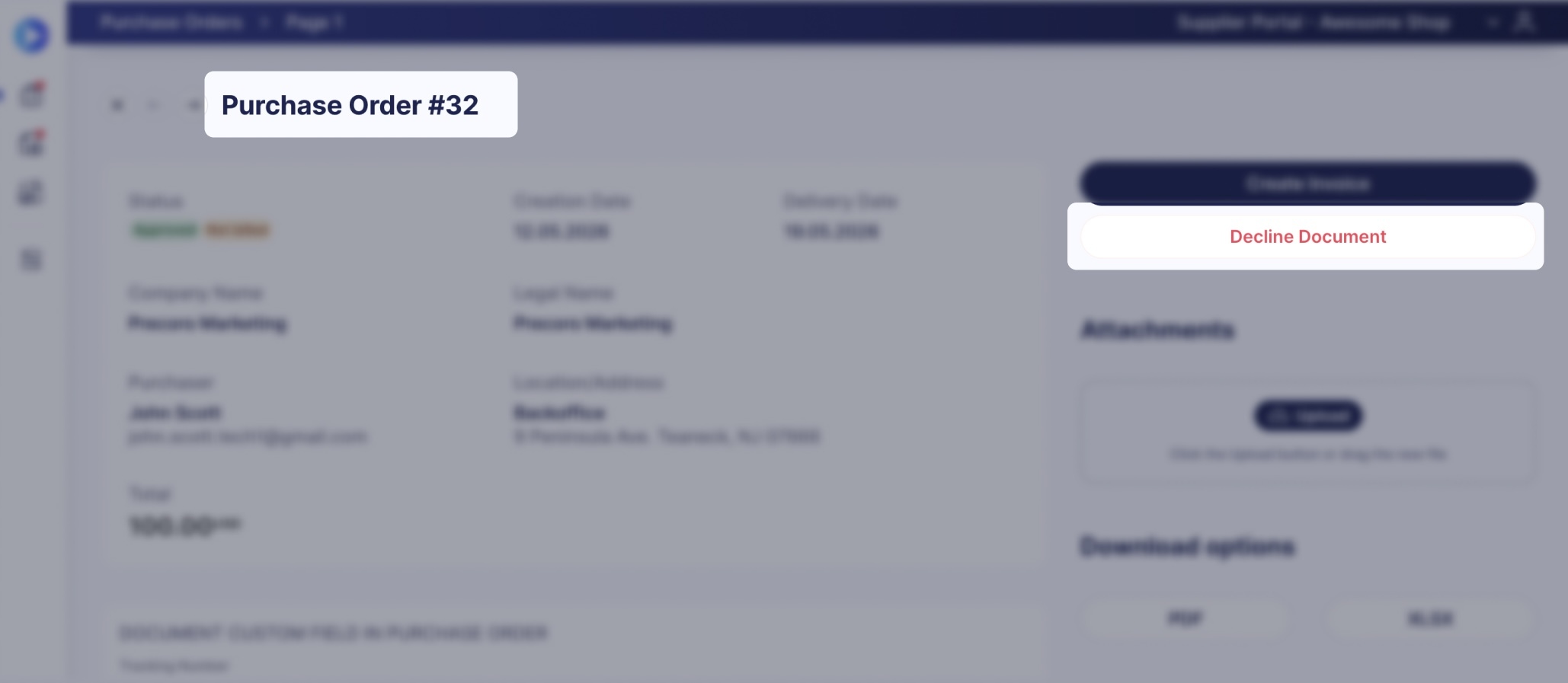
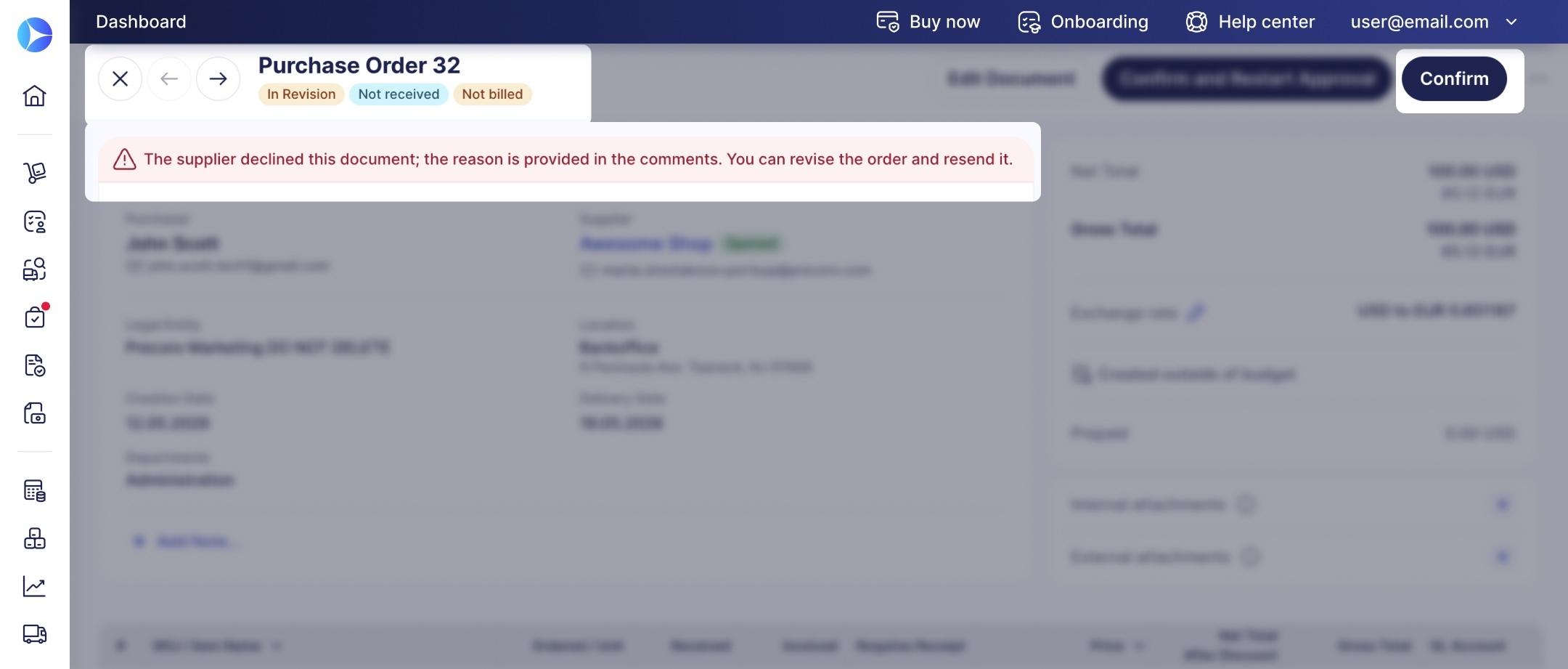
Once declined, the Precoro assigns the PO the following statuses:
- In Revision—in your interface,
- Declined—in Supplier Portal.
When you open a document that was declined by a supplier, you’ll also see an informational banner prompting you to review the comment and make further decisions.
Improve Spend Tracking with Discount Item Lines
To help you accurately record fixed-amount discounts and perfectly match suppliers’ documents, we’ve added a new Discount item type.
This type functions similarly to Shipping or Tax item types and allows you to add specific discount amounts to these document types:
- purchase requisitions,
- purchase orders,
- service orders,
- and invoices.
If an invoice contains a Discount item, it can also be added to a related credit note.
Here’s how this functionality works:
- No additional setup—You don’t need to enable Discounts in Basic Settings; the item type is available regardless.
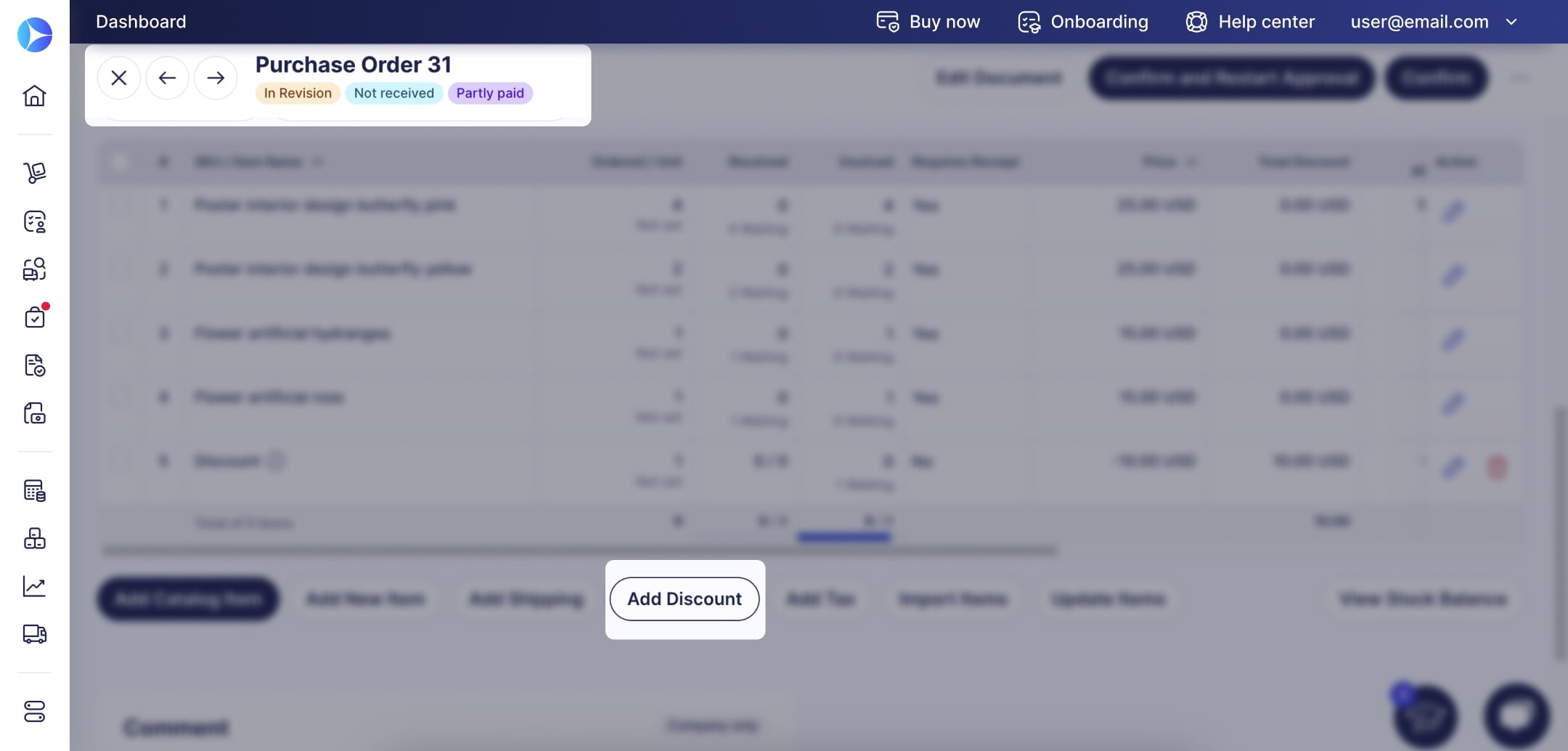
- Adding to documents—To add a discount item to a document, click Add Discount under the item table. It’s possible to add multiple discount lines to a single document.
- Item management—You can also add Discount-type items to your catalog.
- Smooth process upgrade—Discount-type items don’t need receiving and don’t trigger the matching process.
This functionality will soon be added to AI-powered invoice creation in the AP Inbox to improve matching accuracy.
Create Related Documents Faster
When you create a document based on another document, Precoro will now select all items from the base document by default. According to our research, most documents created now include all items from the base document, so this feature aligns the default selection with the most common workflow.
You’ll notice the change in the following documents:
- PO-backed invoices,
- POs from PRs,
- RFPs from PRs,
- PR from WR.
Repeat Documents in the Mobile App
Add similar documents on the go in the newest mobile app version. The Repeat functionality is now available for all documents you can create in the app:
- Open a document you want to repeat,
- Press More Actions(“...” icon) in the top right corner,
- Press Repeat.
- Check the details, make necessary edits, and confirm the new document.
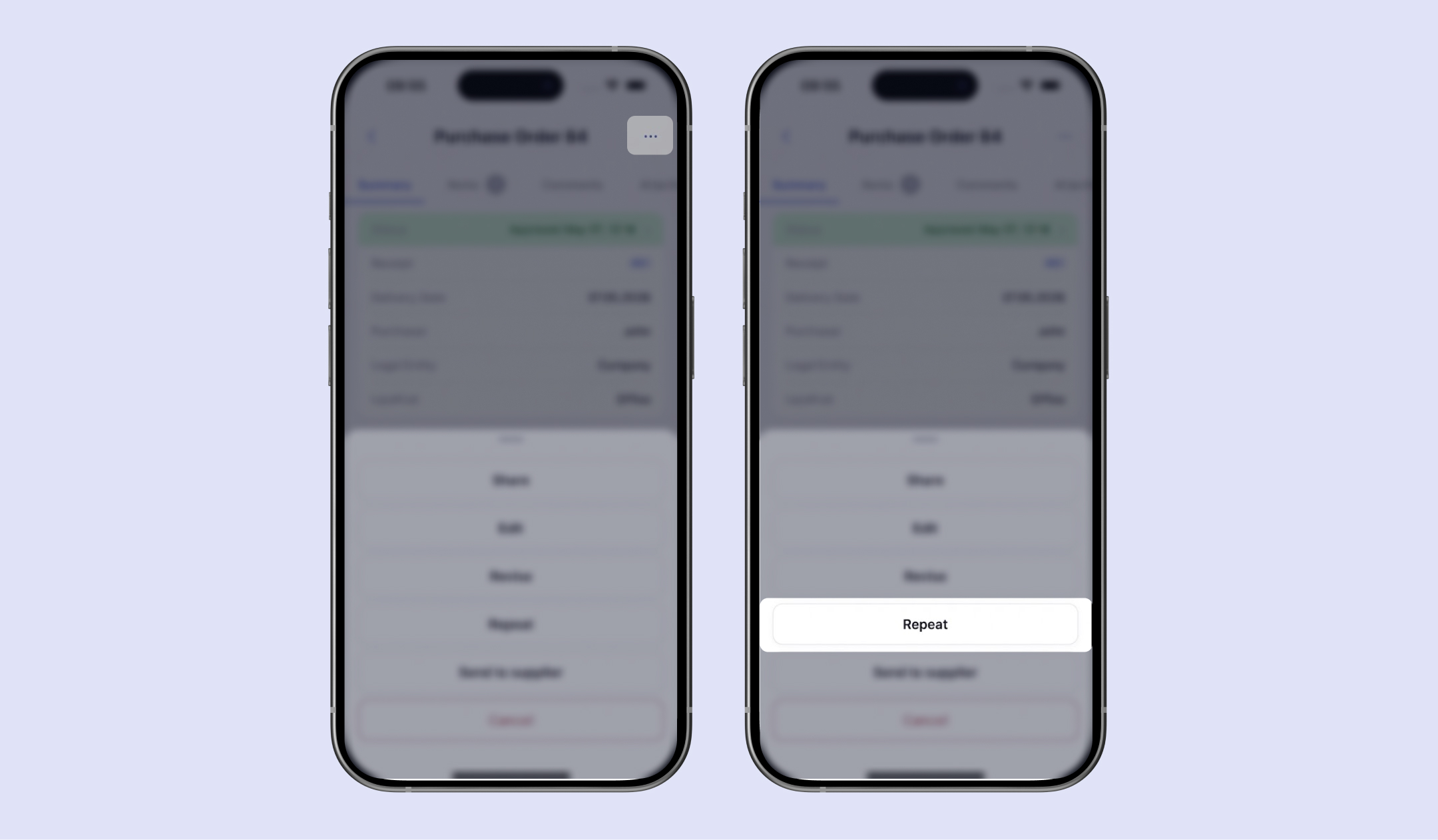
Try out the repeat functionality to save time in the field and stay on top of tasks.
Looking for More News?
If there’s a feature you’d like to see in our updates, it may already be planned! To see what we have in store, please check out our Open Product Roadmap:
- Upvote ideas that sound helpful,
- Share your expertise in the comments,
- Submit ideas for improvement.
Learn more about using the roadmap here.