
TABLE OF CONTENTS
AI Agent for Contract Uploading and Analysis
We’re implementing agentic AI to offer reliable assistance in complex tasks, contract management being our first step.
Here’s what our AI agent can do for you:
- Cut manual work: Extract data from a contract you upload and fill out Precoro’s contract form.
- Help detect risks and highlight benefits: Analyze the text to identify the main benefits and potential risks this contract entails.
- Offer personalized assistance: Answer your questions and provide references to the contract body to help you make decisions.
- Keep the data accessible: Save conversation history so that you can review it at any time.
- Process contracts in bulk: Upload up to 50 contracts at once and create a queue to be scanned with AI.
💡Please note: This feature is currently in Beta. Contact your Customer Success Manager to enable it.
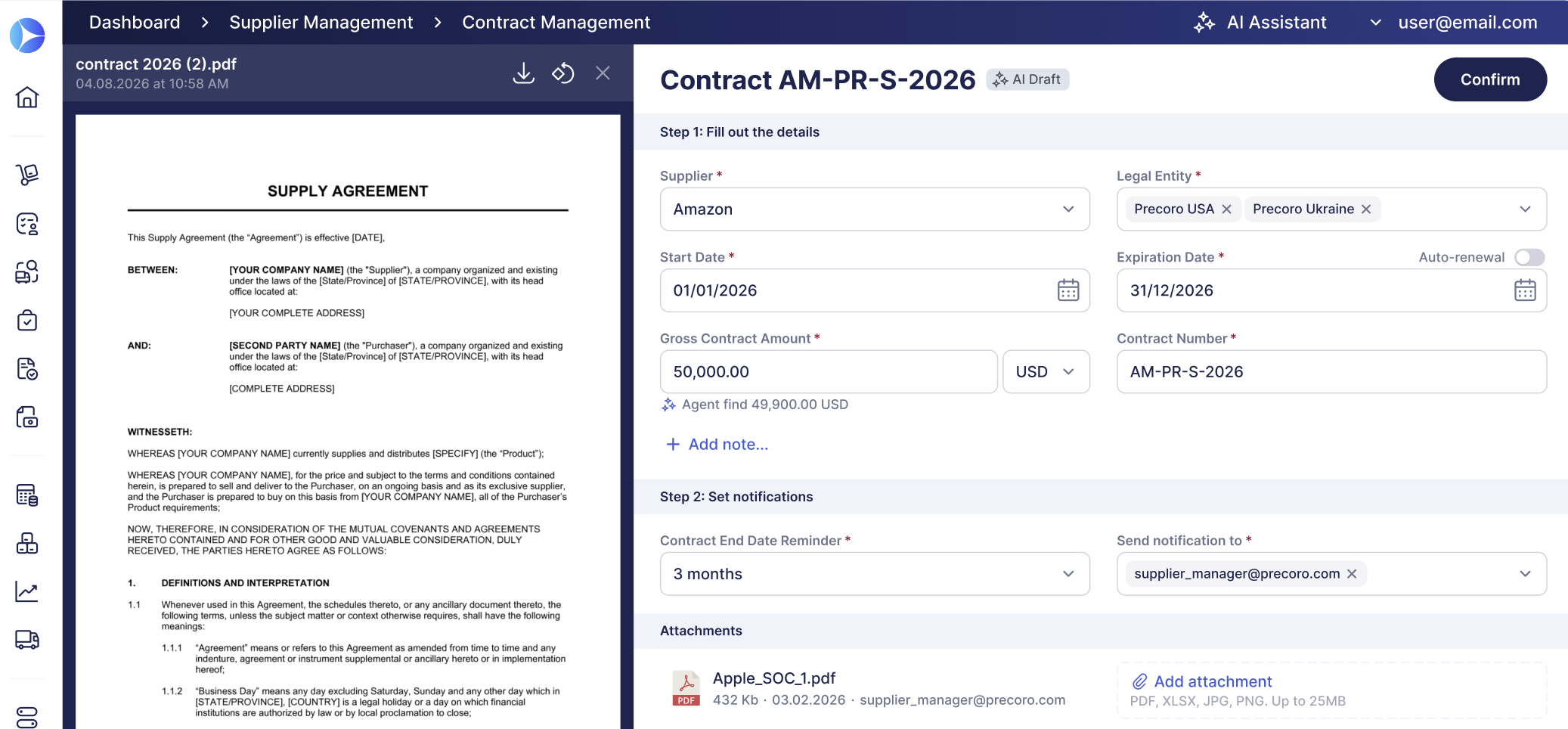
Once enabled, follow these steps to use the Contract Agent
- Press Add contract on the Contract Management.
- Drop a PDF contract into the drag-and-drop space on the left and wait for the agent to process the text.
- Check the details:
- If the AI Agent recognizes all required fields, it’ll automatically create an active contract; you can edit it if necessary.
- If any of the required fields are missing, the agent will create a draft with the AI Draft info tag; add the necessary details and press Confirm to make the contract active.
- Review the summary created by the Contract Agent for more information and insights. The summary is generated within 1-2 minutes of scanning completion.
You’ll see the following sections under the Contract Agent Insights header:- Key Factors—General overview of the contract terms. The most important insights are displayed as information chips at the top; hover over them for further explanation.
- Upcoming Dates—All significant dates related to this contract that will help you schedule appropriate actions.
- Terms that Benefit Your Business—AI Agent will highlight the conditions that may benefit your company the most to ensure they’re not overlooked.
- Missing or Unclear—Some terms may be ambiguous or not explained in enough detail; consider contacting the other party to clarify them.
- Risks and Conflicts—To prevent issues, the AI Agent alerts you to all inconsistencies in the contract.
- Recommended Next Steps—A list of suggested actions you can take to clarify the conditions and minimize risks.
- Ask the AI Agent questions about the contract. It can provide analysis and focus on the most relevant issues with your direction.
Monitor AP Attachment Progress via Custom Tags
To make the AP Inbox more orderly and help team collaboration, we’ve added tags—custom data chips set up in your company. Create color-coded tags on the AP inbox page, assign them to attachments, and ensure vital info is easy to spot in the attachment list.
Learn more about new features that help you organize supplier-issued invoices here.
Track PunchOut Items in Catalog and Inventory
If you’re using PunchOuts and the Inventory module, this feature is for you. It automatically adds items ordered via PunchOuts to your item catalog and tracks them in your inventory when you add receipts.
To enable the feature,
- Navigate to Configuration → Marketplace Configuration
- Open the needed PunchOut configuration
- Enable the new Automatically Add Items to the Catalog setting and save.
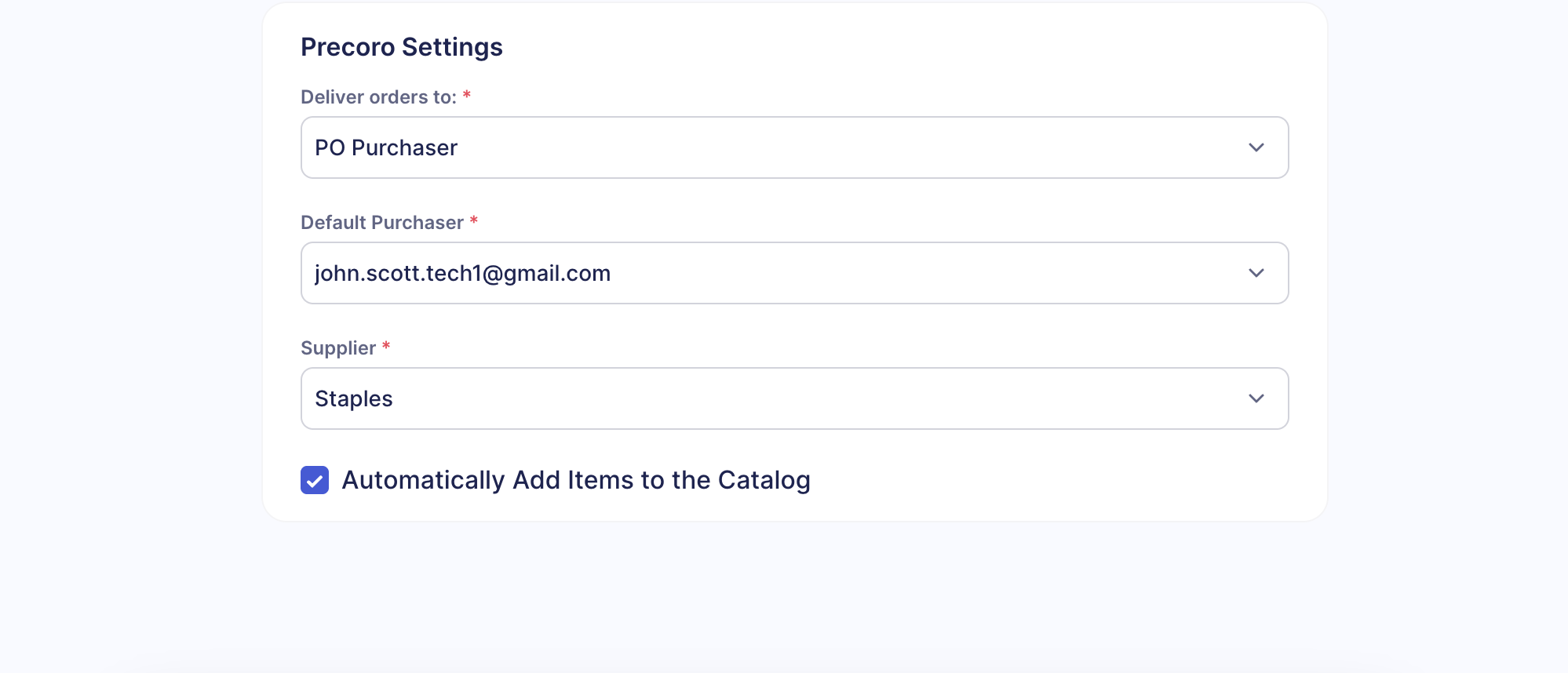
Now, whenever a PunchOut order is approved, new items will be added to your catalog. Precoro will pull SKUs from the supplier’s website and use them to match new items to existing items in your catalog with the same SKU.
Keep Orders Moving with Better Receipt Process
To help you promptly record deliveries and ensure PO statuses are relevant, we’re making improvements to receipt creation.
- The Receive All option
- When clicking Add Receipt on a PO, you now have the option to create a receipt for all items in this order in one click—Receive All.
- If the order is already partly received, the new receipt will include all remaining items.
- The created receipt opens automatically, so you can adjust the details.
- To review the items in the PO and select which ones have been delivered, click Add Receipt and choose Receive Partially in the dropdown.
- Delivery Overdue notification
A daily reminder about documents that require your action now includes overdue POs. Users responsible for receipts will be prompted to add complete or partial receipts to orders that remain in the Not Received status past the deadline. - Adding receipts from document previews
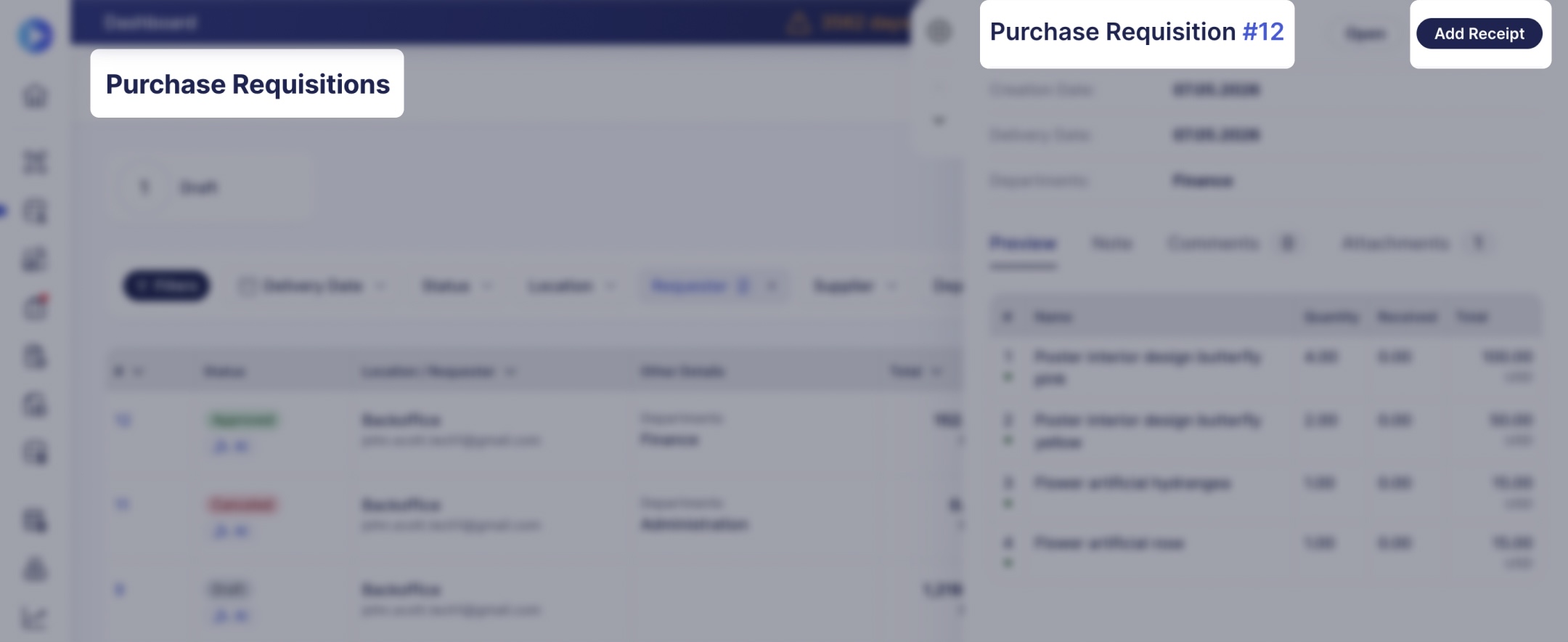
The Add Receipt button is now available from the document preview sidebar for PRs and orders. Simply open the required module, click Preview (eye icon) next to the required document, and click Add Receipt to create a receipt quickly.
Create Receipts Instantly on Mobile
Capture receipts on the go with mobile scanning and AI-powered auto-creation in Precoro. The new version that includes this functionality will be available globally on June 12.
- Navigate to the Receipts module and tap + to add a receipt.
- Upload a photo of a receipt for scanning.
- Precoro will extract the data, find a matching PO, match items, and automatically create a receipt draft.
- Review the details and confirm the document.
Please note that a receipt is generated automatically only if AI finds a matching PO and successfully matches all items; otherwise, you can proceed with manual steps to choose a PO and match items.
Use Enhanced Date Filters for Service Orders
It’s now easier to find service orders and blanket purchase orders within a time period with filters.
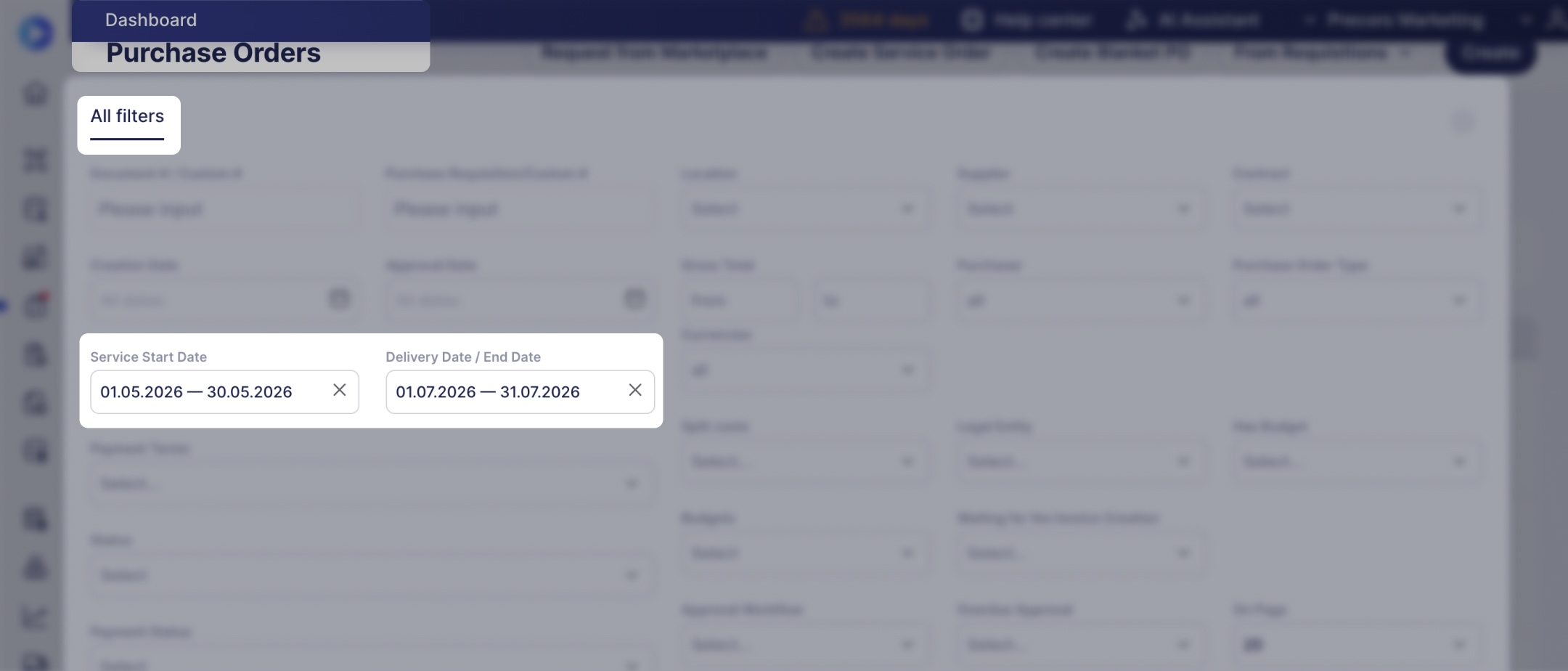
When opening All Filters on the Purchase Orders page, you’ll see a new Service Start Date field. Select a range in this field to see
- All blanket POs with the validity period starting within this range,
- All service orders with the service period starting within this range.
The improved DeliveryDate / End Date filter (also available in quick filters at the top of the order list) now shows all POs, BPOs, and SOs with the delivery date, validity period end, and service period end within the selected range.