
TABLE OF CONTENTS
Track Approval Metrics with Precision—SLA Improvements
Account for Weekends to Set Correct Expectations
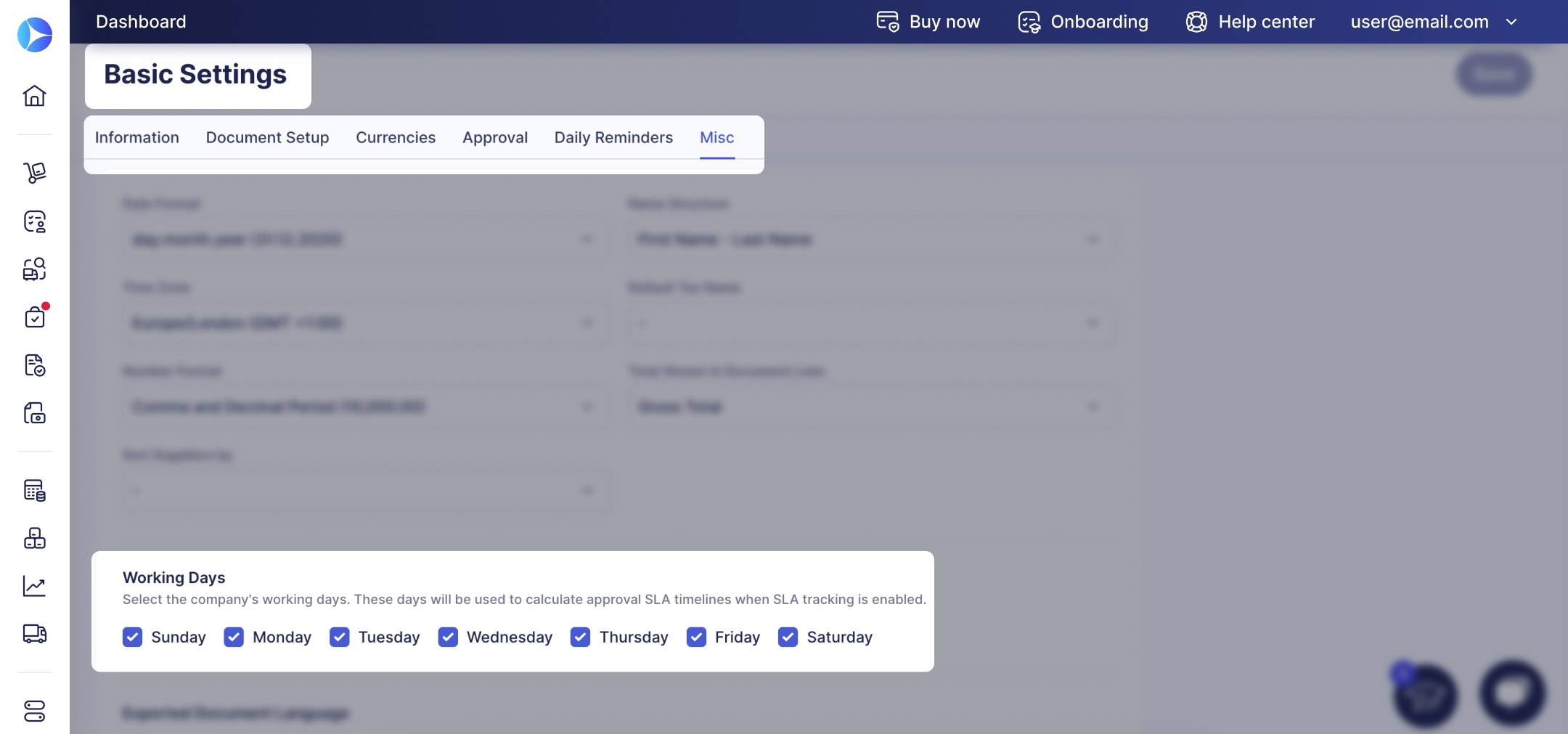
To ensure the approval SLA timelines respect your team’s schedule and you receive reliable analytics, we’ve added a Working Days section in Basic Settings.
Set it up in just three steps:
- Navigate to Configuration → Basic Settings → Misc tab.
- In the Working Days section, uncheck the days when your team doesn’t work. By default, all days are checked, including Saturday and Sunday.
- Press Save in the top right corner.
Here’s how it works:
- When a new approval step is activated, Precoro removes weekends from the deadline calculation. For instance, if a document was created on a Friday night, your SLA allows a 24-hour period for approval, and you unchecked Saturday and Sunday in Working Days, the deadline will be set for Monday, skipping the weekends.
- The hours of non-working days aren’t included in the Approval TAT calculation.
Easily Schedule Approval Performance Reports
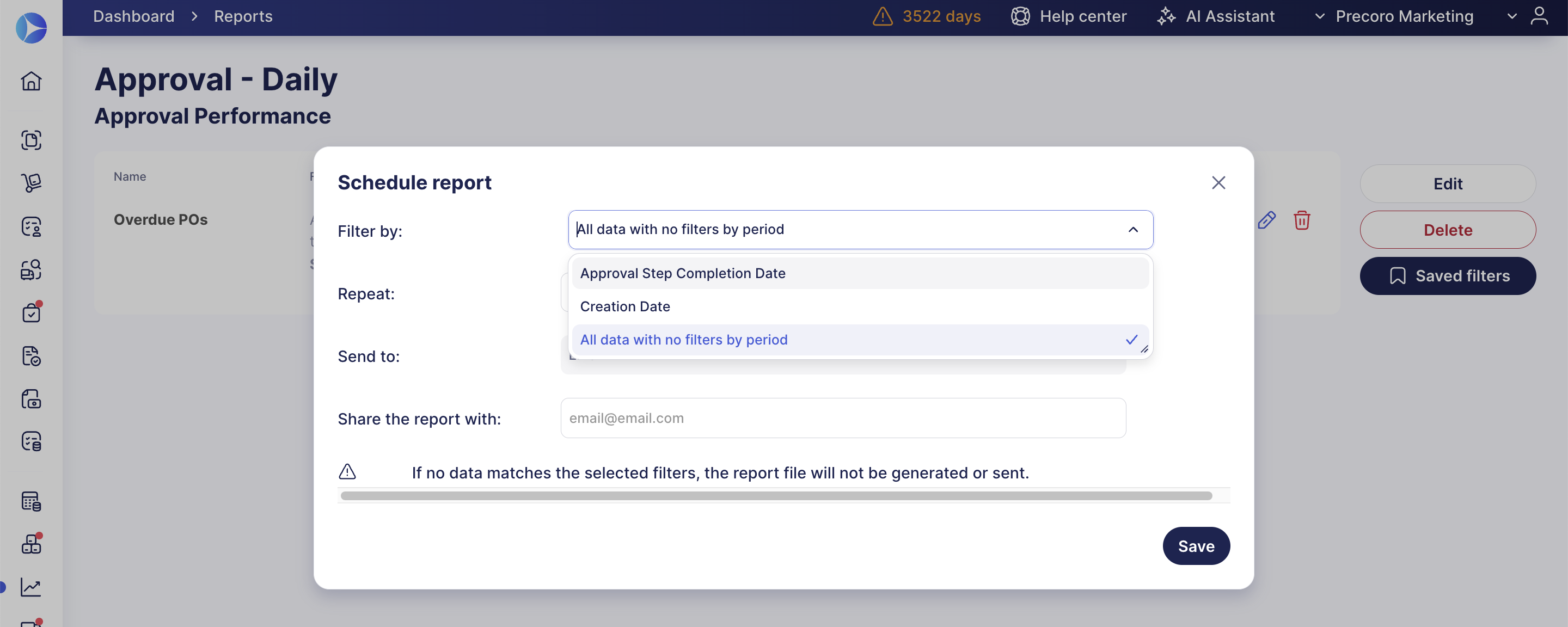
To offer you more flexibility and pull all necessary data for analysis, we’ve made changes to the Approval Performance report.
Now, when you schedule this type of report, you can select All data with no filters by period in the Filter by field. This ensures that the report will show the needed documents, even if you schedule the reports daily.
Manage PunchOuts Confidently—Disable and Enable Anytime
To improve flexibility and visibility in our PunchOut integrations, we’ve added a few new options and visual improvements.
Temporarily disable the connection while saving the credentials in Precoro. Consider using this feature while the supplier is experiencing issues or if you’re negotiating special terms.
- Navigate to Configuration → Marketplace Configuration and open the needed PunchOut’s page.
- Temporarily disable the connection. We offer two options:
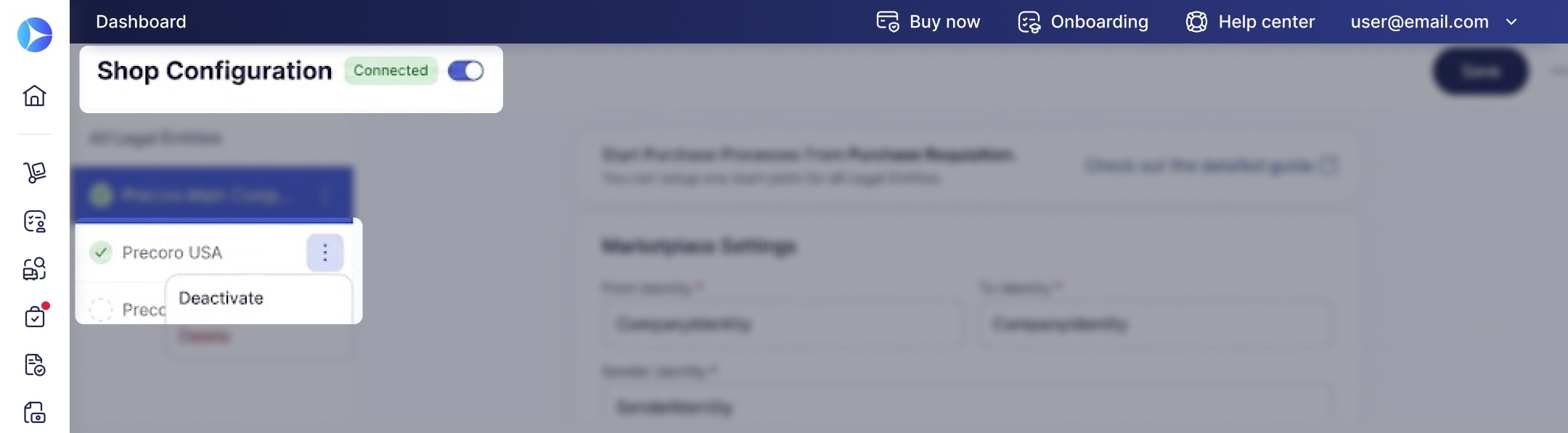
- Click a toggle near the page header to disable the integration for the entire company.
- If you have multiple legal entities, find the needed LE in the left-hand panel, click three vertical dots (more actions), and click Disable.
When a PunchOut is disabled, your team won’t be able to use it to create PRs or POs. However, your credentials will remain on the page, so you can re-activate the integration once ready.
We’ll also conduct routine checks to validate PunchOut credentials. If anything goes wrong, Precoro will take the following steps to ensure your integrations work correctly:
- Disable the PunchOut for the company or a separate legal entity, depending on which credentials are invalid.
- Notify users with the Configuration role to review and update the PunchOut configuration.
Leverage Better Legal Entity Identification in AP Inbox Invoices
Precoro now uses AI to match invoices to the correct legal entity, improving accuracy when receiver details don't exactly match your records.
This allows us to identify the LE more accurately, even if:
- The invoice didn't include a receiver name at all.
- The receiver name was written differently than in your records (an abbreviation, a legal versus trade name, or a different address format).
With AI’s semantic understanding, Precoro can suggest a correct LE option even when formatting differs, such as "St." versus "Street." If no single legal entity can be determined with certainty, Precoro assigns the one with the highest likelihood.
Scan and Combine Up to 20 Files into One Expense
Want to create a single expense to cover the entire business trip? You can now combine all accumulated bills into one Precoro document: simply scan several files at once with AI. They’ll be merged into one expense, which is easier to promptly approve and reimburse.
Here’s how to use this feature:
- On the Expenses page, click Scan with AI.
- Select up to 20 files in your file manager. Please ensure your receipts are saved in a correct format, such as an image or PDF; you can select files in different formats within a batch.
- Click Open, and Precoro will automatically combine the documents, process them, and create an expense.
- The auto-created expense will have only one attachment, which is a combination of all the files you uploaded for scanning.
Assign Contract Managers for Each Legal Entity
To help you correctly set up contract management access for each legal entity, we’ve added new features for companies that use Multi-Entity Management.
For each contract, Precoro now stores the contract creator's information to identify the user who added the contract. When adding a contract, the creator can only select the LE they have access to.
Additionally, only users with access to the LE selected in the contract will be able to view the contract or be notified about the upcoming expiration.
💡 Please note: This feature is currently in Beta. Contact your customer success manager to enable it.
For previously created contracts, the users selected in the field will still get the notifications, even if they don’t have access to the LE.
Review Supplier Registration Forms Promptly as a Super User
Now, any user with the Super User role can take the same actions on a Supplier Registration Form as its creator, including approving and rejecting it. This keeps supplier onboarding moving even when the original creator is out of office.