---
title: Importing Payments from Xero
description: In Precoro, you can create and send approved Invoices to Xero. Read more on how to work with this function here. 1. Create an Invoice in Precoro. 2. Approve it in Precoro so that it will be automatica
---
[Skip to content](https://help.precoro.com/importing-payments-from-xero#main-content)
[Contact us](https://help.precoro.com/kb-tickets/new?hsLang=en) [Customer portal](https://help.precoro.com/tickets-view?hsLang=en)
[](https://app.precoro.com/login)
Open main navigation
Close main navigation
- [Contact us](https://help.precoro.com/kb-tickets/new)
- [Customer portal](https://help.precoro.com/tickets-view)
- [Contact Us](https://share.hsforms.com/1-5JilMA_Qv6AOSVjFtNhDg14slf)
[Contact Us](https://share.hsforms.com/1-5JilMA_Qv6AOSVjFtNhDg14slf)
Hi there! How can we help you today?
- There are no suggestions because the search field is empty.
1. [Knowledge Base](https://help.precoro.com/?hsLang=en)
2. [Precoro Integrations](https://help.precoro.com/precoro-integrations?hsLang=en)
3. [Xero Integration](https://help.precoro.com/precoro-integrations?hsLang=en#xero-integration)
# Importing Payments from Xero
## Learn how to import the payments added in Xero into Precoro.
#### TABLE OF CONTENTS
- [How an Integrated Payment Process Works](https://help.precoro.com/importing-payments-from-xero#how-does-an-integrated)
- [How to Set Up Automatic Payment Import](https://help.precoro.com/importing-payments-from-xero#auto-import)
- [How to Import Payments to Precoro Manually](https://help.precoro.com/importing-payments-from-xero#how-to-import)
- [Payment Cancellation](https://help.precoro.com/importing-payments-from-xero#payment-cancel)
- [Additional Useful Materials](https://help.precoro.com/importing-payments-from-xero#additional)
In Precoro, you can create and send approved invoices to Xero. Read more on how to work with this function [here](https://help.precoro.com/exporting-approved-invoices-to-xero?hsLang=en).
### How an Integrated Payment Process Works
1\. Create an invoice in Precoro.
2\. Approve it in Precoro so that it will be automatically sent to Xero.
3\. Approve the bill in Xero and add payment.
4\. Precoro adds the payment to Precoro automatically if you turn on automatic import, or you can still import it manually by Payment Date range.
### How to Set Up Automatic Payment Import
To turn on the automatic payment import:
1. Go to the **Integration** page
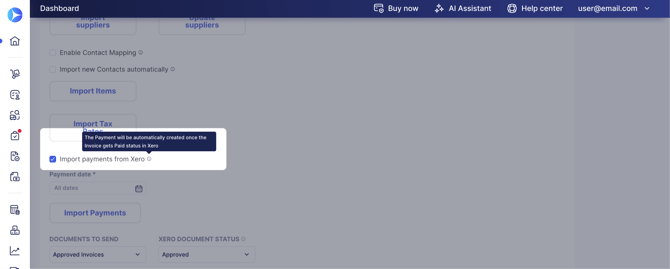
2. Activate the **Import payments from Xero** checkbox. You'll see the hint next to it:
"The Payment will be automatically created once the Invoice gets **Paid** status in Xero."
[](https://help.precoro.com/hubfs/import-payments-xero.png?hsLang=en)
Once the feature is enabled, Precoro checks every Invoice update coming from Xero and creates a matching payment in Precoro when one's been added on the Xero side.
- The invoice status in Precoro changes based on the payment amount: **Partly Paid** if the payment covers part of the Invoice total, or **Paid** if it covers the full amount.
- Precoro validates the payment amount against the invoice total: a payment can't exceed the invoice amount.
💡 **Please note:** Turning on automatic import doesn't disable manual import.
### **How to Import Payments to Precoro Manually**
You can import payments from both the **Payments** page and from the **Integration** page.
To import data from the Payments page, follow these steps:
1\. Open the **Payments** page and choose the **Payment Date** range for the ones you wish to import.
Please note that the payments import window is only available when you choose the **Approved Invoice** type of document.
2\. Press the **Import from Xero** button below, and Precoro will notify **you of the number of imported objects.**
To import data from the Integration page, follow these steps:
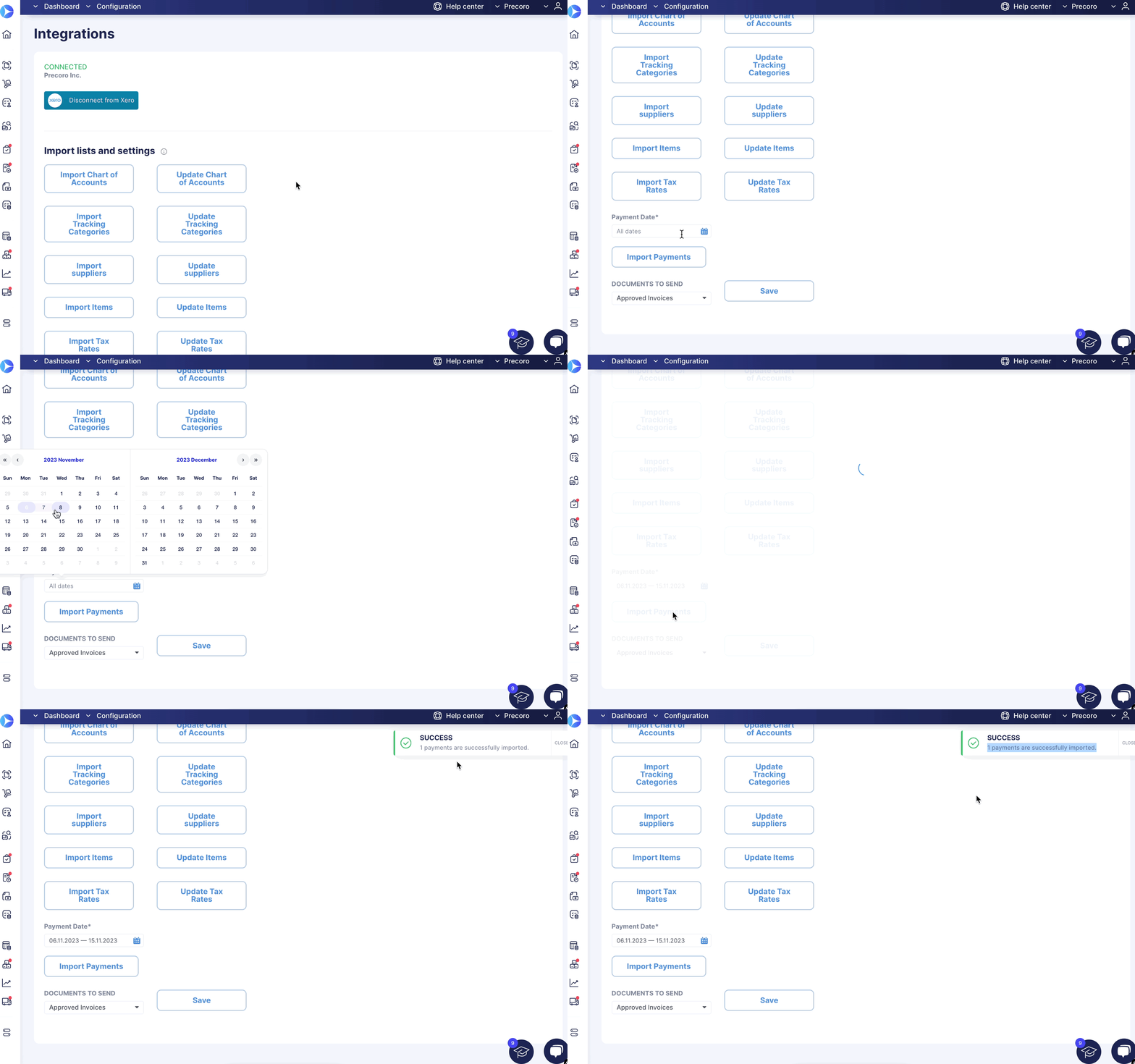
1\. Open the **Integration** page and choose the **Payment Date** range for the ones you wish to import.
2\. Press the **Import Payments** button below, and Precoro will notify **you of the number of imported objects.**
### Payment Cancellation
**If automatic import is enabled**, deleting a payment in Xero automatically cancels the matching payment in Precoro.
**If you import payments manually,** one-way integration is established for payments, so canceling a payment in Precoro won't affect the payment in Xero.
If the payment is deleted in Xero, it will still exist in Precoro. You can **Cancel** the imported payment from Xero manually following the standard Precoro functionality. Find more on working with payments in Precoro [here](https://help.precoro.com/how-to-create-payments-for-the-invoices-1?hsLang=en).
### Additional Useful Materials
- [Getting Started with Xero](https://help.precoro.com/getting-started-with-xero-1?hsLang=en)
- [Data Synchronization between Xero and Precoro](https://help.precoro.com/data-synchronization-between-xero-and-precoro?hsLang=en)
- [Exporting Approved Purchase Orders to Xero](https://help.precoro.com/exporting-approved-purchase-orders-to-xero-2?hsLang=en)
- [Exporting Approved Invoices to Xero](https://help.precoro.com/exporting-approved-invoices-to-xero?hsLang=en)
- [Precoro Setup](https://help.precoro.com/precoro-setup?hsLang=en#main-content)
- [Configurations](https://help.precoro.com/precoro-setup?hsLang=en#configurations)
- [User Management](https://help.precoro.com/precoro-setup?hsLang=en#user-management)
- [Custom Fields and Forms](https://help.precoro.com/precoro-setup?hsLang=en#custom-fields-and-forms)
- [Supplier management](https://help.precoro.com/precoro-setup?hsLang=en#supplier-management)
- [Working with Items](https://help.precoro.com/precoro-setup?hsLang=en#working-with-items)
- [Approval Workflow](https://help.precoro.com/precoro-setup?hsLang=en#approval-workflow)
- [Location Management](https://help.precoro.com/precoro-setup?hsLang=en#location-management)
- [Precoro Payments](https://help.precoro.com/precoro-setup?hsLang=en#precoro-payments)
- [Two-factor authentication](https://help.precoro.com/precoro-setup?hsLang=en#two-factor-authentication)
- [Security](https://help.precoro.com/precoro-setup?hsLang=en#security)
- [US Based Server](https://help.precoro.com/precoro-setup?hsLang=en#us-based-server)
- [How to use Precoro](https://help.precoro.com/how-to-use-precoro?hsLang=en#main-content)
- [Warehouse Requests](https://help.precoro.com/how-to-use-precoro?hsLang=en#warehouse-requests)
- [Requests for Proposals](https://help.precoro.com/how-to-use-precoro?hsLang=en#requests-for-proposals)
- [Purchase Requisitions](https://help.precoro.com/how-to-use-precoro?hsLang=en#purchase-requisitions)
- [Purchase Orders](https://help.precoro.com/how-to-use-precoro?hsLang=en#purchase-orders)
- [Service Orders](https://help.precoro.com/how-to-use-precoro?hsLang=en#service-orders)
- [Receipts](https://help.precoro.com/how-to-use-precoro?hsLang=en#receipts)
- [Invoices](https://help.precoro.com/how-to-use-precoro?hsLang=en#invoices)
- [Expenses](https://help.precoro.com/how-to-use-precoro?hsLang=en#expenses)
- [Budgeting](https://help.precoro.com/how-to-use-precoro?hsLang=en#budgeting)
- [Inventory](https://help.precoro.com/how-to-use-precoro?hsLang=en#inventory)
- [Reports](https://help.precoro.com/how-to-use-precoro?hsLang=en#reports)
- [AP Inbox and Intelligent AP Automation](https://help.precoro.com/how-to-use-precoro?hsLang=en#ap-inbox-and-intelligent-ap-automation)
- [Working with documents](https://help.precoro.com/how-to-use-precoro?hsLang=en#working-with-documents)
- [Suppliers Portal](https://help.precoro.com/how-to-use-precoro?hsLang=en#suppliers-portal)
- [Supplier Registration](https://help.precoro.com/how-to-use-precoro?hsLang=en#supplier-registration)
- [Attachments, Filters, and Search](https://help.precoro.com/how-to-use-precoro?hsLang=en#attachments-filters-and-search)
- [Mobile App](https://help.precoro.com/how-to-use-precoro?hsLang=en#mobile-app)
- [FAQs and Troubleshooting](https://help.precoro.com/how-to-use-precoro?hsLang=en#faqs-and-troubleshooting)
- [Precoro Integrations](https://help.precoro.com/precoro-integrations?hsLang=en#main-content)
- [QuickBooks Online Integration](https://help.precoro.com/precoro-integrations?hsLang=en#quickbooks-online-integration)
- [NetSuite Integration](https://help.precoro.com/precoro-integrations?hsLang=en#netsuite-integration)
- [Xero Integration](https://help.precoro.com/precoro-integrations?hsLang=en#xero-integration)
- [API Requests and Webhooks](https://help.precoro.com/precoro-integrations?hsLang=en#api-requests-and-webhooks)
- [SSO Setting](https://help.precoro.com/precoro-integrations?hsLang=en#sso-setting)
- [Google Integration](https://help.precoro.com/precoro-integrations?hsLang=en#google-integration)
- [Power BI](https://help.precoro.com/precoro-integrations?hsLang=en#power-bi)
- [Integration with Slack](https://help.precoro.com/precoro-integrations?hsLang=en#integration-with-slack)
- [PunchOut Catalogs](https://help.precoro.com/precoro-integrations?hsLang=en#punchout-catalogs)
- [Integrations via Connectors](https://help.precoro.com/precoro-integrations?hsLang=en#integrations-via-connectors)
- [BILL Integration](https://help.precoro.com/precoro-integrations?hsLang=en#bill-integration)
- [Integration with Microsoft Teams](https://help.precoro.com/precoro-integrations?hsLang=en#integration-with-microsoft-teams)
- [Precoro Updates](https://help.precoro.com/precoro-updates?hsLang=en#main-content)
- [Releases, 2026](https://help.precoro.com/precoro-updates?hsLang=en#releases-2026)
- [Releases, 2025](https://help.precoro.com/precoro-updates?hsLang=en#releases-2025)
- [Releases, 2024](https://help.precoro.com/precoro-updates?hsLang=en#releases-2024)
- [Releases, 2023](https://help.precoro.com/precoro-updates?hsLang=en#releases-2023)
- [API Updates](https://help.precoro.com/precoro-updates?hsLang=en#api-updates)
- [General changes](https://help.precoro.com/precoro-updates?hsLang=en#general-changes)
[](https://precoro.com/)
Copyright © 2026, Precoro
```json
{
"@context" : "https://schema.org",
"@type" : "VideoObject",
"contentUrl" : "https://1903299.fs1.hubspotusercontent-na1.net/hubfs/1903299/Monosnap%20screencast%202023-11-06%2015-16-28-1.mp4",
"dateModified" : "2023-11-29T08:49:32.135Z",
"duration" : "PT57S",
"height" : 1336,
"name" : "Monosnap screencast 2023-11-06 15-16-28-1",
"thumbnailUrl" : "https://1903299.fs1.hubspotusercontent-na1.net/hubfs/1903299/Monosnap%20screencast%202023-11-06%2015-16-28-1.mp4/medium.jpg",
"uploadDate" : "2023-11-06T13:31:43.893Z",
"width" : 2136
}
```