---
title: How to Work with Budgets and Total Amounts in Service Orders
description: Document Total Amounts Changing Service And Budget Periods Since the items in SO do not have Quantity and Price fields, you can set the total for every item line. Make sure the total of the document i
---
[Skip to content](https://help.precoro.com/how-to-work-with-budgets-and-total-amounts-in-service-orders#main-content)
[Contact us](https://help.precoro.com/kb-tickets/new?hsLang=en) [Customer portal](https://help.precoro.com/tickets-view?hsLang=en)
[](https://app.precoro.com/login)
Open main navigation
Close main navigation
- [Contact us](https://help.precoro.com/kb-tickets/new)
- [Customer portal](https://help.precoro.com/tickets-view)
- [Contact Us](https://share.hsforms.com/1-5JilMA_Qv6AOSVjFtNhDg14slf)
[Contact Us](https://share.hsforms.com/1-5JilMA_Qv6AOSVjFtNhDg14slf)
Hi there! How can we help you today?
- There are no suggestions because the search field is empty.
1. [Knowledge Base](https://help.precoro.com/?hsLang=en)
2. [How to use Precoro](https://help.precoro.com/how-to-use-precoro?hsLang=en)
3. [Service Orders](https://help.precoro.com/how-to-use-precoro?hsLang=en#service-orders)
# How to Work with Budgets and Total Amounts in Service Orders
## Learn how to work with budgets and total amount in Service Orders.
#### TABLE OF CONTENTS
- [Document Total Amounts](https://help.precoro.com/how-to-work-with-budgets-and-total-amounts-in-service-orders#Document-Total-Amounts)
- [How to Add and Manage Budget in a Service Order](https://help.precoro.com/how-to-work-with-budgets-and-total-amounts-in-service-orders#how-to-add-and-manage-budget)
- [Changing Service And Budget Periods](https://help.precoro.com/how-to-work-with-budgets-and-total-amounts-in-service-orders#Changing-Service-Or-Budget-Periods)
### Document Total Amounts
Since the items in SO do not have **Quantity** and **Price** fields, you can set the total for every item line. Make sure the total of the document is 0 or greater; otherwise, you will not be able to confirm the document.
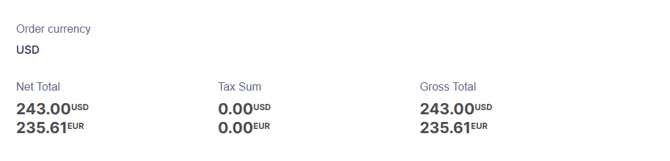
When working with an SO, you can see the automatically calculated total amounts to track what you are planning to spend with this order.
You can see the following total amounts in every SO:
| Net Total | The sum of **Net Total After Discount** values for all items in the SO including tax item lines. |
| --- | --- |
| Tax Sum | The sum of **Tax Sum** values for all items in the SO. This amount does not include taxes added as tax item lines. |
| Gross Total | The sum of **Gross Total** values for all items in the SO including tax item lines. This amount equals Net Total + Tax Sum. |
**💡 Please note:** If the document currency differs from your company’s main currency, these fields will show amounts in both currencies according to the calculation rules you set up. Learn more about exchange rates in Precoro [here](https://help.precoro.com/currency-exchange-rates-and-rounding-settings?hsLang=en).
[](https://help.precoro.com/hubfs/All%20PO%20Totals.png?hsLang=en)
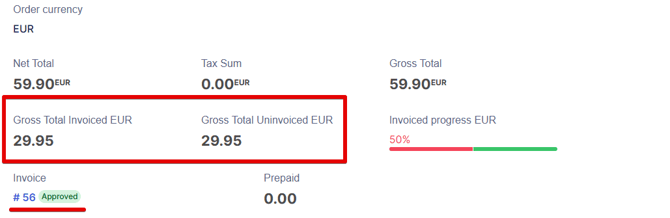
When an SO has a **Pending**, **In Revision**, **Approved**, **Closed**, or **Matching** status, and there is at least one related invoice with a **Pending**, **In Revision**, **Approved**, **Closed**, **Paid**, or **Partly Paid** status, you can see additional information:
| Gross Total Invoiced (main currency) | The sum of **Gross Total** values of related invoices with a **Pending**, **In Revision**, **Approved**, **Closed**, **Paid**, or **Partly Paid** status. |
| --- | --- |
| Gross Total Uninvoiced (main currency) | The amount that can still be invoiced. It equals the SO’s Gross Total - Gross Total Invoiced**.** |
If the related invoice is **Closed**, the **Gross Total Uninvoiced** amount is displayed if the invoice was **In Revision**, **Approved**, **Paid**, or **Partly Paid** before closing.
[](https://help.precoro.com/hubfs/Invoiced%20Totals.png?hsLang=en)
### How to Add and Manage Budget in a Service Order
When creating a Service Order, you can add it to the **Budget** and set a **Budget Breakdown** function.
**💡 Please note:** You can find more information about the **Budget Breakdown** function by following [this](https://help.precoro.com/budget-breakdown-function?hsLang=en) link.
Budget periods in the breakdown will be displayed according to the dates selected in the Service Period.
The document is created for the **amount-based** sum. Receipts and Invoices are amount-based as well. Those related documents also do not have the Quantity field, only the sum.
The created document, after confirmation, will be included in the selected Budget. You can also edit the Budget if needed. To do that, click the **Edit Service Order** button on the right action panel, choose another one, and press **Save**.
**💡 Please note:** With activated **Budget Breakdown,** you will be able to see and manually **Edit** the sums in specific periods when the document is on **Draft**, **Pending**, **In** **Revision**, or **Approved** statuses.
You cannot edit the Budget Breakdown sums with a document on **Matching** status. You have to approve the changes first.
By default, in the Budget Breakdown, the entered sum of the item is equally divided between the periods. You can manually change the amounts in periods as long as they do not exceed the total deducted sum.
For example, the total deducted sum of the item line is 102.50, and it has been equally divided between the two periods for 51.25 a period. You can manually change the amount for the first period to 2.50 and pay the rest 100 in the second period. Please see the video below to learn more.
#### Changing Service And Budget Periods
You can **Revise** the document and, if needed, change the **Service Period** span. This will allow you to:
- Add supplementary budget periods to the Service Order.
**💡 Please note:** For the newly added periods, the item sum will not be automatically redistributed among them. Those periods will have **0** in amounts.
You can edit the Budget Breakdown and redistribute the needed amounts manually for each item line.
- Reduce the number of budget periods in the Service Order.
**💡 Please note:** If you have deleted some periods, the item sum will be automatically redistributed in equal parts throughout the remaining periods.
You can still edit the Budget Breakdown and redistribute the amounts manually for each item line as needed.
- [Precoro Setup](https://help.precoro.com/precoro-setup?hsLang=en#main-content)
- [Configurations](https://help.precoro.com/precoro-setup?hsLang=en#configurations)
- [User Management](https://help.precoro.com/precoro-setup?hsLang=en#user-management)
- [Custom Fields and Forms](https://help.precoro.com/precoro-setup?hsLang=en#custom-fields-and-forms)
- [Supplier management](https://help.precoro.com/precoro-setup?hsLang=en#supplier-management)
- [Working with Items](https://help.precoro.com/precoro-setup?hsLang=en#working-with-items)
- [Approval Workflow](https://help.precoro.com/precoro-setup?hsLang=en#approval-workflow)
- [Location Management](https://help.precoro.com/precoro-setup?hsLang=en#location-management)
- [Precoro Payments](https://help.precoro.com/precoro-setup?hsLang=en#precoro-payments)
- [Two-factor authentication](https://help.precoro.com/precoro-setup?hsLang=en#two-factor-authentication)
- [Security](https://help.precoro.com/precoro-setup?hsLang=en#security)
- [US Based Server](https://help.precoro.com/precoro-setup?hsLang=en#us-based-server)
- [How to use Precoro](https://help.precoro.com/how-to-use-precoro?hsLang=en#main-content)
- [Warehouse Requests](https://help.precoro.com/how-to-use-precoro?hsLang=en#warehouse-requests)
- [Requests for Proposals](https://help.precoro.com/how-to-use-precoro?hsLang=en#requests-for-proposals)
- [Purchase Requisitions](https://help.precoro.com/how-to-use-precoro?hsLang=en#purchase-requisitions)
- [Purchase Orders](https://help.precoro.com/how-to-use-precoro?hsLang=en#purchase-orders)
- [Service Orders](https://help.precoro.com/how-to-use-precoro?hsLang=en#service-orders)
- [Receipts](https://help.precoro.com/how-to-use-precoro?hsLang=en#receipts)
- [Invoices](https://help.precoro.com/how-to-use-precoro?hsLang=en#invoices)
- [Expenses](https://help.precoro.com/how-to-use-precoro?hsLang=en#expenses)
- [Budgeting](https://help.precoro.com/how-to-use-precoro?hsLang=en#budgeting)
- [Inventory](https://help.precoro.com/how-to-use-precoro?hsLang=en#inventory)
- [Reports](https://help.precoro.com/how-to-use-precoro?hsLang=en#reports)
- [AP Inbox and Intelligent AP Automation](https://help.precoro.com/how-to-use-precoro?hsLang=en#ap-inbox-and-intelligent-ap-automation)
- [Working with documents](https://help.precoro.com/how-to-use-precoro?hsLang=en#working-with-documents)
- [Suppliers Portal](https://help.precoro.com/how-to-use-precoro?hsLang=en#suppliers-portal)
- [Supplier Registration](https://help.precoro.com/how-to-use-precoro?hsLang=en#supplier-registration)
- [Attachments, Filters, and Search](https://help.precoro.com/how-to-use-precoro?hsLang=en#attachments-filters-and-search)
- [Mobile App](https://help.precoro.com/how-to-use-precoro?hsLang=en#mobile-app)
- [FAQs and Troubleshooting](https://help.precoro.com/how-to-use-precoro?hsLang=en#faqs-and-troubleshooting)
- [Precoro Integrations](https://help.precoro.com/precoro-integrations?hsLang=en#main-content)
- [QuickBooks Online Integration](https://help.precoro.com/precoro-integrations?hsLang=en#quickbooks-online-integration)
- [NetSuite Integration](https://help.precoro.com/precoro-integrations?hsLang=en#netsuite-integration)
- [Xero Integration](https://help.precoro.com/precoro-integrations?hsLang=en#xero-integration)
- [API Requests and Webhooks](https://help.precoro.com/precoro-integrations?hsLang=en#api-requests-and-webhooks)
- [SSO Setting](https://help.precoro.com/precoro-integrations?hsLang=en#sso-setting)
- [Google Integration](https://help.precoro.com/precoro-integrations?hsLang=en#google-integration)
- [Power BI](https://help.precoro.com/precoro-integrations?hsLang=en#power-bi)
- [Integration with Slack](https://help.precoro.com/precoro-integrations?hsLang=en#integration-with-slack)
- [PunchOut Catalogs](https://help.precoro.com/precoro-integrations?hsLang=en#punchout-catalogs)
- [Integrations via Connectors](https://help.precoro.com/precoro-integrations?hsLang=en#integrations-via-connectors)
- [BILL Integration](https://help.precoro.com/precoro-integrations?hsLang=en#bill-integration)
- [Integration with Microsoft Teams](https://help.precoro.com/precoro-integrations?hsLang=en#integration-with-microsoft-teams)
- [Precoro Updates](https://help.precoro.com/precoro-updates?hsLang=en#main-content)
- [Releases, 2026](https://help.precoro.com/precoro-updates?hsLang=en#releases-2026)
- [Releases, 2025](https://help.precoro.com/precoro-updates?hsLang=en#releases-2025)
- [Releases, 2024](https://help.precoro.com/precoro-updates?hsLang=en#releases-2024)
- [Releases, 2023](https://help.precoro.com/precoro-updates?hsLang=en#releases-2023)
- [API Updates](https://help.precoro.com/precoro-updates?hsLang=en#api-updates)
- [General changes](https://help.precoro.com/precoro-updates?hsLang=en#general-changes)
[](https://precoro.com/)
Copyright © 2026, Precoro
```json
{
"@context" : "https://schema.org",
"@type" : "VideoObject",
"contentUrl" : "https://1903299.fs1.hubspotusercontent-na1.net/hubfs/1903299/Monosnap%20screencast%202023-09-07%2008-10-31.mp4",
"dateModified" : "2023-12-26T12:41:13.447Z",
"duration" : "PT20S",
"height" : 1268,
"name" : "Monosnap screencast 2023-09-07 08-10-31",
"thumbnailUrl" : "https://1903299.fs1.hubspotusercontent-na1.net/hubfs/1903299/Monosnap%20screencast%202023-09-07%2008-10-31.mp4/medium.jpg",
"uploadDate" : "2023-09-07T05:11:19.321Z",
"width" : 2440
}
```
```json
{
"@context" : "https://schema.org",
"@type" : "VideoObject",
"contentUrl" : "https://1903299.fs1.hubspotusercontent-na1.net/hubfs/1903299/Monosnap%20screencast%202023-09-07%2009-56-45.mp4",
"dateModified" : "2023-10-25T06:02:43.997Z",
"duration" : "PT11S",
"height" : 1268,
"name" : "Monosnap screencast 2023-09-07 09-56-45",
"thumbnailUrl" : "https://1903299.fs1.hubspotusercontent-na1.net/hubfs/1903299/Monosnap%20screencast%202023-09-07%2009-56-45.mp4/medium.jpg",
"uploadDate" : "2023-09-07T06:58:24.484Z",
"width" : 2440
}
```
```json
{
"@context" : "https://schema.org",
"@type" : "VideoObject",
"contentUrl" : "https://1903299.fs1.hubspotusercontent-na1.net/hubfs/1903299/Monosnap%20screencast%202023-09-06%2017-35-14.mp4",
"dateModified" : "2023-12-26T12:47:11.488Z",
"duration" : "PT18S",
"height" : 1272,
"name" : "Monosnap screencast 2023-09-06 17-35-14",
"thumbnailUrl" : "https://1903299.fs1.hubspotusercontent-na1.net/hubfs/1903299/Monosnap%20screencast%202023-09-06%2017-35-14.mp4/medium.jpg",
"uploadDate" : "2023-09-06T14:36:03.821Z",
"width" : 2278
}
```
```json
{
"@context" : "https://schema.org",
"@type" : "VideoObject",
"contentUrl" : "https://1903299.fs1.hubspotusercontent-na1.net/hubfs/1903299/Monosnap%20screencast%202023-09-07%2011-17-16.mp4",
"dateModified" : "2023-10-25T06:02:40.048Z",
"duration" : "PT45S",
"height" : 1272,
"name" : "Monosnap screencast 2023-09-07 11-17-16",
"thumbnailUrl" : "https://1903299.fs1.hubspotusercontent-na1.net/hubfs/1903299/Monosnap%20screencast%202023-09-07%2011-17-16.mp4/medium.jpg",
"uploadDate" : "2023-09-07T08:19:32.909Z",
"width" : 2200
}
```
```json
{
"@context" : "https://schema.org",
"@type" : "VideoObject",
"contentUrl" : "https://1903299.fs1.hubspotusercontent-na1.net/hubfs/1903299/Monosnap%20screencast%202023-09-07%2011-39-59.mp4",
"dateModified" : "2023-10-25T06:02:35.149Z",
"duration" : "PT32S",
"height" : 1272,
"name" : "Monosnap screencast 2023-09-07 11-39-59",
"thumbnailUrl" : "https://1903299.fs1.hubspotusercontent-na1.net/hubfs/1903299/Monosnap%20screencast%202023-09-07%2011-39-59.mp4/medium.jpg",
"uploadDate" : "2023-09-07T08:41:24.677Z",
"width" : 2200
}
```