---
title: NetSuite Chart of Accounts Integration
description: Discover how to integrate your NetSuite Chart of Accounts with Precoro to keep financial data consistent and up to date in both systems.
---
[Skip to content](https://help.precoro.com/how-to-sync-chart-of-accounts-with-netsuite-suiteapp#main-content)
[Contact us](https://help.precoro.com/kb-tickets/new?hsLang=en) [Customer portal](https://help.precoro.com/tickets-view?hsLang=en)
[](https://app.precoro.com/login)
Open main navigation
Close main navigation
- [Contact us](https://help.precoro.com/kb-tickets/new)
- [Customer portal](https://help.precoro.com/tickets-view)
- [Contact Us](https://share.hsforms.com/1-5JilMA_Qv6AOSVjFtNhDg14slf)
[Contact Us](https://share.hsforms.com/1-5JilMA_Qv6AOSVjFtNhDg14slf)
Hi there! How can we help you today?
- There are no suggestions because the search field is empty.
1. [Knowledge Base](https://help.precoro.com/?hsLang=en)
2. [Precoro Integrations](https://help.precoro.com/precoro-integrations?hsLang=en)
3. [NetSuite Integration](https://help.precoro.com/precoro-integrations?hsLang=en#netsuite-integration)
# NetSuite Chart of Accounts Integration
## Learn how to integrate your NetSuite Chart of Accounts with Precoro SuiteApp to maintain consistent financial data across both systems.
#### **TABLE OF CONTENTS**
- [How to Export Chart of Accounts from NetSuite](https://help.precoro.com/how-to-sync-chart-of-accounts-with-netsuite-suiteapp#how-to-export)
- [Overview and Requirements](https://help.precoro.com/how-to-sync-chart-of-accounts-with-netsuite-suiteapp#overview)
- [Option 1: Mass Export](https://help.precoro.com/how-to-sync-chart-of-accounts-with-netsuite-suiteapp#option-1)
- [Option 2: Single Record Export](https://help.precoro.com/how-to-sync-chart-of-accounts-with-netsuite-suiteapp#option-2)
- [Option 3: Enable Sync by Default](https://help.precoro.com/how-to-sync-chart-of-accounts-with-netsuite-suiteapp#option-3)
- [How the Updates Work](https://help.precoro.com/how-to-sync-chart-of-accounts-with-netsuite-suiteapp#updates)
- [Chart of Accounts Types That Can Be Integrated with Precoro](https://help.precoro.com/how-to-sync-chart-of-accounts-with-netsuite-suiteapp#types)
- [How to Enable All Account Types](https://help.precoro.com/how-to-sync-chart-of-accounts-with-netsuite-suiteapp#all-account-types)
- [Integrated Fields and Their Synchronization Method](https://help.precoro.com/how-to-sync-chart-of-accounts-with-netsuite-suiteapp#fields)
- [Character Limits for Accounts Fields in NetSuite](https://help.precoro.com/how-to-sync-chart-of-accounts-with-netsuite-suiteapp#limits)
- [Precoro Settings for Imported Accounts](https://help.precoro.com/how-to-sync-chart-of-accounts-with-netsuite-suiteapp#settings)
- [FAQs](https://help.precoro.com/how-to-sync-chart-of-accounts-with-netsuite-suiteapp#faqs)
### How to Export Chart of Accounts from NetSuite
#### **Overview and Requirements**
You can find the chart of accounts list in NetSuite in the **Setup → Accounting → Chart of Accounts** section.
Before you get started, please pay attention to the following points:
- Accounts are exported from NetSuite as **Custom Fields for Items** and can only be used at the **item level** in Precoro.
- If multiple integrations are configured, records will be exported based on the **subsidiary’s availability rule**. An account will only be exported to the Precoro company if it is available to the subsidiary with which it is integrated.
- **Every child record must be integrated with its parent record**. If you integrate a record without selecting its parent, all related parent records will be integrated automatically. If there are multiple levels, the entire chain of parent records will be included. This ensures that your data in Precoro stays complete and consistent with NetSuite.
You can export the Chart of Accounts to Precoro in several ways:
#### **Option 1: Mass Export**
To export accounts in bulk:
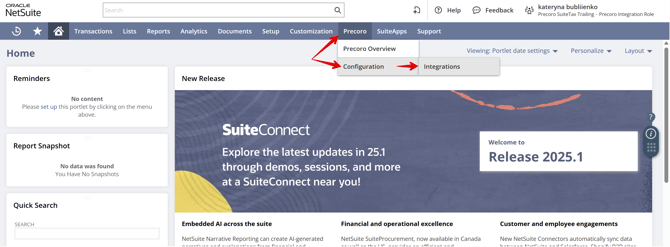
1. Go to **NetSuite → Precoro → Configuration → Integrations.
[](https://help.precoro.com/hubfs/Step%201.png?hsLang=en)**
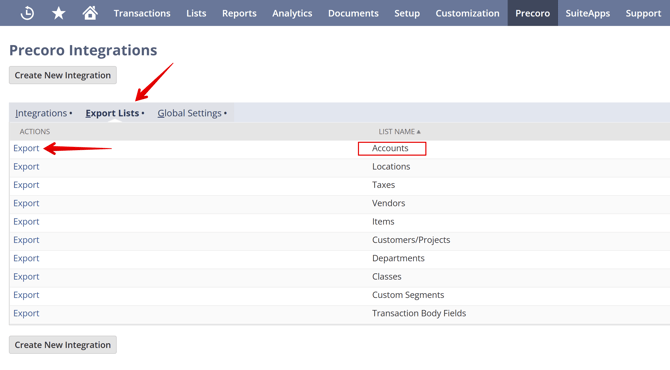
2. Navigate to the **Export Lists** tab.
3. Click **Export** next to “Accounts”.
[](https://help.precoro.com/hubfs/Step%202.png?hsLang=en)
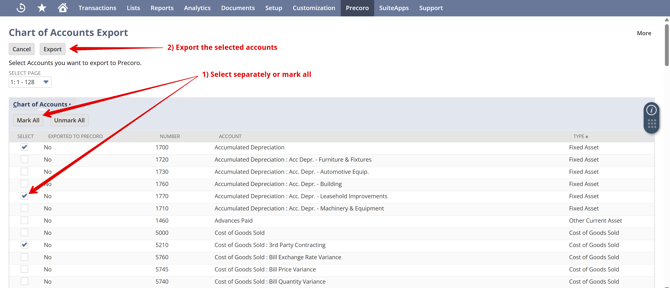
4. Only accounts available for integrated subsidiaries will appear on the **Chart of Accounts Export** page. Select the required accounts or click **Mark All** to select all on the current page. If you switch pages, selections will be reset, so each page must be exported separately.
5. Click **Export**. It may take up to 15 seconds for the accounts to appear in Precoro.
[**](https://help.precoro.com/hubfs/Step%203.png?hsLang=en)
6. Repeat the process for other pages if necessary.
**💡Please note:** The [“Sync to Precoro”](https://help.precoro.com/how-to-sync-chart-of-accounts-with-netsuite-suiteapp#sync) checkbox will be automatically enabled for all exported records.
#### **Option 2: Single Record Export**
To export a specific account:
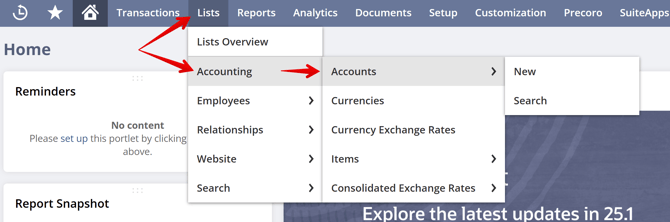
1. Go to **NetSuite → Lists → Accounting → Accounts**.
[](https://help.precoro.com/hubfs/Single%20Export.png?hsLang=en)
2. Edit an existing account or create a new one. [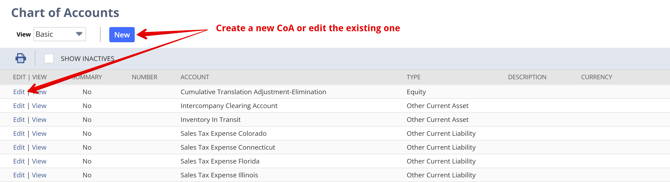](https://help.precoro.com/hubfs/Edit.png?hsLang=en)
3. Enable the **Sync to Precoro** checkbox.
4. Click **Save**. It may take up to 15 seconds for the account to appear in Precoro. [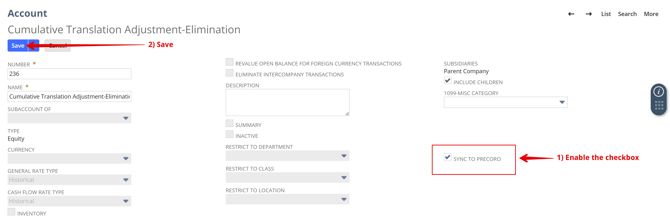](https://help.precoro.com/hubfs/Enable.png?hsLang=en)
#### **Option 3: Enable Sync by Default**
To enable automatic syncing for all newly created accounts:
1. Go to **NetSuite → Precoro → Configuration → Integrations.**
2. Navigate to the **Global Settings** tab.
3. In the **“Sync New Records by Default”** section, check the **Accounts** box.
4. In the pop-up window, click **OK** to confirm the synchronization.
💡 **Please note**: You can manually uncheck the “Sync to Precoro” checkbox when creating a new account. In this case, the account will not be synced with Precoro.
### How the Updates Work
Updates to the integrated accounts from NetSuite to Precoro occur in real time as soon as changes are saved in NetSuite.
For the update to occur, the **“Sync to Precoro”** checkbox must be enabled for the corresponding Chart of Account.
### Chart of Accounts Types That Can Be Integrated with Precoro
By default, Precoro supports the following chart of accounts types:
1. Expenses
2. Other Expenses
3. Fixed Assets
4. Other Assets
5. Other Current Assets
6. Cost of Goods Sold
#### How to Enable All Account Types
If you need to synchronize account types that are not included in the default list, you can enable an additional setting in NetSuite:
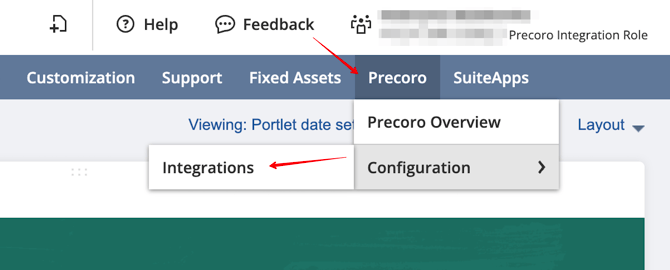
1. Navigate to **Precoro → Configuration → Integrations.
[](https://help.precoro.com/hubfs/netsuite.png?hsLang=en)**
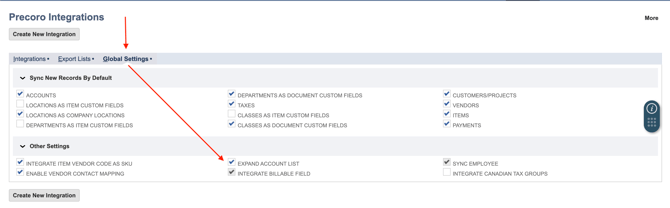
2. In the **Global Settings** tab, enable the **Expand Account List** checkbox.
[](https://help.precoro.com/hubfs/account%20list.png?hsLang=en)
3. Click **OK** to confirm the changes.
4. Re-export the Chart of Accounts from NetSuite.
Once you enable this setting, all NetSuite account types will become available for export and synchronization with Precoro.
### Integrated Fields and Their Synchronization Method
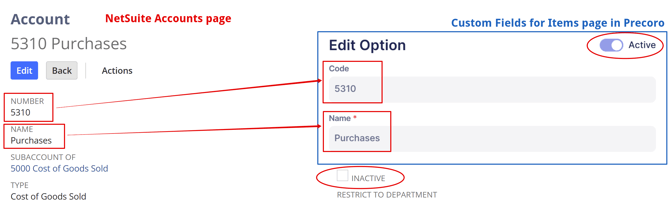
The integration uses **one-way synchronization**. Therefore:
- Changes in NetSuite are reflected in Precoro
- Changes in Precoro are **not** reflected in NetSuite
| **Account Field in NetSuite** | **Account Field in Precoro** | **Notes** |
| --- | --- | --- |
| Name | Name | |
| Number | Code | The **“Use Account Numbers”** feature must be enabled in NetSuite |
| [](https://help.precoro.com/hubfs/Synchronization.png?hsLang=en) | | |
### Character Limits for Accounts Fields in NetSuite
NetSuite enforces the following character limits:
- **Name**: 60 characters
- **Account Number**: 60 characters
### Precoro Settings for Imported Accounts
After successful export, the Chart of Accounts becomes a **Custom Field for Items** in Precoro with the following settings:
- Marked as **Required** for item selection (in Basic Settings).
- Available to select in **all enabled modules** in your Precoro company.
### FAQs
**What if an account has multiple subsidiaries?**
The account can be exported if any of the account's assigned subsidiaries is integrated with Precoro.
**How do I add a new account?**
In Precoro, you cannot edit the integrated custom fields for items.
In NetSuite, you can enable the "Sync to Precoro" checkbox by editing the required account. The account will be automatically added to Precoro.
**How do I remove or deactivate an account?**
If you deactivate or remove the account from Precoro, no changes will be reflected in NetSuite.
Thus, you should manually deactivate or remove the account in NetSuite by clicking the "Edit" button. Once done, the account will be automatically removed or deactivated in Precoro.
**Can I rename the Custom Field for Items in Precoro?**
Yes, you can rename the Custom Field for Items in Precoro to any name you prefer. This change will not affect the Account list name in NetSuite or disrupt the integration in any way.
- [Precoro Setup](https://help.precoro.com/precoro-setup?hsLang=en#main-content)
- [Configurations](https://help.precoro.com/precoro-setup?hsLang=en#configurations)
- [User Management](https://help.precoro.com/precoro-setup?hsLang=en#user-management)
- [Custom Fields and Forms](https://help.precoro.com/precoro-setup?hsLang=en#custom-fields-and-forms)
- [Supplier management](https://help.precoro.com/precoro-setup?hsLang=en#supplier-management)
- [Working with Items](https://help.precoro.com/precoro-setup?hsLang=en#working-with-items)
- [Approval Workflow](https://help.precoro.com/precoro-setup?hsLang=en#approval-workflow)
- [Location Management](https://help.precoro.com/precoro-setup?hsLang=en#location-management)
- [Precoro Payments](https://help.precoro.com/precoro-setup?hsLang=en#precoro-payments)
- [Two-factor authentication](https://help.precoro.com/precoro-setup?hsLang=en#two-factor-authentication)
- [Security](https://help.precoro.com/precoro-setup?hsLang=en#security)
- [US Based Server](https://help.precoro.com/precoro-setup?hsLang=en#us-based-server)
- [How to use Precoro](https://help.precoro.com/how-to-use-precoro?hsLang=en#main-content)
- [Warehouse Requests](https://help.precoro.com/how-to-use-precoro?hsLang=en#warehouse-requests)
- [Requests for Proposals](https://help.precoro.com/how-to-use-precoro?hsLang=en#requests-for-proposals)
- [Purchase Requisitions](https://help.precoro.com/how-to-use-precoro?hsLang=en#purchase-requisitions)
- [Purchase Orders](https://help.precoro.com/how-to-use-precoro?hsLang=en#purchase-orders)
- [Service Orders](https://help.precoro.com/how-to-use-precoro?hsLang=en#service-orders)
- [Receipts](https://help.precoro.com/how-to-use-precoro?hsLang=en#receipts)
- [Invoices](https://help.precoro.com/how-to-use-precoro?hsLang=en#invoices)
- [Expenses](https://help.precoro.com/how-to-use-precoro?hsLang=en#expenses)
- [Budgeting](https://help.precoro.com/how-to-use-precoro?hsLang=en#budgeting)
- [Inventory](https://help.precoro.com/how-to-use-precoro?hsLang=en#inventory)
- [Reports](https://help.precoro.com/how-to-use-precoro?hsLang=en#reports)
- [AP Inbox and Intelligent AP Automation](https://help.precoro.com/how-to-use-precoro?hsLang=en#ap-inbox-and-intelligent-ap-automation)
- [Working with documents](https://help.precoro.com/how-to-use-precoro?hsLang=en#working-with-documents)
- [Suppliers Portal](https://help.precoro.com/how-to-use-precoro?hsLang=en#suppliers-portal)
- [Supplier Registration](https://help.precoro.com/how-to-use-precoro?hsLang=en#supplier-registration)
- [Attachments, Filters, and Search](https://help.precoro.com/how-to-use-precoro?hsLang=en#attachments-filters-and-search)
- [Mobile App](https://help.precoro.com/how-to-use-precoro?hsLang=en#mobile-app)
- [FAQs and Troubleshooting](https://help.precoro.com/how-to-use-precoro?hsLang=en#faqs-and-troubleshooting)
- [Precoro Integrations](https://help.precoro.com/precoro-integrations?hsLang=en#main-content)
- [QuickBooks Online Integration](https://help.precoro.com/precoro-integrations?hsLang=en#quickbooks-online-integration)
- [NetSuite Integration](https://help.precoro.com/precoro-integrations?hsLang=en#netsuite-integration)
- [Xero Integration](https://help.precoro.com/precoro-integrations?hsLang=en#xero-integration)
- [API Requests and Webhooks](https://help.precoro.com/precoro-integrations?hsLang=en#api-requests-and-webhooks)
- [SSO Setting](https://help.precoro.com/precoro-integrations?hsLang=en#sso-setting)
- [Google Integration](https://help.precoro.com/precoro-integrations?hsLang=en#google-integration)
- [Power BI](https://help.precoro.com/precoro-integrations?hsLang=en#power-bi)
- [Integration with Slack](https://help.precoro.com/precoro-integrations?hsLang=en#integration-with-slack)
- [PunchOut Catalogs](https://help.precoro.com/precoro-integrations?hsLang=en#punchout-catalogs)
- [Integrations via Connectors](https://help.precoro.com/precoro-integrations?hsLang=en#integrations-via-connectors)
- [Bill.com Integration](https://help.precoro.com/precoro-integrations?hsLang=en#bill-com-integration)
- [Integration with Microsoft Teams](https://help.precoro.com/precoro-integrations?hsLang=en#integration-with-microsoft-teams)
- [Precoro Updates](https://help.precoro.com/precoro-updates?hsLang=en#main-content)
- [Releases, 2026](https://help.precoro.com/precoro-updates?hsLang=en#releases-2026)
- [Releases, 2025](https://help.precoro.com/precoro-updates?hsLang=en#releases-2025)
- [Releases, 2024](https://help.precoro.com/precoro-updates?hsLang=en#releases-2024)
- [Releases, 2023](https://help.precoro.com/precoro-updates?hsLang=en#releases-2023)
- [API Updates](https://help.precoro.com/precoro-updates?hsLang=en#api-updates)
- [General changes](https://help.precoro.com/precoro-updates?hsLang=en#general-changes)
[](https://precoro.com/)
Copyright © 2026, Precoro
```json
{
"@context" : "https://schema.org",
"@type" : "VideoObject",
"contentUrl" : "https://1903299.fs1.hubspotusercontent-na1.net/hubfs/1903299/How%20to%20Find.mp4",
"dateModified" : "2025-04-18T11:30:22.374Z",
"duration" : "PT11S",
"height" : 1812,
"name" : "How to Find",
"thumbnailUrl" : "https://1903299.fs1.hubspotusercontent-na1.net/hubfs/1903299/How%20to%20Find.mp4/medium.jpg",
"uploadDate" : "2025-04-18T11:30:22.369Z",
"width" : 3816
}
```
```json
{
"@context" : "https://schema.org",
"@type" : "VideoObject",
"contentUrl" : "https://1903299.fs1.hubspotusercontent-na1.net/hubfs/1903299/Sync.mp4",
"dateModified" : "2025-05-01T15:40:16.684Z",
"duration" : "PT11S",
"height" : 1798,
"name" : "Sync",
"thumbnailUrl" : "https://1903299.fs1.hubspotusercontent-na1.net/hubfs/1903299/Sync.mp4/medium.jpg",
"uploadDate" : "2025-05-01T15:40:13.059Z",
"width" : 3832
}
```