---
title: How to Submit a Request for Creating a New Supplier
description: Users will be able to request adding new Suppliers to the company and you can manage this process by setting up the Supplier Approval Workflow.
---
[Skip to content](https://help.precoro.com/how-to-submit-a-request-for-creating-a-new-supplier#main-content)
[Contact us](https://help.precoro.com/kb-tickets/new?hsLang=en) [Customer portal](https://help.precoro.com/tickets-view?hsLang=en)
[](https://app.precoro.com/login)
Open main navigation
Close main navigation
- [Contact us](https://help.precoro.com/kb-tickets/new)
- [Customer portal](https://help.precoro.com/tickets-view)
- [Contact Us](https://share.hsforms.com/1-5JilMA_Qv6AOSVjFtNhDg14slf)
[Contact Us](https://share.hsforms.com/1-5JilMA_Qv6AOSVjFtNhDg14slf)
Hi there! How can we help you today?
- There are no suggestions because the search field is empty.
1. [Knowledge Base](https://help.precoro.com/?hsLang=en)
2. [Precoro Setup](https://help.precoro.com/precoro-setup?hsLang=en)
3. [Supplier management](https://help.precoro.com/precoro-setup?hsLang=en#supplier-management)
# How to Submit a Request for Creating a New Supplier
## Learn how to submit requests for new Suppliers in Precoro, receive notifications, and manage approvals or revisions through the Supplier workflow.
#### TABLE OF CONTENTS
- [How to Submit a Request for Creating a New Supplier](https://help.precoro.com/how-to-submit-a-request-for-creating-a-new-supplier#submit-request-for-a-new-supplier)
- [Notifications Even Without the Supplier Management Role](https://help.precoro.com/how-to-submit-a-request-for-creating-a-new-supplier#Notification-to-Supplier-Requester)
- [How to Return Suppliers to the Requesters for Information Clarification](https://help.precoro.com/how-to-submit-a-request-for-creating-a-new-supplier#Return-Suppliers-to-the-Requesters)
**Even without any Supplier Management Role**, users can submit a request for creating a new Supplier if they have a **Create Role** activated for the needed type of document.
**💡 Please note:** This feature will work for the **Purchase Order,** **Invoice**, and **Purchase Requisition** documents.
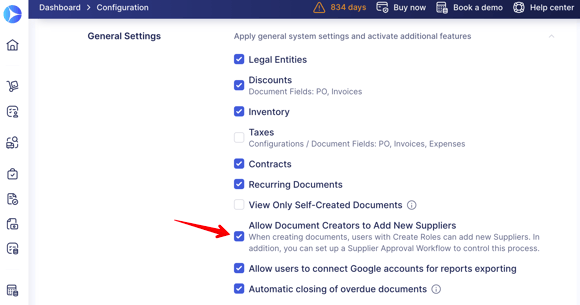
This functionality will be available for your users if you have the **Allow Document Creators to Add New Suppliers** feature activated in the Configuration → Basic Settings → Document Setup → General Settings:
[](https://help.precoro.com/hubfs/Monosnap%20Basic%20Settings%202024-10-22%2018-37-24-png.png?hsLang=en)
This setting also applies to AI-scanned purchase orders. When the checkbox is enabled and AI can't match a PO to an existing supplier, Precoro creates one automatically instead of skipping the document. For more details, see [here](https://help.precoro.com/using-ai-document-scanning?hsLang=en).
### How to Submit a Request for Creating a New Supplier
To submit a request, follow the steps below:
1\. Create a new document.
2\. On the Creation page in the **Supplier** field, click on the **Add New Supplier** button and enter the required information.
3\. The Supplier will be immediately added to the document with the **Pending** status. Then, depending on the Supplier Approval Workflow your company has set, the Supplier will undergo the confirmation process.
#### Notifications Without the Supplier Management Role
**Requester Notifications**
After submitting a request for adding new Suppliers, users will receive a notification letter in the inbox after the Supplier has successfully undergone the approval workflow, **even if the requester does not have a Supplier Management role**.
The letter helps keep the requesters up to date on whether their Suppliers were approved or not. Furthermore, with the notification, they can quickly proceed to the relevant documents in Precoro for further work.
**Document Creator Notification**
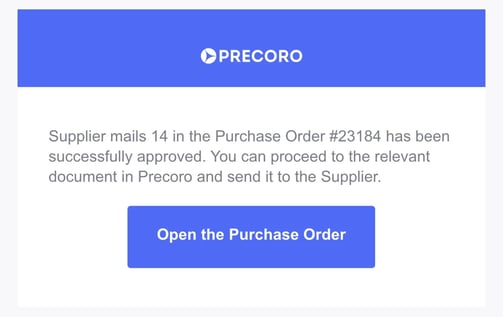
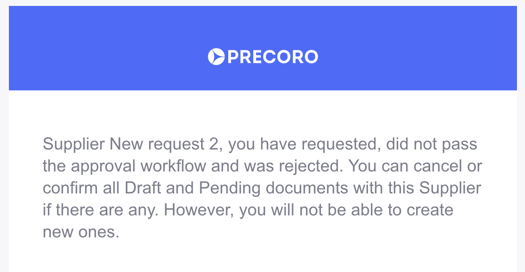
If you have created a document for the requested Supplier, which has a Pending status but you are not a requester, and you also do not have a Supplier Management role, you will still receive notifications regarding that Supplier’s status of approval so you would be able to adjust further work with documents.
You will be notified either if the Supplier is **Approved**:
[](https://help.precoro.com/hubfs/Monosnap%20Mailpit%202023-05-31%2016-18-16-png-1-webp.webp?hsLang=en)
Or **Rejected**:
[](https://help.precoro.com/hubfs/Monosnap%20Mailpit%202023-06-08%2010-43-17-png-png.png?hsLang=en)
### How to Return Suppliers to the Requesters for Information Clarification
This flow will enable the approvers to quickly refine the information and the requesters to conveniently provide the data and control all their requests from one page.
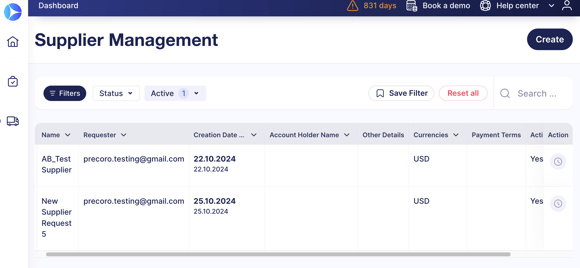
Users without Supplier roles in Precoro have access to the [Supplier Management](https://app.precoro.com/manage/manual/supplier?enable=1) page where they can manage and track all their requested Suppliers.
**💡 Please note:** Users will only be able to view the Suppliers they have requested on the Supplier Management page, even if they have no Supplier roles in Precoro.
**Breakdown of Work Process**
The requester’s workflow:
- *Making the request:*
- The requester can make a new Supplier request from the Supplier Management page by clicking the **Create** button and following the usual request process.
- The requester can make a request when creating a new document as well by clicking the **Add new Supplier** button.
- *Viewing the request on the Supplier Management page:*
- The requester will be able to see all their requests and current statuses, apply filters, and quickly search for the needed information.
[](https://help.precoro.com/hubfs/Monosnap%20Supplier%20Management%202024-10-25%2018-00-53-png.png?hsLang=en)
- *Receiving Supplier back for revision:*
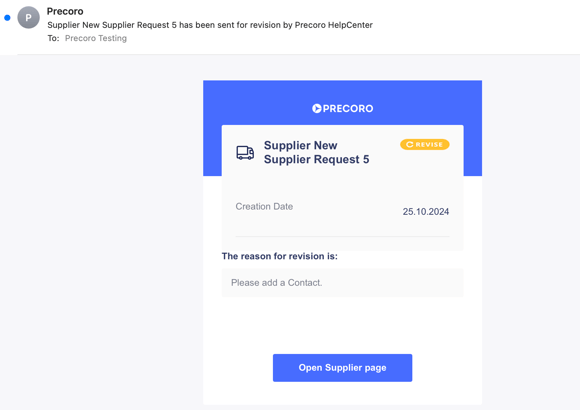
- When the approver returns the Supplier for revision, they leave a comment about the data they want clarified. You will receive an email containing all that information for you to properly make needed changes to the Supplier profile:
[](https://help.precoro.com/hubfs/Monosnap%20Supplier%20New%20Supplier%20Request%205%20has%20been%20sent%20for%20revision%20by%20Precoro%20HelpCenter%202024-10-25%2018-05-42-png.png?hsLang=en)
- *Entering the needed changes and sending the Supplier back:*
- After editing the profile and adding the missing information, click the Confirm button and the document will once again obtain the In Revision status and will be sent to the approver for re-evaluation.
The approver’s workflow:
- *Receiving and working with the request:*
On the Supplier Management page, you will be able to quickly see the request by using the **Approve** infocard that will sort out the needed Suppliers. Open their profile, check the information and if any data clarification is needed click the **Send for Revision** button on the action panel and make a clear description of what should be edited or added in the pop-up window.
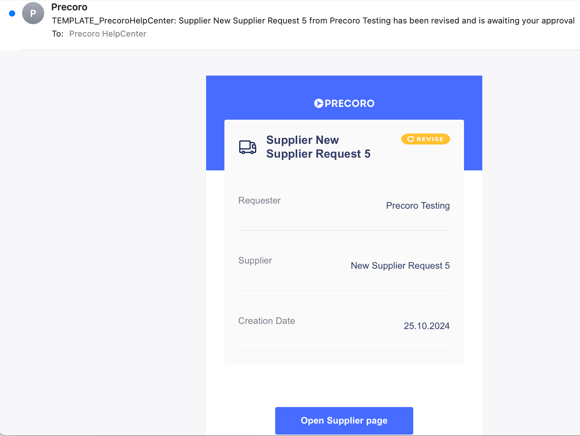
The Supplier will obtain the In Revision status and the requester will receive an email with your description. Once the edits are done, you will receive the letter stating that the revision is over and you can proceed with the approval.
[](https://help.precoro.com/hubfs/Monosnap%20TEMPLATE_PrecoroHelpCenter%20Supplier%20New%20Supplier%20Request%205%20from%20Precoro%20Testing%20has%20been%20revised%20and%20is%20awaiting%20your%20approval%202024-10-25%2018-16-34-png.png?hsLang=en)
- Approval process after the requester's revision:
- The approval process will not be any different from the usual flow. You will see the changes in the profile that the requester has made, evaluate them, and proceed with your decision to Approve or Reject the Supplier.
**💡 Please note:** At this point, you can once again click the **Send for Revision** button, add the description about what kind of changes you are looking for, and send it back to the requester. You can send Suppliers for revisions an unlimited number of times.
- [Precoro Setup](https://help.precoro.com/precoro-setup?hsLang=en#main-content)
- [Configurations](https://help.precoro.com/precoro-setup?hsLang=en#configurations)
- [User Management](https://help.precoro.com/precoro-setup?hsLang=en#user-management)
- [Custom Fields and Forms](https://help.precoro.com/precoro-setup?hsLang=en#custom-fields-and-forms)
- [Supplier management](https://help.precoro.com/precoro-setup?hsLang=en#supplier-management)
- [Working with Items](https://help.precoro.com/precoro-setup?hsLang=en#working-with-items)
- [Approval Workflow](https://help.precoro.com/precoro-setup?hsLang=en#approval-workflow)
- [Location Management](https://help.precoro.com/precoro-setup?hsLang=en#location-management)
- [Precoro Payments](https://help.precoro.com/precoro-setup?hsLang=en#precoro-payments)
- [Two-factor authentication](https://help.precoro.com/precoro-setup?hsLang=en#two-factor-authentication)
- [Security](https://help.precoro.com/precoro-setup?hsLang=en#security)
- [US Based Server](https://help.precoro.com/precoro-setup?hsLang=en#us-based-server)
- [How to use Precoro](https://help.precoro.com/how-to-use-precoro?hsLang=en#main-content)
- [Warehouse Requests](https://help.precoro.com/how-to-use-precoro?hsLang=en#warehouse-requests)
- [Requests for Proposals](https://help.precoro.com/how-to-use-precoro?hsLang=en#requests-for-proposals)
- [Purchase Requisitions](https://help.precoro.com/how-to-use-precoro?hsLang=en#purchase-requisitions)
- [Purchase Orders](https://help.precoro.com/how-to-use-precoro?hsLang=en#purchase-orders)
- [Service Orders](https://help.precoro.com/how-to-use-precoro?hsLang=en#service-orders)
- [Receipts](https://help.precoro.com/how-to-use-precoro?hsLang=en#receipts)
- [Invoices](https://help.precoro.com/how-to-use-precoro?hsLang=en#invoices)
- [Expenses](https://help.precoro.com/how-to-use-precoro?hsLang=en#expenses)
- [Budgeting](https://help.precoro.com/how-to-use-precoro?hsLang=en#budgeting)
- [Inventory](https://help.precoro.com/how-to-use-precoro?hsLang=en#inventory)
- [Reports](https://help.precoro.com/how-to-use-precoro?hsLang=en#reports)
- [AP Inbox and Intelligent AP Automation](https://help.precoro.com/how-to-use-precoro?hsLang=en#ap-inbox-and-intelligent-ap-automation)
- [Working with documents](https://help.precoro.com/how-to-use-precoro?hsLang=en#working-with-documents)
- [Suppliers Portal](https://help.precoro.com/how-to-use-precoro?hsLang=en#suppliers-portal)
- [Supplier Registration](https://help.precoro.com/how-to-use-precoro?hsLang=en#supplier-registration)
- [Attachments, Filters, and Search](https://help.precoro.com/how-to-use-precoro?hsLang=en#attachments-filters-and-search)
- [Mobile App](https://help.precoro.com/how-to-use-precoro?hsLang=en#mobile-app)
- [FAQs and Troubleshooting](https://help.precoro.com/how-to-use-precoro?hsLang=en#faqs-and-troubleshooting)
- [Precoro Integrations](https://help.precoro.com/precoro-integrations?hsLang=en#main-content)
- [QuickBooks Online Integration](https://help.precoro.com/precoro-integrations?hsLang=en#quickbooks-online-integration)
- [NetSuite Integration](https://help.precoro.com/precoro-integrations?hsLang=en#netsuite-integration)
- [Xero Integration](https://help.precoro.com/precoro-integrations?hsLang=en#xero-integration)
- [API Requests and Webhooks](https://help.precoro.com/precoro-integrations?hsLang=en#api-requests-and-webhooks)
- [SSO Setting](https://help.precoro.com/precoro-integrations?hsLang=en#sso-setting)
- [Google Integration](https://help.precoro.com/precoro-integrations?hsLang=en#google-integration)
- [Power BI](https://help.precoro.com/precoro-integrations?hsLang=en#power-bi)
- [Integration with Slack](https://help.precoro.com/precoro-integrations?hsLang=en#integration-with-slack)
- [PunchOut Catalogs](https://help.precoro.com/precoro-integrations?hsLang=en#punchout-catalogs)
- [Integrations via Connectors](https://help.precoro.com/precoro-integrations?hsLang=en#integrations-via-connectors)
- [Bill.com Integration](https://help.precoro.com/precoro-integrations?hsLang=en#bill-com-integration)
- [Integration with Microsoft Teams](https://help.precoro.com/precoro-integrations?hsLang=en#integration-with-microsoft-teams)
- [Precoro Updates](https://help.precoro.com/precoro-updates?hsLang=en#main-content)
- [Releases, 2026](https://help.precoro.com/precoro-updates?hsLang=en#releases-2026)
- [Releases, 2025](https://help.precoro.com/precoro-updates?hsLang=en#releases-2025)
- [Releases, 2024](https://help.precoro.com/precoro-updates?hsLang=en#releases-2024)
- [Releases, 2023](https://help.precoro.com/precoro-updates?hsLang=en#releases-2023)
- [API Updates](https://help.precoro.com/precoro-updates?hsLang=en#api-updates)
- [General changes](https://help.precoro.com/precoro-updates?hsLang=en#general-changes)
[](https://precoro.com/)
Copyright © 2026, Precoro
```json
{
"@context" : "https://schema.org",
"@type" : "VideoObject",
"contentUrl" : "https://1903299.fs1.hubspotusercontent-na1.net/hubfs/1903299/Supplier%20Request%20Form.mp4",
"dateModified" : "2025-05-26T12:53:53.769Z",
"duration" : "PT32S",
"height" : 822,
"name" : "Supplier Request Form",
"thumbnailUrl" : "https://1903299.fs1.hubspotusercontent-na1.net/hubfs/1903299/Supplier%20Request%20Form.mp4/medium.jpg",
"uploadDate" : "2025-05-26T12:53:48.466Z",
"width" : 1912
}
```
```json
{
"@context" : "https://schema.org",
"@type" : "VideoObject",
"contentUrl" : "https://1903299.fs1.hubspotusercontent-na1.net/hubfs/1903299/Monosnap%20screencast%202024-10-25%2017-51-58.mp4",
"dateModified" : "2024-10-30T09:42:09.935Z",
"duration" : "PT1M53S",
"height" : 1352,
"name" : "Monosnap screencast 2024-10-25 17-51-58",
"thumbnailUrl" : "https://1903299.fs1.hubspotusercontent-na1.net/hubfs/1903299/Monosnap%20screencast%202024-10-25%2017-51-58.mp4/medium.jpg",
"uploadDate" : "2024-10-25T14:59:37.665Z",
"width" : 2328
}
```