
TABLE OF CONTENTS
Item Rejection Overview
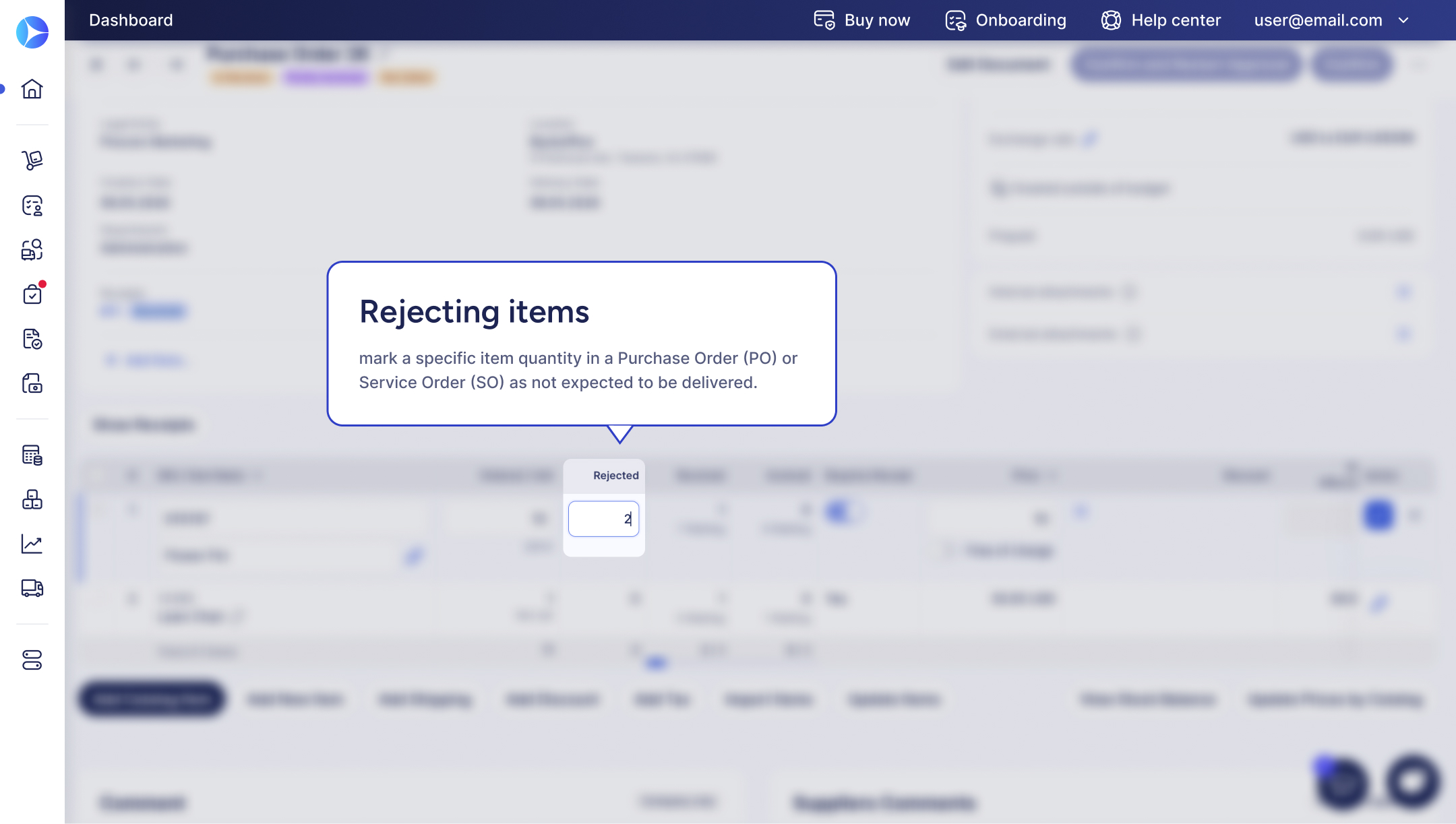
Rejecting items means marking a specific item quantity in a purchase order (PO) or service order (SO) as not expected to be delivered.
Precoro automatically adjusts the remaining quantities, removes those items from future receipts and invoices, and completes the order once everything else is processed.
When to Reject Items
- The supplier confirmed that some items won't be delivered.
- The item is unavailable or discontinued.
- The delivered item was damaged, incorrect, or unacceptable, and no replacement is expected.
- The supplier already invoiced the item, but it was later returned or rejected.
How to Reject Items
There are 3 item rejection scenarios in Precoro. Choose the one that matches the current stage of the item:
- before delivery or billing,
- after a receipt has been created,
- after an invoice has been created.
Scenario 1. Reject Items Before Delivery or Billing
Use this option when the supplier informs you that certain items will not be delivered.
In Precoro, you're still working with the PO or SO, and no receipt or invoice has been created for the item yet.
Follow these steps:
- Open the PO or SO.
- If the document is approved, click Revise first.
- Scroll to the item table and click Edit next to the item.
- Enter the quantity in the Rejected field.
- Save the item.
- Click Confirm (or Confirm and Restart Approval, if applicable).
After you confirm the document:
- Outstanding quantities are updated automatically.
- The rejected quantity is removed from future receiving and invoicing expectations.
- The PO or SO can move to Completed once all remaining items are processed.
Scenario 2. Reject Items After a Receipt Has Been Created
Use this option when items were already received, but later found to be damaged, incorrect, or unacceptable. In Precoro, this means a receipt has already been created.
Follow these steps:
- Navigate to Receipts or find the link to the receipt on the PO page.
- Open the related receipt.
- Click Revise → Edit Receipt.
- In the item table, update the Add to Receipt field with the quantity you want to keep as received.
For example, if 20 units were received but only 10 were accepted, enter 10 in the Add to Receipt field. - Save and confirm the receipt.
Please note: When you revise a receipt, the quantity from this receipt may temporarily stop appearing in the Already received column until the revised receipt is confirmed again.
Alternatively:
If the entire delivery should be rejected, click Cancel Receipt and provide a reason.
After you confirm the document:
- The PO is updated automatically.
- The quantities become available for further action.
If no replacement is expected, return to the related PO or SO, click Revise, and enter the remaining quantity in the Rejected field, as explained in this section.
Scenario 3: Rejecting Items After an Invoice Has Been Created
Use this option when the supplier has already invoiced items that were later rejected, damaged, or returned.
If the invoice is already confirmed, handle the correction through a credit note. Read this guide for step-by-step instructions.
Follow the next steps:
- Go to Invoices.
- Open the related invoice.
- Click Add Credit Note on the right-side action panel.
- Select the items and quantities being returned or rejected.
- Enter the supplier's credit note number (if provided).
- Confirm the credit note.
After the credit note is confirmed:
- The credit note is linked to the invoice.
- The supplier credit is recorded in Precoro.
- Budget and spending records stay accurate.
- The credit can be applied to future supplier payments.