---
title: How to Order from PunchOut Catalogs in Precoro
description: Shop supplier PunchOut catalogs from Precoro and turn your cart into a purchase requisition or PO, with items and prices filled in.
---
[Skip to content](https://help.precoro.com/how-to-order-from-punchout-catalogs-in-precoro#main-content)
[Contact us](https://help.precoro.com/kb-tickets/new?hsLang=en) [Customer portal](https://help.precoro.com/tickets-view?hsLang=en)
[](https://app.precoro.com/login)
Open main navigation
Close main navigation
- [Contact us](https://help.precoro.com/kb-tickets/new)
- [Customer portal](https://help.precoro.com/tickets-view)
- [Contact Us](https://share.hsforms.com/1-5JilMA_Qv6AOSVjFtNhDg14slf)
[Contact Us](https://share.hsforms.com/1-5JilMA_Qv6AOSVjFtNhDg14slf)
Hi there! How can we help you today?
- There are no suggestions because the search field is empty.
1. [Knowledge Base](https://help.precoro.com/?hsLang=en)
2. [Precoro Integrations](https://help.precoro.com/precoro-integrations?hsLang=en)
3. [PunchOut Catalogs](https://help.precoro.com/precoro-integrations?hsLang=en#punchout-catalogs)
# How to Order from PunchOut Catalogs in Precoro
## Shop your suppliers' online stores from Precoro and turn your cart into a purchase requisition or purchase order, with item details and prices filled in.
**TABLE OF CONTENTS**
- [How to Create a Document from a PunchOut Catalog](https://help.precoro.com/how-to-order-from-punchout-catalogs-in-precoro#create-document)
- [Step 1: Start a PunchOut Request](https://help.precoro.com/how-to-order-from-punchout-catalogs-in-precoro#step-1)
- [Step 2: Fill Out the Document Details](https://help.precoro.com/how-to-order-from-punchout-catalogs-in-precoro#step-2)
- [Step 3: Shop and Check Out](https://help.precoro.com/how-to-order-from-punchout-catalogs-in-precoro#step-3)
- [Step 4: Review and Confirm the Document](https://help.precoro.com/how-to-order-from-punchout-catalogs-in-precoro#step-4)
- [What Happens After You Confirm the Document](https://help.precoro.com/how-to-order-from-punchout-catalogs-in-precoro#after-confirmation)
- [Shipping Address in PunchOut Documents](https://help.precoro.com/how-to-order-from-punchout-catalogs-in-precoro#shipping-adress)
- [How to Change Items After Checkout](https://help.precoro.com/how-to-order-from-punchout-catalogs-in-precoro#change-items)
- [How to Notice Orders that Weren't Sent](https://help.precoro.com/how-to-order-from-punchout-catalogs-in-precoro#not-sent)
- [How to Cancel a PunchOut Order](https://help.precoro.com/how-to-order-from-punchout-catalogs-in-precoro#cancel)
📋 **Before you start, make sure:**
- The PunchOut catalog is connected. See [How to Set Up PunchOut Catalogs in Precoro](https://help.precoro.com/marketplace-configuration-page?hsLang=en).
- You have the **Create** role for a document type.
- Each catalog creates either purchase requisitions (PRs) or purchase orders (POs), depending on its setup. Use the module that shows the **Request from \[Supplier\]** or **Request from Marketplace** button.
**✍️ Note:** You can also create purchase requisitions and purchase orders from PunchOut catalogs in the Precoro mobile app.
To use a PunchOut catalog on mobile refer to [this guide](https://help.precoro.com/working-with-documents-via-the-mobile-app#punchout-catalogs).
### How to Create a Document from a PunchOut Catalog
Watch how to create a purchase requisition from a PunchOut catalog, using McMaster-Carr as an example.
#### Step 1: Start a PunchOut Request
1. Open the **Purchase Requisitions** or **Purchase Orders** module.
2. On the top panel, click:
- **Request from \[Supplier\]**, if one catalog is set up for this module, for example Request from Staples.
- **Request from Marketplace**, if several catalogs are set up. Select the catalog and click **Create**.
3. If your company uses custom forms, select the form.
#### Step 2: Fill Out the Document Details
1. Fill out the required fields.
2. Check the **Shipping Address**, right after **Location**. It's prefilled from the location. If it's empty, enter the address: the field is required. See [Shipping Address in PunchOut Documents](https://help.precoro.com/how-to-order-from-punchout-catalogs-in-precoro#shipping-adress) for more details.
3. Click **Next Step**. Precoro redirects you to the supplier's store.
#### Step 3: Shop and Check Out
1. Add the items you need to the cart.
2. Check out. Checkout returns your cart to Precoro.
Some stores ask for extra details before you shop, such as a zip code or a delivery method. In that case, the supplier's guide in [Available PunchOut Catalogs](https://help.precoro.com/marketplace-configuration-page?hsLang=en) describes these steps.
#### Step 4: Review and Confirm the Document
After checkout, Precoro opens the document in **Draft** status with your cart items.
1. Check the information.
2. Fill out the required custom fields for items.
3. Click **Confirm**.
#### What Happens After You Confirm the Document
**If you started from a PR:**
1. The PR goes through your approval workflow. Without an approval workflow, it's approved right away.
2. Once the PR is **Approved**, Precoro creates the related PO, with the **Default Purchaser** selected in Marketplace Configuration.
3. The PO goes through your [approval workflow](https://help.precoro.com/approval-workflow-1?hsLang=en), then Precoro sends it to the supplier.
Without an approval workflow, Precoro approves and sends the PO right away if it has all required custom fields for items and documents.
**If you started from a PO:** the PO goes through your approval workflow, or is approved right away if there's none. Precoro then sends it to the supplier.
How the supplier receives the order:
- **Through cXML** (most catalogs): the PO gets the **Sent to Marketplace** status.
- **By email as a PDF** (for example, Uline and custom connectors set up with email): once the email is delivered, the PO gets the **Sent to Marketplace** status.
### Shipping Address in PunchOut Documents
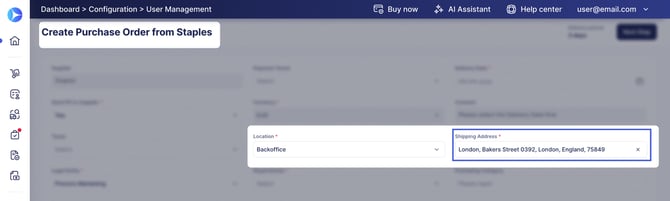
PunchOut documents have a separate **Shipping Address** field that shows where the supplier delivers the order. When you start a PunchOut session, the field appears right after **Location**.
- The field is prefilled from the location's Shipping Address. If the location has none, enter the address manually, because the field is required.
- You can change the address right away or later, until the purchase order is sent to the marketplace. For example, enter a one-time address that isn't saved as a location.
- The address stays the same from PR to PO, and Precoro sends it to the supplier with the order.
To have the address prefilled, add it to the location. Read how [here](https://help.precoro.com/how-to-add-locations-edit-location-information#Location-Integration).
[](https://help.precoro.com/hubfs/shipping-adress.jpg?hsLang=en)
### How to Change Items After Checkout
This feature lets you return to the marketplace and edit your order or requisition before the document is finalized.
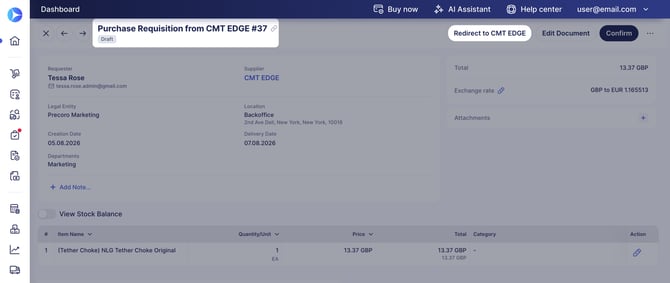
While the document is in **Draft** or **In Revision** status, the creator can press **Redirect to \[Supplier\]** in the action panel to change ordered items via the supplier’s store page. If you start with creating a purchase requisition, this button is only available until a related PO is created.
**Approvers** and **Super Users** can use the button if they **Revise** the document.
[](https://help.precoro.com/hubfs/redirect.jpg?hsLang=en)
### How to Notice Orders that Weren't Sent
An order can fail to reach the supplier because of a connection error or incorrect credentials. Precoro sends email notifications that let you know whenever you need to resend an order. Thanks to this feature, no info will be lost, so you can be confident that suppliers are informed of your purchases.
Here’s how the notifications work:
1. If the order can’t be sent to the supplier, the PO creator receives a **Please Resend Your PunchOut Order** email.
2. The email contains a link to the document that wasn’t sent. On the document page, click the new **Resend Order to Marketplace** button once ready.
3. After the order is successfully sent, it will gain the **Sent to Marketplace** status. If the issue persists, please check if the credentials in the PunchOut configuration are up to date or contact our support team.
### How to Cancel a PunchOut Order
💡 **Please note:** Canceling a document in Precoro cancels only the Precoro record. If the order was already sent to the supplier, also cancel it with the supplier. If your supplier has its own guide in [Available PunchOut Catalogs](https://help.precoro.com/marketplace-configuration-page?hsLang=en), check it for details.
When you cancel an approved PO that was created from a PunchOut PR, what happens to the PR depends on whether the PO was sent:
- **The PO was sent to the supplier:** Precoro cancels the PR too, so it doesn't stay open as **Not Ordered**.
- **The PO wasn't sent yet:** the PR stays **Not Ordered**, so you can still order the items.
### FAQ
**What happens if matching is triggered for a PunchOut order?**
If a supplier invoice triggers matching and the PO details change, Precoro doesn't send the PO to the supplier again.
**Where does the billing address in PunchOut POs come from?**
From the legal entity's billing address. If the legal entity has none, Precoro copies the billing address from the location. See [How to Set Up PunchOut Catalogs in Precoro](https://help.precoro.com/marketplace-configuration-page?hsLang=en#set-up).
- [Precoro Setup](https://help.precoro.com/precoro-setup?hsLang=en#main-content)
- [Configurations](https://help.precoro.com/precoro-setup?hsLang=en#configurations)
- [User Management](https://help.precoro.com/precoro-setup?hsLang=en#user-management)
- [Custom Fields and Forms](https://help.precoro.com/precoro-setup?hsLang=en#custom-fields-and-forms)
- [Supplier management](https://help.precoro.com/precoro-setup?hsLang=en#supplier-management)
- [Working with Items](https://help.precoro.com/precoro-setup?hsLang=en#working-with-items)
- [Approval Workflow](https://help.precoro.com/precoro-setup?hsLang=en#approval-workflow)
- [Location Management](https://help.precoro.com/precoro-setup?hsLang=en#location-management)
- [Precoro Payments](https://help.precoro.com/precoro-setup?hsLang=en#precoro-payments)
- [Two-factor authentication](https://help.precoro.com/precoro-setup?hsLang=en#two-factor-authentication)
- [Security](https://help.precoro.com/precoro-setup?hsLang=en#security)
- [US Based Server](https://help.precoro.com/precoro-setup?hsLang=en#us-based-server)
- [How to use Precoro](https://help.precoro.com/how-to-use-precoro?hsLang=en#main-content)
- [Warehouse Requests](https://help.precoro.com/how-to-use-precoro?hsLang=en#warehouse-requests)
- [Requests for Proposals](https://help.precoro.com/how-to-use-precoro?hsLang=en#requests-for-proposals)
- [Purchase Requisitions](https://help.precoro.com/how-to-use-precoro?hsLang=en#purchase-requisitions)
- [Purchase Orders](https://help.precoro.com/how-to-use-precoro?hsLang=en#purchase-orders)
- [Service Orders](https://help.precoro.com/how-to-use-precoro?hsLang=en#service-orders)
- [Receipts](https://help.precoro.com/how-to-use-precoro?hsLang=en#receipts)
- [Invoices](https://help.precoro.com/how-to-use-precoro?hsLang=en#invoices)
- [Expenses](https://help.precoro.com/how-to-use-precoro?hsLang=en#expenses)
- [Budgeting](https://help.precoro.com/how-to-use-precoro?hsLang=en#budgeting)
- [Inventory](https://help.precoro.com/how-to-use-precoro?hsLang=en#inventory)
- [Reports](https://help.precoro.com/how-to-use-precoro?hsLang=en#reports)
- [AP Inbox and Intelligent AP Automation](https://help.precoro.com/how-to-use-precoro?hsLang=en#ap-inbox-and-intelligent-ap-automation)
- [Working with documents](https://help.precoro.com/how-to-use-precoro?hsLang=en#working-with-documents)
- [Suppliers Portal](https://help.precoro.com/how-to-use-precoro?hsLang=en#suppliers-portal)
- [Supplier Registration](https://help.precoro.com/how-to-use-precoro?hsLang=en#supplier-registration)
- [Attachments, Filters, and Search](https://help.precoro.com/how-to-use-precoro?hsLang=en#attachments-filters-and-search)
- [Mobile App](https://help.precoro.com/how-to-use-precoro?hsLang=en#mobile-app)
- [FAQs and Troubleshooting](https://help.precoro.com/how-to-use-precoro?hsLang=en#faqs-and-troubleshooting)
- [Precoro Integrations](https://help.precoro.com/precoro-integrations?hsLang=en#main-content)
- [QuickBooks Online Integration](https://help.precoro.com/precoro-integrations?hsLang=en#quickbooks-online-integration)
- [NetSuite Integration](https://help.precoro.com/precoro-integrations?hsLang=en#netsuite-integration)
- [Xero Integration](https://help.precoro.com/precoro-integrations?hsLang=en#xero-integration)
- [API Requests and Webhooks](https://help.precoro.com/precoro-integrations?hsLang=en#api-requests-and-webhooks)
- [SSO Setting](https://help.precoro.com/precoro-integrations?hsLang=en#sso-setting)
- [Google Integration](https://help.precoro.com/precoro-integrations?hsLang=en#google-integration)
- [Power BI](https://help.precoro.com/precoro-integrations?hsLang=en#power-bi)
- [Integration with Slack](https://help.precoro.com/precoro-integrations?hsLang=en#integration-with-slack)
- [PunchOut Catalogs](https://help.precoro.com/precoro-integrations?hsLang=en#punchout-catalogs)
- [Integrations via Connectors](https://help.precoro.com/precoro-integrations?hsLang=en#integrations-via-connectors)
- [Bill.com Integration](https://help.precoro.com/precoro-integrations?hsLang=en#bill-com-integration)
- [Integration with Microsoft Teams](https://help.precoro.com/precoro-integrations?hsLang=en#integration-with-microsoft-teams)
- [Precoro Updates](https://help.precoro.com/precoro-updates?hsLang=en#main-content)
- [Releases, 2026](https://help.precoro.com/precoro-updates?hsLang=en#releases-2026)
- [Releases, 2025](https://help.precoro.com/precoro-updates?hsLang=en#releases-2025)
- [Releases, 2024](https://help.precoro.com/precoro-updates?hsLang=en#releases-2024)
- [Releases, 2023](https://help.precoro.com/precoro-updates?hsLang=en#releases-2023)
- [API Updates](https://help.precoro.com/precoro-updates?hsLang=en#api-updates)
- [General changes](https://help.precoro.com/precoro-updates?hsLang=en#general-changes)
[](https://precoro.com/)
Copyright © 2026, Precoro
```json
{
"@context" : "https://schema.org",
"@type" : "VideoObject",
"contentUrl" : "https://1903299.fs1.hubspotusercontent-na1.net/hubfs/1903299/video_assets/225644377122/inherited/web_optimized.mp4",
"dateModified" : "2026-10-27T14:53:09.556Z",
"duration" : "PT45S",
"height" : 1080,
"name" : "request-from-marketplace-pr",
"thumbnailUrl" : "https://1903299.fs1.hubspotusercontent-na1.net/hubfs/1903299/request-from-marketplace-pr.mp4/medium.jpg",
"uploadDate" : "2026-10-27T14:53:09.554Z",
"width" : 1904
}
```