
TABLE OF CONTENTS
How to Manage Taxes with AP Automation
Precoro streamlines tax recognition by using AI to automatically identify and apply taxes to relevant items on invoices.
How it works:
- Upload the document for recognition.
- AI identifies the tax items in the document.
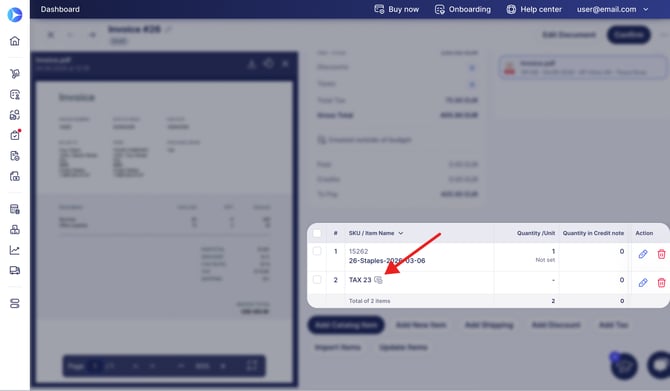
- If taxes are disabled in your company in Configuration → Basic Settings, the tax will be added as a single tax item line. This item can be matched with a tax item saved in the catalog.
-
When taxes are enabled in your company, Precoro compares the recognized tax rate with the taxes set up for your company or legal entity:
- If the recognized tax rate matches an existing tax, Precoro applies it as a tax percentage in the invoice.
- If there is no matching tax rate, Precoro adds the total recognized tax amount as a separate Tax-type item.
- If the recognized tax rate matches an existing tax, Precoro applies it as a tax percentage in the invoice.
Key points on how taxes are recognized with AP Automation:
- If the recognized tax rate doesn't match your company or legal entity tax settings, Precoro adds the total recognized tax amount as a separate Tax-type item. This helps keep the invoice total accurate without requiring manual tax corrections.
- AI-recognized taxes override any default taxes set in the Supplier profile. For instance, if the supplier's default tax is 20%, but the AI-recognized rate is 23%, the 23% tax will be applied. Using the recognized rate helps keep the data precise and up-to-date.
- With the single-line functionality enabled, recognized taxes will be calculated based on the Net Total and added to the document.
- AI tax recognition is consistent across all suppliers and applies to all Precoro documents processed through Intelligent AP Automation.
- Tax items are identified by keywords during AI processing and automatically assigned a “Tax” type.
To learn more about managing taxes in Precoro, please follow this link.
How to Add Taxes Directly to the Document
Precoro allows you to add taxes directly within the document, so you don’t need to navigate to settings and back.
Here is how to add taxes to the document:
- Click the Taxes field and select Add New Tax at the top of the drop-down menu.
- Enter the tax information and click Save.
- The newly added tax will now be available for selection in the list.
For more details on creating taxes in Precoro, refer to this article.
Precoro also uses Intelligent AP Automation to recognize tax rates directly from documents. It maps the AI-recognized tax values to your existing rates in Precoro and automatically fills the Tax Rate field. Additionally, the system applies the default tax for the supplier in Standard, Service, Blanket PO per Item, and Total document types.
How to Work with Item Tax Rates
Some invoices may include items with different tax rates (e.g., two items with a 23% tax rate and one with a 0%). Here’s how Precoro processes these item-level tax rates with Intelligent AP Automation:
- If an item has an item-specific tax rate, it is applied based on the AP Inbox document.
- If an item does not have a specific tax rate, the document-level tax rate is applied to the items.
- No taxes will be applied if no tax rates are present on the item and document level.
- If an item has a tax rate that does not exist in your configuration (Configuration → Taxes), Precoro adds the total recognized tax amount as a separate Tax-type item instead of applying it as a tax percentage.
💡Please note: If you add a new tax that is not recognized with AP Automation (not specified in the AP Inbox document) while creating an invoice, it will be applied to all items. For instance, if your AP Inbox Document includes two tax rates (5% and 10%) for different items, and you add 23% tax, the 23% tax will be applied to all items.
Handling Taxes during Invoice-to-PO Matching
Precoro shows the applicable tax rate and automatically selects the correct tax from your company’s setup—even when multiple taxes have the same rate but different names.
When matching an AI-recognized invoice to a PO, document-level taxes are matched following these rules:
- If no tax is applied in the AI-recognized invoice, we do not add any extra tax, even if it was expected in the PO.
- If AI recognizes a tax, and the tax rate is the same as in the order, the tax name specified in the PO is assigned to the tax in the invoice.
- If AI recognizes a tax, but it is not specified in the PO, the supplier’s default tax or the last selected tax for this supplier is added.
Once the corresponding PO is found and document-level tax is selected, the invoice items are mapped with the PO items. Tax mapping follows the same logic.