---
title: How to Import Items In Bulk
description: Import Items in Bulk from the Document Page Important Import Differences Between Documents Working with Template Fields Step-by-Step Additional Important Points When Working with Discounts Additional
---
[Skip to content](https://help.precoro.com/how-to-import-items-in-bulk#main-content)
[Contact us](https://help.precoro.com/kb-tickets/new?hsLang=en) [Customer portal](https://help.precoro.com/tickets-view?hsLang=en)
[](https://app.precoro.com/login)
Open main navigation
Close main navigation
- [Contact us](https://help.precoro.com/kb-tickets/new)
- [Customer portal](https://help.precoro.com/tickets-view)
- [Contact Us](https://share.hsforms.com/1-5JilMA_Qv6AOSVjFtNhDg14slf)
[Contact Us](https://share.hsforms.com/1-5JilMA_Qv6AOSVjFtNhDg14slf)
Hi there! How can we help you today?
- There are no suggestions because the search field is empty.
1. [Knowledge Base](https://help.precoro.com/?hsLang=en)
2. [Precoro Setup](https://help.precoro.com/precoro-setup?hsLang=en)
3. [Working with Items](https://help.precoro.com/precoro-setup?hsLang=en#working-with-items)
# How to Import Items In Bulk
## Learn how to quickly add multiple items in Precoro with bulk import.
#### TABLE OF CONTENTS
- [Import Items in Bulk from the Item Management Page](https://help.precoro.com/how-to-import-items-in-bulk#Import)
- [Import Items in Bulk from the Document Page](https://help.precoro.com/how-to-import-items-in-bulk#Import-from-the-Document)
- [Important Import Differences Between Documents](https://help.precoro.com/how-to-import-items-in-bulk#Differences)
- [Working with Template Fields Step-by-Step](https://help.precoro.com/how-to-import-items-in-bulk#Working-with-Template)
- [Additional Important Points When Working with Discounts](https://help.precoro.com/how-to-import-items-in-bulk#Discounts)
- [Additional Important Points When Working with Taxes](https://help.precoro.com/how-to-import-items-in-bulk#Taxes)
**Items Management** is the key source for prices, GL assignments, and item descriptions that your company purchases.
Items Managementin Precoro facilitates a purchasing process for businesses in the following ways:
- Purchase orders are filled out with the correct item names and SKU numbers, so there are no misunderstandings with suppliers.
- GL accounts/cost centers are assigned automatically with predefined settings. It means that the accounting team will no longer worry about the account codes.
### Import Items in Bulk from the Item Management Page
With this type of import, you will be able to add all the needed items to the Catalog in one go and use those items to add them to documents.
1\. Navigate to the left-side menu, choose the **Item Management** tab, and go to **Item Management**.
2\. Press **Import Items** and download a template file.
3\. Fill out all the required fields marked with \* in the template.
4\. Upload the file and press **Next Step**.
💡 **Please note:** When importing or updating items, you are free to include up to **7000 items per one upload and the file should be in XLSX format.**
All items will be imported as active by default.
**Required fields to fill out:**
- SKU Number, Item Name, and Price.
💡 **Please note:** There is a character limitation for the Item Name and SKU #: 300 characters.
- If the Inventory module is active, there will be one more required field: **Item Type**. There you should enter one of the following: Inventory, Non-Inventory, or Service.
- If the custom item field is required in Item Management, you have to fill it out.
You can enter either **Name** or **Code** for the required custom item fields in the file. There is no need to fill out both fields.
Please follow [this](https://help.precoro.com/how-to-update-items-in-bulk?hsLang=en) link to learn how to **Update Items in bulk**.
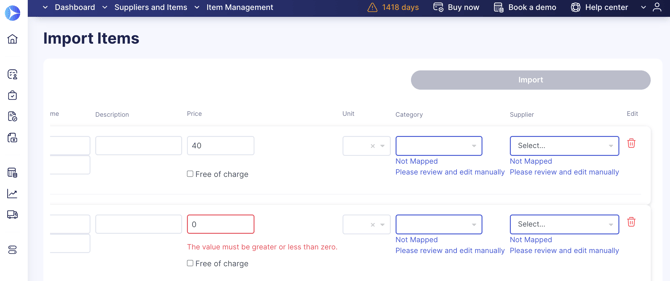
On the preview page, you will see the imported unmatched fields highlighted in blue that will help you find and process items with unmatched fields faster.
**The blue highlight is only affecting the unrequired fields.** The required ones are highlighted in red if there are any issues with them.
[](https://help.precoro.com/hubfs/Monosnap%20Import%20Items%202024-05-07%2012-55-06-png.png?hsLang=en)
### Import Items in Bulk from the Document Page
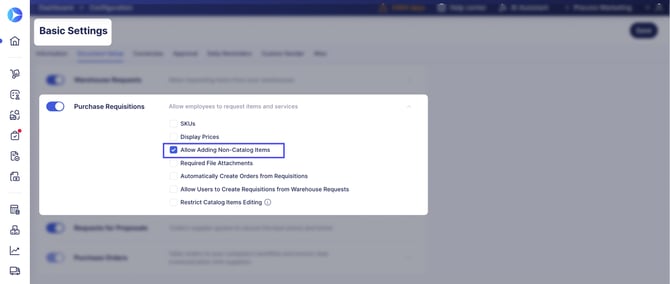
You can make the import directly from the following document pages: Invoices, Purchase Requisitions, Expenses, Purchase Orders, and Requests for Proposals. With this type of import, you will be able to add all the needed items to the particular document in one go.
To be able to see the Import Items button in the documents you must first activate the **Allow Adding Non-Catalog Items** setting in the **Configuration** → Basic Settings → **Documents** **Setup →** for the type of document you need:
[](https://help.precoro.com/hubfs/non-catalog-items.jpg?hsLang=en)
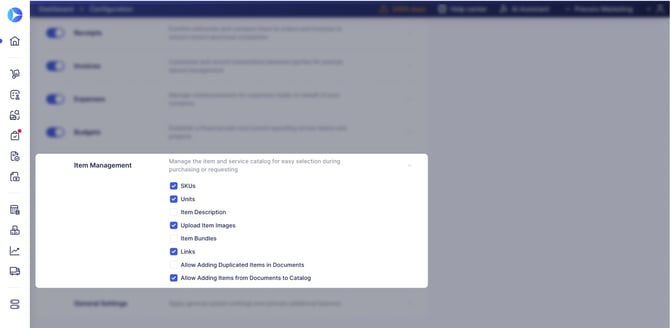
To activate additional Item fields you would like to upload, scroll down the **Basic Settings** → **Documents** **Setup** → Item Management tab and check the necessary options.
[](https://help.precoro.com/hubfs/item-management-settings.jpg?hsLang=en)
Follow these steps to make a successful import:
1\. Open the needed type of document and click the **Import Items** button.
2\. You will be redirected to the **Import Items** page. By following the instructions, you can **download** a template file, **enter** the necessary information, and **upload it back** to Precoro.
💡 **Please note:** The file must be in **XLSX** format and should not contain the tips from rows 2 and 3, which you need to delete before the upload.
3\. After **Submitting** the document, you will receive a system message about the download success, and you will see the imported items in the document.
The process for importing items in other types of documents is identical to the example in the recording:
#### Important Import Differences Between Documents
When importing into different documents, please keep in mind the following important information:
- In **Purchase Requisitions**, you will have a Supplier column for each item:
[-xlsx%20-%20Google%20Sheets%202023-11-03%2010-39-23-png.png?width=670&height=314&name=Monosnap%20PrecoroImportPurchaseRequisitionItems%20(7)-xlsx%20-%20Google%20Sheets%202023-11-03%2010-39-23-png.png)](https://help.precoro.com/hubfs/Monosnap%20PrecoroImportPurchaseRequisitionItems%20(7)-xlsx%20-%20Google%20Sheets%202023-11-03%2010-39-23-png.png?hsLang=en)
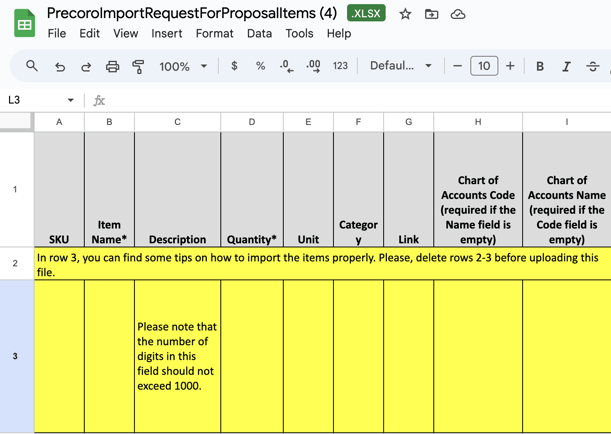
- In **Requests for Proposals**, you can import only the item’s basic information without the Supplier and Price.
[](https://help.precoro.com/hubfs/image-png-Nov-03-2023-08-43-49-6841-AM.png?hsLang=en)
- In **Purchase** **Orders** and **Invoices**, you can import taxes and discounts. If the document has a budget assigned to the custom item fields when assigning those custom fields make sure they are included in the budget for a successful import.
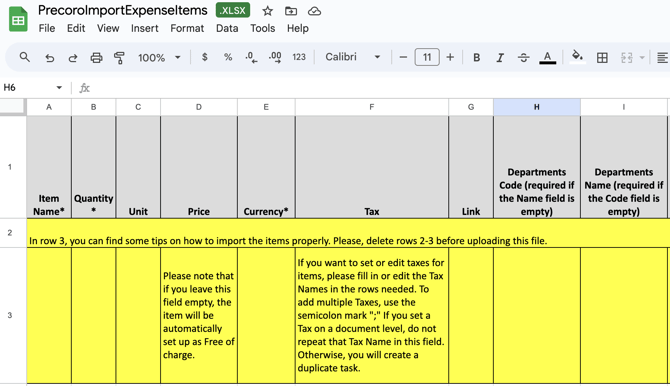
- In **Expenses**, there is no Supplier column, but you can import other information including taxes and discounts.
[](https://help.precoro.com/hubfs/Monosnap%20PrecoroImportExpenseItems-xlsx%20-%20Google%20Sheets%202023-11-03%2011-42-32-png.png?hsLang=en)
#### Working with Template Fields Step-by-Step
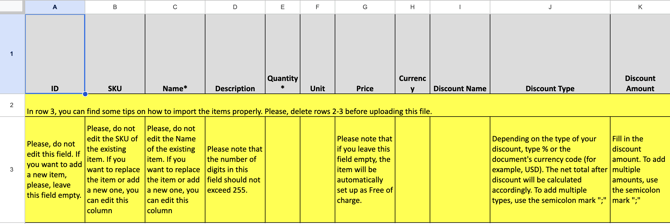
When downloading the template file directly from the document you will get a file with tips on how to fill it out:
[](https://help.precoro.com/hubfs/image-png-Apr-13-2023-11-08-57-0239-AM.png?hsLang=en)
| **Name of the field** | **How to fill in** | **Where it is available** |
| --- | --- | --- |
| ID or # | When you download the template for items update, you see the filled Item ID columns. - These fields cannot be edited in the existing items. Otherwise, you can get an error during submission. - When adding a new item line, leave the Item ID field blank. The Item ID will be generated automatically. - When deleting an item, you should delete the entire line. | In direct import from the document template only. |
| SKU | Please, do not edit the SKU of the existing item. If you want to replace the item or add a new one, you can edit this column. | It is available both in the Items Management and direct import from the document templates. |
| Name | Please, do not edit the Name of the existing item. However, if you want to replace the item or add a new one, you can edit this column to do that. | It is available both in the Items Management and direct import from the document templates. |
| Description | Please note that the number of characters in this field should not exceed 255. | It is available both in the Items Management and direct import from the document templates. |
| Quantity | Enter the number of items/services you need. Please note, for a **Tax item** row, quantity must equal **1.** You can only edit the price. Entering a different quantity for a Tax item triggers a validation error. | In direct import from the document template only. |
| Price | Enter the price (it may differ from the one in the catalog). Please note that if you leave this field empty, the item will be automatically set up as **Free of charge**. | It is available both in the Items Management and direct import from the document templates. |
| Currency | - Item currency must match the supplier's currency and the company's currency. - If the document currency corresponds with the company's main currency, then you can enter any currency into the item (but it also should be added and be available for the supplier and your company). - If the document currency is not the main currency of the company, then the items can only be in the document currency. | It is available both in the Items Management and direct import from the document templates. |
| Unit | Please make sure to use Units from your existing list in Precoro. You can add new ones on the Unit Management page to be able to import the related items. | It is available both in the Items Management and direct import from the document templates. |
| Supplier | Enter the Supplier Name here. Please make sure the Name is entered exactly as it is in Precoro. | In Items Management template only. |
| Link | Enter the Link you want to be uploaded to Precoro. | It is available both in the Items Management and direct import from the document templates. |
| Item Groups | Please make sure to use the created Item Groups from your list. To be able to import related items, add the Item Groups to the management page in the Item Management section. | In Items Management template only. |
| Item Bundles | When adding values in the column, please make sure to use Item Bundles from your list in Precoro. Add new options on the Item Bundles management page in the Item Management section to import the related items. You can enter several bundles by separating them with semicolons “**;**”. | In Items Management template only. |
| Item Type | Please choose and enter the Inventory, Non-Inventory or Service type. | In Items Management template only. |
| Custom Item Fields | - If you have activated the **Option Code** for your company, then you will see the two columns for each custom field in the document: **Code** and **Name**. - If a custom item field is required, then you need to fill in at least one: either the **Code** or the **Name** fields. - You need to fill in the last level of the custom field structure, not the parent one. Otherwise, you will get an error. | It is available both in the Items Management and direct import from the document templates. |
| Discounts: Discount Name, Discount Type, Discount Amount | **Discount Name** - enter the name of the discount here. This is an optional column, and you can set up a discount without a name. **Discount Type** – enter **%**, since item-level discounts can only be set as a percentage. The net total after the discount will be calculated accordingly. To add multiple types, use the semicolon mark ";" **Discount Amount** – fill in the discount percentage. To add multiple amounts, use the semicolon mark ";" For example, if you need to give a 10% discount, enter **%** in **Type** and **10** in **Amount**. To apply a fixed-sum discount, add a separate item with the **Discount** type in a new row, and enter the discount amount in the **Price** column. | In direct import from the document template only. |
| Tax | If you have enabled Taxes for your company, you will see them in the template. If you want to set or edit taxes for items, fill in or edit the Tax Names in the rows needed. To add multiple Taxes, use the semicolon mark ";" If you set a tax on a document level, do not repeat that Tax Name in this field. Otherwise, you will create a duplicate one. | In direct import from the document template only. |
For details on how imported items get automatically mapped to existing Catalog items (SKU, Name, Supplier, and Currency matching),follow [this link](https://help.precoro.com/how-to-update-items-in-bulk#items).
#### Additional important points to consider when working with **Discounts**
- If you add a document-level discount, then when you import or add items with an update, it will be automatically assigned to all items.
- If you download the template of an update, the document-level discounts will be downloaded along with the items. Even if you delete the discounts in items, they will still be set when you download the template.
- To remove a discount from an item, you need to delete it at the document level, and then it will be removed automatically.
- Apart from the document-level discount, you can add as many discounts as you like at the item level. To add multiple amounts, use the semicolon mark ";"
#### Additional important points to consider when working with **Taxes**
- If you add a document-level tax, then when you import or add items with an update, it will be automatically assigned to all items.
- To remove a tax from an item, you need to delete it at the document level, and then it will be removed automatically.
- Apart from the document-level tax, you can add as many taxes as you like at the item level.
[-xlsx%20-%20Google%20Sheets%202023-11-03%2011-01-28-png.png?width=243&height=328&name=Monosnap%20PrecoroUpdateInvoiceItems%20(7)-xlsx%20-%20Google%20Sheets%202023-11-03%2011-01-28-png.png)](https://help.precoro.com/hubfs/Monosnap%20PrecoroUpdateInvoiceItems%20(7)-xlsx%20-%20Google%20Sheets%202023-11-03%2011-01-28-png.png?hsLang=en)
- [Precoro Setup](https://help.precoro.com/precoro-setup?hsLang=en#main-content)
- [Configurations](https://help.precoro.com/precoro-setup?hsLang=en#configurations)
- [User Management](https://help.precoro.com/precoro-setup?hsLang=en#user-management)
- [Custom Fields and Forms](https://help.precoro.com/precoro-setup?hsLang=en#custom-fields-and-forms)
- [Supplier management](https://help.precoro.com/precoro-setup?hsLang=en#supplier-management)
- [Working with Items](https://help.precoro.com/precoro-setup?hsLang=en#working-with-items)
- [Approval Workflow](https://help.precoro.com/precoro-setup?hsLang=en#approval-workflow)
- [Location Management](https://help.precoro.com/precoro-setup?hsLang=en#location-management)
- [Precoro Payments](https://help.precoro.com/precoro-setup?hsLang=en#precoro-payments)
- [Two-factor authentication](https://help.precoro.com/precoro-setup?hsLang=en#two-factor-authentication)
- [Security](https://help.precoro.com/precoro-setup?hsLang=en#security)
- [US Based Server](https://help.precoro.com/precoro-setup?hsLang=en#us-based-server)
- [How to use Precoro](https://help.precoro.com/how-to-use-precoro?hsLang=en#main-content)
- [Warehouse Requests](https://help.precoro.com/how-to-use-precoro?hsLang=en#warehouse-requests)
- [Requests for Proposals](https://help.precoro.com/how-to-use-precoro?hsLang=en#requests-for-proposals)
- [Purchase Requisitions](https://help.precoro.com/how-to-use-precoro?hsLang=en#purchase-requisitions)
- [Purchase Orders](https://help.precoro.com/how-to-use-precoro?hsLang=en#purchase-orders)
- [Service Orders](https://help.precoro.com/how-to-use-precoro?hsLang=en#service-orders)
- [Receipts](https://help.precoro.com/how-to-use-precoro?hsLang=en#receipts)
- [Invoices](https://help.precoro.com/how-to-use-precoro?hsLang=en#invoices)
- [Expenses](https://help.precoro.com/how-to-use-precoro?hsLang=en#expenses)
- [Budgeting](https://help.precoro.com/how-to-use-precoro?hsLang=en#budgeting)
- [Inventory](https://help.precoro.com/how-to-use-precoro?hsLang=en#inventory)
- [Reports](https://help.precoro.com/how-to-use-precoro?hsLang=en#reports)
- [AP Inbox and Intelligent AP Automation](https://help.precoro.com/how-to-use-precoro?hsLang=en#ap-inbox-and-intelligent-ap-automation)
- [Working with documents](https://help.precoro.com/how-to-use-precoro?hsLang=en#working-with-documents)
- [Suppliers Portal](https://help.precoro.com/how-to-use-precoro?hsLang=en#suppliers-portal)
- [Supplier Registration](https://help.precoro.com/how-to-use-precoro?hsLang=en#supplier-registration)
- [Attachments, Filters, and Search](https://help.precoro.com/how-to-use-precoro?hsLang=en#attachments-filters-and-search)
- [Mobile App](https://help.precoro.com/how-to-use-precoro?hsLang=en#mobile-app)
- [FAQs and Troubleshooting](https://help.precoro.com/how-to-use-precoro?hsLang=en#faqs-and-troubleshooting)
- [Precoro Integrations](https://help.precoro.com/precoro-integrations?hsLang=en#main-content)
- [QuickBooks Online Integration](https://help.precoro.com/precoro-integrations?hsLang=en#quickbooks-online-integration)
- [NetSuite Integration](https://help.precoro.com/precoro-integrations?hsLang=en#netsuite-integration)
- [Xero Integration](https://help.precoro.com/precoro-integrations?hsLang=en#xero-integration)
- [API Requests and Webhooks](https://help.precoro.com/precoro-integrations?hsLang=en#api-requests-and-webhooks)
- [SSO Setting](https://help.precoro.com/precoro-integrations?hsLang=en#sso-setting)
- [Google Integration](https://help.precoro.com/precoro-integrations?hsLang=en#google-integration)
- [Power BI](https://help.precoro.com/precoro-integrations?hsLang=en#power-bi)
- [Integration with Slack](https://help.precoro.com/precoro-integrations?hsLang=en#integration-with-slack)
- [PunchOut Catalogs](https://help.precoro.com/precoro-integrations?hsLang=en#punchout-catalogs)
- [Integrations via Connectors](https://help.precoro.com/precoro-integrations?hsLang=en#integrations-via-connectors)
- [Bill.com Integration](https://help.precoro.com/precoro-integrations?hsLang=en#bill-com-integration)
- [Precoro Updates](https://help.precoro.com/precoro-updates?hsLang=en#main-content)
- [Releases, 2026](https://help.precoro.com/precoro-updates?hsLang=en#releases-2026)
- [Releases, 2025](https://help.precoro.com/precoro-updates?hsLang=en#releases-2025)
- [Releases, 2024](https://help.precoro.com/precoro-updates?hsLang=en#releases-2024)
- [Releases, 2023](https://help.precoro.com/precoro-updates?hsLang=en#releases-2023)
- [API Updates](https://help.precoro.com/precoro-updates?hsLang=en#api-updates)
- [General changes](https://help.precoro.com/precoro-updates?hsLang=en#general-changes)
[](https://precoro.com/)
Copyright © 2026, Precoro
```json
{
"@context" : "https://schema.org",
"@type" : "VideoObject",
"contentUrl" : "https://1903299.fs1.hubspotusercontent-na1.net/hubfs/1903299/import-item-management.mp4",
"dateModified" : "2026-08-18T06:31:41.520Z",
"duration" : "PT46S",
"height" : 1080,
"name" : "import-item-management",
"thumbnailUrl" : "https://1903299.fs1.hubspotusercontent-na1.net/hubfs/1903299/import-item-management.mp4/medium.jpg",
"uploadDate" : "2026-08-18T06:31:41.518Z",
"width" : 1904
}
```
```json
{
"@context" : "https://schema.org",
"@type" : "VideoObject",
"contentUrl" : "https://1903299.fs1.hubspotusercontent-na1.net/hubfs/1903299/import-items-document.mp4",
"dateModified" : "2026-08-18T06:49:19.203Z",
"duration" : "PT50S",
"height" : 1080,
"name" : "import-items-document",
"thumbnailUrl" : "https://1903299.fs1.hubspotusercontent-na1.net/hubfs/1903299/import-items-document.mp4/medium.jpg",
"uploadDate" : "2026-08-18T06:49:19.201Z",
"width" : 1904
}
```