---
title: How to Fill Out the Supplier Card
description: Learn how fill out the supplier's card and configure default options — all in one place within Precoro.
---
[Skip to content](https://help.precoro.com/how-to-fill-out-suppliers-card#main-content)
[Contact us](https://help.precoro.com/kb-tickets/new?hsLang=en) [Customer portal](https://help.precoro.com/tickets-view?hsLang=en)
[](https://app.precoro.com/login)
Open main navigation
Close main navigation
- [Contact us](https://help.precoro.com/kb-tickets/new)
- [Customer portal](https://help.precoro.com/tickets-view)
- [Contact Us](https://share.hsforms.com/1-5JilMA_Qv6AOSVjFtNhDg14slf)
[Contact Us](https://share.hsforms.com/1-5JilMA_Qv6AOSVjFtNhDg14slf)
Hi there! How can we help you today?
- There are no suggestions because the search field is empty.
1. [Knowledge Base](https://help.precoro.com/?hsLang=en)
2. [Precoro Setup](https://help.precoro.com/precoro-setup?hsLang=en)
3. [Supplier management](https://help.precoro.com/precoro-setup?hsLang=en#supplier-management)
# How to Fill Out the Supplier Card
## Learn how to add and manage supplier's details, and configure default options—all in one place within Precoro.
#### TABLE OF CONTENTS
- [Specify the Supplier’s Legal Address](https://help.precoro.com/how-to-fill-out-suppliers-card#legal-address)
- [Add Contacts to a Supplier](https://help.precoro.com/how-to-fill-out-suppliers-card#contacts)
- [Add Payment Details](https://help.precoro.com/how-to-fill-out-suppliers-card#payment-details)
- [Add Your Payment Terms](https://help.precoro.com/how-to-fill-out-suppliers-card#payment-terms)
- [View the Supplier Credit Balance](https://help.precoro.com/how-to-fill-out-suppliers-card#supplier-credit-balance)
- [Set Default Options for a Supplier](https://help.precoro.com/how-to-fill-out-suppliers-card#default-options)
- [Default Taxes](https://help.precoro.com/how-to-fill-out-suppliers-card#default-taxes)
- [Default Custom Fields](https://help.precoro.com/how-to-fill-out-suppliers-card#custom-fields)
- [Working with Amazon Integration](https://help.precoro.com/how-to-fill-out-suppliers-card#working-with-integrations)
- [Attach Files to a Supplier’s Profile](https://help.precoro.com/how-to-fill-out-suppliers-card#attach-files)
### Specify the Supplier’s Legal Address
You have two options for setting the supplier's legal address:
Option 1: Standard address format
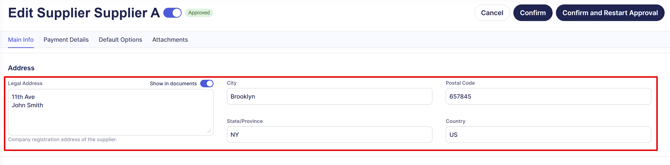
Use the fields in the **Address block** (City, State/Province, Postal Code, and Country) to input the supplier’s legal address:
[](https://help.precoro.com/hubfs/legal_address_a.png?hsLang=en)
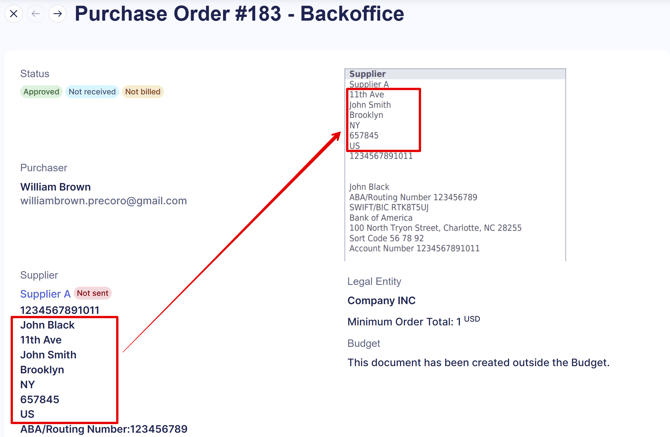
The address will automatically appear in a standard line-by-line format on printed documents and document pages:
[](https://help.precoro.com/hubfs/legal_address_a_in_docs.png?hsLang=en)
Option 2: Custom address format
1. Enter the entire address in the **Legal Address** field, formatted exactly as you want it displayed.
2. Leave the other fields (City, State/Province, Postal Code, and Country) empty.[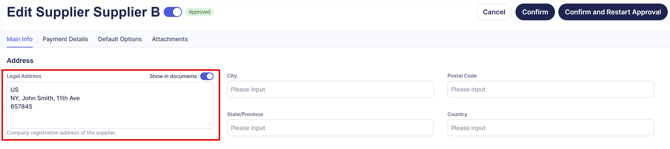](https://help.precoro.com/hubfs/legal_address_b.png?hsLang=en)
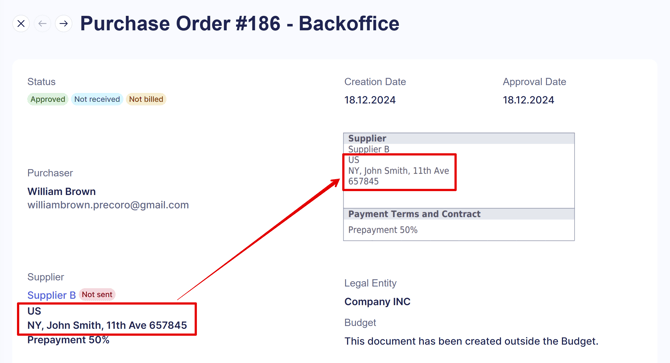
This custom format will appear on printed documents and document pages as specified:
[](https://help.precoro.com/hubfs/legal_address_b_in_docs.png?hsLang=en)
### Add Contacts to a Supplier
To add a new contact information to a Supplier:
1. On the **Suppliers Management** page, open the desired supplier in **Edit** mode.
2. Scroll to the **Contacts** section and fill in the required information.
3. Press the **Confirm** button to save changes.
You can add multiple contacts by clicking the **Add contact** button.
### Add Payment Details
To add payment details:
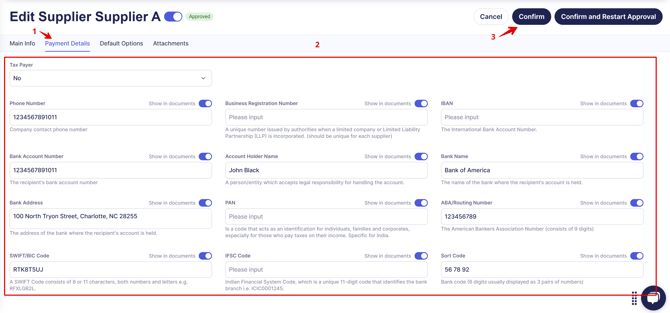
1. Navigate to the **Payment Details** section in the supplier's profile.
2. Enter all necessary supplier details → click **Confirm**.
### [](https://help.precoro.com/hubfs/add_payment_details.png?hsLang=en)
### Add Your Payment Terms
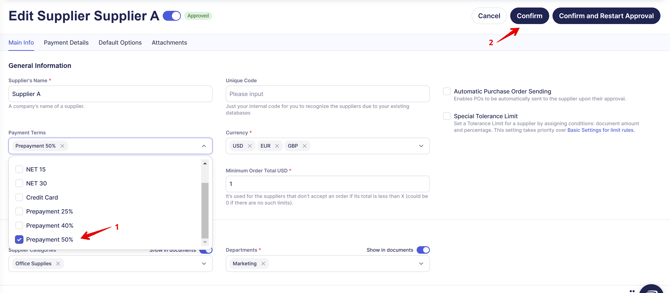
In the Main info section, you can select payment terms for a specific supplier. You can set as many payment terms as you wish:
[](https://help.precoro.com/hubfs/add_payment_terms.png?hsLang=en)
If you want to create a new payment term:
1. Go to the **Supplier Management** module → **Payment Terms**.
2. Click the **Add** button → fill in the required fields.
3. Click **Save** to record the changes.
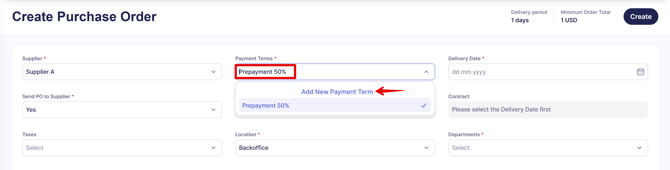
When creating a document, you will be able to select the needed payment terms from the list or add a new one directly from there by clicking the **Add New Payment Term** button:
[](https://help.precoro.com/hubfs/payment_terms_in_documents.png?hsLang=en)
### View the Supplier Credit Balance
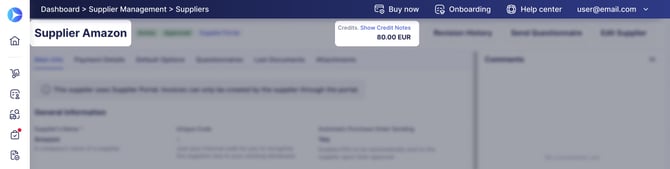
If a supplier has an available credit balance from credit notes, you can see the current amount directly in the supplier card.
[](https://help.precoro.com/hubfs/supplier%20credits.jpg?hsLang=en)
If the supplier has credit notes in more than one currency, each currency's balance shows separately
The balance can be used toward purchase orders or invoices from the same supplier. See [Credit Note](https://help.precoro.com/credit-note?hsLang=en) for details.
### Set Default Options for a Supplier
In the **Default Options** section, you can set custom default information to standardize and automate documentation across the system. Below are the steps for setting default taxes and custom fields.
**💡 Please note:** Only users with **Configuration** and **Supplier Management** roles can set default custom fields.
#### To set up default taxes:
1. Open the needed Supplier in **Edit** mode or create a new one → navigate to the **Default Options** section.
2. In the **Tax options**, select or multi-select previously created taxes from the drop-down list.
3. Click **Confirm** to record the changes.
When creating a Purchase Order or Invoice with this supplier, the default taxes will automatically apply. The supplier's default tax is also the first existing tax Precoro checks when AI recognizes a tax rate while scanning an Expense or PO.
Learn more about working with taxes in Precoro [here.](https://help.precoro.com/how-to-set-up-tax-rates?hsLang=en)
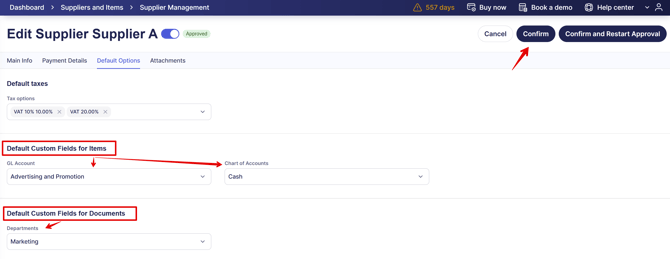
#### To set up default custom fields for items and/or documents:
1. Verify that the necessary **Custom Fields for Documents (CFDs)** or **Custom Fields for Items (CFIs)** are enabled in the relevant documents.
Available custom fields by document type:
| Document Types/Custom Fields | Purchase Orders | Invoices | Purchase Requisitions | Warehouse Requests |
| --- | --- | --- | --- | --- |
| CFDs | + | + | - | - |
| CFIs | + | + | + | + |
Learn more about [Custom Fields for Items](https://help.precoro.com/functionality-of-items-custom-fields-1?hsLang=en) and [Custom Fields for Documents](https://help.precoro.com/documents-custom-fields-types-and-configuration-1?hsLang=en).
2. In the **Default Options** section, select the needed options from the drop-down.
3. Click **Confirm**.
[](https://help.precoro.com/hubfs/default_cfis_cfds.png?hsLang=en)
When creating a new document, the default values will automatically populate:
**💡 Please note:** If you switch suppliers in a document, new default options from the selected supplier will overwrite previous ones. If the new supplier has no default values, the previous supplier's values will remain. Manually edited options will still be overwritten by the new supplier’s defaults upon switching.
#### Working with Amazon Integration
If you use Amazon integration, the default values you have set for the Supplier will be automatically transferred to the Purchase Orders and Invoices.
If your item already has filled-in values in the Catalog, that information will be displayed in the item despite the default information you have set.
### Attach Files to a Supplier’s Profile
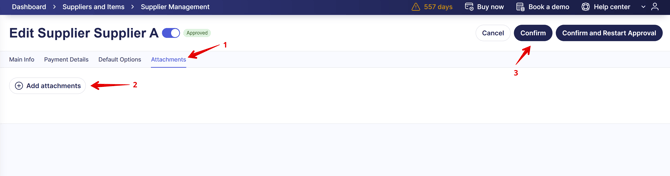
1. In the **Suppliers Management** page, open the desired supplier in **Edit** mode.
2. Go to the **Attachments** section → click **Add Attachments**.
3. Select the necessary files from your computer to upload.
4. Press the **Confirm** button to save changes.
[](https://help.precoro.com/hubfs/attachments.png?hsLang=en)
- [Precoro Setup](https://help.precoro.com/precoro-setup?hsLang=en#main-content)
- [Configurations](https://help.precoro.com/precoro-setup?hsLang=en#configurations)
- [User Management](https://help.precoro.com/precoro-setup?hsLang=en#user-management)
- [Custom Fields and Forms](https://help.precoro.com/precoro-setup?hsLang=en#custom-fields-and-forms)
- [Supplier management](https://help.precoro.com/precoro-setup?hsLang=en#supplier-management)
- [Working with Items](https://help.precoro.com/precoro-setup?hsLang=en#working-with-items)
- [Approval Workflow](https://help.precoro.com/precoro-setup?hsLang=en#approval-workflow)
- [Location Management](https://help.precoro.com/precoro-setup?hsLang=en#location-management)
- [Precoro Payments](https://help.precoro.com/precoro-setup?hsLang=en#precoro-payments)
- [Two-factor authentication](https://help.precoro.com/precoro-setup?hsLang=en#two-factor-authentication)
- [Security](https://help.precoro.com/precoro-setup?hsLang=en#security)
- [US Based Server](https://help.precoro.com/precoro-setup?hsLang=en#us-based-server)
- [How to use Precoro](https://help.precoro.com/how-to-use-precoro?hsLang=en#main-content)
- [Warehouse Requests](https://help.precoro.com/how-to-use-precoro?hsLang=en#warehouse-requests)
- [Requests for Proposals](https://help.precoro.com/how-to-use-precoro?hsLang=en#requests-for-proposals)
- [Purchase Requisitions](https://help.precoro.com/how-to-use-precoro?hsLang=en#purchase-requisitions)
- [Purchase Orders](https://help.precoro.com/how-to-use-precoro?hsLang=en#purchase-orders)
- [Service Orders](https://help.precoro.com/how-to-use-precoro?hsLang=en#service-orders)
- [Receipts](https://help.precoro.com/how-to-use-precoro?hsLang=en#receipts)
- [Invoices](https://help.precoro.com/how-to-use-precoro?hsLang=en#invoices)
- [Expenses](https://help.precoro.com/how-to-use-precoro?hsLang=en#expenses)
- [Budgeting](https://help.precoro.com/how-to-use-precoro?hsLang=en#budgeting)
- [Inventory](https://help.precoro.com/how-to-use-precoro?hsLang=en#inventory)
- [Reports](https://help.precoro.com/how-to-use-precoro?hsLang=en#reports)
- [AP Inbox and Intelligent AP Automation](https://help.precoro.com/how-to-use-precoro?hsLang=en#ap-inbox-and-intelligent-ap-automation)
- [Working with documents](https://help.precoro.com/how-to-use-precoro?hsLang=en#working-with-documents)
- [Suppliers Portal](https://help.precoro.com/how-to-use-precoro?hsLang=en#suppliers-portal)
- [Supplier Registration](https://help.precoro.com/how-to-use-precoro?hsLang=en#supplier-registration)
- [Attachments, Filters, and Search](https://help.precoro.com/how-to-use-precoro?hsLang=en#attachments-filters-and-search)
- [Mobile App](https://help.precoro.com/how-to-use-precoro?hsLang=en#mobile-app)
- [FAQs and Troubleshooting](https://help.precoro.com/how-to-use-precoro?hsLang=en#faqs-and-troubleshooting)
- [Precoro Integrations](https://help.precoro.com/precoro-integrations?hsLang=en#main-content)
- [QuickBooks Online Integration](https://help.precoro.com/precoro-integrations?hsLang=en#quickbooks-online-integration)
- [NetSuite Integration](https://help.precoro.com/precoro-integrations?hsLang=en#netsuite-integration)
- [Xero Integration](https://help.precoro.com/precoro-integrations?hsLang=en#xero-integration)
- [API Requests and Webhooks](https://help.precoro.com/precoro-integrations?hsLang=en#api-requests-and-webhooks)
- [SSO Setting](https://help.precoro.com/precoro-integrations?hsLang=en#sso-setting)
- [Google Integration](https://help.precoro.com/precoro-integrations?hsLang=en#google-integration)
- [Power BI](https://help.precoro.com/precoro-integrations?hsLang=en#power-bi)
- [Integration with Slack](https://help.precoro.com/precoro-integrations?hsLang=en#integration-with-slack)
- [PunchOut Catalogs](https://help.precoro.com/precoro-integrations?hsLang=en#punchout-catalogs)
- [Integrations via Connectors](https://help.precoro.com/precoro-integrations?hsLang=en#integrations-via-connectors)
- [Bill.com Integration](https://help.precoro.com/precoro-integrations?hsLang=en#bill-com-integration)
- [Integration with Microsoft Teams](https://help.precoro.com/precoro-integrations?hsLang=en#integration-with-microsoft-teams)
- [Precoro Updates](https://help.precoro.com/precoro-updates?hsLang=en#main-content)
- [Releases, 2026](https://help.precoro.com/precoro-updates?hsLang=en#releases-2026)
- [Releases, 2025](https://help.precoro.com/precoro-updates?hsLang=en#releases-2025)
- [Releases, 2024](https://help.precoro.com/precoro-updates?hsLang=en#releases-2024)
- [Releases, 2023](https://help.precoro.com/precoro-updates?hsLang=en#releases-2023)
- [API Updates](https://help.precoro.com/precoro-updates?hsLang=en#api-updates)
- [General changes](https://help.precoro.com/precoro-updates?hsLang=en#general-changes)
[](https://precoro.com/)
Copyright © 2026, Precoro
```json
{
"@context" : "https://schema.org",
"@type" : "VideoObject",
"contentUrl" : "https://1903299.fs1.hubspotusercontent-na1.net/hubfs/1903299/contacts.mp4",
"dateModified" : "2024-12-27T13:58:15.363Z",
"duration" : "PT42S",
"height" : 1792,
"name" : "contacts",
"thumbnailUrl" : "https://1903299.fs1.hubspotusercontent-na1.net/hubfs/1903299/contacts.mp4/medium.jpg",
"uploadDate" : "2024-12-27T13:58:15.358Z",
"width" : 3788
}
```
```json
{
"@context" : "https://schema.org",
"@type" : "VideoObject",
"contentUrl" : "https://stream.mux.com/LjRlEIiVUoQg33GJWyfIk02VEnrarAr015TEd00184JERk/capped-1080p.mp4",
"dateModified" : "2024-12-27T14:11:45.593Z",
"duration" : "PT19S",
"height" : 1794,
"name" : "Payment terms",
"thumbnailUrl" : "https://1903299.fs1.hubspotusercontent-na1.net/hubfs/1903299/Payment%20terms.mp4/medium.jpg",
"uploadDate" : "2024-12-27T14:11:45.588Z",
"width" : 3814
}
```
```json
{
"@context" : "https://schema.org",
"@type" : "VideoObject",
"contentUrl" : "https://1903299.fs1.hubspotusercontent-na1.net/hubfs/1903299/default_taxes.mp4",
"dateModified" : "2024-12-27T14:15:30.510Z",
"duration" : "PT26S",
"height" : 1792,
"name" : "default_taxes",
"thumbnailUrl" : "https://1903299.fs1.hubspotusercontent-na1.net/hubfs/1903299/default_taxes.mp4/medium.jpg",
"uploadDate" : "2024-12-27T14:15:30.505Z",
"width" : 3788
}
```
```json
{
"@context" : "https://schema.org",
"@type" : "VideoObject",
"contentUrl" : "https://1903299.fs1.hubspotusercontent-na1.net/hubfs/1903299/default_fields.mp4",
"dateModified" : "2024-12-27T14:24:28.741Z",
"duration" : "PT1M19S",
"height" : 1792,
"name" : "default_fields",
"thumbnailUrl" : "https://1903299.fs1.hubspotusercontent-na1.net/hubfs/1903299/default_fields.mp4/medium.jpg",
"uploadDate" : "2024-12-27T14:24:28.736Z",
"width" : 3788
}
```