---
title: How to Export and Share Reports
description: Use Precoro capabilities to save reports locally, share them on Google Sheets, or send the created reports via email and learn to automatically generate reports on a schedule.
---
[Skip to content](https://help.precoro.com/how-to-export-and-share-reports#main-content)
[Contact us](https://help.precoro.com/kb-tickets/new?hsLang=en) [Customer portal](https://help.precoro.com/tickets-view?hsLang=en)
[](https://app.precoro.com/login)
Open main navigation
Close main navigation
- [Contact us](https://help.precoro.com/kb-tickets/new)
- [Customer portal](https://help.precoro.com/tickets-view)
- [Contact Us](https://share.hsforms.com/1-5JilMA_Qv6AOSVjFtNhDg14slf)
[Contact Us](https://share.hsforms.com/1-5JilMA_Qv6AOSVjFtNhDg14slf)
Hi there! How can we help you today?
- There are no suggestions because the search field is empty.
1. [Knowledge Base](https://help.precoro.com/?hsLang=en)
2. [How to use Precoro](https://help.precoro.com/how-to-use-precoro?hsLang=en)
3. [Reports](https://help.precoro.com/how-to-use-precoro?hsLang=en#reports)
# How to Export and Share Reports
## Learn how to export a report to your device or to Google Sheets, share reports via email, or create a scheduled report.
#### TABLE OF CONTENTS
- [How to Share a Singular Report](https://help.precoro.com/how-to-export-and-share-reports#share-report)
- [How to Create and Share a Scheduled Report](https://help.precoro.com/how-to-export-and-share-reports#scheduled-report)
### How to Share a Singular Report
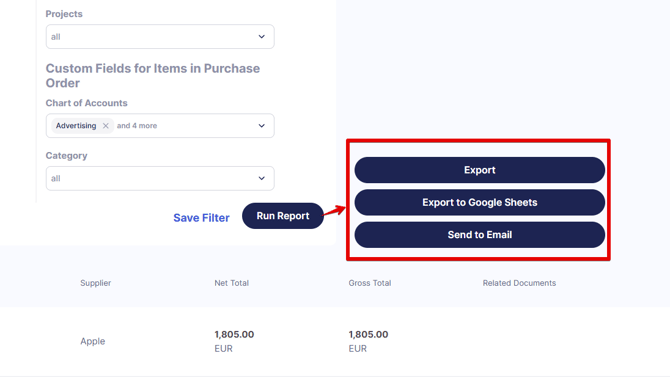
Once you’ve created and run a report, you have several ways to save the result and share it with your coworkers.
[](https://help.precoro.com/hubfs/1-Export%20Options.png?hsLang=en)
1. Press **Export** to save the file to your device. You can then send it via any communication platform you prefer.
2. If you have a Google account connected to Precoro, you can export the report to Google Sheets with private or shared access. Learn how to do so in [this article](https://help.precoro.com/precoro-integration-with-google-sheets-1?hsLang=en#How-to-Export).
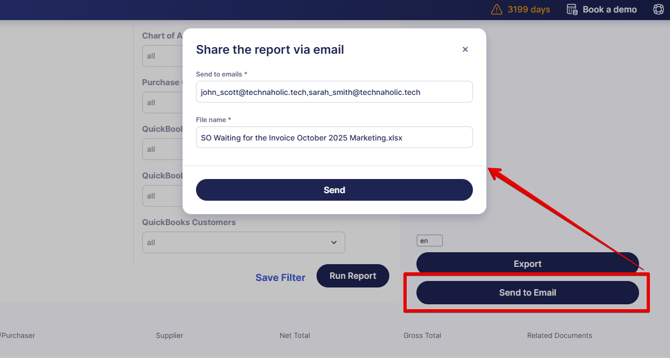
3. You can also send reports directly from Precoro to your colleagues' email addresses. Pressing the **Send to Email** button will open a dialog window where you can:
- Enter the email addresses to which the report will be sent. You can enter several addresses separated by commas.
- Enter the file name that the addressees will see.
- Click the Send button to send the emails.
[](https://help.precoro.com/hubfs/Report%20to%20email.png?hsLang=en)
How to Create and Share a Scheduled Report
You can also save filters for a necessary report, generate it on a set schedule, and have it automatically exported to Google Sheets or sent via email.
You create a scheduled report in a few simple steps:
1. Open the Reports module, select a custom or predefined report, and set all the necessary filters. Once ready, press Save Filter to save the configuration.
2. Once you have filters for a report type, a Saved Filters button becomes available on the report creation page. Click it to access the list of saved filters.
3. Find the necessary filter and click the Schedule Report button. It will open a dialog window where you’ll be able to choose if you want to send the reports via email or Google Sheets, set the frequency, and select the users you want to share the report with.
For **Approval Performance reports**, you can select **All data with no filters by period** in the Filter by field so the schedule isn't limited to a fixed date range.
4. You'll be able to select Google Sheets in the **Send to** field if you have a Google account connected to your Precoro profile. Learn more about this option in [this article](https://help.precoro.com/report-export-to-google-sheets-based-on-schedule?hsLang=en).
On all Precoro domains, reports will be automatically generated at **2:55 UTC.**
The time zone settings in your company do not affect this default setting.
You can also edit any scheduled report and view or adjust the recipients. To do so, find it on the Saved Filters page and click **Edit Scheduled Report**. Make changes in the dialog window and press Save to confirm them.
[](https://help.precoro.com/hubfs/Edit%20Scheduled.png?hsLang=en)
- [Precoro Setup](https://help.precoro.com/precoro-setup?hsLang=en#main-content)
- [Configurations](https://help.precoro.com/precoro-setup?hsLang=en#configurations)
- [User Management](https://help.precoro.com/precoro-setup?hsLang=en#user-management)
- [Custom Fields and Forms](https://help.precoro.com/precoro-setup?hsLang=en#custom-fields-and-forms)
- [Supplier management](https://help.precoro.com/precoro-setup?hsLang=en#supplier-management)
- [Working with Items](https://help.precoro.com/precoro-setup?hsLang=en#working-with-items)
- [Approval Workflow](https://help.precoro.com/precoro-setup?hsLang=en#approval-workflow)
- [Location Management](https://help.precoro.com/precoro-setup?hsLang=en#location-management)
- [Precoro Payments](https://help.precoro.com/precoro-setup?hsLang=en#precoro-payments)
- [Two-factor authentication](https://help.precoro.com/precoro-setup?hsLang=en#two-factor-authentication)
- [Security](https://help.precoro.com/precoro-setup?hsLang=en#security)
- [US Based Server](https://help.precoro.com/precoro-setup?hsLang=en#us-based-server)
- [How to use Precoro](https://help.precoro.com/how-to-use-precoro?hsLang=en#main-content)
- [Warehouse Requests](https://help.precoro.com/how-to-use-precoro?hsLang=en#warehouse-requests)
- [Requests for Proposals](https://help.precoro.com/how-to-use-precoro?hsLang=en#requests-for-proposals)
- [Purchase Requisitions](https://help.precoro.com/how-to-use-precoro?hsLang=en#purchase-requisitions)
- [Purchase Orders](https://help.precoro.com/how-to-use-precoro?hsLang=en#purchase-orders)
- [Service Orders](https://help.precoro.com/how-to-use-precoro?hsLang=en#service-orders)
- [Receipts](https://help.precoro.com/how-to-use-precoro?hsLang=en#receipts)
- [Invoices](https://help.precoro.com/how-to-use-precoro?hsLang=en#invoices)
- [Expenses](https://help.precoro.com/how-to-use-precoro?hsLang=en#expenses)
- [Budgeting](https://help.precoro.com/how-to-use-precoro?hsLang=en#budgeting)
- [Inventory](https://help.precoro.com/how-to-use-precoro?hsLang=en#inventory)
- [Reports](https://help.precoro.com/how-to-use-precoro?hsLang=en#reports)
- [AP Inbox and Intelligent AP Automation](https://help.precoro.com/how-to-use-precoro?hsLang=en#ap-inbox-and-intelligent-ap-automation)
- [Working with documents](https://help.precoro.com/how-to-use-precoro?hsLang=en#working-with-documents)
- [Suppliers Portal](https://help.precoro.com/how-to-use-precoro?hsLang=en#suppliers-portal)
- [Supplier Registration](https://help.precoro.com/how-to-use-precoro?hsLang=en#supplier-registration)
- [Attachments, Filters, and Search](https://help.precoro.com/how-to-use-precoro?hsLang=en#attachments-filters-and-search)
- [Mobile App](https://help.precoro.com/how-to-use-precoro?hsLang=en#mobile-app)
- [FAQs and Troubleshooting](https://help.precoro.com/how-to-use-precoro?hsLang=en#faqs-and-troubleshooting)
- [Precoro Integrations](https://help.precoro.com/precoro-integrations?hsLang=en#main-content)
- [QuickBooks Online Integration](https://help.precoro.com/precoro-integrations?hsLang=en#quickbooks-online-integration)
- [NetSuite Integration](https://help.precoro.com/precoro-integrations?hsLang=en#netsuite-integration)
- [Xero Integration](https://help.precoro.com/precoro-integrations?hsLang=en#xero-integration)
- [API Requests and Webhooks](https://help.precoro.com/precoro-integrations?hsLang=en#api-requests-and-webhooks)
- [SSO Setting](https://help.precoro.com/precoro-integrations?hsLang=en#sso-setting)
- [Google Integration](https://help.precoro.com/precoro-integrations?hsLang=en#google-integration)
- [Power BI](https://help.precoro.com/precoro-integrations?hsLang=en#power-bi)
- [Integration with Slack](https://help.precoro.com/precoro-integrations?hsLang=en#integration-with-slack)
- [PunchOut Catalogs](https://help.precoro.com/precoro-integrations?hsLang=en#punchout-catalogs)
- [Integrations via Connectors](https://help.precoro.com/precoro-integrations?hsLang=en#integrations-via-connectors)
- [Bill.com Integration](https://help.precoro.com/precoro-integrations?hsLang=en#bill-com-integration)
- [Integration with Microsoft Teams](https://help.precoro.com/precoro-integrations?hsLang=en#integration-with-microsoft-teams)
- [Precoro Updates](https://help.precoro.com/precoro-updates?hsLang=en#main-content)
- [Releases, 2026](https://help.precoro.com/precoro-updates?hsLang=en#releases-2026)
- [Releases, 2025](https://help.precoro.com/precoro-updates?hsLang=en#releases-2025)
- [Releases, 2024](https://help.precoro.com/precoro-updates?hsLang=en#releases-2024)
- [Releases, 2023](https://help.precoro.com/precoro-updates?hsLang=en#releases-2023)
- [API Updates](https://help.precoro.com/precoro-updates?hsLang=en#api-updates)
- [General changes](https://help.precoro.com/precoro-updates?hsLang=en#general-changes)
[](https://precoro.com/)
Copyright © 2026, Precoro
```json
{
"@context" : "https://schema.org",
"@type" : "VideoObject",
"contentUrl" : "https://1903299.fs1.hubspotusercontent-na1.net/hubfs/1903299/Scheduled%20report%20to%20email.mp4",
"dateModified" : "2025-12-17T14:48:48.109Z",
"duration" : "PT1M7S",
"height" : 1080,
"name" : "Scheduled report to email",
"thumbnailUrl" : "https://1903299.fs1.hubspotusercontent-na1.net/hubfs/1903299/Scheduled%20report%20to%20email.mp4/medium.jpg",
"uploadDate" : "2025-12-17T14:48:11.287Z",
"width" : 2520
}
```