---
title: How to Create Purchase Orders from Requisitions
description: Сreate Purchase Orders from the requisition documents such as Purchase Requisitions and Requests for Proposals.
---
[Skip to content](https://help.precoro.com/how-to-create-a-purchase-order-from-requisitions#main-content)
[Contact us](https://help.precoro.com/kb-tickets/new?hsLang=en) [Customer portal](https://help.precoro.com/tickets-view?hsLang=en)
[](https://app.precoro.com/login)
Open main navigation
Close main navigation
- [Contact us](https://help.precoro.com/kb-tickets/new)
- [Customer portal](https://help.precoro.com/tickets-view)
- [Contact Us](https://share.hsforms.com/1-5JilMA_Qv6AOSVjFtNhDg14slf)
[Contact Us](https://share.hsforms.com/1-5JilMA_Qv6AOSVjFtNhDg14slf)
Hi there! How can we help you today?
- There are no suggestions because the search field is empty.
1. [Knowledge Base](https://help.precoro.com/?hsLang=en)
2. [How to use Precoro](https://help.precoro.com/how-to-use-precoro?hsLang=en)
3. [Purchase Orders](https://help.precoro.com/how-to-use-precoro?hsLang=en#purchase-orders)
# How to Create Purchase Orders from Requisitions
## Learn how to create purchase orders from purchase requisitions and requests for proposals to reduce costs and time spent ordering.
#### TABLE OF CONTENTS
- [Ways and Reasons to Create POs with Related Documents](https://help.precoro.com/how-to-create-a-purchase-order-from-requisitions#Ways-and-Reasons)
- [1. Automatically](https://help.precoro.com/how-to-create-a-purchase-order-from-requisitions#Automatically)
- [2. From the Purchase Order Module](https://help.precoro.com/how-to-create-a-purchase-order-from-requisitions#From-PO-Module)
- [3. Directly from Any Purchase Requisition](https://help.precoro.com/how-to-create-a-purchase-order-from-requisitions#From-Any-PR)
- [4. From a Completed Request for Proposal](https://help.precoro.com/how-to-create-a-purchase-order-from-requisitions#completed-rfp)
- [How to Create a PO from PRs and RFPs in the PO Module](https://help.precoro.com/how-to-create-a-purchase-order-from-requisitions#Create-PO-in-PO-Module)
- [Step 1: Select a Supplier You Want to Order From](https://help.precoro.com/how-to-create-a-purchase-order-from-requisitions#step-1)
- [Step 2: Select Items to Include](https://help.precoro.com/how-to-create-a-purchase-order-from-requisitions#step-2)
- [Step 3: Fill Out the Order Details](https://help.precoro.com/how-to-create-a-purchase-order-from-requisitions#step-3)
- [Step 4: Review and Confirm the Document](https://help.precoro.com/how-to-create-a-purchase-order-from-requisitions#step-4)
- [Can’t Find a Feature? Suggest It in Our Roadmap](https://help.precoro.com/how-to-create-a-purchase-order-from-requisitions#opr)
- [Frequently Asked Questions](https://help.precoro.com/how-to-create-a-purchase-order-from-requisitions#FAQ)
### Ways and Reasons to Create POs with Related Documents
Purchase orders can be created separately (following [this guide](https://help.precoro.com/how-to-create-a-purchase-order?hsLang=en)) or based on requisition documents—purchase requisitions and requests for proposals. Creating POs from existing PRs and RFPs allows you to order items other employees requested and keep track of what still needs to be ordered.
There are different ways to create POs from related documents. Here’s a brief overview of their benefits and where to find them.
#### 1. Automatically
To have a PO created for every newly approved PR, follow [this article](https://help.precoro.com/automatic-purchase-order-creation-from-purchase-requisition?hsLang=en) and set up an automated process.
It will make your workflow one step shorter and help you save time creating orders. Note that it only works for PRs that have specified suppliers.
#### 2. From the Purchase Order Module
Since PO requisitions are requests created by multiple people independently, different PRs can contain items from one supplier and duplicated items.
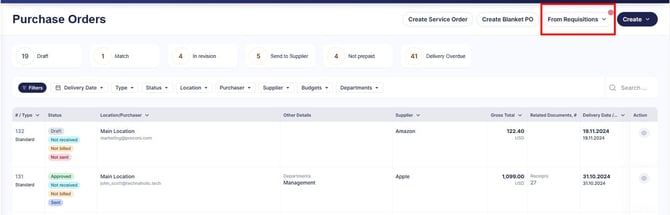
After clicking **From Requisition** in the **Purchase Orders** module, you will be directed to a page showing all the requisitions related to one supplier.
This allows you to create bulk orders, get discounts, and have items delivered quickly and conveniently.
The [next section](https://help.precoro.com/how-to-create-a-purchase-order-from-requisitions#Create-PO-in-PO-Module) of this article will guide you through this process.
[](https://help.precoro.com/hubfs/PO%20module.jpg?hsLang=en)
#### 3. Directly From Any Purchase Requisition
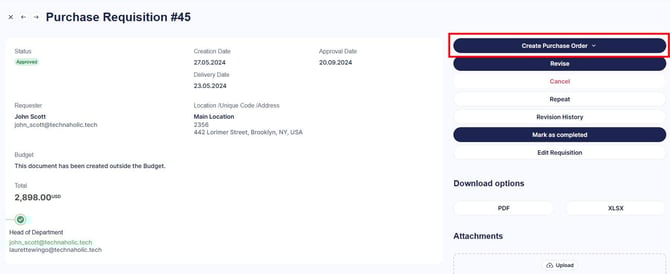
If you need to create a separate PO from a specific PR, you can do so by opening the PR and clicking **Create Purchase Order** on the action panel on the right. It can help when the items have to be delivered at a specific date, tracked separately, or have particular Custom Fields values.
[](https://help.precoro.com/hubfs/PO%20from%20singular%20PR.jpg?hsLang=en)
If the items are requested from several suppliers, you will need a separate PO for each supplier. Click **+** in the Action column on the right to start creating a PO for a supplier. Then, select all the items from this PR to add to the PO. This step is not required if the items are requested from one supplier.
Then, you will be asked to fill in the order details. The process is described in the next section starting from [Step 3.](https://help.precoro.com/how-to-create-a-purchase-order-from-requisitions#step-3)
If you prefer video format, follow [this link](https://help.precoro.com/video-tutorials-purchase-order#from-scrach)to watch a tutorial on creating a PO from scratch.
#### 4. From a Completed Request for Proposal
Once your request for proposal is completed and you've picked a winning supplier, create a PO directly from it by opening the RFP and clicking **Create Purchase Order**. Item details, quantities, and pricing carry over automatically, so there's nothing to re-enter. See more details in [this article.](https://help.precoro.com/how-to-create-a-request-for-proposal-from-purchase-requests#complete)
### How to Create a PO from PRs and RFPs in the PO Module
Here, you can create purchase orders based on several types of documents:
- purchase requisitions;
- purchase requisitions with related requests for proposals;
- requests for proposals.
If different PRs and RFPs contain items from one supplier, you can add them to a singular order. Let’s review the PO creation process step by step.
#### Step 1: Select a Supplier You Want to Order From
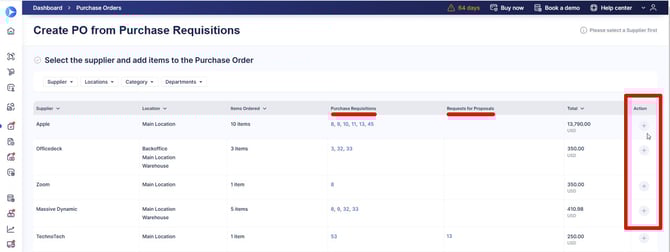
1. Open the **Purchase Order** module in the left-side menu and click the **From Requisitions** button in the top right. You will be directed to the list of suppliers with purchase requisitions and requests for proposals allocated to them.
2. Click **+** in the **Action** column on the right to start creating a PO for a supplier.
[](https://help.precoro.com/hubfs/Supplier%20list.jpg?hsLang=en)
#### Step 2: Select Items to Include
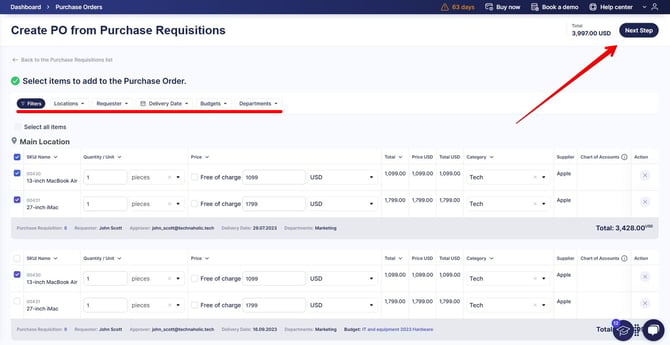
1. You will be directed to a page showing all items requested from this supplier; choose the ones you want to add to the PO. You can use filters to navigate the list.
2. Once all the items are selected, click **Next Step**.
[](https://help.precoro.com/hubfs/Item%20selection%20for%20PO.jpg?hsLang=en)
If there are identical items in different PRs, they will be consolidated into one item with the required quantity in the PO. If you need to separate items, enable **Allow Adding Duplicated Items in Documents** in Configuration — Basic Settings — Document Setup — Item Management.
#### Step 3: Fill Out the Order Details
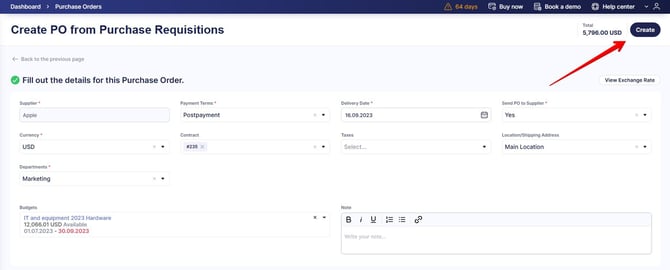
1. You will be prompted to fill out the details for this order, including Location, Delivery Date, Contract, Budget, and necessary Custom Fields.
When possible, the data will be added automatically based on the requisition documents to save time. The Delivery Date will be filled based on the information in the PO requests. If the PO has a related RFP, the Delivery Date is added based on the RFP’s due date.
You can adjust the auto-filled parameters if necessary.
2. The order currency is usually the main currency established in your company. Possible exceptions:
1. If item prices in the related requisitions are all in the same currency (which is not your company's main currency), the PO will also be in this currency.
2. If PR item prices have different currencies, and the supplier does not support your main currency, the first supplier's currency will be used.
3. Once you have entered all the data, click **Create**.
[](https://help.precoro.com/hubfs/Order%20details.jpg?hsLang=en)
#### Step 4: Review and Confirm the Document
1. You will see a created PO with the **Draft** status. Check if all the details and items are correct and make changes if necessary.
2. You can add Notes (visible to the supplier), Comments (visible within the company), Internal and External Attachments. If you need additional information about this step, refer to the Purchase Order creation [guide](https://help.precoro.com/how-to-create-a-purchase-order?hsLang=en#Notes-and-comments).
3. Optionally, you can click **Show Requests** to see the purchase requisition and request for proposal documents related to the PO.
4. When everything is correct, click **Confirm**.
If your company has an Approval Workflow set up, the Purchase Order will be sent for approval. After that, it will be possible to send it to the supplier from the action panel in the PO.
### Can’t Find a Feature? Suggest It in Our Roadmap
If you know a feature that would make working with Precoro easier, it may be in development or waiting to be requested. To see what's in store, please check out our [Open Product Roadmap](https://roadmap.precoro.com/roadmap).
There, you can:
- See what’s planned and in progress
- Upvote ideas that matter to you
- Leave comments to share your use case
- Subscribe to announcements and follow relevant ideas
- Submit new feature requests
To get started:
1. Review existing ideas and upvote the ones that you find helpful.
2. Log in or sign up using your business email to access full functionality.
3. Submit new ideas and share insights with your peers in the comments.
Every suggestion counts—your feedback shapes what we build next. Refer to [this article](https://help.precoro.com/how-to-request-a-new-feature-or-share-feedback?hsLang=en) for more details on working with the product plan.
### Frequently Asked Questions
**How does the person who requested items know they have been ordered?**
The person who initiated the requisition for the purchase order receives an email notification. Additionally, when they check the [Purchase Requisitions](https://app.precoro.com/purchase/requisition) page, they will see all their PRs with related POs and RFPs (Related Documents, # column) as well as PO delivery dates (Purchase Order Delivery Date column).
**Can I edit Items in POs from requisitions?**
While the PO has a Draft or In Revision status, you can make changes to the items included in the order:
- Add new items manually or from the Catalog.
- Change item quantities and details by clicking the Edit icon in the item row. For regular items, if the quantity added to the PO is lower than requested, Waiting in the PR shows the quantity that still needs to be ordered. For Shipping items, Quantity is fixed at 1, and Waiting shows the remaining shipping amount instead.
- Remove items from the order or reject them if you do not expect them to be delivered. The prompt to choose between the two actions will appear after you press the **Remove** (red bin) button.
- Define whether each item should be included in receipts using the **Can Be Received** toggle. It controls which items are required for the **Received** status. Read how to set up item-level receiving rules [here](https://help.precoro.com/how-to-create-a-purchase-order?hsLang=en#Add-items:~:text=Set%20Precise%20Rules%20for%20Receiving%20Items).
**Can I create POs from PRs without a specified supplier?**
If a PO requisition does not have a supplier, you will need to choose one. Follow [this link](https://help.precoro.com/how-to-create-a-purchase-order-from-a-purchase-request?hsLang=en) for a detailed guide.
- [Precoro Setup](https://help.precoro.com/precoro-setup?hsLang=en#main-content)
- [Configurations](https://help.precoro.com/precoro-setup?hsLang=en#configurations)
- [User Management](https://help.precoro.com/precoro-setup?hsLang=en#user-management)
- [Custom Fields and Forms](https://help.precoro.com/precoro-setup?hsLang=en#custom-fields-and-forms)
- [Supplier management](https://help.precoro.com/precoro-setup?hsLang=en#supplier-management)
- [Working with Items](https://help.precoro.com/precoro-setup?hsLang=en#working-with-items)
- [Approval Workflow](https://help.precoro.com/precoro-setup?hsLang=en#approval-workflow)
- [Location Management](https://help.precoro.com/precoro-setup?hsLang=en#location-management)
- [Precoro Payments](https://help.precoro.com/precoro-setup?hsLang=en#precoro-payments)
- [Two-factor authentication](https://help.precoro.com/precoro-setup?hsLang=en#two-factor-authentication)
- [Security](https://help.precoro.com/precoro-setup?hsLang=en#security)
- [US Based Server](https://help.precoro.com/precoro-setup?hsLang=en#us-based-server)
- [How to use Precoro](https://help.precoro.com/how-to-use-precoro?hsLang=en#main-content)
- [Warehouse Requests](https://help.precoro.com/how-to-use-precoro?hsLang=en#warehouse-requests)
- [Requests for Proposals](https://help.precoro.com/how-to-use-precoro?hsLang=en#requests-for-proposals)
- [Purchase Requisitions](https://help.precoro.com/how-to-use-precoro?hsLang=en#purchase-requisitions)
- [Purchase Orders](https://help.precoro.com/how-to-use-precoro?hsLang=en#purchase-orders)
- [Service Orders](https://help.precoro.com/how-to-use-precoro?hsLang=en#service-orders)
- [Receipts](https://help.precoro.com/how-to-use-precoro?hsLang=en#receipts)
- [Invoices](https://help.precoro.com/how-to-use-precoro?hsLang=en#invoices)
- [Expenses](https://help.precoro.com/how-to-use-precoro?hsLang=en#expenses)
- [Budgeting](https://help.precoro.com/how-to-use-precoro?hsLang=en#budgeting)
- [Inventory](https://help.precoro.com/how-to-use-precoro?hsLang=en#inventory)
- [Reports](https://help.precoro.com/how-to-use-precoro?hsLang=en#reports)
- [AP Inbox and Intelligent AP Automation](https://help.precoro.com/how-to-use-precoro?hsLang=en#ap-inbox-and-intelligent-ap-automation)
- [Working with documents](https://help.precoro.com/how-to-use-precoro?hsLang=en#working-with-documents)
- [Suppliers Portal](https://help.precoro.com/how-to-use-precoro?hsLang=en#suppliers-portal)
- [Supplier Registration](https://help.precoro.com/how-to-use-precoro?hsLang=en#supplier-registration)
- [Attachments, Filters, and Search](https://help.precoro.com/how-to-use-precoro?hsLang=en#attachments-filters-and-search)
- [Mobile App](https://help.precoro.com/how-to-use-precoro?hsLang=en#mobile-app)
- [FAQs and Troubleshooting](https://help.precoro.com/how-to-use-precoro?hsLang=en#faqs-and-troubleshooting)
- [Precoro Integrations](https://help.precoro.com/precoro-integrations?hsLang=en#main-content)
- [QuickBooks Online Integration](https://help.precoro.com/precoro-integrations?hsLang=en#quickbooks-online-integration)
- [NetSuite Integration](https://help.precoro.com/precoro-integrations?hsLang=en#netsuite-integration)
- [Xero Integration](https://help.precoro.com/precoro-integrations?hsLang=en#xero-integration)
- [API Requests and Webhooks](https://help.precoro.com/precoro-integrations?hsLang=en#api-requests-and-webhooks)
- [SSO Setting](https://help.precoro.com/precoro-integrations?hsLang=en#sso-setting)
- [Google Integration](https://help.precoro.com/precoro-integrations?hsLang=en#google-integration)
- [Power BI](https://help.precoro.com/precoro-integrations?hsLang=en#power-bi)
- [Integration with Slack](https://help.precoro.com/precoro-integrations?hsLang=en#integration-with-slack)
- [PunchOut Catalogs](https://help.precoro.com/precoro-integrations?hsLang=en#punchout-catalogs)
- [Integrations via Connectors](https://help.precoro.com/precoro-integrations?hsLang=en#integrations-via-connectors)
- [Bill.com Integration](https://help.precoro.com/precoro-integrations?hsLang=en#bill-com-integration)
- [Integration with Microsoft Teams](https://help.precoro.com/precoro-integrations?hsLang=en#integration-with-microsoft-teams)
- [Precoro Updates](https://help.precoro.com/precoro-updates?hsLang=en#main-content)
- [Releases, 2026](https://help.precoro.com/precoro-updates?hsLang=en#releases-2026)
- [Releases, 2025](https://help.precoro.com/precoro-updates?hsLang=en#releases-2025)
- [Releases, 2024](https://help.precoro.com/precoro-updates?hsLang=en#releases-2024)
- [Releases, 2023](https://help.precoro.com/precoro-updates?hsLang=en#releases-2023)
- [API Updates](https://help.precoro.com/precoro-updates?hsLang=en#api-updates)
- [General changes](https://help.precoro.com/precoro-updates?hsLang=en#general-changes)
[](https://precoro.com/)
Copyright © 2026, Precoro
```json
{
"@context" : "https://schema.org",
"@type" : "VideoObject",
"contentUrl" : "https://1903299.fs1.hubspotusercontent-na1.net/hubfs/1903299/PO%20confirmation.mp4",
"dateModified" : "2024-11-28T19:05:40.713Z",
"duration" : "PT29S",
"height" : 1080,
"name" : "A video showcasing a PO review and confirmation stage",
"thumbnailUrl" : "https://1903299.fs1.hubspotusercontent-na1.net/hubfs/1903299/PO%20confirmation.mp4/medium.jpg",
"uploadDate" : "2024-11-28T19:04:43.530Z",
"width" : 2520
}
```