---
title: Exporting Approved Invoices to Xero
description: "In Precoro, you can choose the documents and data you wish to send or import from Xero. Here are a few helpful articles for you: 1. Set Up the Xero Integration. 2. Learn more about data synchronizatio"
---
[Skip to content](https://help.precoro.com/exporting-approved-invoices-to-xero#main-content)
[Contact us](https://help.precoro.com/kb-tickets/new?hsLang=en) [Customer portal](https://help.precoro.com/tickets-view?hsLang=en)
[](https://app.precoro.com/login)
Open main navigation
Close main navigation
- [Contact us](https://help.precoro.com/kb-tickets/new)
- [Customer portal](https://help.precoro.com/tickets-view)
- [Contact Us](https://share.hsforms.com/1-5JilMA_Qv6AOSVjFtNhDg14slf)
[Contact Us](https://share.hsforms.com/1-5JilMA_Qv6AOSVjFtNhDg14slf)
Hi there! How can we help you today?
- There are no suggestions because the search field is empty.
1. [Knowledge Base](https://help.precoro.com/?hsLang=en)
2. [Precoro Integrations](https://help.precoro.com/precoro-integrations?hsLang=en)
3. [Xero Integration](https://help.precoro.com/precoro-integrations?hsLang=en#xero-integration)
# Exporting Approved Invoices to Xero
## Learn how to send the invoices approved in Precoro to Xero.
#### TABLE OF CONTENTS
- [How to Send Approved Invoices and Credit Notes to Xero](https://help.precoro.com/exporting-approved-invoices-to-xero#select-the-invoice-doc-)
- [How the Invoice Is Sent to Xero](https://help.precoro.com/exporting-approved-invoices-to-xero#how-the-invoice-sent)
- [What Data Is Sent](https://help.precoro.com/exporting-approved-invoices-to-xero#whatdatasent)
- [How to Find the Invoices Not Sent to Xero](https://help.precoro.com/exporting-approved-invoices-to-xero#how-to-find-inv-not-sent)
- [Editing or Revising the Invoice](https://help.precoro.com/exporting-approved-invoices-to-xero#editing-or-revising)
- [Invoice Cancellation](https://help.precoro.com/exporting-approved-invoices-to-xero#invoice-cancellation)
In Precoro, you can choose the documents and data you wish to send or import from Xero. Here are a few helpful articles for you:
1\. [Set Up the Xero Integration](https://precoro-com-ua-1903299.hs-sites.com/knowledge/getting-started-with-xero-1?hsLang=en).
2\. Learn more about [data synchronization between the two systems](https://precoro-com-ua-1903299.hs-sites.com/knowledge/data-synchronization-between-xero-and-precoro?hsLang=en).
3\. [Export the Purchase Order](https://precoro-com-ua-1903299.hs-sites.com/knowledge/exporting-approved-purchase-orders-to-xero-2?hsLang=en) type of document.
### How to Send Approved Invoices and Credit Notes to Xero
To send an **Approved Invoice** to Xero, open the [**Integrations**](https://app.precoro.com/xero/configuration) page in Precoro and select the corresponding type in the **Documents to Send** field. Then, choose the preferred **Xero Document Status** from the available options: **Approved**, **Awaiting Approval**, or **Draft**. The invoice will be sent to Xero with the selected status.
You can also send **Credit Notes** to Xero. To enable this:
1. Make sure **Approved Invoices** is selected in the **Documents to Send** field.
2. Check the **Send Credit Notes** option.
3. Click **Save** to apply the changes.
[](https://help.precoro.com/hubfs/Xero%20CN.png?hsLang=en)
Once this setting is enabled, **Approved**, **Paid**, or **Partly Paid** Credit Notes will be automatically sent to Xero. Credit notes without invoices (standalone) are also integrated.
When viewing a document, you will see integration logs stating if the credit note was created in Xero. If not, the logs will explain the reason, and the document will have the **Not sent to Xero** status. Once you resolve the issue, you can manually send the document using the **Send to Xero** button in the action panel.
[](https://help.precoro.com/hubfs/Send%20Xero%20CN.png?hsLang=en)
### How the Invoice Is Sent to Xero
Once the Invoice document has received the status **Approved** in Precoro, it is automatically sent to [Xero](https://go.xero.com/AccountsPayable/Search.aspx).
In Xero, the document will receive the status you have set on the [Integrations](https://app.precoro.com/xero/configuration) page in the **Xero Document Status** field. Standalone credit notes by default have the Awaiting Payment status.
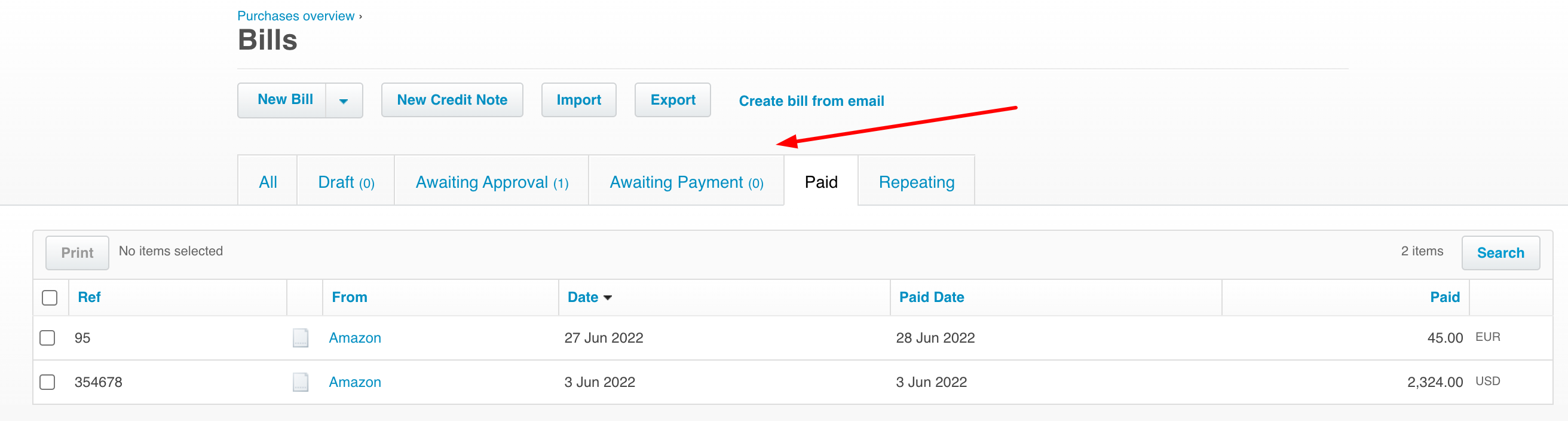
The invoice document in Xero can have the following statuses:
- **Draft** — available only if you start creating an invoice via Xero.
- **Awaiting Approval** — all approved invoices in Precoro will have this status in Xero.
- **Awaiting Payment** — an invoice gets this status in Xero after a person in charge approves it.
- **Paid** — assigned after an invoice was received and paid.
- **Repeating** — in case you wish to schedule a repeated payment.
- **Voided** — an invoice canceled after approval gets this status.
### What Data Is Sent
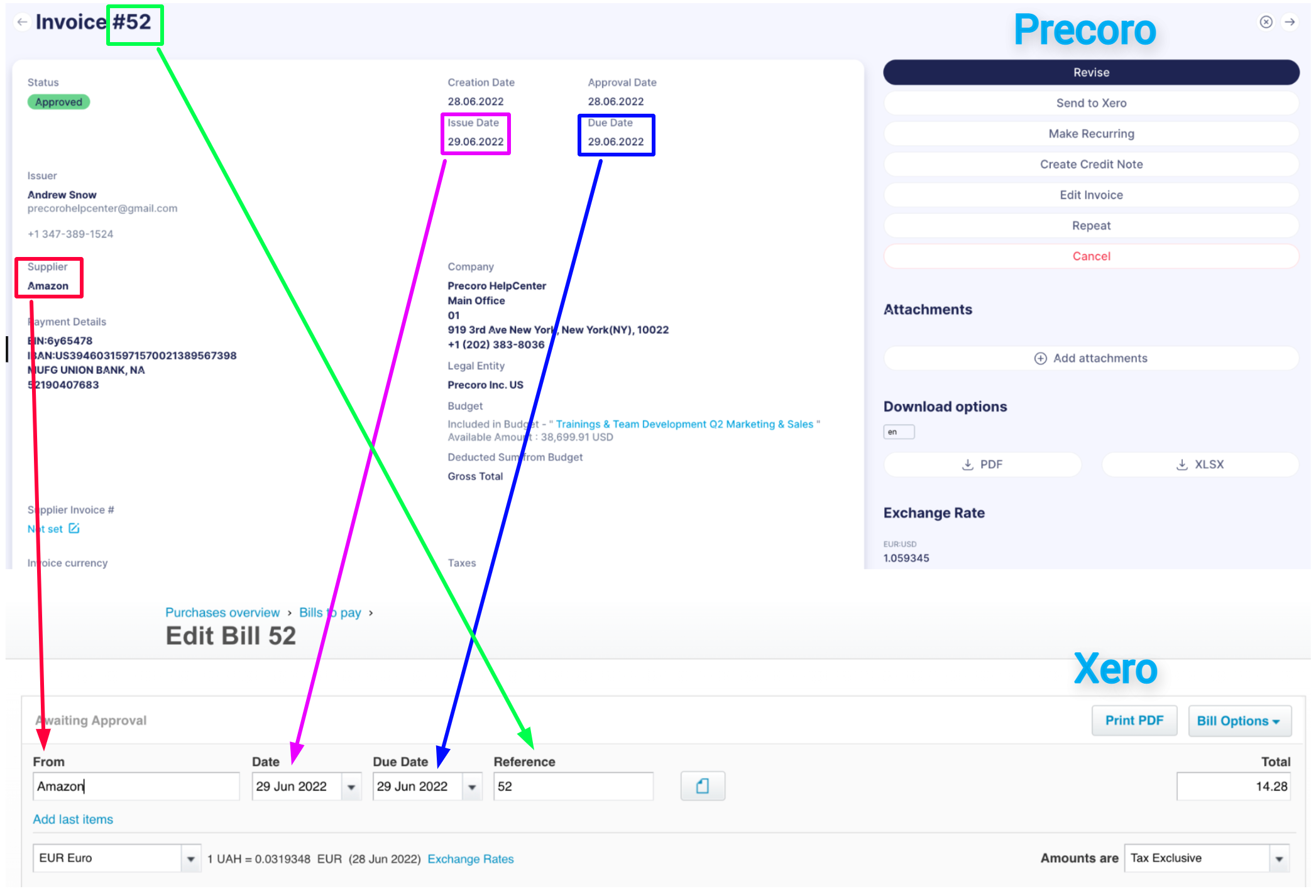
- General Invoice information
| **Precoro System** | **Xero System** |
| --- | --- |
| Invoice # | Reference |
| Supplier | From |
| Issue Date | Date |
| Due Date | Due Date |
| Invoice currency | Currency name |
[](https://help.precoro.com/hubfs/Knowledge%20Base%20Import/s3.amazonaws.comcdn.freshdesk.comdatahelpdeskattachmentsproduction35168365694originalEOpKhTTY4G4wmhu1yF_ymOAw7ShxnYoiqw.png?hsLang=en)
- Notes and Attachments
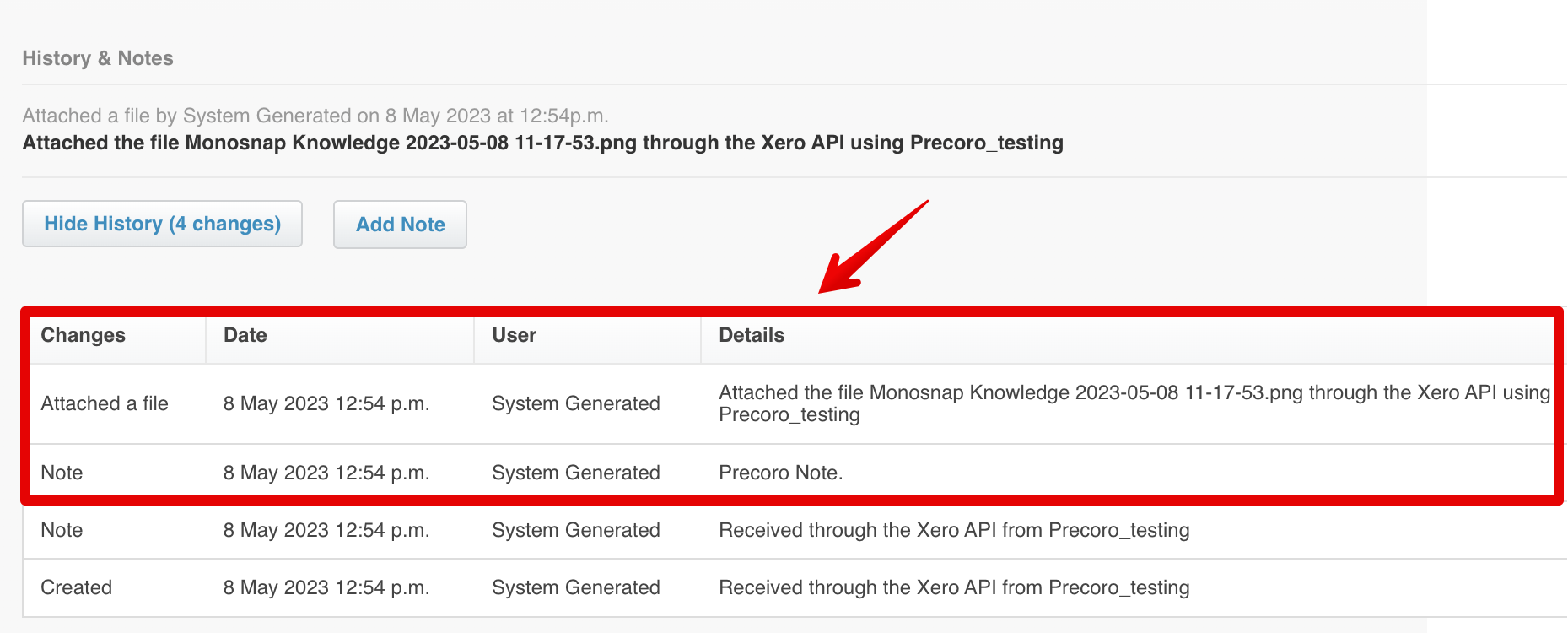
All this information will be available in Xero in the **History & Notes** section.
The Notes and information on the Attached files from Precoro will be displayed in the **Details** field. Also, you will see additional information such as the **Date** once it is uploaded and the **User**, which will be System Generated by default if the information was imported from Precoro.
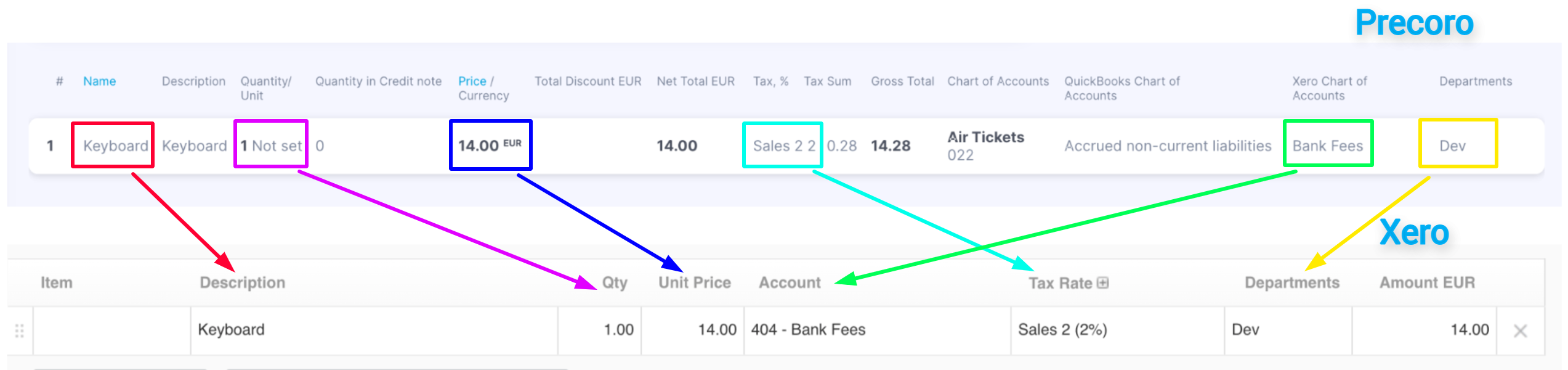
- Items
| Precoro System | Xero System |
| --- | --- |
| Name | Description |
| Quantity/Unit | Qty |
| Price | Unit price |
| Tax,% | Tax rate |
| Departments | Departments |
| Xero Chart of Accounts | Account |
[](https://help.precoro.com/hubfs/Knowledge%20Base%20Import/s3.amazonaws.comcdn.freshdesk.comdatahelpdeskattachmentsproduction35168367517original-qIAVwKhKMh4LO5wM_94vUhSSjmOML45kg.png?hsLang=en)
Please note that **you should use the same Rounding Settings in both systems**. In Xero, the Rounding is set to two digits after the comma by default.
Consider reading [this article](https://precoro-com-ua-1903299.hs-sites.com/knowledge/currency-exchange-rates-and-rounding-settings?hsLang=en) to learn more about Rounding Settings in Precoro.
### How to Find the Not Sent to Xero Invoices
To view all invoices and credit notes that haven't been sent to Xero, find the “**Sent to Xero**” filter and set the value to **No**. You will see the complete list of documents regardless of their other statuses.
To view all documents you can still send, use the “**Not Sent to Xero**” infocard. It filters only invoices that were not exported due to a possible error and have the **Approved** status.
To make sure that all documents are up-to-date in Xero, you need to:
1\. Filter the Invoices using an infocard.
2\. Determine the cause of an error in the **Integrations logs**.
3\. Correct the error. Find more information on how to fix different errors [here](https://precoro-com-ua-1903299.hs-sites.com/knowledge/xero-troubleshooting-1?hsLang=en).
4\. Resend the Invoice to Xero.
### Editing or Revising the Invoice
The changes you make in Precoro can only be applied to those Invoices that have not yet been approved and have the **Awaiting approval** status.
If you make changes and send them to the already approved Xero document, they will not be imported.
You can **Edit** or **Revise** an Invoice in Precoro using the standard system logic. To send the made changes to Xero, please use the corresponding button:
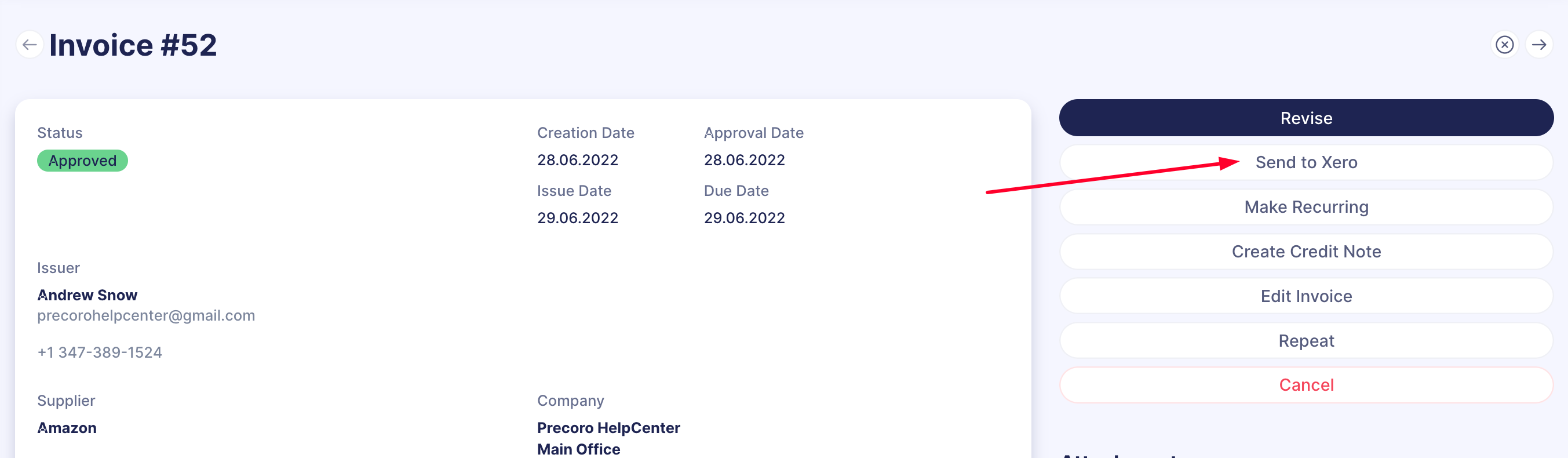
Find more information on how to work with Invoices in Precoro [here](https://help.precoro.com/how-to-create-an-invoice-1#Track).
### Invoice Cancellation
To cancel an Invoice in both systems, go to Precoro and **Cancel** the selected document there.
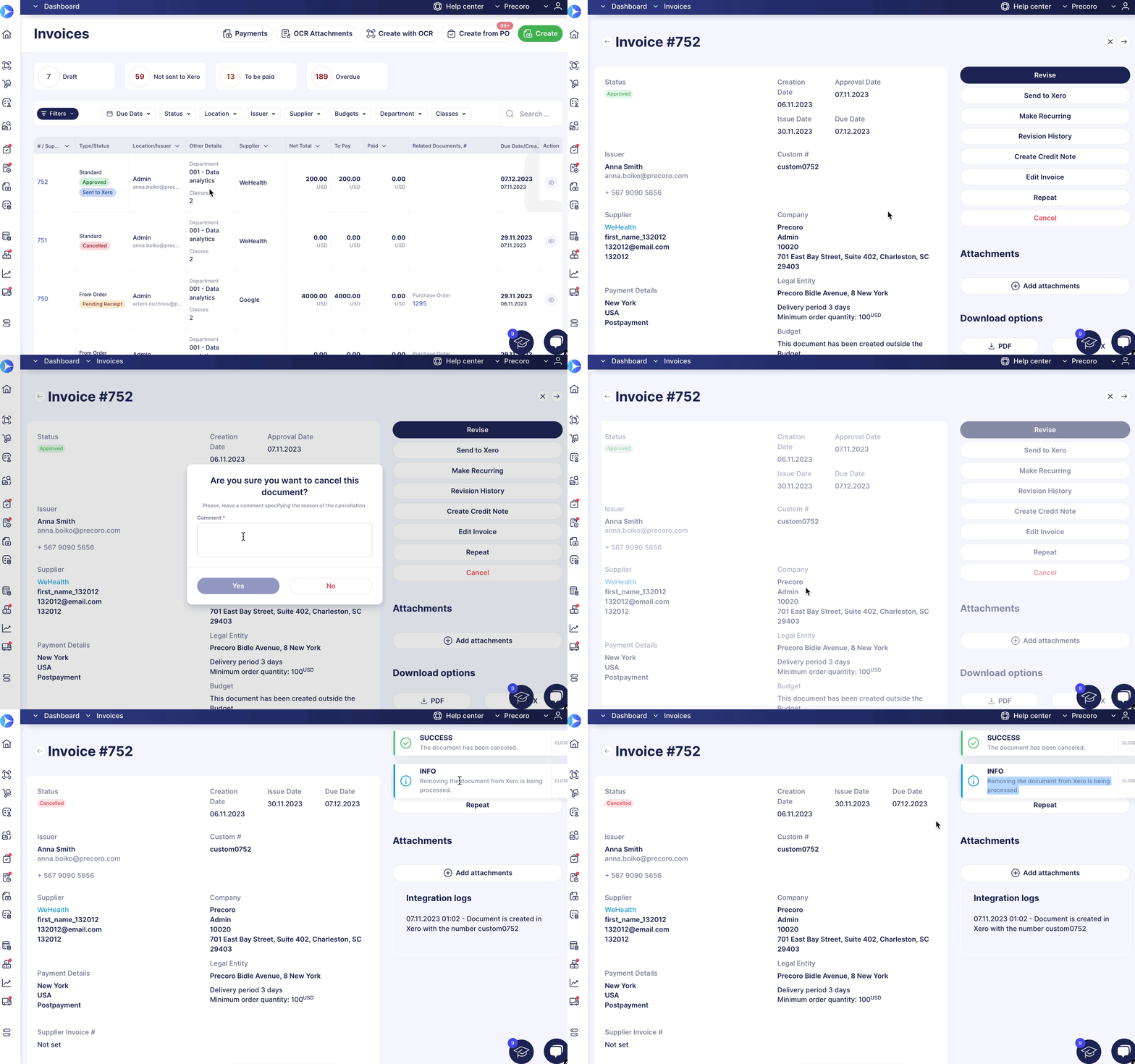
Documents in **Draft** or **Awaiting Approval** status will be deleted upon cancellation. However, if your document was approved in Xero, it will gain **Voided** status when canceled in Precoro.
- [Precoro Setup](https://help.precoro.com/precoro-setup?hsLang=en#main-content)
- [Configurations](https://help.precoro.com/precoro-setup?hsLang=en#configurations)
- [User Management](https://help.precoro.com/precoro-setup?hsLang=en#user-management)
- [Custom Fields and Forms](https://help.precoro.com/precoro-setup?hsLang=en#custom-fields-and-forms)
- [Supplier management](https://help.precoro.com/precoro-setup?hsLang=en#supplier-management)
- [Working with Items](https://help.precoro.com/precoro-setup?hsLang=en#working-with-items)
- [Approval Workflow](https://help.precoro.com/precoro-setup?hsLang=en#approval-workflow)
- [Location Management](https://help.precoro.com/precoro-setup?hsLang=en#location-management)
- [Precoro Payments](https://help.precoro.com/precoro-setup?hsLang=en#precoro-payments)
- [Two-factor authentication](https://help.precoro.com/precoro-setup?hsLang=en#two-factor-authentication)
- [Security](https://help.precoro.com/precoro-setup?hsLang=en#security)
- [US Based Server](https://help.precoro.com/precoro-setup?hsLang=en#us-based-server)
- [How to use Precoro](https://help.precoro.com/how-to-use-precoro?hsLang=en#main-content)
- [Warehouse Requests](https://help.precoro.com/how-to-use-precoro?hsLang=en#warehouse-requests)
- [Requests for Proposals](https://help.precoro.com/how-to-use-precoro?hsLang=en#requests-for-proposals)
- [Purchase Requisitions](https://help.precoro.com/how-to-use-precoro?hsLang=en#purchase-requisitions)
- [Purchase Orders](https://help.precoro.com/how-to-use-precoro?hsLang=en#purchase-orders)
- [Service Orders](https://help.precoro.com/how-to-use-precoro?hsLang=en#service-orders)
- [Receipts](https://help.precoro.com/how-to-use-precoro?hsLang=en#receipts)
- [Invoices](https://help.precoro.com/how-to-use-precoro?hsLang=en#invoices)
- [Expenses](https://help.precoro.com/how-to-use-precoro?hsLang=en#expenses)
- [Budgeting](https://help.precoro.com/how-to-use-precoro?hsLang=en#budgeting)
- [Inventory](https://help.precoro.com/how-to-use-precoro?hsLang=en#inventory)
- [Reports](https://help.precoro.com/how-to-use-precoro?hsLang=en#reports)
- [AP Inbox and Intelligent AP Automation](https://help.precoro.com/how-to-use-precoro?hsLang=en#ap-inbox-and-intelligent-ap-automation)
- [Working with documents](https://help.precoro.com/how-to-use-precoro?hsLang=en#working-with-documents)
- [Suppliers Portal](https://help.precoro.com/how-to-use-precoro?hsLang=en#suppliers-portal)
- [Supplier Registration](https://help.precoro.com/how-to-use-precoro?hsLang=en#supplier-registration)
- [Attachments, Filters, and Search](https://help.precoro.com/how-to-use-precoro?hsLang=en#attachments-filters-and-search)
- [Mobile App](https://help.precoro.com/how-to-use-precoro?hsLang=en#mobile-app)
- [FAQs and Troubleshooting](https://help.precoro.com/how-to-use-precoro?hsLang=en#faqs-and-troubleshooting)
- [Precoro Integrations](https://help.precoro.com/precoro-integrations?hsLang=en#main-content)
- [QuickBooks Online Integration](https://help.precoro.com/precoro-integrations?hsLang=en#quickbooks-online-integration)
- [NetSuite Integration](https://help.precoro.com/precoro-integrations?hsLang=en#netsuite-integration)
- [Xero Integration](https://help.precoro.com/precoro-integrations?hsLang=en#xero-integration)
- [API Requests and Webhooks](https://help.precoro.com/precoro-integrations?hsLang=en#api-requests-and-webhooks)
- [SSO Setting](https://help.precoro.com/precoro-integrations?hsLang=en#sso-setting)
- [Google Integration](https://help.precoro.com/precoro-integrations?hsLang=en#google-integration)
- [Power BI](https://help.precoro.com/precoro-integrations?hsLang=en#power-bi)
- [Integration with Slack](https://help.precoro.com/precoro-integrations?hsLang=en#integration-with-slack)
- [PunchOut Catalogs](https://help.precoro.com/precoro-integrations?hsLang=en#punchout-catalogs)
- [Integrations via Connectors](https://help.precoro.com/precoro-integrations?hsLang=en#integrations-via-connectors)
- [BILL Integration](https://help.precoro.com/precoro-integrations?hsLang=en#bill-integration)
- [Integration with Microsoft Teams](https://help.precoro.com/precoro-integrations?hsLang=en#integration-with-microsoft-teams)
- [Precoro Updates](https://help.precoro.com/precoro-updates?hsLang=en#main-content)
- [Releases, 2026](https://help.precoro.com/precoro-updates?hsLang=en#releases-2026)
- [Releases, 2025](https://help.precoro.com/precoro-updates?hsLang=en#releases-2025)
- [Releases, 2024](https://help.precoro.com/precoro-updates?hsLang=en#releases-2024)
- [Releases, 2023](https://help.precoro.com/precoro-updates?hsLang=en#releases-2023)
- [API Updates](https://help.precoro.com/precoro-updates?hsLang=en#api-updates)
- [General changes](https://help.precoro.com/precoro-updates?hsLang=en#general-changes)
[](https://precoro.com/)
Copyright © 2026, Precoro
```json
{
"@context" : "https://schema.org",
"@type" : "VideoObject",
"contentUrl" : "https://1903299.fs1.hubspotusercontent-na1.net/hubfs/1903299/Monosnap%20screencast%202023-11-06%2014-57-39.mp4",
"dateModified" : "2023-11-29T08:49:44.825Z",
"duration" : "PT37S",
"height" : 1336,
"name" : "Monosnap screencast 2023-11-06 14-57-39",
"thumbnailUrl" : "https://1903299.fs1.hubspotusercontent-na1.net/hubfs/1903299/Monosnap%20screencast%202023-11-06%2014-57-39.mp4/medium.jpg",
"uploadDate" : "2023-11-06T13:00:37.424Z",
"width" : 2136
}
```
```json
{
"@context" : "https://schema.org",
"@type" : "VideoObject",
"contentUrl" : "https://1903299.fs1.hubspotusercontent-na1.net/hubfs/1903299/Monosnap%20screencast%202023-11-06%2015-02-48.mp4",
"dateModified" : "2023-11-29T08:49:40.928Z",
"duration" : "PT12S",
"height" : 1336,
"name" : "Monosnap screencast 2023-11-06 15-02-48",
"thumbnailUrl" : "https://1903299.fs1.hubspotusercontent-na1.net/hubfs/1903299/Monosnap%20screencast%202023-11-06%2015-02-48.mp4/medium.jpg",
"uploadDate" : "2023-11-06T13:04:07.690Z",
"width" : 2136
}
```