
TABLE OF CONTENTS
- Discount Item Type Overview
- How to Add a Discount Item to a Document
- How to Add Discount Items to the Catalog
- Main Operational Features of Discount Items
Discount Item Type Overview
The Discount item type allows you to add fixed discount amounts directly to documents. It helps accurately reflect supplier discounts, negotiated savings, or manual price reductions within your purchasing and invoicing workflows.
You can add discount lines to the following document types:
- purchase requisitions,
- purchase orders,
- service orders,
- and invoices.
If an invoice contains a Discount item, it can also be added to a related credit note.
How to Add a Discount Item to a Document
No additional setup is required—the Discount item type is available regardless of whether the Discounts checkbox is enabled or disabled in Basic Settings.
To add a discount to a document:
1. Open a purchase requisition, purchase order, service order, or invoice.
2. Scroll to the item table and click Add Discount.
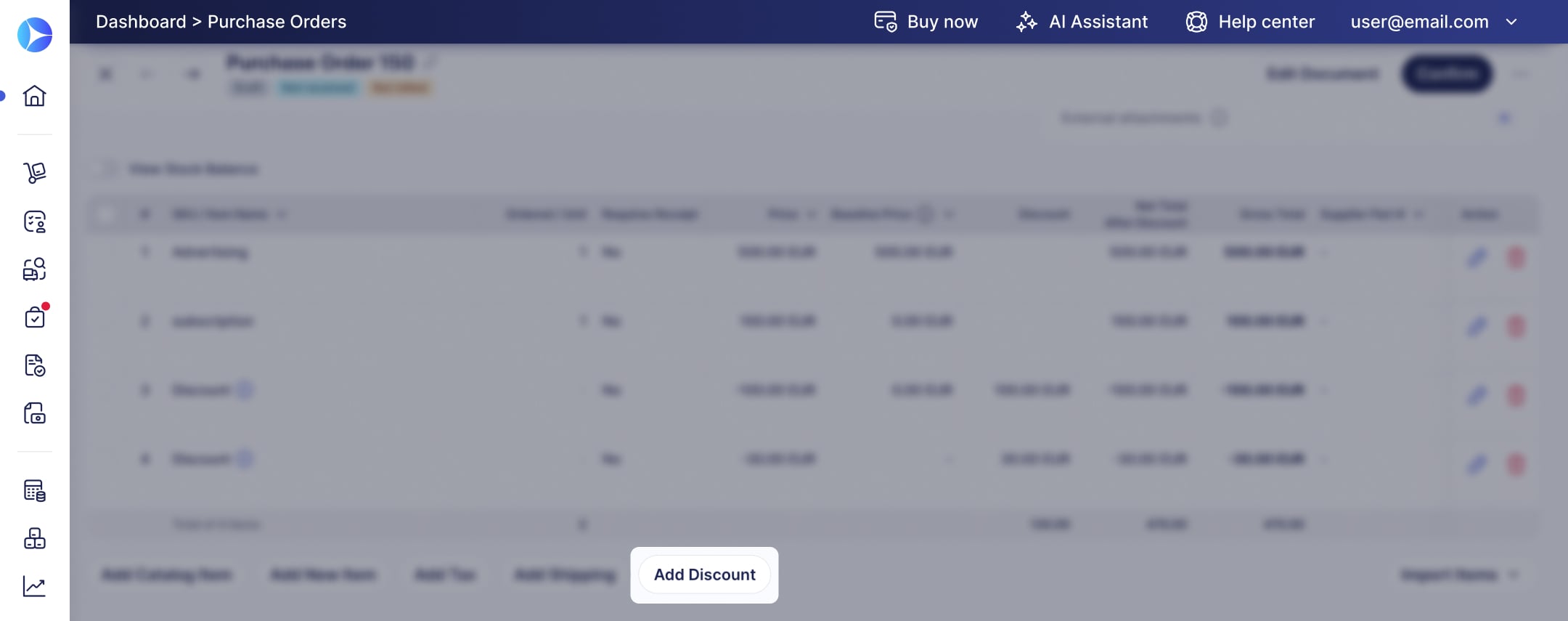
3. Fill in the required fields: Item Name and Price. The Quantity field is fixed at 1 and can't be edited.
4. Optionally, add a Description, SKU, or Custom Fields.
5. Save the line.
You can add multiple discount lines to a single document.
.jpg?hsLang=en)
You cannot edit a discount line after it is added. To make changes, delete the line and add it again.
How to Add Discount Items to the Catalog
You can save discount items to the catalog for reuse across documents.
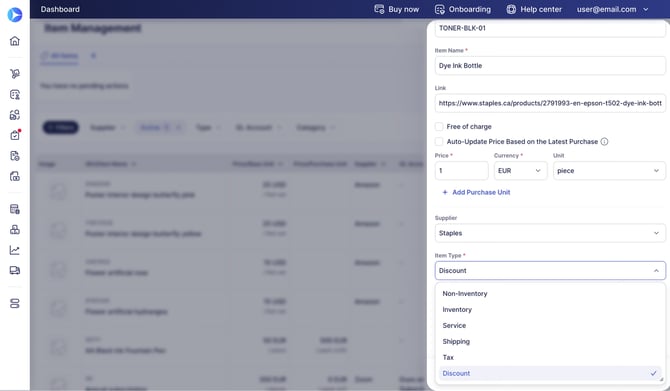
- Go to Item Management → Item Management.
- Click Add Item and enter the required information.
- In the Item Type field, select Discount.
- Click Save to apply the changes.
Main Operational Features of Discount Items
Display:
- Discount lines are marked with a discount icon in the item table.
- Price and Total values are displayed with a minus sign.
- The document totals block includes a Total Discount field, which combines item-level discounts, document-level discounts, and discount lines, giving you a complete view of all discounts applied to the document.
- Discount lines are visible in exported PDF and XLSX files, with Price and Total shown as negative values. The discount amount also appears as a separate field in the totals block of the export.
Receiving:
- Discount items don't require receiving and are automatically excluded from the list of items to receive when you create a receipt for a PO.
Matching process:
- Discount items don't trigger the matching process, even if the invoice total differs from the PO amount.
Invoicing:
-
Invoiced and waiting amounts on a discount line are tracked and displayed by dollar amount, not by quantity.